
Neck pain is one of the most common complaints among desk workers, remote employees, and anyone who spends hours in front of a screen. While many factors contribute—posture, chair support, screen brightness—one often overlooked element is how your monitor is positioned. Specifically, whether you use a monitor arm or a traditional monitor stand can significantly influence neck strain over time.
The difference between these two setups isn't just about space-saving or aesthetics. It's about biomechanics, adjustability, and long-term spinal health. Choosing the wrong support system can lead to chronic discomfort, while the right choice supports neutral posture and reduces muscular strain. This article breaks down the real-world impact of monitor arms versus monitor stands on neck pain, backed by ergonomics research and user experience.
Ergonomic Principles Behind Monitor Placement
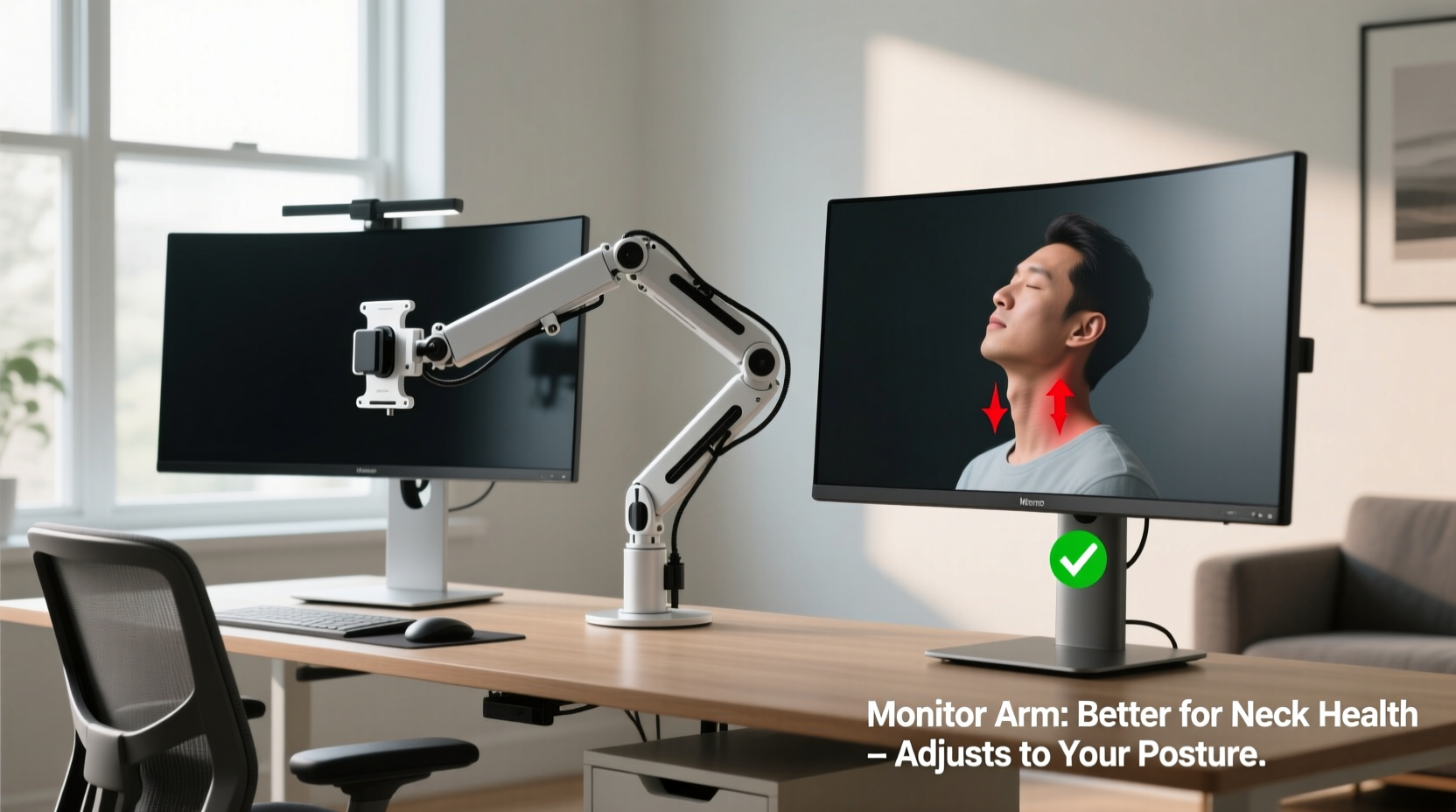
To understand why monitor positioning matters, it helps to revisit basic ergonomic principles. The goal of an ergonomic workspace is to align your body in a way that minimizes stress on muscles, tendons, and joints. When it comes to your neck and upper spine, the position of your eyes relative to the top of the monitor plays a critical role.
According to the Occupational Safety and Health Administration (OSHA), the top of your monitor should be at or slightly below eye level. This allows your head to remain in a neutral position—neither tilted up nor down—reducing strain on the cervical spine. Looking down for prolonged periods increases the effective weight of your head on your neck due to leverage, a phenomenon known as \"text neck.\" Similarly, looking upward forces the neck into extension, which can cause fatigue and discomfort.
Another key factor is viewing distance. Monitors should be 20–30 inches (50–75 cm) from your eyes. Too close, and you’re squinting or leaning forward; too far, and you might crane your neck to see details. Both behaviors trigger compensatory postures that contribute to tension and pain.
“Even small deviations from neutral head posture can double the load on neck muscles after just 30 minutes.” — Dr. Sarah Kim, Physical Therapist & Ergonomics Consultant
Monitor Stands: Simplicity with Limitations
Most monitors come with built-in stands designed for basic functionality. These stands typically allow tilt adjustment and sometimes height or swivel control. However, their range of motion is limited compared to external solutions.
A standard monitor stand fixes the display at a predetermined height, often placing the screen too low for most seated users—especially those using desks without adjustable heights. To compensate, people either raise the monitor with books or boxes (an unstable fix) or adopt a downward gaze, which strains the neck over time.
Additionally, monitor stands take up valuable desk space. This forces keyboards and mice closer to the edge, encouraging slouching or forward shoulder positioning. Over weeks and months, this subtle misalignment accumulates into chronic discomfort.
Monitor Arms: Flexibility and Precision Control
Monitor arms are external mounting systems that attach to your desk via clamp or grommet. They offer full articulation—height, depth, tilt, swivel, and rotation—allowing precise customization of screen placement. This adaptability makes them ideal for maintaining optimal ergonomic alignment.
With a monitor arm, you can easily raise the screen so the top line is at eye level, even if you're sitting or standing. You can pull the monitor closer during detailed work or push it back for presentations. Many dual-arm models also support multi-monitor setups without cluttering the desk surface.
Beyond adjustability, monitor arms promote better posture by freeing up desk space. With more room, you can position your keyboard and mouse correctly—elbows at 90 degrees, wrists straight—reducing overall upper-body strain that indirectly affects the neck.
High-quality arms use gas-spring mechanisms that let you reposition the monitor with one hand, making micro-adjustments throughout the day effortless. This dynamic flexibility supports movement, which is essential for preventing static muscle fatigue.
Comparative Analysis: Monitor Arm vs Monitor Stand
| Feature | Monitor Arm | Monitor Stand |
|---|---|---|
| Height Adjustment | Full range, smooth motion | Limited or none |
| Tilt/Swivel/Pivot | Yes, often 360° rotation | Basic tilt only |
| Desk Space Efficiency | Excellent – frees up surface area | Poor – occupies central workspace |
| Ease of Adjustment | One-handed, real-time changes | Rarely adjustable mid-use |
| Supports Neutral Posture | High – enables ideal eye-line alignment | Low – often too low for seated users |
| Cost | Moderate to high ($80–$200) | Free (included with monitor) |
| Durability & Stability | High (if well-installed) | Varies; some wobble under touch |
While monitor stands win on cost and simplicity, they fall short in supporting long-term musculoskeletal health. Monitor arms, despite their higher upfront investment, provide measurable benefits in reducing neck and shoulder strain through superior adjustability and spatial efficiency.
Real-World Impact: A Case Study
Jamie, a technical writer based in Portland, spent nearly eight years working at a conventional desk setup with a single monitor on its stock stand. By her mid-thirties, she began experiencing persistent neck stiffness and headaches by mid-afternoon. Her doctor diagnosed early signs of cervical disc compression linked to poor workstation ergonomics.
After consulting an occupational therapist, Jamie replaced her monitor stand with a dual-axis gas-spring monitor arm. She adjusted the height so the top of the screen aligned with her seated eye level and pulled the monitor to a 24-inch viewing distance. Within three weeks, her neck pain decreased significantly. She reported less end-of-day fatigue and improved concentration.
\"I didn’t realize how much I was hunching forward until I fixed the monitor height,\" she said. \"Now I barely think about my neck—it just feels natural.\"
This case reflects a broader trend seen in clinical settings: correcting monitor elevation and viewing angle leads to rapid improvements in neck-related symptoms, especially when combined with proper seating and regular movement.
Action Plan: Optimizing Your Setup for Neck Health
Whether you choose a monitor arm or stick with a stand, the key is achieving proper alignment. Follow this step-by-step guide to assess and improve your current setup:
- Sit in your normal working position. Keep feet flat, back supported, and shoulders relaxed.
- Close your eyes and nod slowly. Open them at the point where your gaze lands naturally—that’s your true eye level.
- Adjust your monitor so the top third of the screen aligns with that line. Use books, a riser, or an arm to achieve this.
- Position the screen 20–30 inches away. Extend your arm—the screen should sit just beyond fingertip reach.
- Tilt the monitor slightly backward (10–20 degrees). This reduces glare and keeps your neck neutral.
- Test during different tasks. Ensure readability without leaning forward or craning your neck.
- Take micro-breaks every 30 minutes. Look away, stretch your neck side-to-side, and reset posture.
Checklist: Is Your Monitor Setup Neck-Friendly?
- ✅ Top of screen at or slightly below eye level
- ✅ Viewing distance between 20–30 inches
- ✅ Screen directly in front, not angled excessively left/right
- ✅ No need to tilt head up or down to read text
- ✅ Minimal glare or reflections causing squinting
- ✅ Enough desk space to keep arms at 90-degree angles
- ✅ Ability to reposition screen easily as needed
If more than two items are unchecked, your setup likely contributes to neck strain. Consider upgrading to a monitor arm or modifying your current stand setup accordingly.
Frequently Asked Questions
Can a monitor arm eliminate neck pain completely?
No single device can guarantee pain relief, but a monitor arm significantly reduces risk factors by enabling proper ergonomic alignment. Neck pain often stems from multiple causes—including poor chair support, lack of movement, and stress—so a holistic approach is best. However, correcting monitor height is one of the most impactful single changes you can make.
Are all monitor arms compatible with every screen?
Most modern monitors use the VESA mounting standard (typically 75x75mm or 100x100mm). Check your monitor’s specifications before purchasing an arm. Adapters are available for non-VESA models. Also, ensure the arm supports your monitor’s weight and size—usually listed in the product specs.
I work at a shared desk. Is a monitor arm still worth it?
Yes, especially in shared environments. A good clamp-on arm can be quickly adjusted by different users. Each person can save their preferred height and distance settings, promoting consistent ergonomics across shifts. Just make sure the clamp fits your desk thickness and edge clearance.
Final Recommendation: Why Monitor Arms Win for Neck Pain Prevention
When comparing monitor arms and monitor stands purely from a neck health perspective, the evidence strongly favors monitor arms. Their ability to precisely position the screen at eye level, maintain optimal viewing distance, and adapt to changing postures makes them a superior tool for preventing strain.
Monitor stands aren’t inherently bad—but they are rigid. In a world where work styles vary (sitting, standing, collaborative tasks), rigidity becomes a liability. Without easy adjustability, users default to compromised postures that accumulate damage over time.
Investing in a quality monitor arm isn’t just about convenience or a sleek look. It’s a proactive step toward preserving spinal health, reducing daily discomfort, and improving focus through better physical alignment. For anyone experiencing neck pain—or wanting to avoid it—the upgrade is not just justified; it’s essential.




 浙公网安备
33010002000092号
浙公网安备
33010002000092号 浙B2-20120091-4
Comments
No comments yet. Why don't you start the discussion?