
A monitor that blinks on and off intermittently can be more than just an annoyance—it can disrupt work, damage productivity, and even indicate deeper hardware or electrical issues. Whether the screen flashes briefly before stabilizing, cycles repeatedly between black and active display, or flickers under certain conditions, understanding the root cause is essential. This guide breaks down the most frequent reasons behind monitor blinking and provides practical, tested solutions to restore stable performance.
Common Causes of Monitor Blinking
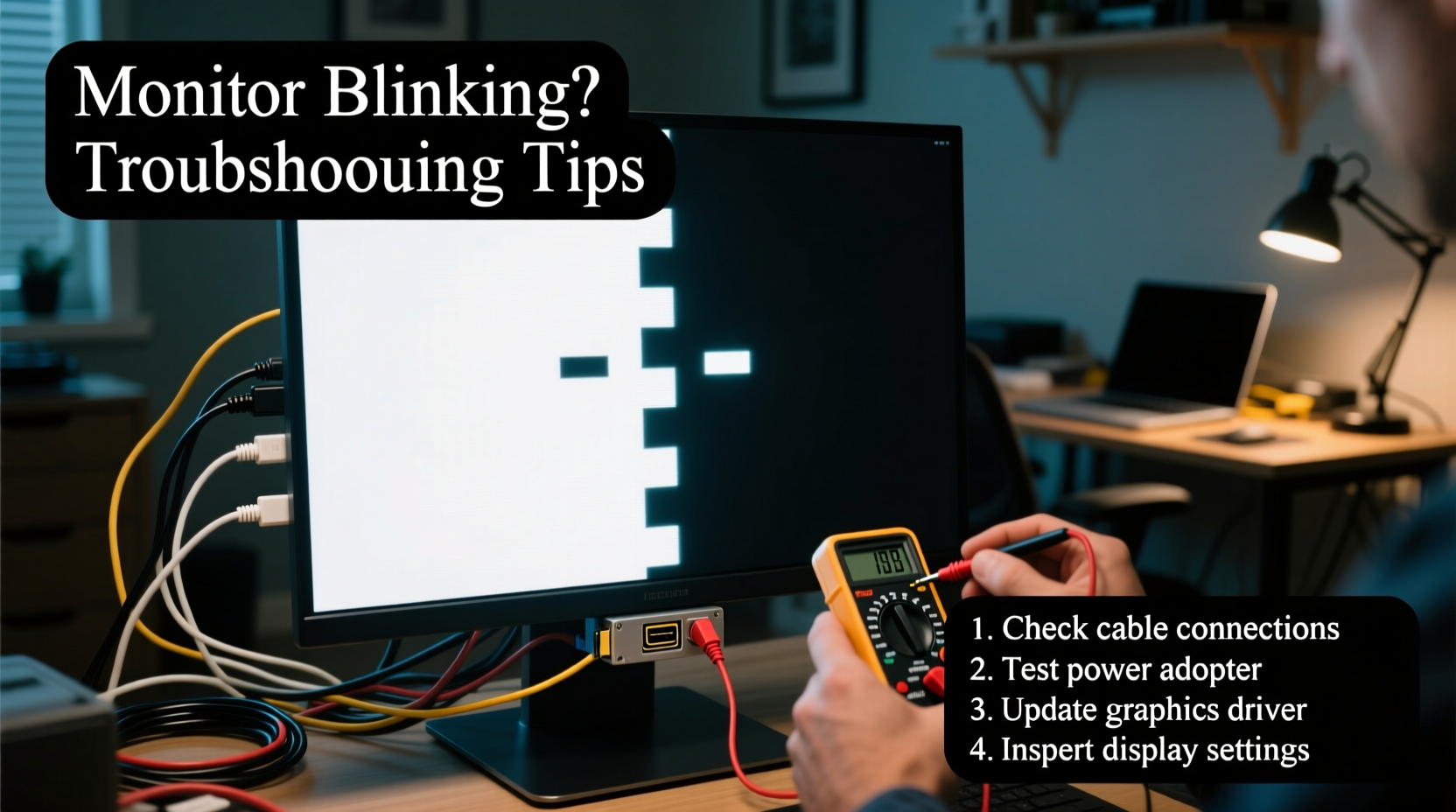
Monitor instability rarely stems from a single factor. Instead, it’s often the result of overlapping issues related to hardware, cabling, power delivery, or software settings. Identifying the source requires a methodical approach.
- Loose or damaged cables: HDMI, DisplayPort, or power cables that are improperly seated or frayed can interrupt signal transmission.
- Power supply fluctuations: Unstable voltage from wall outlets or faulty power strips may cause the monitor to reboot repeatedly.
- Graphics driver conflicts: Outdated, corrupted, or incompatible GPU drivers can lead to erratic display behavior.
- Refresh rate mismatches: Setting a refresh rate unsupported by the monitor can trigger flickering or blank screens.
- Failing backlight or inverter (older LCDs): In aging monitors, especially those with CCFL backlights, the inverter board may degrade and cause intermittent lighting.
- Overheating components: Prolonged use without proper ventilation can cause internal circuits to throttle or reset.
- Defective hardware: Issues with the monitor’s internal power board, T-Con board, or mainboard may manifest as blinking symptoms.
Step-by-Step Troubleshooting Guide
Follow this structured diagnostic process to isolate and resolve the issue efficiently. Start with the simplest fixes and progress toward more complex interventions.
- Inspect all physical connections. Ensure both video and power cables are securely plugged into the monitor and source device. Try gently wiggling the connector—if the screen flickers during movement, replace the cable.
- Swap out the video cable. Use a known-good HDMI, DisplayPort, or DVI cable. Avoid long or unshielded cables that may introduce interference.
- Test with another device. Connect the monitor to a different computer, laptop, or gaming console. If the problem disappears, the original system is likely at fault.
- Check the power source. Plug the monitor directly into a wall outlet, bypassing surge protectors or extension cords. Use a multimeter if available to verify consistent voltage output.
- Update graphics drivers. Visit your GPU manufacturer’s website (NVIDIA, AMD, Intel) and install the latest certified driver. Use Device Manager to uninstall old drivers before reinstalling.
- Adjust display settings. Reset the resolution and refresh rate to default values. For example, set to 1920x1080 at 60Hz and test stability.
- Boot into Safe Mode (Windows). If the blinking stops in Safe Mode, a third-party application or driver is likely interfering.
- Perform a factory reset on the monitor. Access the OSD (On-Screen Display) menu and select “Reset to Default Settings” to eliminate incorrect configurations.
Do’s and Don’ts When Dealing With a Blinking Monitor
| Action | Recommended? | Reason |
|---|---|---|
| Use shielded, high-speed video cables | ✅ Yes | Reduces electromagnetic interference and ensures stable signal transfer |
| Plug monitor into a UPS or surge protector | ✅ Yes | Protects against power spikes and brownouts that destabilize electronics |
| Ignore persistent blinking after restart | ❌ No | May indicate progressive hardware failure requiring early intervention |
| Open the monitor casing yourself | ❌ No | High-voltage capacitors pose electrocution risk; voids warranty |
| Update BIOS/UEFI firmware cautiously | ⚠️ Only if necessary | Firmware bugs can affect display initialization—backup first |
Real-World Case: Office Worker Resolves Daily Flickering
Sarah, a project manager in Austin, experienced her monitor blinking every 10–15 minutes during video calls. She initially assumed it was a software glitch and restarted her laptop multiple times daily. After ruling out driver issues and testing with a second monitor (which remained stable), she focused on cabling. The HDMI cable ran under her desk chair, causing constant bending. Replacing it with a braided, bend-resistant cable eliminated the flickering entirely. A simple fix saved her hours of lost focus and potential hardware replacement costs.
“Many display problems aren’t about the monitor itself, but the ecosystem around it—especially cables and power quality.” — Raj Patel, Senior Hardware Technician at TechCare Labs
Troubleshooting Checklist
✅ Quick Diagnostic Checklist:
- Are all cables firmly connected?
- Have you tried a different video cable?
- Does the issue persist on another computer?
- Is the monitor receiving stable power?
- Have you updated the graphics driver?
- Is the refresh rate compatible with the monitor?
- Have you reset the monitor to factory settings?
- Does the problem occur in Safe Mode?
Frequently Asked Questions
Why does my monitor blink when I start my computer?
Some flickering during boot-up is normal as the system negotiates resolution and refresh rate with the display. However, if blinking continues beyond 30 seconds or recurs during use, it suggests a compatibility or connection issue.
Can a bad GPU cause monitor blinking?
Yes. A failing graphics card may send inconsistent signals to the monitor, leading to intermittent blanking or flashing. Test by connecting the monitor to integrated graphics (if available) or a secondary GPU.
Is monitor blinking a sign of permanent damage?
Not necessarily. Many cases are caused by external factors like cables or drivers. However, if the monitor blinks even when disconnected from any source (e.g., shows logo then turns black repeatedly), internal component failure is likely.
When to Seek Professional Repair
If basic troubleshooting fails, consider professional assessment—especially if:
- The monitor blinks even on standby mode or during startup logo display.
- You notice unusual sounds (buzzing, clicking) coming from the unit.
- The screen displays artifacts, lines, or color distortions along with blinking.
- The unit is under warranty—attempting DIY repair could void coverage.
Technicians can diagnose issues such as failing capacitors, defective power boards, or malfunctioning T-Con (Timing Control) boards using specialized tools. In many cases, replacing a $20 circuit board extends the monitor’s life for years.
Conclusion: Take Action Before It Gets Worse
A blinking monitor doesn’t have to mean immediate replacement. By systematically eliminating possible causes—from loose cables to outdated drivers—you can often restore full functionality with minimal cost. Ignoring the issue risks further damage, data loss during critical tasks, or unexpected downtime. Apply these steps promptly, document what changes resolve the issue, and keep spare cables and updated drivers on hand for future stability.




 浙公网安备
33010002000092号
浙公网安备
33010002000092号 浙B2-20120091-4
Comments
No comments yet. Why don't you start the discussion?