
A silent phone can be more than an annoyance—it can disrupt communication, affect productivity, and ruin your entertainment experience. Whether you're using an Android or iPhone, sudden audio failure is a common but solvable issue. The cause could range from simple settings misconfigurations to hardware malfunctions. This guide walks through proven diagnostic steps and solutions to restore sound across calls, media playback, alarms, and notifications.
Check Basic Audio Settings First
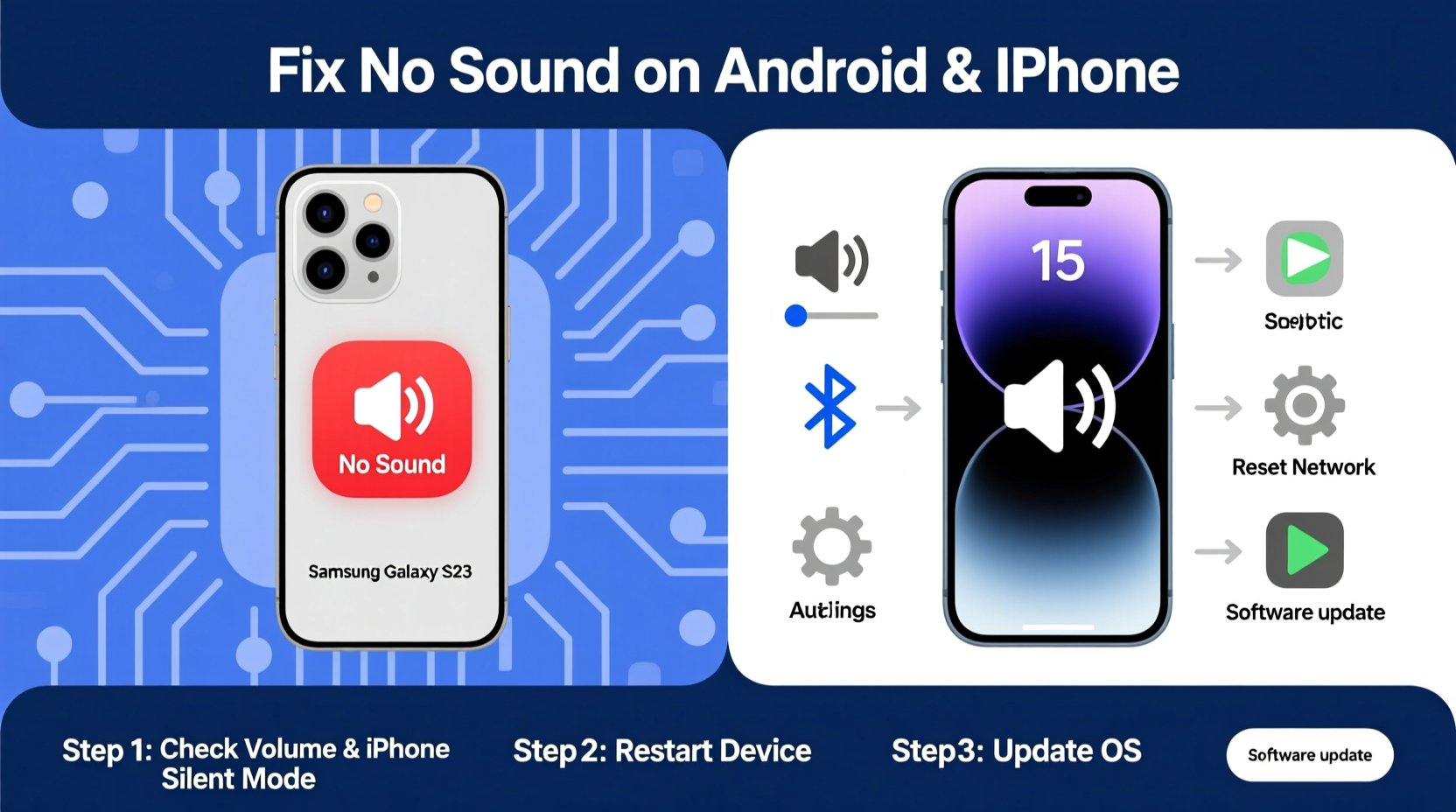
Before diving into complex troubleshooting, verify the most fundamental causes. Many users overlook simple oversights that take seconds to correct.
- Ensure the volume is turned up using physical buttons or software controls.
- Check if the device is in Silent or Do Not Disturb mode (iPhone) or Priority mode (Android).
- Remove headphones or Bluetooth devices—audio routes only to connected peripherals.
- Test different apps: Play music, make a call, or trigger an alarm to isolate where sound fails.
Step-by-Step Troubleshooting Guide
Follow this logical sequence to identify and fix the root cause of missing sound. Each step builds on the previous one, minimizing guesswork.
- Reboot the Device: A restart clears temporary glitches. Hold the power button and select “Restart.” Wait 30 seconds before powering back on.
- Inspect Physical Buttons: Sticky or damaged volume buttons may not register input. Clean around them gently with compressed air.
- Disable Bluetooth: If a headset or speaker was recently paired, audio may still route there. Turn off Bluetooth in settings or Control Center/Quick Settings.
- Check App-Specific Mute Settings: Some apps (e.g., YouTube, games) have internal volume sliders or mute toggles. Open the app’s settings to verify.
- Test Speaker Functionality: Play a video with known audio. Place your ear near the top (earpiece) and bottom (speaker) grilles to detect faint output.
- Use Safe Mode (Android Only): Boot into Safe Mode to disable third-party apps. If sound returns, a downloaded app is likely interfering.
Common Causes and Fixes by Platform
Differences in operating systems mean certain issues are unique to Android or iOS. Understanding platform-specific behaviors improves diagnosis accuracy.
| Issue | Android Fix | iPhone Fix |
|---|---|---|
| No ringtone during calls | Check “Sound & Vibration” settings; disable “Silent Mode” or “Schedule Silence” | Toggle side switch; ensure Ring/Silent switch isn’t set to silent |
| No media sound | Adjust media volume separately; clear app cache (Settings > Apps > [App Name] > Storage > Clear Cache) | Check volume during playback; reset settings via Settings > General > Reset All Settings |
| Speaker sounds muffled | Clean speaker grille; disable mono audio (Accessibility settings) | Check for debris; avoid using while charging (can reduce speaker output) |
| Only works with headphones | Restart; try safe mode; inspect for liquid damage | Check headphone detection in Settings > Accessibility > Audio/Visual |
| No sound after update | Clear system cache partition (via recovery mode) | Restart; install latest patch; report bug to Apple Feedback Assistant |
Hardware and Environmental Factors
Sometimes, the issue lies beyond software. Dust, moisture, and physical damage can impair speakers or sensors.
Liquid exposure—even minor spills or humidity—can corrode internal components over time. Water-resistant phones aren't immune to long-term moisture buildup. Similarly, pocket lint or dust can clog speaker meshes, muffling output.
“Over 30% of ‘no sound’ cases we see in repair shops are due to blocked speaker ports or moisture ingress, not software failure.” — Raj Patel, Mobile Repair Technician, TechFix Labs
To address this:
- Gently brush speaker grilles with a soft-bristled toothbrush.
- Use a vacuum with low suction (not compressed air, which can push debris deeper).
- If water exposure occurred, do not charge the device. Let it dry for 24–48 hours in a dry, ventilated area.
Mini Case Study: Recovering Sound After Rain Exposure
Mark, a delivery driver, noticed his Android phone stopped producing sound after being caught in rain. He tried restarting and adjusting volume with no success. Upon inspection, he found water droplets inside the speaker mesh. Instead of panicking, he powered off the device, placed it in a sealed container with silica gel packets for two days, then restarted. Sound returned fully. No hardware replacement was needed—just patience and proper drying.
When Software Resets Are Necessary
If basic fixes fail, resetting settings can resolve deep-seated configuration errors without losing personal data.
On iPhone: Go to Settings > General > Transfer or Reset iPhone > Reset > Reset All Settings. This restores default configurations for sound, display, and network without deleting apps or photos.
On Android: Navigate to Settings > System > Reset Options > Reset Wi-Fi, mobile & Bluetooth. For broader impact, use “Reset app preferences” to revoke misbehaving app permissions.
Advanced Fixes and When to Seek Help
If all else fails, consider these advanced measures:
- Check for OS Updates: Manufacturers release patches for known audio bugs. Install the latest firmware.
- Factory Reset: As a last resort, erase all data and start fresh. Ensure backups exist before proceeding.
- Visit Service Centers: If no sound persists across multiple tests and resets, internal speaker failure or motherboard issues may require professional repair.
For iPhones, use Apple’s built-in diagnostics: Dial *#0*# (though limited), or visit an Apple Store for a Genius Bar appointment. Android users can run hardware tests via dialer codes like *#7353# (Samsung) or manufacturer-specific tools (e.g., LG Diagnostics).
FAQ
Why does my phone have no sound but vibrations work?
Vibrations and audio use separate hardware. If vibration works, the issue is likely software-related (mute settings, app conflicts) or isolated to the speaker system. Try restarting and checking volume settings first.
Can a screen protector cause audio issues on iPhone?
Yes. Poorly installed screen protectors—especially film types—can block the earpiece speaker at the top of the device. Remove the protector temporarily to test sound clarity.
Why is sound only coming from one speaker?
Many phones have stereo speakers (top and bottom). If one is blocked or damaged, audio may seem unbalanced. Clean both grilles and test with stereo audio files. If imbalance persists, it may indicate hardware failure.
Conclusion
Phones losing sound is a frustrating but often fixable problem. By methodically ruling out simple causes—volume settings, Bluetooth connections, and debris—you can restore functionality without costly repairs. Most issues stem from software glitches or environmental factors, not permanent damage. Apply the steps in this guide in order, and keep your device clean and updated to prevent future audio failures.




 浙公网安备
33010002000092号
浙公网安备
33010002000092号 浙B2-20120091-4
Comments
No comments yet. Why don't you start the discussion?