
Nothing disrupts daily life faster than a smartphone that refuses to connect to the internet. Whether you're trying to send an urgent email, check directions, or stream a video, a broken connection can feel like a digital blackout. The good news: most connectivity issues have simple fixes. Before you replace your device or call customer support, try these systematic troubleshooting steps. From resetting network settings to diagnosing carrier problems, this guide covers every possible cause—and solution.
Check the Basics First
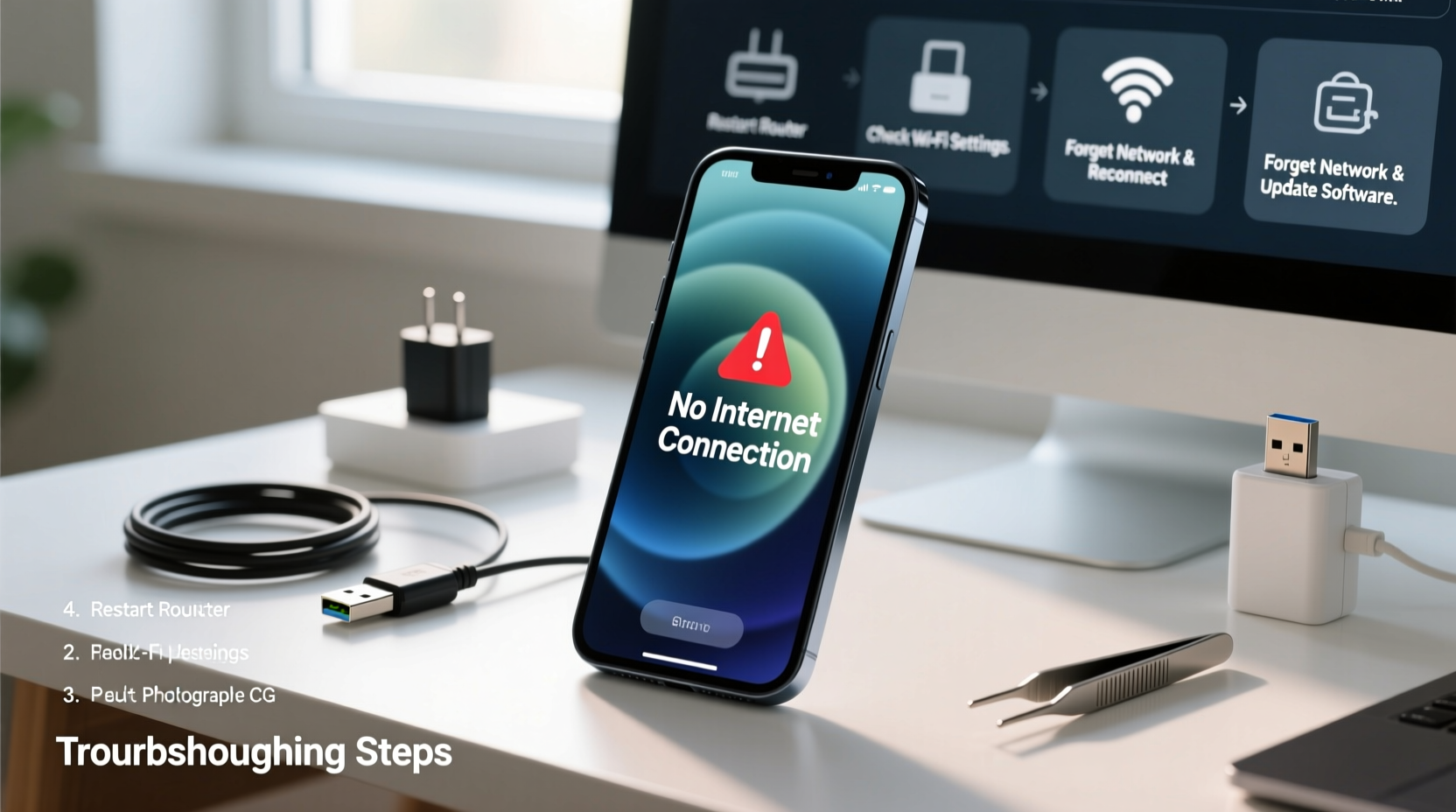
Before diving into advanced fixes, confirm the obvious. Many internet connection problems stem from easily overlooked details. Start here:
- Is Airplane Mode turned off?
- Is Wi-Fi enabled and connected to the correct network?
- Is mobile data toggled on?
- Are you in an area with known signal issues?
- Has your router been powered off or restarted recently?
If your phone shows it's connected to Wi-Fi but still can’t load websites, the problem may not be your device. Try opening a site on another device using the same network. If others fail too, the issue lies with your router or ISP.
Step-by-Step Troubleshooting Guide
Follow this logical sequence to isolate and fix the root cause of your internet disconnection.
- Toggle Airplane Mode On/Off: This resets all wireless radios. Enable Airplane Mode for 15 seconds, then disable it to re-enable Wi-Fi and cellular signals.
- Restart Your Phone: A reboot clears temporary glitches affecting network services. Hold the power button and select “Restart.”
- Forget and Reconnect to Wi-Fi: Go to Settings > Wi-Fi, tap the network name, and select “Forget.” Then reconnect by entering the password again.
- Test Mobile Data: Turn off Wi-Fi and ensure mobile data is active. Open a browser to see if you can access the web via cellular.
- Check Data Limits: Some carriers throttle or disable data once you hit a cap. Verify your usage in Settings > Mobile Data (iOS) or Network & Internet > Data Usage (Android).
- Update Carrier Settings: On iPhones, go to Settings > General > About. If an update is available, a prompt will appear. Android users should check for system updates under Software Update.
- Reset Network Settings: This erases saved Wi-Fi passwords, Bluetooth pairings, and APN settings. Use as a last resort. Found under Settings > General > Reset > Reset Network Settings (iOS) or System > Reset Options > Reset Wi-Fi, mobile & Bluetooth (Android).
When Mobile Data Fails
If only mobile data isn’t working, the issue could be with APN (Access Point Name) settings. These tell your phone how to connect to your carrier’s network.
“Incorrect APN configuration is one of the top hidden causes of mobile data failure, especially after switching carriers or updating software.” — Raj Patel, Senior Network Engineer at NetSecure Solutions
To verify APN settings:
- iOS: Settings > Cellular > Cellular Data Network. Ensure fields are filled per your carrier’s specifications.
- Android: Settings > Network & Internet > Mobile Network > Access Point Names. Tap the current APN and verify values match your provider’s requirements.
Wi-Fi vs. Mobile Data: Diagnosing the Difference
Understanding whether the problem affects Wi-Fi, mobile data, or both helps narrow down the cause. Use the table below to diagnose based on symptoms.
| Symptom | Possible Cause | Solution |
|---|---|---|
| Can’t connect to any Wi-Fi network | Phone Wi-Fi hardware or software issue | Reset network settings; test in Safe Mode (Android) or DFU mode (iOS) |
| Connects to Wi-Fi but no internet | Router issue or IP conflict | Restart router; renew IP address or assign static IP |
| Only one app fails to load | App-specific server or permission issue | Clear app cache; check permissions; reinstall app |
| No mobile data despite signal | APN error, SIM issue, or carrier outage | Verify APN; reseat SIM; contact carrier |
| Works on Wi-Fi but not mobile data | Carrier plan limitation or disabled data | Confirm data is enabled; check account status |
Real-World Example: Maria’s Weekend Connectivity Crisis
Maria was traveling when her phone suddenly lost internet access. She had full Wi-Fi at her hotel but couldn’t load maps or email. At first, she assumed the hotel’s network was faulty. But her friend’s phone worked fine on the same Wi-Fi.
She followed these steps:
- Restarted her iPhone – no change.
- Forgot the Wi-Fi network and reconnected – still no internet.
- Tried mobile data – also failed.
- Checked her carrier app and discovered she’d exceeded her data limit.
After purchasing a data top-up, mobile data resumed. She then reset her network settings to resolve lingering Wi-Fi confusion. Within minutes, both connections worked flawlessly. The issue wasn’t hardware or location—it was a plan limitation combined with cached network errors.
Essential Do’s and Don’ts
Avoid making the problem worse. Follow this checklist to stay on track.
| Do | Don’t |
|---|---|
| Restart your phone and router regularly | Ignore software updates—they often include network fixes |
| Use official carrier apps to monitor data and service status | Manually edit APN settings without backup or guidance |
| Keep your phone’s OS updated | Assume the problem is always your phone—test other devices |
| Contact your carrier if outages are suspected | Factory reset without backing up data or trying simpler fixes |
Frequently Asked Questions
Why does my phone show Wi-Fi but no internet?
This usually means your phone is connected to the router but can’t reach external servers. Causes include DNS issues, IP conflicts, or router firewall settings. Restarting the router or changing DNS to Google’s (8.8.8.8) can help.
Will resetting network settings delete my photos or messages?
No. Resetting network settings only removes saved Wi-Fi networks, Bluetooth pairings, and cellular configurations. Your personal data remains intact.
What if none of the fixes work?
If all troubleshooting fails, contact your carrier to rule out account or SIM card issues. If mobile data works on another device with your SIM, the problem is likely hardware-related, and professional repair may be needed.
Final Checklist: Quick Actions to Regain Connection
Use this concise checklist when your phone won’t connect:
- ✅ Toggle Airplane Mode off and on
- ✅ Restart your phone
- ✅ Check Wi-Fi and mobile data switches
- ✅ Test another device on the same network
- ✅ Forget and rejoin Wi-Fi network
- ✅ Verify data allowance and carrier status
- ✅ Reset network settings as final step
Conclusion: Stay Connected with Confidence
Losing internet access doesn’t have to mean losing productivity or peace of mind. Most connection issues stem from simple, fixable causes—misconfigured settings, outdated software, or temporary glitches. By following a structured approach, you can quickly identify and resolve the problem without unnecessary stress or expense. Don’t rush to replace your phone or blame your carrier prematurely. Test each solution methodically, starting with the basics. Chances are, you’ll be back online within minutes.




 浙公网安备
33010002000092号
浙公网安备
33010002000092号 浙B2-20120091-4
Comments
No comments yet. Why don't you start the discussion?