
Smart glasses blend augmented reality, voice control, and hands-free computing into a sleek wearable form. But like any advanced tech, they’re prone to glitches—flickering displays, erratic Bluetooth pairing, muffled audio, or sudden shutdowns. When your glasses stop working as expected, it’s easy to assume hardware failure. In most cases, however, the issue is software-related or stems from simple user error. Understanding how to diagnose and resolve these problems can save time, reduce frustration, and extend the lifespan of your device.
1. Addressing Connectivity Problems
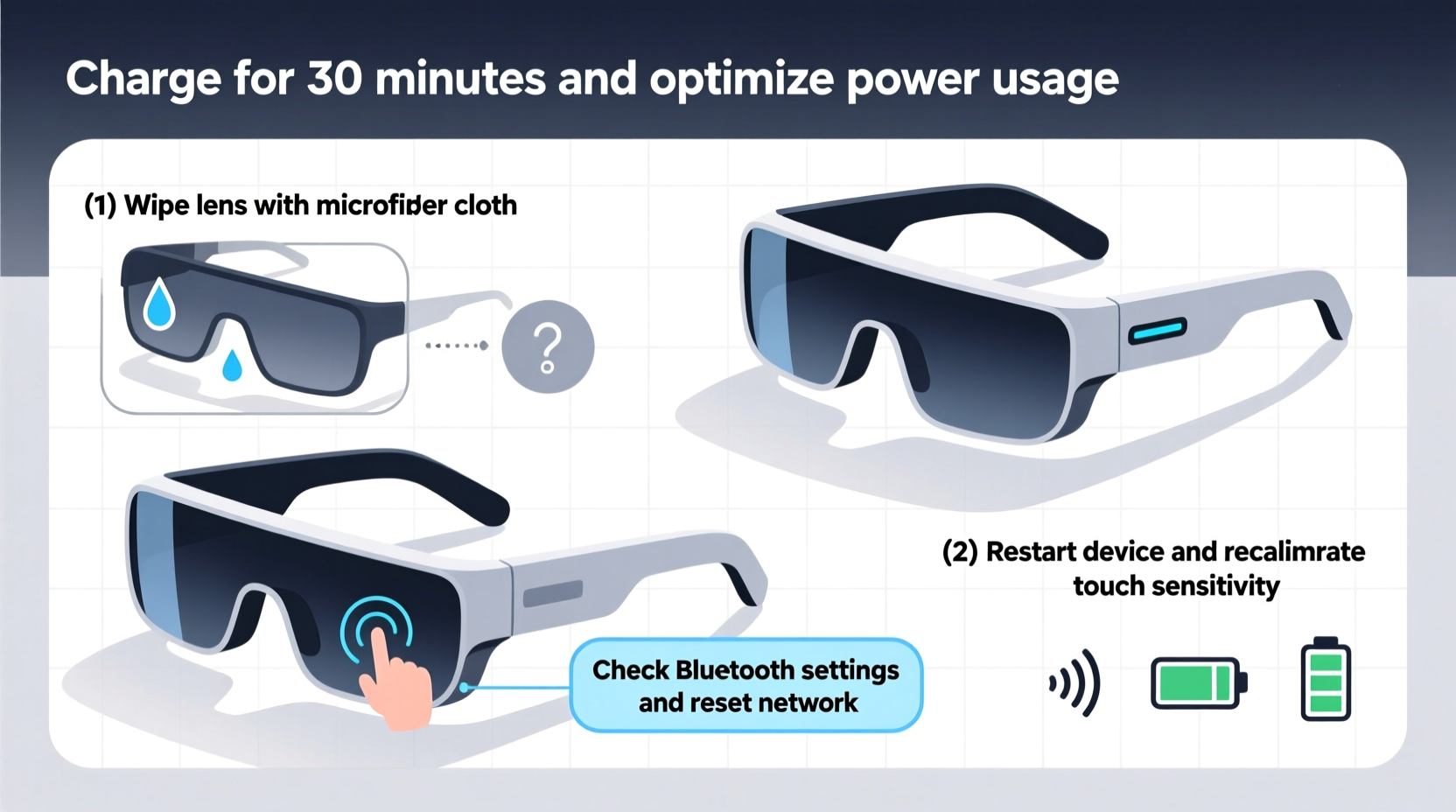
One of the most frequent complaints with smart glasses is unstable or failed connections to smartphones, tablets, or Wi-Fi networks. Whether you're trying to stream navigation data or take calls, a broken link disrupts functionality entirely.
Start by verifying that Bluetooth is enabled on both your glasses and paired device. Ensure you’re within range—typically 30 feet without obstructions. Interference from other wireless devices (microwaves, routers, or crowded public networks) can degrade signal quality.
“Over 60% of reported connectivity issues in AR wearables are resolved through simple re-pairing protocols.” — Dr. Lena Park, Senior Engineer at Wearable Insights Lab
Step-by-Step Re-Pairing Process
- Remove the smart glasses from your phone’s Bluetooth settings list.
- Power off the glasses completely (hold power button for 10 seconds).
- Restart your smartphone to clear cached connection data.
- Power on the glasses in pairing mode (usually indicated by flashing LED).
- Reconnect via your device’s Bluetooth menu.
2. Fixing Display and Visual Glitches
If your smart glasses show a dim, blurry, or flickering display—or no image at all—the cause may not be a faulty screen. Environmental factors, calibration errors, or low brightness settings often mimic hardware failure.
First, check ambient lighting. Some models automatically dim in dark environments or struggle in direct sunlight. Adjust brightness manually through the companion app. If text appears misaligned or distorted, recalibrate the display using built-in tools. Most manufacturers include a visual alignment wizard that guides users through eye-tracking adjustments.
| Issue | Possible Cause | Solution |
|---|---|---|
| Flickering HUD | Low battery or overheating | Charge fully; let device cool down |
| No image visible | Display turned off or uncalibrated | Use app to toggle display; recalibrate |
| Blurry overlay | Dirt on waveguide lens or poor fit | Clean lenses gently; adjust temple arms |
3. Resolving Audio Issues
Muffled sound, one-sided audio, or complete silence during calls or media playback are common pain points. Unlike traditional headphones, smart glasses use bone conduction or open-ear transducers, making audio performance highly dependent on fit and skin contact.
Ensure the audio pads (if applicable) are clean and making proper contact with your temples. Sweat, hair, or thick headwear can block transmission. For bone conduction models, tighten the frame slightly to improve conduction efficiency—without causing discomfort.
Audio Troubleshooting Checklist
- Verify volume levels on both glasses and source device.
- Test audio output using different apps (e.g., music vs. video call).
- Check if mono/stereo balance is skewed in device settings.
- Reset audio preferences in the companion app.
- Update firmware—audio bugs are often patched remotely.
“I once spent 20 minutes troubleshooting my glasses’ mute function—only to realize I’d accidentally triggered the gesture pause during a walk. A quick tap restored everything.” — Mark T., Tech Blogger & Early Adopter
4. Managing Battery Drain and Charging Failures
Short battery life is a top complaint among smart glasses users. While typical usage ranges from 2–6 hours depending on features enabled, rapid drain suggests an underlying issue.
Background processes such as continuous GPS tracking, real-time translation, or persistent AR overlays consume significant power. Disable unused functions when battery conservation is critical. Also, avoid exposing glasses to extreme temperatures—both heat and cold reduce lithium-ion efficiency and longevity.
If your glasses won’t charge, inspect the charging contacts for debris. Use a dry cotton swab to remove dust or oil buildup. Try a different USB cable or power adapter to rule out peripheral faults. If the battery indicator doesn’t respond after 15 minutes of charging, perform a hard reset (consult your model’s manual for exact steps).
5. Handling Software Crashes and App Errors
Freezing interfaces, unresponsive touchpads, or apps crashing mid-use point to software instability. These issues often arise after updates or when running multiple high-demand services simultaneously.
A forced restart resolves many temporary glitches. This varies by model but typically involves holding the power button for 12–15 seconds until the device shuts down and reboots. After restarting, check for pending software updates. Manufacturers regularly release patches that fix known bugs and improve system stability.
If specific apps consistently fail, uninstall and reinstall them. Clear cache data through the companion app if available. For enterprise-grade glasses (e.g., used in logistics or field service), ensure your MDM (Mobile Device Management) profile isn’t enforcing conflicting policies.
When to Factory Reset
Reserve a factory reset for persistent problems that survive reboots and updates. Be aware: this erases all local data, saved networks, and custom settings. Back up configurations if your model supports it.
- Navigate to Settings > System > Reset Options.
- Select “Erase All Content and Settings.”
- Confirm and wait for the process to complete (may take several minutes).
- Set up the device as new and restore essential preferences.
Frequently Asked Questions
Why do my smart glasses disconnect when I receive a notification?
This often occurs due to Bluetooth bandwidth limitations. Simultaneous data streams (e.g., audio + notifications) can overwhelm older Bluetooth versions. Upgrade to a device supporting Bluetooth 5.0 or higher, or disable non-essential notification syncing in the app settings.
Can I wear smart glasses with prescription lenses?
Yes, many models support prescription inserts or magnetic clip-ons. Some brands partner with optical retailers to offer custom-fit solutions. Always confirm compatibility before ordering modifications.
How often should I update my smart glasses firmware?
Check monthly, or enable automatic updates if available. Critical security patches and performance improvements are frequently rolled out. Delaying updates increases vulnerability to bugs and exploits.
Conclusion
Smart glasses represent the future of contextual computing—but their complexity means occasional hiccups are inevitable. By mastering basic diagnostics, understanding environmental influences, and maintaining consistent care routines, most issues can be resolved quickly and independently. Don’t rush to replace your device at the first sign of trouble. Instead, methodically test connections, inspect hardware, and leverage software tools designed to keep your glasses operating smoothly.




 浙公网安备
33010002000092号
浙公网安备
33010002000092号 浙B2-20120091-4
Comments
No comments yet. Why don't you start the discussion?