
Nothing disrupts game night faster than a PS4 that refuses to connect to the internet. Whether you're stuck on a spinning connection screen, receiving error codes, or simply can’t access online multiplayer, Wi-Fi issues are among the most common complaints from PlayStation 4 users. The good news is that most problems have straightforward fixes—no need for expensive repairs or replacements. With the right steps, you can diagnose and resolve your connectivity issues quickly and effectively.
Common Causes of PS4 Wi-Fi Connection Problems
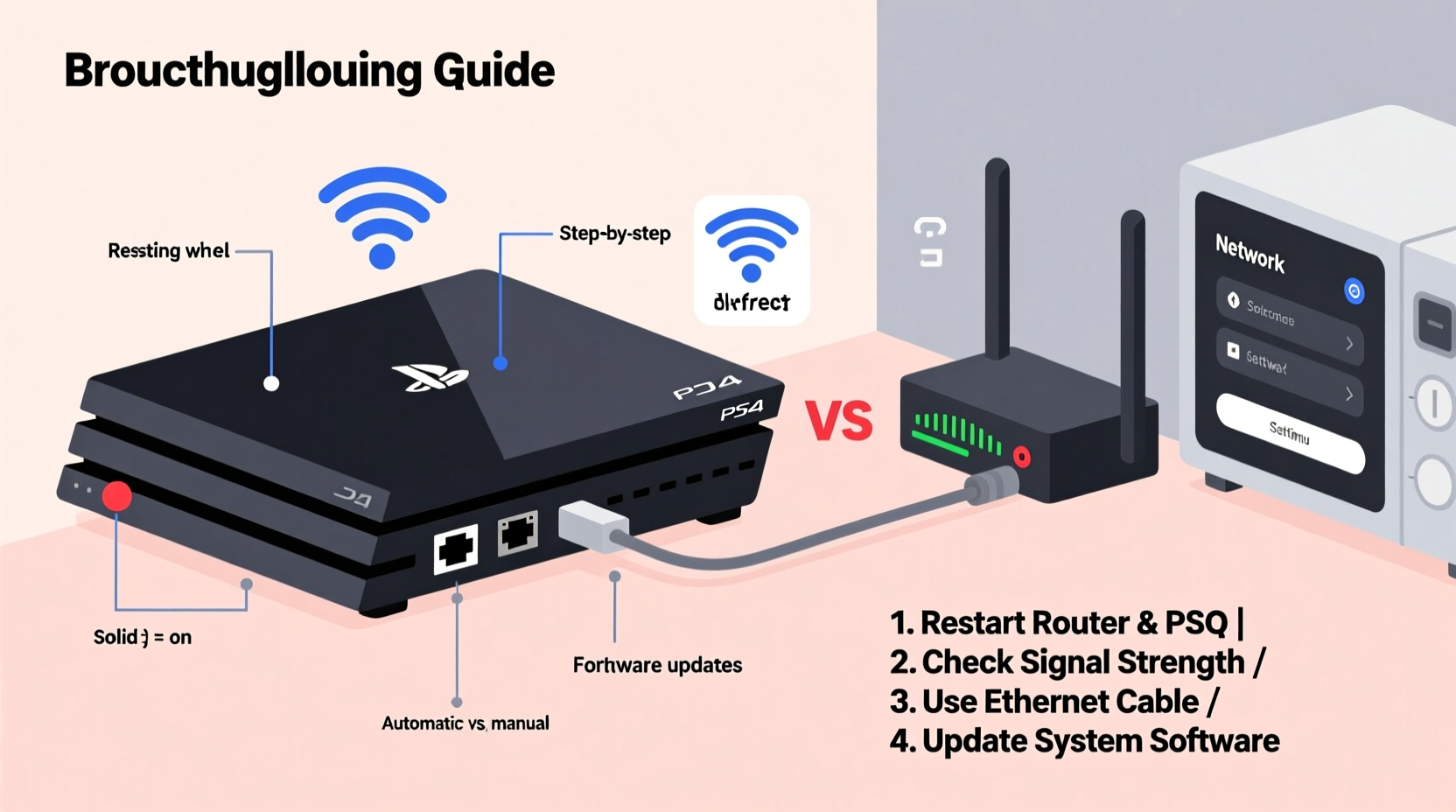
Before diving into solutions, it helps to understand what might be causing the issue. Several factors can interfere with your PS4’s ability to maintain a stable internet connection:
- Router distance or interference: Thick walls, appliances, or physical obstructions weaken signal strength.
- Outdated router firmware: Older firmware may not support newer network protocols used by the PS4.
- Network congestion: Multiple devices streaming or downloading simultaneously can slow or drop connections.
- Incorrect DNS settings: Misconfigured DNS can block access even when the Wi-Fi appears connected.
- PS4 system software issues: Bugs in outdated firmware can cause intermittent disconnections.
- ISP throttling or outages: Your internet provider may be limiting bandwidth or experiencing regional downtime.
Step-by-Step Guide to Fix PS4 Wi-Fi Issues
Follow this structured approach to systematically eliminate potential causes and restore your connection.
- Restart your PS4 and router. Unplug both devices for at least 60 seconds, then power them back on. This clears temporary glitches in both systems.
- Check Wi-Fi signal strength. On your PS4, go to Settings > Network > Test Internet Connection. Note the signal quality—if it's “Weak” or “Poor,” move the console closer to the router.
- Use a wired Ethernet connection temporarily. Plug an Ethernet cable directly from your router to the PS4. If the connection works, the issue is wireless-related.
- Forget and re-add the Wi-Fi network. Go to Settings > Network > Set Up Internet Connection > Wi-Fi > Custom, select your network, and re-enter the password.
- Change DNS settings. Use Google DNS (8.8.8.8 and 8.8.4.4) or Cloudflare (1.1.1.1 and 1.0.0.1) instead of automatic. This often resolves latency and connectivity errors.
- Update PS4 system software. Even if offline, insert a USB drive with the latest update from Sony’s website to patch known bugs.
- Reset network settings. In Settings > Network > Restore Default Settings, clear saved networks and start fresh.
- Update your router’s firmware. Log into your router’s admin panel (usually via 192.168.1.1) and check for updates under the firmware section.
Troubleshooting Checklist
Use this checklist to ensure no step is missed when diagnosing your PS4’s internet issues:
- ✅ Restart PS4 and router
- ✅ Test connection using Ethernet cable
- ✅ Confirm correct Wi-Fi password
- ✅ Move PS4 closer to router or reduce interference
- ✅ Change DNS to 8.8.8.8 / 8.8.4.4
- ✅ Update PS4 system software
- ✅ Reset network settings on PS4
- ✅ Check for router firmware updates
- ✅ Contact ISP if no devices have internet
Do’s and Don’ts When Fixing PS4 Wi-Fi
| Do’s | Don’ts |
|---|---|
| Place your PS4 in a central location with minimal obstructions | Place the console behind metal furniture or thick walls |
| Use a dual-band router and connect to the 5GHz band for less interference | Stick to crowded 2.4GHz bands in high-density areas |
| Set up Quality of Service (QoS) on your router to prioritize gaming traffic | Allow multiple 4K streams while trying to play online games |
| Regularly restart your router to prevent memory leaks | Leave your router running uninterrupted for months |
Real Example: How Sarah Fixed Her Persistent Connection Drops
Sarah had been frustrated for weeks. Her PS4 would connect to Wi-Fi but drop every few minutes during gameplay, especially in competitive matches. She tested her phone and laptop—they had strong signals. After trying several restarts without success, she switched to an Ethernet cable and found the connection was rock-solid. That confirmed the issue was wireless.
She moved her PS4 five feet closer to the router and changed the DNS to Google’s public servers. Then, she accessed her router settings and discovered her firmware hadn’t been updated in over a year. After installing the latest version and enabling QoS for her PS4’s IP address, her connection stabilized completely. No more lag, no more timeouts—just smooth online play.
“Many PS4 connectivity issues stem from outdated infrastructure, not the console itself. A router refresh can be as effective as a system update.” — James Lin, Network Infrastructure Analyst
Frequently Asked Questions
Why does my PS4 say \"Connected to Wi-Fi but no internet access\"?
This usually means your console has joined the network but can’t reach external servers. It could be due to incorrect DNS, router firewall settings, or ISP issues. Try changing your DNS to 8.8.8.8 and restarting the router. Also, test another device on the same network to confirm internet availability.
Can a VPN cause PS4 connection problems?
Yes. While some users use VPNs to bypass geo-restrictions or reduce DDoS attacks, poorly configured or overloaded VPN services can increase latency and cause timeouts. Disable the VPN temporarily to see if performance improves.
How do I manually update my PS4 without internet?
Download the latest system software from Sony’s official website onto a USB drive formatted as FAT32. Create a folder named “PS4” on the drive, then inside it, create another folder called “UPDATE.” Place the update file (named “PS4UPDATE.PUP”) inside. Insert the USB into your PS4, go to Settings > System Software Update > Update from USB Storage Device.
Conclusion: Get Back in the Game Fast
A PS4 that won’t connect to the internet doesn’t have to mean the end of your gaming session. Most Wi-Fi issues are solvable with methodical troubleshooting—starting with simple resets and progressing to DNS changes and firmware updates. By understanding the root cause and applying the right fix, you can restore stable connectivity and return to seamless online play.




 浙公网安备
33010002000092号
浙公网安备
33010002000092号 浙B2-20120091-4
Comments
No comments yet. Why don't you start the discussion?