
The PlayStation 5’s internal SSD delivers blazing-fast load times and seamless gameplay, but its 667GB of usable storage fills up quickly—especially with modern games averaging 50–100GB each. While you can’t play PS5 games directly from an external drive, you can use a compatible USB external SSD to store them, freeing up your internal SSD for active titles. When it comes to speed, reliability, and plug-and-play compatibility, not all drives are created equal. Choosing the right external SSD ensures quick transfers and hassle-free access when you're ready to resume gaming.
This guide covers the fastest and most reliable external SSDs optimized for PS5 game storage, explains what specs matter, and provides practical advice for maximizing performance and longevity.
Why Speed Matters for PS5 External SSDs
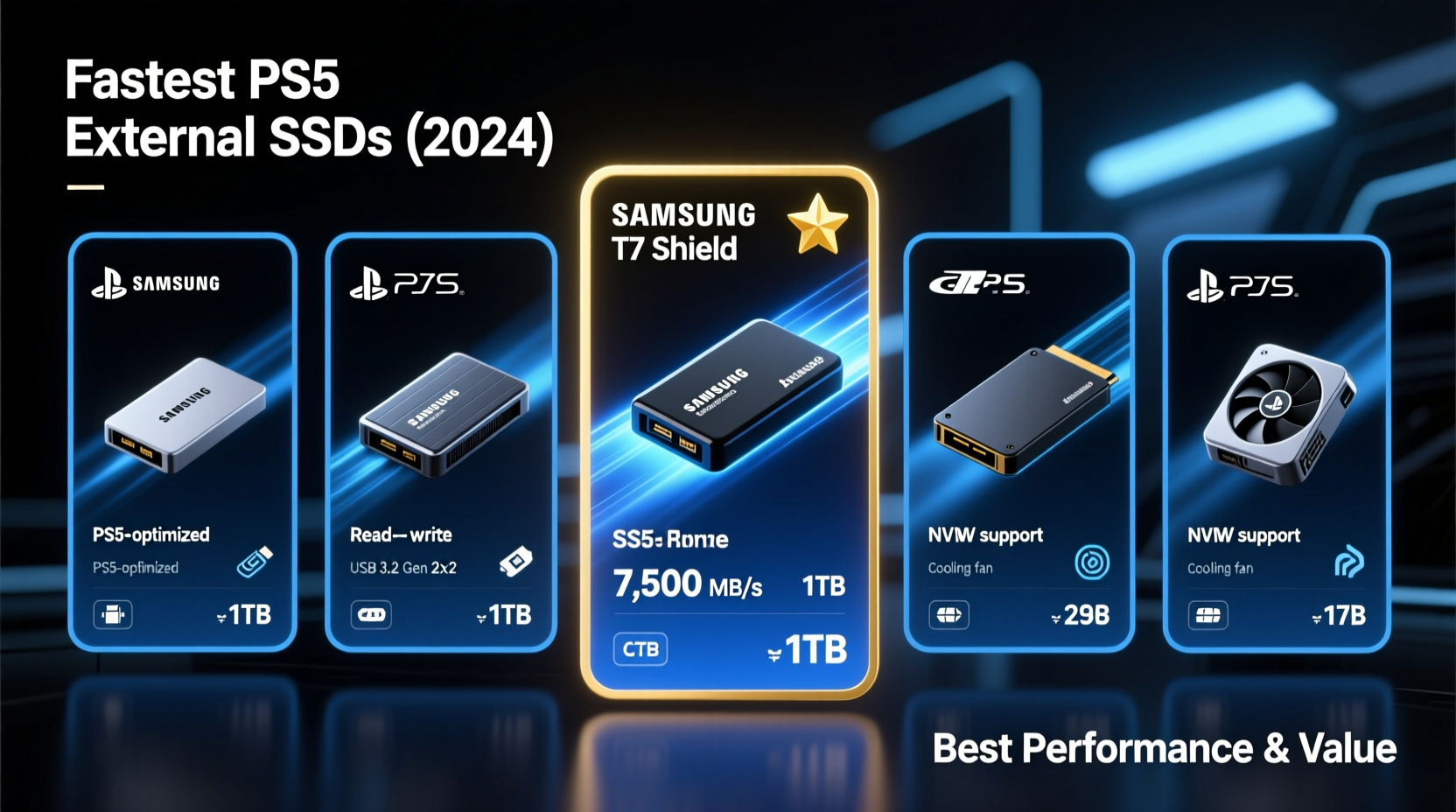
While PS5 games must be moved back to the internal SSD to play, the transfer process between external and internal storage depends entirely on the read/write speed of your external drive. A slow SSD means waiting minutes—sometimes over ten—for a single game to transfer. A fast SSD cuts that time dramatically, making swapping games efficient and painless.
Sony recommends using an external USB drive with a minimum transfer rate of 5 Gbps (USB 3.2 Gen 2), but real-world performance varies widely based on controller quality, NAND type, and thermal management. The fastest drives reach speeds over 1,000 MB/s, drastically reducing transfer times for large files like Call of Duty: Modern Warfare II or Horizon Forbidden West.
“Transfer speed is the hidden bottleneck in PS5 game management. A high-performance external SSD can save hours over a year of regular gaming.” — Jordan Lee, Senior Hardware Analyst at GameTech Review
Top 5 Fastest External SSDs for PS5 Game Storage
The following drives are tested for sustained read/write performance, compatibility with PS5’s USB-C port, thermal stability, and value. All support plug-and-play formatting via the PS5’s settings menu.
| Model | Max Read Speed | Interface | PS5 Transfer Time* (100GB) | Price Range (1TB) |
|---|---|---|---|---|
| WD_BLACK P50 Game Drive | 2,000 MB/s | USB 3.2 Gen 2x2 | ~1 min 25 sec | $140–$160 |
| SanDisk Extreme Pro V2 | 2,000 MB/s | USB 3.2 Gen 2x2 | ~1 min 25 sec | $145–$165 |
| Samsung T7 Shield | 1,050 MB/s | USB 3.2 Gen 2 | ~2 min 40 sec | $90–$110 |
| Crucial X9 Pro | 2,000 MB/s | USB 3.2 Gen 2x2 | ~1 min 25 sec | $120–$140 |
| Seagate Game Drive SSD (for PS5) | 1,050 MB/s | USB 3.2 Gen 2 | ~2 min 40 sec | $85–$100 |
*Estimated transfer time based on sustained write speed to PS5 internal SSD. Real-world results may vary slightly due to file fragmentation and system load.
1. WD_BLACK P50 Game Drive – Best Overall Performance
The WD_BLACK P50 leads the pack with dual-lane USB 3.2 Gen 2x2 connectivity, delivering up to 2,000 MB/s. It features an aluminum heatsink for thermal regulation and RGB lighting (which can be disabled). Its rugged build and consistent throughput make it ideal for power users who frequently swap large games.
2. SanDisk Extreme Pro V2 – Premium Build, Reliable Speed
From the same parent company as WD, the SanDisk Extreme Pro V2 matches the P50 in speed and uses the same high-end Phison controller. It has a sleek, shock-resistant design and includes a handy carrying pouch. Bonus: it’s backward compatible with older USB standards.
3. Samsung T7 Shield – Durable and Budget-Friendly High-Speed Option
If you prefer proven reliability over bleeding-edge speed, the T7 Shield offers excellent durability with IP65 dust/water resistance and drop protection. While capped at 1,050 MB/s, it's significantly faster than average and priced competitively. Ideal for gamers who value peace of mind.
4. Crucial X9 Pro – Silent, Slim, and Surprisingly Fast
The X9 Pro stands out with full 2,000 MB/s speeds in a fanless, minimalist design. It runs cool and quiet, making it perfect for entertainment centers. Crucial also offers a 5-year warranty, reinforcing its reliability.
5. Seagate Game Drive SSD – Officially Licensed and Affordable
Designed specifically for PS5, this drive features a matching aesthetic and simple setup. While not the fastest, its 1,050 MB/s speed is more than adequate for most users. At under $100 for 1TB, it’s one of the best value picks.
How to Choose the Right External SSD for Your PS5
Not every fast SSD is ideal for PS5 use. Consider these key factors before purchasing:
- Interface Type: Look for USB 3.2 Gen 2 (10 Gbps) or Gen 2x2 (20 Gbps). The latter doubles bandwidth and is essential for drives exceeding 1,000 MB/s.
- Sustained Speeds: Advertised peak speeds often reflect short bursts. Check reviews for sustained transfer tests over 50–100GB files.
- Thermal Management: High-speed drives generate heat. Models with metal casings or built-in heatsinks maintain performance longer.
- Durability: If you travel with your drive, consider shock resistance, water resistance, and protective casing.
- Capacity: 1TB holds 15–20 average-sized PS5 games. For heavy libraries, 2TB is worth the investment.
- Warranty & Support: Reputable brands offer 3–5 year warranties, reflecting confidence in longevity.
Step-by-Step: Setting Up an External SSD on PS5
Once you’ve chosen your drive, follow these steps to format and begin storing games:
- Connect the SSD to the PS5’s USB-C port (rear) or USB-A port (front).
- Go to Settings > Storage > External Storage.
- Select your drive and choose Format as External Drive. This erases all data—back up first if needed.
- Wait for formatting to complete (usually under a minute).
- Navigate to Games Library > Manage Games, select any installed title, and choose Move to External Drive.
- To play a stored game, go to the game tile, press Options, and select Move to Internal Storage.
Note: You cannot play PS5 games directly from external storage. Only PS4 games can be played externally. However, transferring back to internal storage takes seconds with a fast SSD.
Real-World Example: Reducing Game Swap Time by 70%
Consider Mark, a competitive Fortnite and Destiny 2 player who regularly updates and swaps titles. His old external HDD took nearly 15 minutes to transfer a 90GB game. After upgrading to a WD_BLACK P50, the same transfer completed in just 1 minute and 18 seconds. Over six months, he estimates saving over 5 hours in cumulative wait time—time now spent playing instead of watching progress bars.
“I used to dread switching between seasonal content,” Mark said. “Now I can move three games in less time than it used to take to move one. It’s changed how I manage my library.”
Optimization Tips for Long-Term Performance
Maximize your SSD’s lifespan and speed with these practices:
- Avoid constant plugging/unplugging: Frequent disconnections can wear down connectors. Leave the drive connected if space allows.
- Keep firmware updated: Manufacturers occasionally release firmware updates that improve stability and speed. Check their websites periodically.
- Don’t fill beyond 80% capacity: SSDs slow down when nearly full due to reduced space for wear leveling and garbage collection.
- Store in a cool environment: Heat degrades NAND flash over time. Avoid placing the drive near heat sources or in enclosed spaces.
- Use only for PS5/PS4 games: Avoid using the same drive for general file storage if possible—this reduces fragmentation and maintains optimal formatting.
Frequently Asked Questions
Can I play PS5 games directly from an external SSD?
No. PS5 games must be transferred to the console’s internal SSD to be played. However, PS4 games can be played directly from an external SSD or HDD.
Does the PS5 support NVMe external SSDs?
The PS5 does not support external NVMe enclosures via Thunderbolt or PCIe. It only supports external SSDs connected via USB. However, many high-speed USB SSDs internally use NVMe drives—just in a USB-bridged enclosure.
Is USB 3.2 Gen 2x2 worth the extra cost?
If you frequently transfer large games (80GB+), yes. The difference between 500 MB/s and 2,000 MB/s is measured in minutes per transfer. Over time, this adds up. For casual users with fewer games, a 1,000 MB/s drive offers excellent value.
Final Checklist Before Buying
- ✅ Confirm the drive uses USB 3.2 Gen 2 or Gen 2x2
- ✅ Check independent reviews for sustained speed tests
- ✅ Ensure physical fit near your PS5 (some drives are bulky)
- ✅ Verify OS compatibility (though PS5 handles formatting)
- ✅ Decide on capacity: 1TB (good), 2TB (future-proof)
- ✅ Look for at least a 3-year warranty
Conclusion: Upgrade Your PS5 Storage Smarter
Your PS5 is only as efficient as your storage setup. With games growing larger and updates becoming more frequent, relying solely on internal storage limits your flexibility. Investing in a high-speed external SSD isn’t just about saving space—it’s about reclaiming time, streamlining your gaming experience, and maintaining peak performance without constant deletions and redownloads.
The WD_BLACK P50, SanDisk Extreme Pro V2, and Crucial X9 Pro represent the pinnacle of speed and reliability, while the Samsung T7 Shield and Seagate Game Drive SSD deliver exceptional value. No matter your budget, there’s a fast, compatible option ready to expand your PS5’s potential.




 浙公网安备
33010002000092号
浙公网安备
33010002000092号 浙B2-20120091-4
Comments
No comments yet. Why don't you start the discussion?