
The PlayStation 5 delivers an exceptional gaming experience with lightning-fast load times and stunning visuals. However, even the most advanced consoles can run into technical hiccups—particularly freezing during gameplay or while navigating the interface. A frozen PS5 disrupts immersion, risks lost progress, and can be frustrating when it happens repeatedly. The good news is that most freezing issues stem from fixable causes, ranging from overheating to corrupted data. This guide walks through practical, step-by-step solutions backed by user experiences and technical insight to help you diagnose and resolve PS5 freezing problems for good.
Common Causes of PS5 Freezing
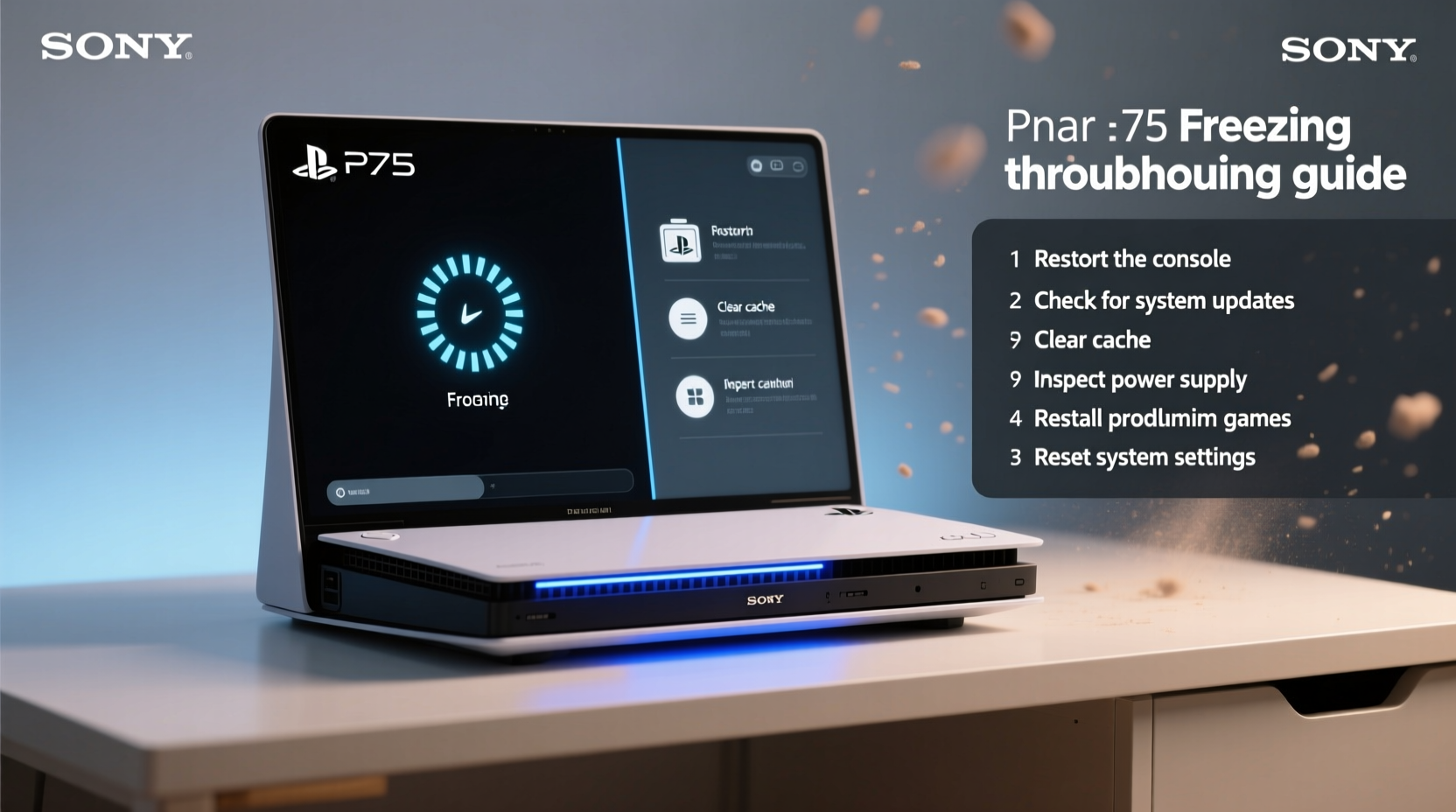
Before diving into fixes, it’s important to understand what might be causing your PS5 to freeze. Identifying the root cause saves time and prevents unnecessary troubleshooting.
- Overheating: Excessive heat can force the system to throttle performance or shut down components temporarily.
- Software bugs: Outdated system software or game patches may introduce instability.
- Corrupted cache or saved data: Temporary files or damaged game saves can interfere with normal operation.
- HDD/SSD issues: While the PS5 uses a custom high-speed SSD, external drives or internal storage corruption can lead to freezes.
- Insufficient ventilation: Blocking airflow around the console increases internal temperatures.
- Firmware conflicts: Rarely, firmware glitches after an update can destabilize system processes.
Step-by-Step Troubleshooting Guide
Follow this logical sequence of checks and actions to systematically eliminate potential causes of freezing. Start with the simplest solutions before moving to more involved procedures.
- Restart the PS5 properly: Hold the power button for at least 7 seconds until you hear a second beep. This ensures a full shutdown, clearing temporary memory.
- Check for system updates: Navigate to Settings > System > System Software and install any pending updates.
- Update all games and apps: Outdated titles are common culprits. Enable auto-updates under Settings > Saved Data and Game/App Settings > Auto-Download.
- Clear the PS5 cache: Turn off the console completely, unplug it from power for at least one minute, then restart. This clears residual data in volatile memory.
- Rebuild the database (Safe Mode): Boot into Safe Mode by holding the power button until you hear the second beep, connect your controller via USB, and select Option 5: Clear Cache and Rebuild Database. This scans the drive and reindexes files.
- Check storage health: Go to Settings > Storage > Console Storage and review for unusual behavior like missing games or slow loading.
- Test with another user profile: Create a new profile to determine if the issue is linked to corrupted user data.
Do’s and Don’ts When Dealing With PS5 Freezes
| Action | Do | Don't |
|---|---|---|
| Cooling | Place the PS5 in a well-ventilated area, upright or horizontal as designed. | Block vents with walls, cabinets, or soft surfaces like carpets. |
| Maintenance | Use Safe Mode to rebuild the database monthly if experiencing glitches. | Force shutdown during updates or installations. |
| Storage | Keep internal SSD free of clutter; delete unused games regularly. | Overfill storage beyond 80% capacity—this slows performance. |
| External Drives | Use USB drives that meet Sony’s speed and compatibility standards. | Store system-critical games on slow or poorly formatted external drives. |
Real-World Example: Resolving Persistent Freezing in Multiplayer Games
Jamal, a regular online gamer, noticed his PS5 would freeze during intense moments in Call of Duty: Warzone. Initially assuming it was internet-related, he tested different Wi-Fi bands and even switched to Ethernet—but the freezes persisted. After ruling out network issues, he tried rebuilding the database via Safe Mode. Upon reboot, the system performed noticeably faster, and the freezing stopped entirely. Further inspection revealed several outdated game patches had failed silently. After manually updating all titles, Jamal experienced no further interruptions. His case highlights how multiple small issues—outdated software, corrupted cache, and background errors—can combine to create a persistent problem that seems random but is actually solvable.
Expert Insight on Console Stability
“Freezing on modern consoles like the PS5 is rarely a hardware defect from the start. More often, it’s a symptom of thermal stress, software fragmentation, or incomplete updates. Regular maintenance—like clearing cache and ensuring proper airflow—can prevent 80% of these cases.” — Marcus Tran, Senior Console Technician at NextGen Repair Labs
When to Consider Hardware Solutions
If software troubleshooting fails, consider physical factors. While the PS5 has no user-serviceable internal fan or dust filter, dust buildup over time can insulate critical components.
- Use compressed air to gently clean the exterior vents every 2–3 months.
- Avoid placing the console on thick rugs or inside enclosed entertainment centers.
- Monitor ambient room temperature—ideally keep it below 77°F (25°C).
In rare cases, the SSD itself may develop read/write errors. If you’ve upgraded with a compatible M.2 drive, ensure it meets Sony’s minimum 5,500 MB/s read speed requirement. Slower drives can cause stuttering and freezing. Reinstalling the drive or replacing it with a compliant model often resolves such issues.
FAQ: Common Questions About PS5 Freezing
Why does my PS5 freeze only during certain games?
This usually points to a game-specific bug or corrupted installation. Try reinstalling the game, checking for updates, or verifying file integrity via Safe Mode. Developers often release patches addressing stability issues, so staying updated is key.
Can overheating permanently damage my PS5?
While the PS5 has built-in thermal protection that shuts down the system before critical damage occurs, chronic overheating can shorten the lifespan of internal components like the GPU and SSD. Consistent high temperatures degrade solder joints and reduce cooling efficiency over time.
Is it safe to use Safe Mode to rebuild the database?
Yes. Rebuilding the database does not delete your games, saves, or accounts. It simply reorganizes how the system accesses data on the SSD, similar to defragmentation on a PC. It’s a recommended maintenance task if you notice lag or freezing.
Final Checklist: Eliminate PS5 Freezing for Good
- ✅ Fully restart the PS5 (hold power button for 7+ seconds).
- ✅ Install all system and game updates.
- ✅ Clean dust from vents using compressed air.
- ✅ Rebuild the database using Safe Mode (Option 5).
- ✅ Ensure the console has at least 4 inches of clearance on all sides.
- ✅ Verify M.2 SSD speed if expanded (minimum 5,500 MB/s).
- ✅ Test with a new user profile to rule out account-specific corruption.
Conclusion
PS5 freezing doesn’t have to be a permanent frustration. With methodical troubleshooting and regular maintenance, most issues can be resolved without professional repair. The key is acting early—don’t wait for freezes to become frequent before addressing underlying causes like heat buildup or outdated software. By incorporating simple habits like monthly cache clearing and ensuring optimal placement, you can maintain peak performance and extend the life of your console. Take control of your gaming experience today: apply these solutions, stay proactive, and enjoy seamless play sessions without interruption.




 浙公网安备
33010002000092号
浙公网安备
33010002000092号 浙B2-20120091-4
Comments
No comments yet. Why don't you start the discussion?