
Nothing disrupts the gaming experience faster than a PlayStation 5 that refuses to connect to the internet. Whether you're trying to download a new title, join friends in multiplayer, or stream content, a stable online connection is essential. Many users encounter issues ranging from weak Wi-Fi signals to complete network failure. The good news is that most of these problems are fixable with methodical troubleshooting. This guide walks through practical, tested solutions to restore your PS5’s internet access quickly and effectively.
Understanding Common Causes of PS5 Internet Issues
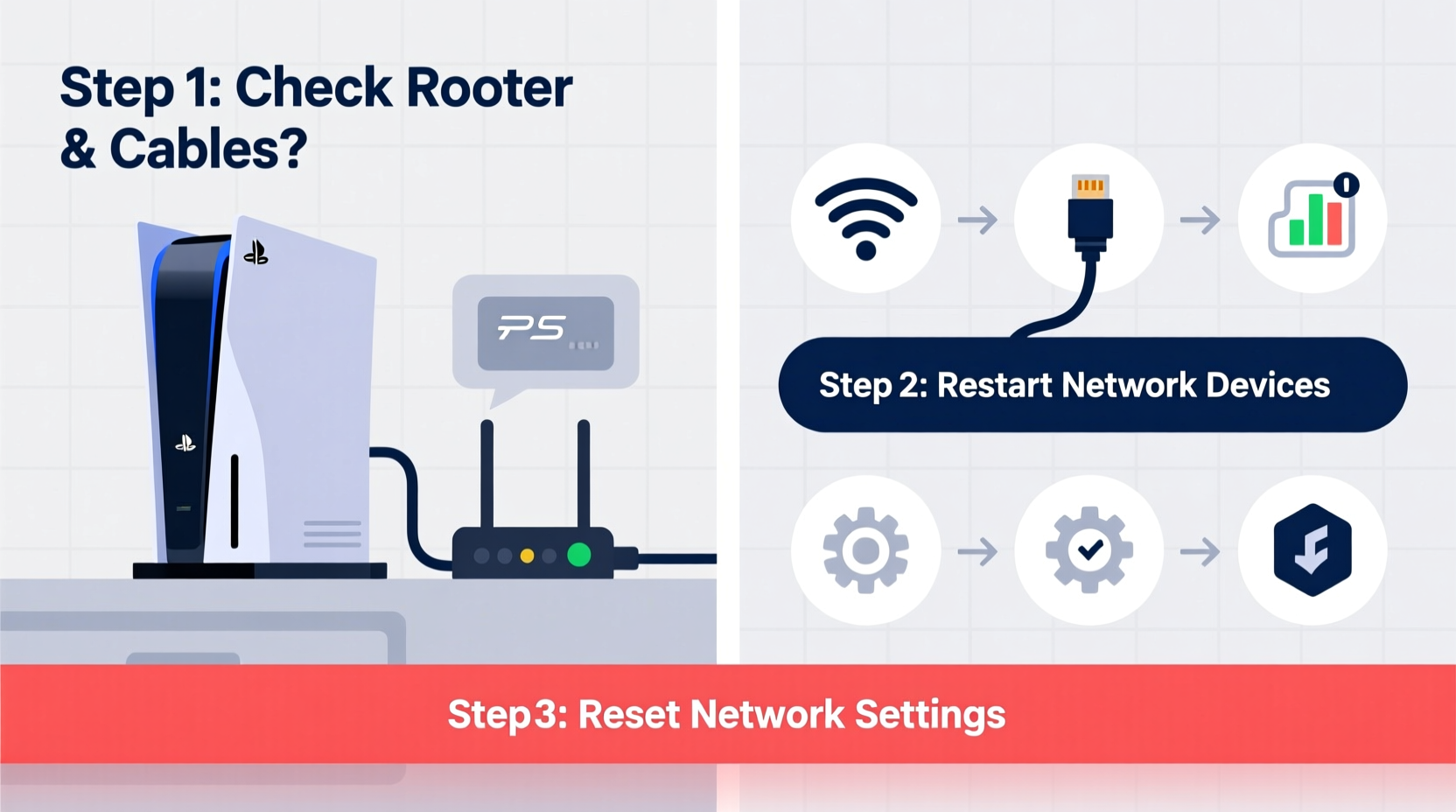
The root cause of a failed internet connection on the PS5 can vary widely. Before diving into fixes, it helps to recognize the most frequent culprits:
- Router or modem problems – Outdated firmware, overheating, or signal interference.
- Incorrect network settings – Misconfigured DNS, IP address conflicts, or proxy settings.
- Wi-Fi signal weakness – Physical obstructions, distance from the router, or network congestion.
- PSN server outages – Temporary downtime affecting all users, not just your console.
- Console software glitches – Bugs introduced during system updates or corrupted cache.
Identifying which category your issue falls into saves time and avoids unnecessary steps. Start by ruling out widespread outages before assuming the problem is local.
Step-by-Step Guide to Restore Internet Connectivity
Follow this structured sequence to systematically eliminate possible causes. Each step builds on the previous one, increasing in complexity as needed.
- Restart your PS5 and network equipment
Power down the console completely. Unplug your router and modem, wait 60 seconds, then plug them back in. Once the network lights stabilize, restart the PS5. This simple reset resolves over 50% of temporary connectivity hiccups. - Test the connection using wired Ethernet
Connect your PS5 directly to the router via an Ethernet cable. If the connection works, the issue is likely Wi-Fi related—such as signal strength or interference. - Forget and re-add the Wi-Fi network
Go to Settings > Network > Settings > Set Up Internet Connection. Choose Wi-Fi, select your network, and re-enter the password. This clears any stored configuration errors. - Change DNS settings manually
Use a reliable public DNS like Google (8.8.8.8 and 8.8.4.4) or Cloudflare (1.1.1.1 and 1.0.0.1). Navigate to Settings > Network > Advanced Settings > DNS Settings, and switch from Automatic to Manual. - Update router firmware
Log into your router’s admin panel (usually via 192.168.1.1 or 192.168.0.1) and check for firmware updates. Outdated firmware can cause compatibility issues with newer devices like the PS5. - Reset PS5 network settings
In Settings > Network > Reset Network Settings, choose to clear all saved networks and configurations. Then set up the connection again from scratch. - Rebuild the PS5 database (Safe Mode)
While primarily for performance, this can resolve deeper system-level issues. Turn off the PS5, hold the power button until you hear two beeps, then select “Clear Cache and Rebuild Database” from the Safe Mode menu.
Do’s and Don’ts When Troubleshooting PS5 Connectivity
| Do | Don’t |
|---|---|
| Use a 5 GHz Wi-Fi band for lower latency and less interference. | Place your router behind thick walls or near microwaves and cordless phones. |
| Keep your PS5 software updated to the latest version. | Ignore error codes—note them down for accurate diagnosis. |
| Position the console within line of sight of the router when possible. | Assume the issue is with Sony’s servers without checking first. |
| Use Quality of Service (QoS) settings on your router to prioritize the PS5. | Overlook physical cable damage if using Ethernet. |
Real Example: Recovering from Persistent \"Cannot Connect to Server\" Error
Mark, a gamer in Chicago, experienced recurring disconnections during online matches. His PS5 showed “Cannot connect to server” despite other devices working fine. After confirming no PSN outage, he tried restarting his equipment with no success. Switching to a wired connection restored stability, indicating a Wi-Fi issue. Upon inspection, his router was located in the basement, far from the living room TV setup. He moved the router closer and changed the Wi-Fi channel to reduce interference from neighboring networks. Finally, he set a static IP and custom DNS (1.1.1.1) on the PS5. These combined changes eliminated disconnects entirely, proving that layered issues often require multiple fixes.
Expert Insight: Why Network Stability Matters for Modern Gaming
“Modern consoles aren’t just gaming devices—they’re connected platforms requiring consistent bandwidth. A single packet loss can disrupt matchmaking, voice chat, or cloud saves. Proactive network hygiene is as important as updating the console itself.” — Dr. Lena Torres, Network Systems Engineer and Console Performance Analyst
Troubleshooting Checklist
✅ PS5 Internet Connection Fix Checklist:
- Check PSN server status online
- Restart PS5, router, and modem
- Test with Ethernet cable
- Move PS5 closer to router or remove obstructions
- Switch to 5 GHz Wi-Fi band
- Forget and re-enter Wi-Fi password
- Set manual DNS (e.g., 1.1.1.1 and 1.0.0.1)
- Update router firmware
- Reset PS5 network settings
- Contact ISP if issues persist with multiple devices
Frequently Asked Questions
Why does my PS5 say “Connected to Wi-Fi but no internet”?
This typically means your console has joined the local network but cannot reach external servers. Causes include incorrect DNS settings, IP conflicts, or router firewall restrictions. Try changing to a manual DNS like 8.8.8.8 or resetting the router to resolve routing issues.
Can a VPN cause PS5 connection problems?
Yes. While some users use VPNs to reduce lag or access region-specific content, many routers don’t handle console traffic well under encrypted tunnels. Additionally, PSN may flag unusual login locations. Disable the VPN temporarily to test if connectivity improves.
How do I know if my router is compatible with PS5?
Most modern routers support PS5 connectivity. However, older models using outdated standards (like 802.11b/g) may struggle with bandwidth demands. Ensure your router supports 802.11ac (Wi-Fi 5) or preferably 802.11ax (Wi-Fi 6) for optimal performance, especially in multi-device households.
Final Steps and When to Seek Help
If you’ve completed all troubleshooting steps and still face issues, consider contacting your internet service provider. They can check for line degradation, signal strength, or account-level restrictions. As a last resort, perform a factory reset on the PS5—back up your data first via USB or cloud storage. Remember, persistent problems may also stem from hardware faults, such as a failing Wi-Fi card, which Sony Support can diagnose.




 浙公网安备
33010002000092号
浙公网安备
33010002000092号 浙B2-20120091-4
Comments
No comments yet. Why don't you start the discussion?