
Nothing disrupts your browsing experience like Safari failing to load a webpage. Whether you're on an iPhone, iPad, or Mac, the “Safari can’t open the page” error can stem from a variety of causes—some simple, others more technical. The good news is that most issues can be resolved quickly without needing expert help. This guide walks through practical, proven solutions to get Safari working smoothly again.
Understanding Common Safari Error Messages
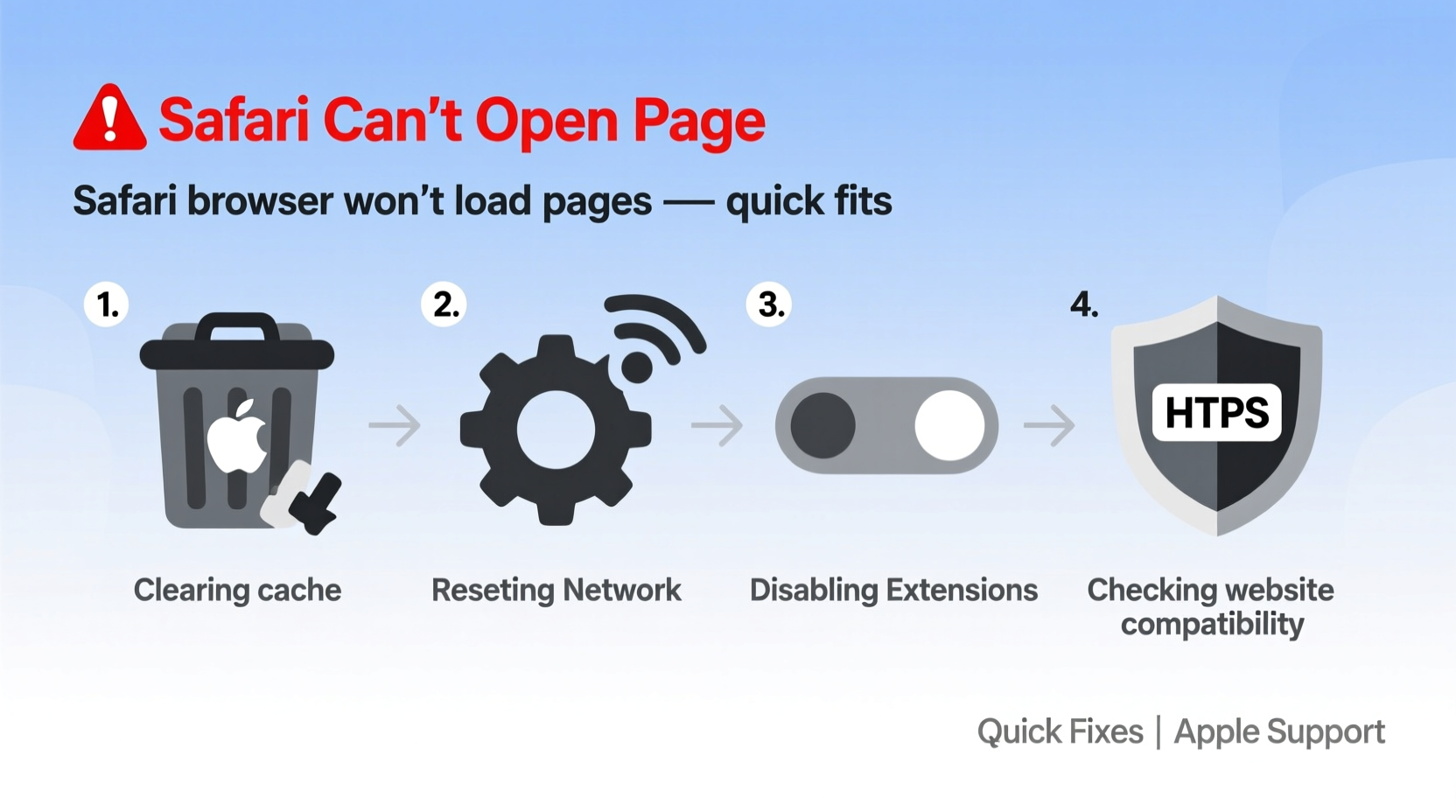
Safari displays different messages depending on the underlying issue. Recognizing the exact error helps determine the right fix:
- \"Safari can’t open the page because it can’t find the server\" — Typically indicates a DNS or network problem.
- \"The server cannot be found\" — Suggests the website may be down or unreachable.
- \"Too many redirects occurred\" — Often caused by site configuration issues or cached data conflicts.
- \"Invalid URL\" — Usually due to a typo or malformed web address.
Before diving into complex fixes, confirm the issue isn’t isolated to one site. Test multiple websites to determine if the problem is widespread or specific.
Step-by-Step Guide: Immediate Fixes to Try First
Most Safari loading issues can be resolved in under five minutes. Follow this sequence to eliminate common culprits:
- Check Your Internet Connection
Ensure Wi-Fi or cellular data is active and stable. Open another app (like Mail or Maps) to verify connectivity. - Restart Safari
Close all tabs and relaunch Safari. On iOS, swipe up from the app switcher to close it completely. - Reload the Page
Tap the refresh icon or press Command+R (Mac) to reload. Sometimes temporary glitches prevent initial loading. - Verify the Website Address
Double-check for typos. A missing dot or slash can cause “invalid URL” errors. - Try Another Browser
Open the same link in Chrome or Firefox. If it works elsewhere, the issue is Safari-specific.
If the problem persists after these steps, move to deeper diagnostics.
Network and DNS Troubleshooting
When Safari fails to connect to servers, the root cause often lies in network settings or Domain Name System (DNS) resolution. Here’s how to fix them:
Reset Network Settings (iOS)
On iPhones and iPads, corrupted network configurations can block Safari. Resetting clears saved Wi-Fi passwords and cellular settings but often resolves stubborn connection issues.
- Go to Settings > General > Transfer or Reset iPhone > Reset.
- Select Reset Network Settings.
- Reconnect to Wi-Fi and test Safari.
Change DNS Server (Mac & iOS)
Default DNS servers provided by ISPs can be slow or unreliable. Switching to a public DNS like Google or Cloudflare improves reliability.
| Device | DNS Provider | Primary DNS | Secondary DNS |
|---|---|---|---|
| iOS | 8.8.8.8 | 8.8.4.4 | |
| iOS | Cloudflare | 1.1.1.1 | 1.0.0.1 |
| Mac | 8.8.8.8 | 8.8.4.4 | |
| Mac | OpenDNS | 208.67.222.222 | 208.67.220.220 |
To change DNS on iOS: Go to Wi-Fi settings, tap the ⓘ next to your network, scroll to DNS, and select “Manual.” Add the preferred addresses.
On Mac: Navigate to System Settings > Network > Wi-Fi > Details > DNS. Click the + button to add new servers.
“Switching to a faster DNS can reduce latency and resolve ‘server not found’ errors in Safari.” — David Lin, Network Infrastructure Specialist
Clear Cache and Website Data
Over time, Safari accumulates cache, cookies, and stored data that can interfere with page rendering. Corrupted or outdated files may prevent sites from loading correctly.
On iPhone or iPad:
- Open Settings.
- Scroll down and tap Safari.
- Select Clear History and Website Data.
- Confirm the action.
On Mac:
- In Safari, go to Safari > Settings > Privacy.
- Click Manage Website Data.
- Select “Remove All” or delete entries selectively.
- Return to Privacy and click “Remove All Website Data.”
Note: This won’t affect saved passwords if iCloud Keychain is enabled.
Check for Content Blockers and Extensions
iOS content blockers and Mac Safari extensions can inadvertently block essential scripts or resources needed to load pages. While useful for privacy, they sometimes overreach.
To troubleshoot:
- Open Safari and navigate to a problematic site in Private Browsing mode.
- If the page loads, an extension is likely the culprit.
- Disable content blockers one by one to identify the offender.
On Mac, go to Safari > Settings > Extensions and uncheck each extension temporarily. On iOS, visit Settings > Safari > Extensions to manage them.
Mini Case Study: Resolving a Persistent Loading Issue
A freelance writer using an iPad Pro reported that Safari wouldn’t load her client’s WordPress-based blog, showing “Safari can’t open the page.” Other browsers worked fine. After testing, she discovered her ad blocker was flagging a third-party analytics script as malicious, preventing full page render. Disabling the blocker for that site resolved the issue instantly. She now uses Private Browsing for sensitive client links.
Advanced Fixes for Stubborn Problems
If basic steps fail, consider these advanced solutions:
Update Your Device
Outdated software may contain bugs affecting Safari. Ensure your device runs the latest version:
- iOS/iPadOS: Settings > General > Software Update
- macOS: Apple Menu > System Settings > Software Update
Reset All Settings (iOS)
If network resets don’t work, resetting all settings (without erasing data) can clear deep system glitches. Found under Settings > General > Reset.
Reinstall Safari (Mac Only)
Safari is integrated into macOS and cannot be uninstalled, but reinstalling via Recovery Mode or using Terminal commands can repair corrupted components. Use caution and back up first.
Troubleshooting Checklist
Follow this checklist when Safari won’t load pages:
- ✅ Confirm internet connection is active
- ✅ Restart Safari and the device
- ✅ Check URL for typos
- ✅ Test the site in another browser
- ✅ Clear Safari history and website data
- ✅ Disable content blockers and extensions
- ✅ Change DNS to Google or Cloudflare
- ✅ Reset network settings (iOS)
- ✅ Update operating system
FAQ
Why does Safari say “can’t open page” when other browsers work?
This usually points to Safari-specific issues such as corrupted cache, misconfigured content blockers, or outdated DNS settings. Clearing data or disabling extensions often resolves it.
Can a website be blocked by Safari automatically?
Yes. Safari includes built-in fraud and pop-up protection. It may block sites flagged as malicious. You can override this warning by tapping “Show Unsafe Content,” but only if you trust the source.
Does low storage space affect Safari performance?
Yes. When storage is critically low, iOS and macOS may restrict app functionality, including Safari’s ability to cache data. Free up space by deleting unused apps or media.
Conclusion
Safari’s “can’t open the page” error is frustrating but rarely permanent. Most issues stem from simple, fixable causes like poor connectivity, outdated caches, or overzealous blockers. By methodically applying the solutions outlined—from checking your connection to adjusting DNS and clearing data—you can restore smooth browsing in minutes. Don’t tolerate persistent loading problems; take control with these proven fixes and enjoy a faster, more reliable Safari experience.




 浙公网安备
33010002000092号
浙公网安备
33010002000092号 浙B2-20120091-4
Comments
No comments yet. Why don't you start the discussion?