
Your home router is more than just a device that delivers Wi-Fi—it’s the gateway to your digital life. It connects your smartphones, laptops, smart TVs, security cameras, and even doorbells to the internet. If compromised, a hacked router can expose your passwords, banking details, personal messages, and browsing history to cybercriminals. Unlike malware on a computer, a breach at the network level is silent and often goes unnoticed for weeks or months. The good news? Early detection and prompt action can prevent long-term damage. Recognizing the warning signs and knowing how to respond decisively are essential skills in today’s connected world.
Unusual Network Behavior: The First Red Flags
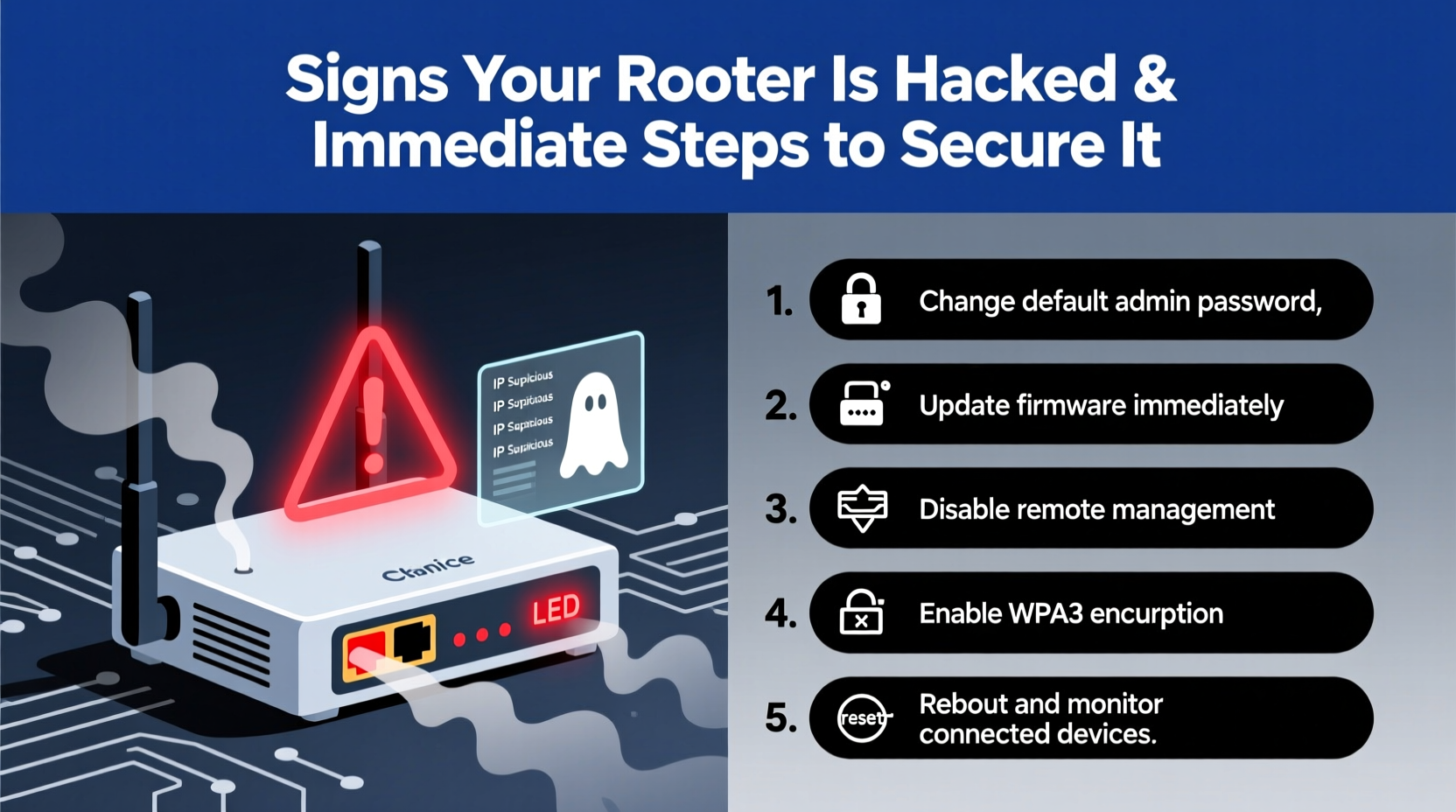
Routers don’t usually announce when they’ve been compromised, but they do send subtle signals through changes in performance and behavior. One of the earliest indicators of a potential hack is unexplained slowdown in internet speed. While bandwidth spikes from streaming or downloads can cause temporary lags, persistent sluggishness—especially when no devices are actively using the network—should raise suspicion.
Another red flag is frequent disconnections. If your Wi-Fi drops randomly throughout the day without any ISP outages or physical interference, it could mean someone is manipulating your router settings or flooding your network with traffic. Similarly, if you notice unfamiliar devices appearing in your router’s connected devices list, especially ones with strange names like “Android_1a2b3c” or “Unknown_Device,” this may indicate unauthorized access.
Additionally, DNS hijacking—a technique where attackers redirect your web traffic to fake sites—can manifest as unexpected browser redirects. For example, typing a known URL like “bankofamerica.com” might take you to a lookalike phishing page. This happens because the hacker has altered your router’s DNS settings to point to malicious servers.
Suspicious Router Settings and Firmware Changes
A more technical but definitive sign of compromise is unexpected changes in your router’s configuration. Log into your router’s admin panel (usually accessible via 192.168.1.1 or 192.168.0.1) and verify the following:
- DNS settings: Are they pointing to public services like Google (8.8.8.8) or Cloudflare (1.1.1.1), or unknown IP addresses?
- Admin password: Has it been changed without your knowledge? Some attacks lock you out by resetting credentials.
- Firmware version: Is it outdated or replaced with an unofficial version?
- Port forwarding rules: Are there unfamiliar open ports that could allow remote access?
Hackers often exploit default login credentials or firmware vulnerabilities to gain control. Once inside, they may install backdoors, modify firewall rules, or set up remote management access—allowing them to maintain persistence even after a reboot.
“Routers are the weakest link in most home networks. A single misconfigured setting can expose every device behind it.” — David Ruiz, Senior Security Analyst at CyberShield Labs
Real-World Example: The Case of the Hijacked Smart Home
In 2022, a family in Austin, Texas, began noticing odd behavior across their smart home ecosystem. Their Nest thermostat adjusted itself at random hours, their Ring doorbell recorded false motion alerts, and their kids’ tablets redirected to scam websites. After ruling out device malfunctions, they contacted their ISP, who discovered that the router had been infected with a variant of the Mirai botnet.
Investigation revealed that the attacker had exploited a known vulnerability in the router’s outdated firmware. The malware reconfigured the DNS settings to intercept traffic and enrolled the device into a global botnet used for DDoS attacks. Worse, the attacker had enabled remote administration, allowing full control from outside the network.
The family lost nearly two weeks of camera footage and had to reset every smart device. Their experience underscores how a single compromised router can cascade into widespread digital chaos.
Immediate Steps to Secure Your Router
If you suspect your router has been hacked, act quickly. Delaying increases the risk of data theft, identity fraud, or being enlisted into a botnet. Follow this step-by-step response plan:
- Disconnect from the Internet: Unplug the router’s WAN (cable/DSL) connection to stop external communication while keeping local Wi-Fi active for troubleshooting.
- Reset to Factory Settings: Press and hold the reset button (usually 10–15 seconds) to erase all configurations, including malicious changes.
- Update Firmware: Reconnect to the internet and log into the admin panel. Check for and install the latest firmware update directly from the manufacturer’s site.
- Change Admin Credentials: Replace default usernames and passwords with a strong, unique combination. Avoid common words or personal information.
- Reconfigure Secure Settings: Set up WPA3 encryption (or WPA2 if unavailable), disable WPS and UPnP, and turn off remote management.
- Set Custom DNS: Use trusted providers like Cloudflare (1.1.1.1) or Google (8.8.8.8) instead of ISP defaults.
- Monitor Connected Devices: Review the client list weekly and remove unknown entries.
Preventive Checklist: Hardening Your Network
After securing your router, implement these long-term defenses to reduce future risks:
- ✅ Enable automatic firmware updates if available
- ✅ Use a strong Wi-Fi password (12+ characters, mix of letters, numbers, symbols)
- ✅ Create a guest network for visitors to isolate main devices
- ✅ Disable remote administration permanently
- ✅ Regularly audit connected devices (monthly)
- ✅ Consider replacing routers older than 3–5 years
- ✅ Install a network monitoring tool (e.g., Fing, GlassWire)
Router Security: Do’s and Don’ts
| Do | Don’t |
|---|---|
| Use WPA3 or WPA2 encryption | Leave default SSID and password (e.g., “Linksys123”) |
| Update firmware regularly | Ignore firmware update notifications |
| Disable UPnP unless absolutely necessary | Enable remote management from the internet |
| Change default admin login | Use “admin/admin” or “admin/password” |
| Set up a guest network | Share your main Wi-Fi password with guests |
Frequently Asked Questions
Can a hacker see my browsing history through my router?
Yes—if your router is compromised and DNS or HTTPS traffic is intercepted, attackers can log URLs you visit. While encrypted sites (HTTPS) hide specific page content, domain names are often visible. Using a reputable DNS service and enabling DNS over HTTPS (DoH) adds protection.
Is resetting my router enough to remove a hack?
A factory reset removes current configurations and most malware, but it doesn’t patch underlying firmware vulnerabilities. Always follow a reset with a firmware update to close security holes that allowed the initial breach.
How often should I reboot my router?
Rebooting every few weeks can clear memory leaks and disrupt certain types of malware. However, it won’t fix deep compromises. Think of it as maintenance, not a security solution. Focus on firmware updates and configuration hardening for real protection.
Conclusion: Take Control of Your Network Security
Your router isn’t just hardware—it’s the foundation of your digital safety. Ignoring its security leaves every connected device vulnerable. From sudden slowdowns to mysterious device connections, the signs of a breach are often hiding in plain sight. By staying vigilant, responding swiftly, and applying robust preventive measures, you regain control and protect your personal data from prying eyes.
Cyber threats evolve constantly, but so do defenses. Make router security part of your routine digital hygiene, just like updating software or using strong passwords. The time to act is now—not after your bank account is drained or your smart camera is live-streamed online.




 浙公网安备
33010002000092号
浙公网安备
33010002000092号 浙B2-20120091-4
Comments
No comments yet. Why don't you start the discussion?