
Staying in control of your digital presence means knowing how to securely log out of social media accounts when switching devices, sharing screens, or simply prioritizing privacy. X (formerly Twitter) is one of the most widely used platforms for real-time communication, but many users overlook the importance of properly logging out—especially across multiple devices. Whether you're using a smartphone, tablet, or public computer, leaving your account logged in can expose your data to unauthorized access. This guide provides clear, reliable methods to log out of X on any platform, ensuring your account remains protected.
Why Logging Out Matters
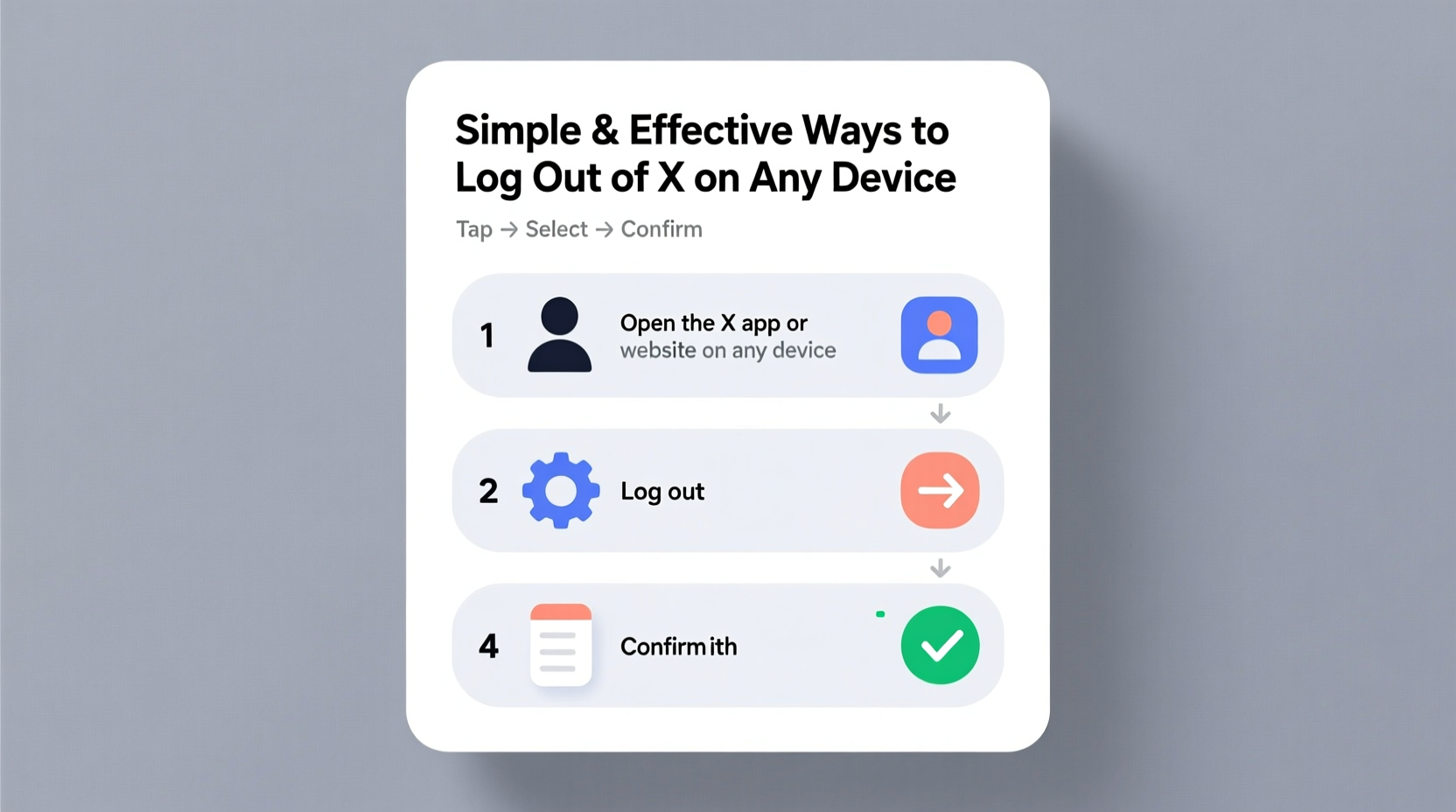
While staying logged in offers convenience, it also introduces risks. Public or shared devices are particularly vulnerable. A forgotten session on a library computer, a friend’s phone, or even your own tablet left unattended can lead to unintended tweets, DMs, or data harvesting if accessed by others.
Security experts emphasize that logging out is a basic but essential step in digital hygiene. According to cybersecurity analyst Marcus Reed, “One of the most common entry points for account compromise is persistent login sessions on unsecured devices.” Logging out breaks that session, reducing the chance of hijacking or misuse.
“Always log out when you’re not actively using your account—especially on devices that aren’t yours.” — Marcus Reed, Cybersecurity Analyst
How to Log Out of X on Desktop (Web Browser)
Logging out of X via a web browser is straightforward and should be done whenever you finish using a shared or public computer.
- Go to x.com and ensure you’re logged in.
- In the top-right corner, click your profile icon.
- From the dropdown menu, select Log out.
- Confirm the action if prompted.
After logging out, you’ll be redirected to the homepage. For added security, especially on shared machines, consider clearing your browser cache and cookies afterward to remove any residual session data.
Logging Out on Mobile Devices: iOS and Android
X’s mobile app does not feature a direct \"Log Out\" button in the main navigation, which often confuses users. However, the process is simple once you know where to look.
iOS (iPhone/iPad)
- Open the X app.
- Tap your profile picture in the top-left corner.
- Select Settings and privacy.
- Scroll down and tap Log out at the bottom of the screen.
- Confirm your choice.
Android
- Launch the X app.
- Tap your profile icon in the top-left.
- Choose Settings and privacy.
- Scroll to the bottom and tap Log out.
- Confirm the action.
Once logged out, the app will return to the login screen. Your credentials won’t be saved unless you re-enter them and check “Remember me.”
| Device Type | Logout Path | Notes |
|---|---|---|
| Desktop (Web) | Profile Icon → Log out | Clear cookies for full session removal |
| iOS App | Profile → Settings → Log out | No quick logout; must navigate settings |
| Android App | Profile → Settings → Log out | Same path as iOS |
| Tablet (App) | Same as mobile apps | Interface may vary slightly |
Handling Multiple Accounts and Sessions
If you manage several X accounts or use different devices regularly, it’s possible to have active sessions running simultaneously. While X doesn’t provide a built-in “active sessions” dashboard like some other platforms, there are still ways to ensure old or unknown devices are no longer connected.
The most effective method is changing your password. This invalidates all existing sessions across devices, forcing re-login everywhere. Here’s how:
- Log into your X account on a trusted device.
- Go to Settings and privacy.
- Navigate to Security and account access.
- Select Password.
- Enter your current password and set a new one.
- Save changes.
This approach is especially useful if you’ve lost a device or suspect unauthorized access.
Real-World Scenario: The Shared Office Laptop
Sarah, a freelance journalist, often uses her editor’s office laptop to quickly post updates during tight deadlines. One day, she forgot to log out of X after publishing a breaking news tweet. Later that evening, the editor opened the browser and saw a draft tweet in Sarah’s account—information that hadn’t been cleared yet. Although no harm was done, it highlighted a serious privacy gap.
After that incident, Sarah adopted a strict rule: always log out immediately after posting on shared devices. She also began using Incognito mode and set calendar reminders when working remotely. Her small habit change eliminated future risks and improved her professional accountability.
Common Mistakes When Logging Out of X
- Assuming closing the app logs you out: On mobile, closing the app doesn’t end your session. You must manually log out.
- Forgetting background tabs: Even if you close the X tab, your session remains active until you explicitly log out.
- Not checking auto-login settings: Some browsers save passwords and auto-fill them, making it easy to skip logout steps.
- Ignoring linked third-party apps: Logging out of X doesn’t revoke access from apps connected via OAuth. Manage these separately under “Apps and sessions” in settings.
Quick Logout Checklist
Use this checklist to ensure you’ve fully logged out and secured your X account:
- ✅ Closed the X app or website
- ✅ Used the official \"Log out\" option (not just closed the window)
- ✅ Cleared browser history and cookies (on shared computers)
- ✅ Changed password if device was compromised
- ✅ Enabled 2FA for future protection
- ✅ Reviewed connected apps and removed unused ones
Frequently Asked Questions
Can I log out of X remotely?
X does not currently offer a remote logout feature for specific devices. The only way to terminate all active sessions is by changing your password, which logs you out everywhere.
Does closing the X app log me out automatically?
No. The mobile app keeps you logged in even when closed. To fully log out, you must go to Settings and manually select “Log out.”
Is logging out necessary if I’m the only one using my phone?
While less critical, logging out adds a layer of security if your phone is ever lost or accessed by someone else. It’s especially recommended if biometric locks aren’t enabled.
Final Thoughts: Make Logout Part of Your Routine
Logging out of X isn’t just about closing an app or tab—it’s a proactive step toward digital safety. With cyber threats evolving and personal data more valuable than ever, taking a few seconds to log out properly can prevent long-term issues. Whether you're on a desktop, iPhone, or Android device, the steps are simple and consistent. Build these habits now, especially when using shared or public technology.




 浙公网安备
33010002000092号
浙公网安备
33010002000092号 浙B2-20120091-4
Comments
No comments yet. Why don't you start the discussion?