
Every computer comes with a default name—often something generic like “User’s MacBook” or “DESKTOP-ABC123.” While functional, these names can be confusing, especially on shared networks or when syncing devices. Changing your computer’s name is a small but powerful step toward personalization, clarity, and digital organization. Whether you're setting up a new machine, troubleshooting network issues, or simply refreshing your setup, renaming your device takes just minutes and can make a noticeable difference in how you interact with your tech ecosystem.
This guide walks through the straightforward process of changing your computer name on both Windows and macOS, offering tips, best practices, and real-world applications to help you choose wisely and execute confidently.
Why Change Your Computer Name?
The name of your computer isn’t just cosmetic—it plays a role in how your device appears across networks, cloud services, and file-sharing platforms. A clear, recognizable name helps identify your machine quickly among multiple devices, especially in homes or offices with several users.
For example, if you’re sharing files over AirDrop, connecting via remote desktop, or accessing a shared printer, seeing “Marketing Laptop” instead of “LAPTOP-JK9M2X” reduces confusion and improves workflow. Additionally, custom names enhance security awareness; an unfamiliar device name on your network could signal unauthorized access.
“Device naming is one of the most overlooked yet effective organizational habits in personal computing.” — David Lin, IT Infrastructure Consultant
How to Change Your Computer Name on Windows 10 and 11
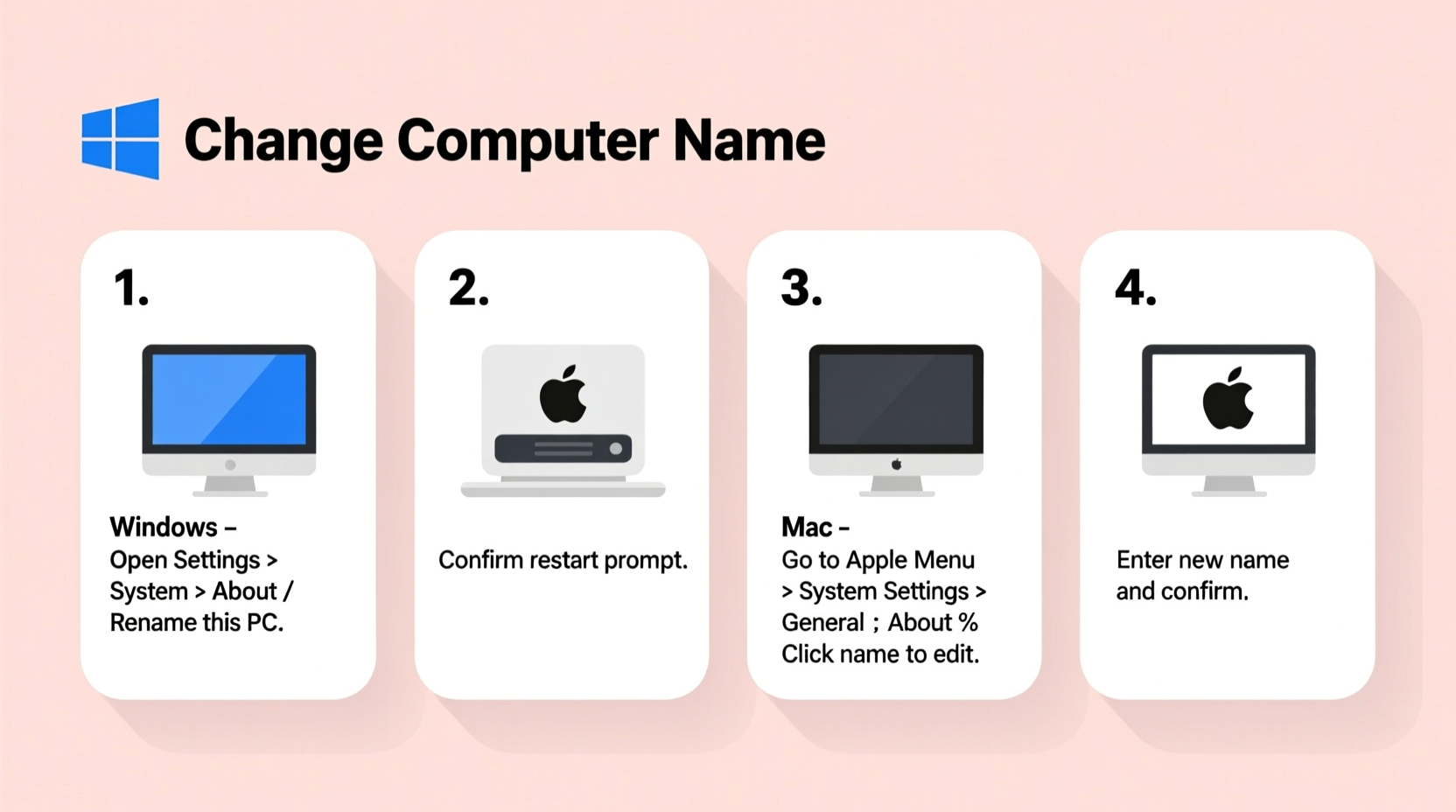
Renaming a Windows PC is simple and consistent across recent versions. Follow this step-by-step guide:
- Click the Start menu and select Settings (the gear icon).
- Navigate to System, then click About on the left sidebar.
- Under the “Device specifications” section, locate Device name and click Rename this PC.
- Type your desired name. Avoid spaces or special characters for compatibility—use hyphens or underscores if needed (e.g., Johns-Laptop).
- Click Next. You’ll be prompted to restart your computer to apply the changes.
- Select Restart now to complete the process.
After rebooting, your new computer name will appear in system settings, network locations, and any service that detects your device.
Changing Your Mac’s Hostname and Local Hostname
macOS allows you to set both a user-friendly computer name and a separate local hostname used on networks. Here’s how to update them:
- Click the Apple menu and select System Settings (or System Preferences on older versions).
- Go to General > About.
- Click the current name next to Name and edit it directly.
- Type your preferred name (e.g., “Alex’s MacBook Pro”) and press Return.
- Close the window. The change applies immediately—no restart required.
To verify or adjust the local hostname (used in terminal commands and network discovery):
- In System Settings, go to Network.
- Select your active connection (Wi-Fi or Ethernet), then click Details (or Advanced).
- Navigate to the Proxies tab, then click Hardware or TCP/IP.
- Look for Configure IPv6 or Router info—your local hostname may appear here.
- To change it via Terminal, open the app and type:
sudo scutil --set LocalHostName NewName - Enter your password when prompted.
Note: The local hostname must be alphanumeric with hyphens only—no spaces or special characters.
Best Practices for Naming Your Devices
A well-chosen computer name improves usability and reduces friction in multi-device environments. Consider these guidelines:
- Be consistent: Use the same naming convention across all your devices (e.g., Jane-iMac, Jane-MacBook).
- Keep it professional: In workplaces, avoid humorous or informal names that may appear in shared logs or monitoring tools.
- Avoid sensitive info: Don’t include personal details like phone numbers, addresses, or birth years.
- Use standard characters: Stick to letters, numbers, hyphens, and underscores to prevent software conflicts.
- Make it unique: Ensure no two devices on the same network have identical names.
| Do | Don't |
|---|---|
| Johns-Windows-PC | My Laptop!!! |
| Maria-Office-Mac | Admin’s MacBook (with apostrophe) |
| Dev-Server-01 | WORK LAPTOP #1$% |
| Kids-iMac-Gaming | [Unknown Device] |
Real-World Example: Streamlining a Home Office Network
Samantha runs a small home-based design business with three devices: a Windows desktop for rendering, a MacBook Pro for client meetings, and a secondary laptop for admin tasks. Initially, her network showed “DESKTOP-AB7X2,” “Samantha’s MacBook,” and “LAPTOP-9M3N,” causing confusion during file transfers and screen sharing.
She renamed them using a clear format: “Design-Desktop-Win,” “Client-Meetings-MBP,” and “Admin-Laptop.” Within days, her team reported fewer misconnections and faster collaboration. Even her smart home hub began recognizing devices more reliably. This minor adjustment saved time and reduced technical hiccups during critical workflows.
Checklist: Rename Your Computer Like a Pro
- Have administrative rights on the device
- Know your login password (required for system changes)
- Are connected to power (laptops) to avoid interruptions
- Have chosen a final name following best practices
- Backed up important data (optional but recommended before system-level changes)
Frequently Asked Questions
Will changing my computer name affect my files or apps?
No. Renaming your computer does not alter file paths, installed programs, or user data. It only updates the system identifier used in networks and system reports.
Can I use emojis or special characters in my computer name?
It’s not recommended. While macOS may allow some symbols in the display name, underlying systems (like DNS or command-line tools) often fail to recognize them. Stick to alphanumeric characters, hyphens, and underscores for full compatibility.
Why does my computer name revert after an update?
This is rare but can happen if group policies (in corporate environments) enforce naming rules. On personal devices, ensure you’re not syncing with a profile that overrides local settings. If the issue persists, check domain or MDM (Mobile Device Management) configurations.
Final Thoughts and Next Steps
Changing your computer name is a quick, risk-free tweak with tangible benefits. It enhances clarity, supports better digital hygiene, and reflects a proactive approach to managing your technology. Whether you’re organizing a household network, preparing for remote work, or simply personalizing your setup, taking control of your device’s identity is a small act with lasting impact.
Now that your computer carries a name that makes sense to you, consider extending this habit: label your peripherals, organize your cloud backups, or document your device inventory. These micro-improvements compound into a smoother, more intuitive digital life.




 浙公网安备
33010002000092号
浙公网安备
33010002000092号 浙B2-20120091-4
Comments
No comments yet. Why don't you start the discussion?