
Changing your desktop wallpaper is one of the easiest ways to personalize your Windows 10 experience. Whether you want a calming landscape, a vibrant cityscape, or a photo of your pet, setting a new background can refresh your workspace and boost your mood. The process is intuitive, but knowing all the available options—especially the lesser-known features—can help you make the most of your customization. From basic changes to dynamic themes and automated slideshows, this guide walks through every method with precision.
Why Personalizing Your Wallpaper Matters
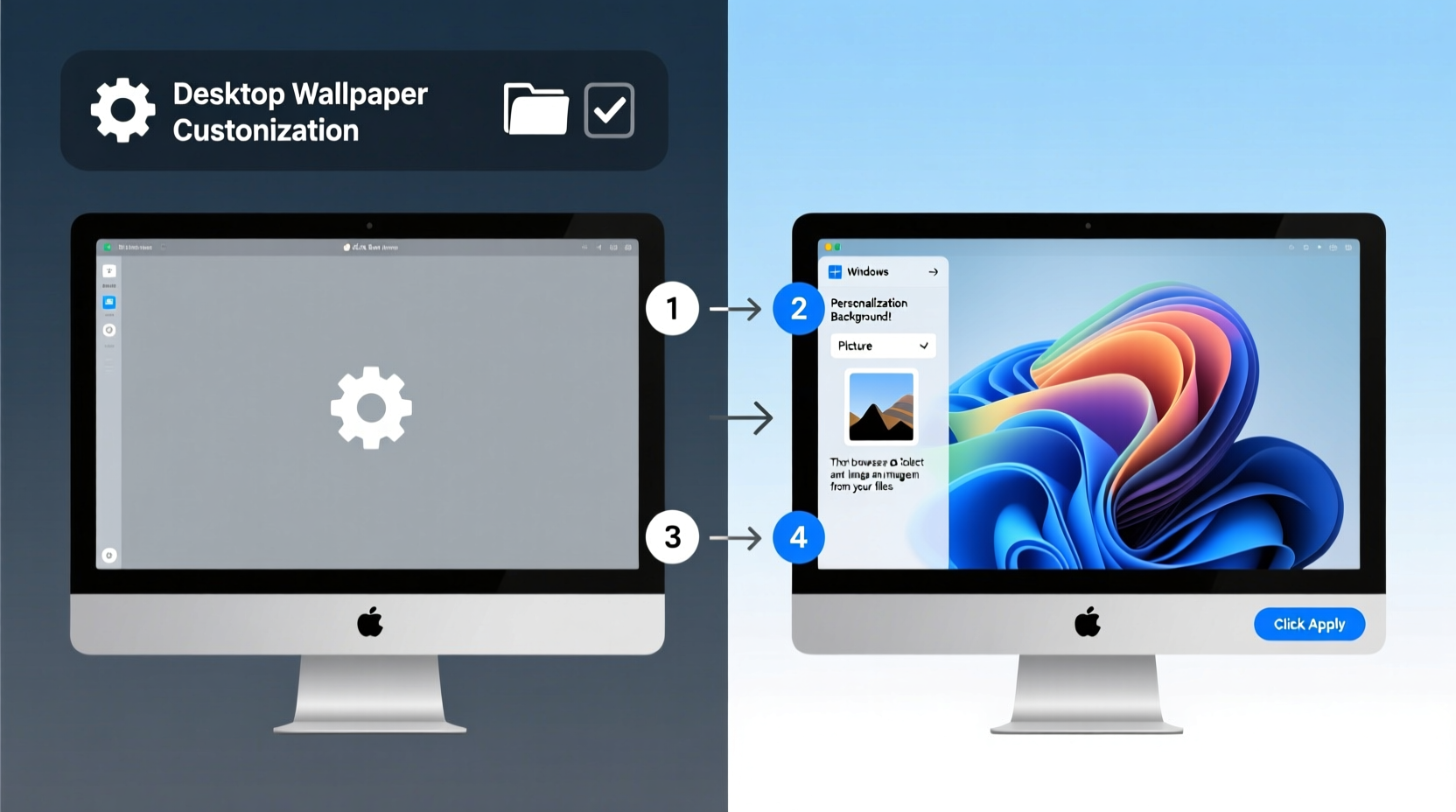
A personalized desktop isn’t just about aesthetics. Studies in environmental psychology suggest that visual surroundings influence focus, creativity, and emotional well-being. A cluttered or unappealing screen may subconsciously contribute to mental fatigue, while a carefully chosen image can serve as a daily motivator or moment of calm.
Windows 10 offers robust tools for wallpaper customization, allowing users to rotate images, align them precisely, and even sync visuals across devices via Microsoft accounts. These features are often underutilized, either because they’re hidden in menus or users assume the process is more complicated than it actually is.
Step-by-Step Guide to Changing Your Desktop Wallpaper
Changing your wallpaper manually is straightforward. Follow these steps to update your background in seconds:
- Right-click on an empty area of your desktop.
- Select Personalize from the context menu.
- In the Settings window, click on Background in the left-hand panel.
- Under the “Background” dropdown, choose Pictures.
- Click Browse to select an image from your computer.
- Navigate to the folder containing your desired image, select it, and click Choose picture.
Once selected, the image will immediately appear as your desktop background. You can adjust how it displays using the “Choose a fit for your desktop image” option below. Available settings include:
- Fill: Scales the image to fill the screen without cropping too much.
- Fit: Shows the entire image with black bars if aspect ratios don’t match.
- Stretch: Expands the image to cover the screen, which may distort proportions.
- Tile: Repeats a small image across the desktop (best for patterns).
- Center: Places the image in the middle without resizing.
- Span: Used when multiple monitors are connected; spreads one large image across screens.
Using Built-In Windows Themes
If you're unsure what image to use, Windows 10 includes several curated themes with matching wallpapers, sounds, and icons. To access them:
- Go to Settings > Personalization > Themes.
- Scroll through the list of pre-installed themes such as “Windows,” “Flowers,” “Animals,” or “Earth.”
- Click on a theme to apply it instantly.
You can also download additional themes from the Microsoft Store by clicking “Get more themes in Microsoft Store” at the bottom of the Themes page.
Creating a Dynamic Slideshow Wallpaper
For users who enjoy variety, Windows 10 supports automatic wallpaper rotation through a slideshow feature. This allows your desktop to cycle through a folder of images at set intervals.
- Open Settings > Personalization > Background.
- Change the “Background” dropdown from “Picture” to Slideshow.
- Click Browse to select a folder containing your preferred images.
- Set the frequency under “Change picture every” (options range from 1 minute to 1 day).
- Choose whether to shuffle the order.
- Decide if you want the slideshow to run on battery power (recommended only for desktops).
This feature is ideal for showcasing vacation photos, seasonal imagery, or motivational quotes saved as images.
Advanced Customization Options
Beyond basic settings, Windows 10 allows deeper integration with your preferences. For example, linking your Microsoft account enables theme syncing across devices. If you set a wallpaper on one Windows 10 PC, it can automatically appear on others logged into the same account—provided sync settings are enabled.
To verify sync settings:
- Go to Settings > Accounts > Sync your settings.
- Ensure “Theme” is toggled on under “Individual sync settings.”
Additionally, third-party applications like DisplayFusion, John’s Background Switcher, or Wallpaper Engine offer advanced functionality such as animated wallpapers, multi-monitor management, and internet-sourced image scheduling. While not native to Windows, these tools provide creative freedom beyond Microsoft’s default offerings.
Do’s and Don’ts of Wallpaper Selection
| Do’s | Don’ts |
|---|---|
| Use high-resolution images to maintain clarity | Avoid low-quality or pixelated pictures |
| Choose colors that contrast with desktop icons for visibility | Don’t pick overly bright or dark backgrounds that strain the eyes |
| Organize images in dedicated folders for easy access | Don’t store wallpapers in system-protected directories |
| Test different fit settings to optimize display | Don’t stretch non-square images excessively |
“Personalization is a form of digital self-expression. A well-chosen wallpaper can transform a generic machine into a reflection of identity and intent.” — Dr. Lena Torres, Human-Computer Interaction Researcher
Real Example: Transforming a Work-from-Home Setup
Sarah, a freelance graphic designer based in Portland, found herself losing motivation during long remote workdays. Her default Windows background had remained unchanged for months. After reading about environmental influences on productivity, she decided to experiment.
She created a slideshow using serene nature photos taken during a recent hiking trip. She set it to change every hour. Within days, she noticed a subtle but meaningful shift: her morning focus improved, and midday breaks felt more restorative. Occasionally, seeing a favorite waterfall image prompted a smile—and a quick stretch break. What began as a simple tweak evolved into a mindful ritual embedded in her workflow.
Frequently Asked Questions
Can I use live or animated wallpapers on Windows 10?
Not natively. Windows 10 does not support animated wallpapers out of the box. However, third-party software like Wallpaper Engine (available on Steam) enables video and interactive wallpapers. Be aware that these may increase GPU usage and affect battery life on laptops.
Why does my wallpaper look blurry after setting it?
This usually happens when the image resolution is lower than your screen’s display resolution. For Full HD (1920x1080) screens, ensure your image is at least that size. Upscaling small images causes pixelation. Always prefer original, high-quality files over compressed web versions.
How do I remove a slideshow and revert to a single wallpaper?
Go to Settings > Personalization > Background. Change the “Background” dropdown from “Slideshow” to “Picture.” Then select a specific image or choose one from the suggested list. The slideshow will stop automatically.
Conclusion: Make Your Desktop Uniquely Yours
Customizing your desktop wallpaper on Windows 10 takes less than a minute but can have lasting effects on your digital comfort and personal satisfaction. Whether you opt for a single striking image, a rotating gallery of memories, or a professionally curated theme, the choice reflects your personality and priorities. With the right image and settings, your desktop becomes more than a workspace—it becomes a canvas.




 浙公网安备
33010002000092号
浙公网安备
33010002000092号 浙B2-20120091-4
Comments
No comments yet. Why don't you start the discussion?