
Getting your Apple Watch up and running for the first time can feel overwhelming, especially if you're new to wearable tech. But with the right guidance, the process is intuitive and quick. Whether you’ve just unboxed your device or are restarting after a long period of inactivity, knowing how to power it on and set it up properly ensures you start enjoying its full range of features from day one.
The Apple Watch is designed to integrate seamlessly with your iPhone, offering health tracking, notifications, fitness coaching, and more—all from your wrist. But before you dive into workouts or reply to messages with a tap, you need to power it on and complete the initial setup. This guide walks you through each step clearly and efficiently, so you can begin using your Apple Watch without confusion or delays.
Step-by-Step: How to Power On Your Apple Watch
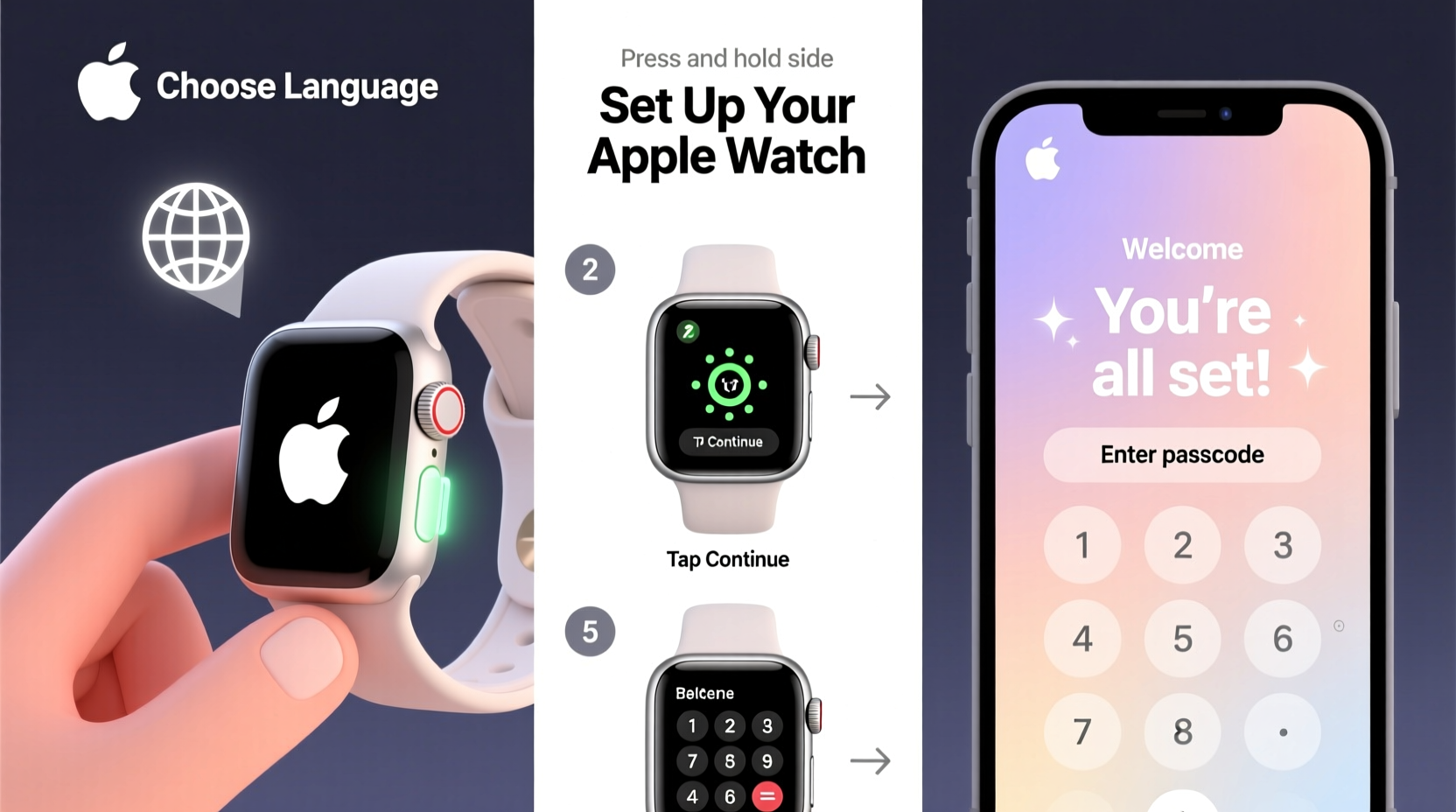
Turning on your Apple Watch for the first time requires no complicated procedures—just follow these straightforward actions:
- Charge the watch: Before attempting to power it on, ensure your Apple Watch has sufficient charge. Connect the magnetic charging cable to a USB power adapter or computer. Align the back of the watch with the charger until it snaps into place magnetically. A green lightning bolt on the screen indicates charging.
- Press and hold the side button: Once charging begins (or if the battery already has charge), press and hold the round button on the right edge of the watch—this is the side button. Keep holding it for about 3–5 seconds.
- Wait for the Apple logo: After a few moments, the screen will light up and display the glowing Apple logo. This means the device is powering on successfully.
- Release the button: Once the logo appears, you can release the side button. The watch will continue booting automatically.
Pairing Your Apple Watch with Your iPhone
Once powered on, your Apple Watch enters setup mode. To use most of its features, it must be paired with an iPhone via Bluetooth. Here’s how:
- Unlock your iPhone and open the Watch app (pre-installed on all iPhones running iOS 13 or later).
- Hold your iPhone near the Apple Watch. A pulsing animation will appear on the watch screen.
- Your iPhone should detect the watch automatically and prompt you to pair. Tap “Continue” on the iPhone.
- Alternatively, if automatic pairing doesn’t start, go to the Watch app > Start Pairing > Manual Pairing, then scan the QR code displayed on the watch using your iPhone’s camera.
During pairing, the watch downloads necessary data and syncs settings. This may take several minutes—keep both devices close and ensure Wi-Fi and Bluetooth are enabled on the iPhone.
What Happens During Setup?
After successful pairing, the Apple Watch guides you through a brief configuration process:
- Select your preferred language and region.
- Choose whether to set up as new or restore from backup.
- Agree to terms and conditions.
- Enable features like Fitness Tracking, Heart Rate Monitoring, and Emergency SOS.
- Create a passcode for security (recommended).
“Proper initial setup ensures optimal performance and personalized functionality. Take time during pairing to enable health alerts—they could be life-saving.” — Dr. Lena Torres, Digital Health Consultant
Essential Tips for First-Time Users
Even after powering on and pairing, there are key actions that enhance usability and comfort:
- Customize the watch face: Long-press the screen to enter edit mode. Swipe left or right to change styles, and tap complications (date, weather, activity rings) to modify them.
- Set up Activity Rings: Open the Activity app on your iPhone to configure move, exercise, and stand goals based on your lifestyle.
- Enable Do Not Disturb or Theater Mode when needed by swiping up from the watch face to access Control Center.
- Charge nightly: Apple Watches typically last 18 hours. Charging while you sleep ensures full battery every morning.
Common Issues and Quick Fixes
Sometimes, things don’t go smoothly. Below is a reference table for common problems and solutions:
| Issue | Possible Cause | Solution |
|---|---|---|
| Screen won’t turn on | Dead battery | Charge for at least 15–30 minutes using the original charger |
| No pairing prompt appears | Bluetooth disabled or distance too far | Ensure Bluetooth is on; bring iPhone within 1 foot of the watch |
| Stuck on Apple logo | Software freeze | Force restart: Press and hold both side button and Digital Crown for 10+ seconds |
| Passcode locked out | Too many failed attempts | Erase watch via iPhone Watch app > My Watch > All Watches > Erase Apple Watch Content and Settings |
Real Example: Sarah’s First Morning With Her Apple Watch
Sarah, a busy marketing manager, received her Apple Watch Series 9 as a birthday gift. Excited but unsure where to start, she followed the steps above. She charged the watch overnight, pressed the side button the next morning, and saw the Apple logo appear within seconds. Using her iPhone 14, the pairing animation showed instantly. Within ten minutes, her watch was synced, displaying her calendar, weather, and step count.
That afternoon, she got a haptic alert reminding her to stand—something she hadn’t noticed before. By evening, she’d closed two activity rings and felt motivated to walk more the next day. “It took less than 15 minutes to set up,” she said. “Now I can’t imagine my routine without it.”
Frequently Asked Questions
Can I use my Apple Watch without an iPhone?
While basic functions like telling time, using timers, and tracking workouts work independently, full functionality—including calls, messages, and app syncing—requires an iPhone. Cellular models allow limited standalone use, such as making calls or streaming music, but initial setup still needs an iPhone.
How do I know if my Apple Watch is fully charged?
When charging, a battery icon appears on-screen. It turns green when charging and fills progressively. When the icon becomes solid green and displays 100%, charging is complete. You’ll also hear a chime upon connection and disconnection if sound is enabled.
What should I do if my Apple Watch won’t turn on even after charging?
Try a force restart by pressing and holding the side button and Digital Crown simultaneously for at least 10 seconds until the Apple logo appears. If that fails, clean the charging contacts gently with a dry cloth and retry with a known-working power source. Persistent issues may require contacting Apple Support.
Quick Setup Checklist
Follow this checklist to ensure a smooth start:
- ✅ Charge the Apple Watch until the green lightning bolt appears
- ✅ Press and hold the side button until the Apple logo shows
- ✅ Open the Watch app on your iPhone
- ✅ Hold iPhone near the watch to initiate pairing
- ✅ Follow on-screen prompts to complete setup
- ✅ Customize watch face and enable key health features
- ✅ Sync apps and test notifications
Start Strong: Make the Most of Your Apple Watch Today
Powering on and setting up your Apple Watch doesn’t have to be daunting. With the right approach, you can go from unboxing to full functionality in under 20 minutes. The integration between your iPhone and Apple Watch opens doors to better fitness tracking, smarter notifications, and enhanced personal safety features like fall detection and emergency SOS.
Take the time now to set it up correctly—charge it fully, pair it securely, and personalize it to match your daily rhythm. Once configured, your Apple Watch becomes more than a gadget; it becomes a companion that supports your health, productivity, and peace of mind.




 浙公网安备
33010002000092号
浙公网安备
33010002000092号 浙B2-20120091-4
Comments
No comments yet. Why don't you start the discussion?