
If your phone struggles with sluggish internet speeds while other devices breeze through the same Wi-Fi network, you're not imagining things. This frustrating issue affects millions of users daily. The good news: it's usually fixable without resetting your device or calling customer support. The root cause often lies in settings, interference, outdated software, or hardware limitations unique to your phone. Understanding how to isolate and resolve these factors can restore smooth browsing, streaming, and downloading—without touching your router.
Why Your Phone Might Be Slower Than Other Devices
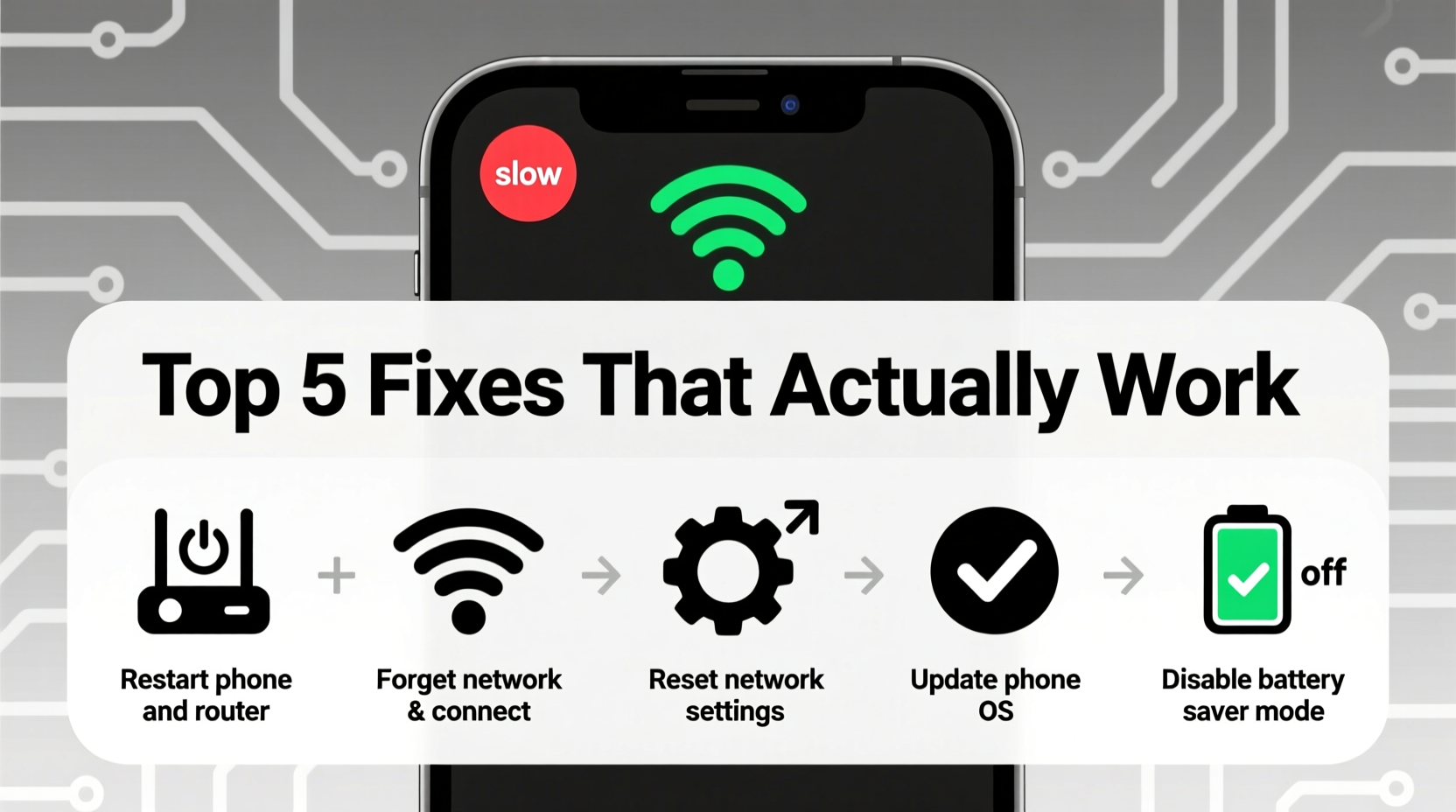
When your laptop or tablet loads pages instantly but your phone crawls, the problem isn’t necessarily your internet service. Modern phones connect to Wi-Fi using specific radios and protocols that differ from other devices. A mismatch in supported standards, signal prioritization, or background processes can create a bottleneck exclusive to your smartphone.
Common culprits include:
- Outdated Wi-Fi drivers or firmware
- Interference from apps consuming bandwidth in the background
- Connection to a congested 2.4 GHz band instead of 5 GHz
- Degraded antenna performance due to case or physical damage
- Network throttling by the carrier (on cellular data)
- Accumulated cache and corrupted network settings
Unlike desktops or laptops, phones are constantly switching between networks, managing Bluetooth, GPS, and cellular signals—all of which can interfere with Wi-Fi stability. Identifying where the breakdown occurs is the first step toward resolution.
Step-by-Step Guide to Diagnose and Fix Slow Internet on Phone
Follow this logical sequence to pinpoint and eliminate the cause of poor performance. Each step builds on the last, ensuring no stone is left unturned.
- Verify the Issue Is Isolated to Your Phone
Use another device—like a tablet or laptop—on the same Wi-Fi network. Run a speed test using tools like Speedtest.net or Fast.com. If those devices perform well, the bottleneck is likely your phone. - Restart Your Phone and Router
A soft reboot clears temporary glitches. Turn off your phone completely for 30 seconds, then restart. Also power-cycle your router by unplugging it for 30 seconds before plugging it back in. This resets all connected devices and refreshes IP assignments. - Forget and Reconnect to Wi-Fi
Go to Settings > Wi-Fi, tap the network name, and select “Forget.” Then reconnect by entering the password again. This forces your phone to establish a fresh handshake with the router, often resolving authentication or encryption hiccups. - Check Which Wi-Fi Band You’re On
Many routers broadcast both 2.4 GHz and 5 GHz bands. While 2.4 GHz travels farther, it’s slower and more prone to interference from microwaves, baby monitors, and neighboring networks. If your phone connects to 2.4 GHz by default, manually switch to 5 GHz if available. Look for a network name ending in “_5G” or check your router settings to rename bands distinctly. - Disable Battery Saver and Data-Saving Modes
Features like Battery Saver (Android) or Low Power Mode (iOS) throttle background activity and network performance. Temporarily disable them to see if speeds improve. If they do, adjust settings to allow exceptions for critical apps. - Clear App Cache and Background Data Usage
Apps like social media, email, and cloud backups can consume bandwidth silently. On Android: go to Settings > Apps > [App Name] > Storage > Clear Cache. On iOS: offload unused apps via Settings > General > iPhone Storage. Also review cellular data usage to spot bandwidth hogs. - Update Your Operating System and Apps
Manufacturers release updates that patch connectivity bugs and improve Wi-Fi stack efficiency. Check for system updates under Settings > Software Update (iOS) or System > Advanced > System Update (Android). Similarly, update all apps through the App Store or Google Play. - Reset Network Settings
This wipes saved Wi-Fi passwords, Bluetooth pairings, and APN configurations. Use as a last resort before deeper troubleshooting. On iPhone: Settings > General > Transfer or Reset iPhone > Reset > Reset Network Settings. On Android: Settings > System > Reset Options > Reset Wi-Fi, Mobile & Bluetooth. After reset, reconnect to Wi-Fi and retest speed.
Do’s and Don’ts When Troubleshooting Phone Internet Speed
| Do’s | Don’ts |
|---|---|
| Test speed at different times of day to rule out peak congestion | Assume the router is always at fault—your phone could be the weak link |
| Use wired Ethernet adapters (if supported) to compare performance | Ignore physical obstructions like walls or metal objects between phone and router |
| Keep your phone updated with the latest security patches | Install third-party “booster” apps—they rarely help and often collect data |
| Remove thick cases that may block antenna signals | Leave location services and Bluetooth on unnecessarily—it increases radio interference |
| Monitor data usage to detect rogue apps | Factory reset without backing up data or trying simpler fixes first |
Real-World Example: Maria’s Morning Streaming Struggle
Maria relied on her phone to stream morning news while getting ready. Despite having gigabit fiber and a new mesh Wi-Fi system, her iPhone buffered constantly. Her husband’s laptop streamed flawlessly from the same room.
She began troubleshooting: restarted both devices, checked for updates (none pending), and noticed her phone was connected to “Home_WiFi” instead of “Home_WiFi_5G.” After forgetting the old network and reconnecting to the 5 GHz version, her speed jumped from 3 Mbps to 87 Mbps. The issue? Her phone had latched onto the overcrowded 2.4 GHz band weeks earlier and never switched automatically.
This simple fix restored full functionality—no technician needed. It underscores how subtle network selection errors can cripple performance despite strong infrastructure.
Expert Insight: What Network Engineers Say
“Phones are the most complex wireless clients we manage. They juggle multiple radios, aggressive power management, and inconsistent driver support. A lot of ‘slow Wi-Fi’ complaints stem from misaligned expectations, not broken hardware.” — Raj Patel, Senior Network Engineer at NetSecure Systems
Patel emphasizes that modern phones prioritize battery life over peak performance. Features like adaptive Wi-Fi scanning and sleep modes delay responses and reduce throughput during low activity. He recommends disabling “Smart Network Switch” or “Wi-Fi+” features if consistent speed matters more than battery savings.
Troubleshooting Checklist: Quick Actions That Work
- ✅ Restart phone
- ✅ Restart router
- ✅ Forget and rejoin Wi-Fi network
- ✅ Disable Low Power/Battery Saver mode
- ✅ Close all background apps
- ✅ Run a speed test (e.g., Speedtest by Ookla)
- ✅ Confirm connection to 5 GHz band if available
- ✅ Check for OS and app updates
- ✅ Remove case temporarily to test signal improvement
- ✅ Reset network settings if unresolved
When Hardware or Carrier Issues Are to Blame
Sometimes, the problem isn’t software. Older phones, especially those over three years old, may lack support for modern Wi-Fi standards like 802.11ac or Wi-Fi 6. Even if the router supports high speeds, the phone’s internal radio caps the maximum throughput.
Similarly, carriers sometimes throttle data after a certain usage threshold—even on unlimited plans. To test this:
- Connect to a known-fast Wi-Fi network (e.g., at work or a friend’s house).
- If speeds remain slow, the issue is likely your phone.
- If speeds improve dramatically, your home router or ISP may be limiting performance.
Physical damage also plays a role. A cracked phone body near the top or bottom edge (where antennas are often located) can degrade signal reception. Water damage, even minor, can corrode internal components over time.
Frequently Asked Questions
Why is my phone slow on Wi-Fi but fast on cellular data?
This suggests a Wi-Fi-specific issue. Your phone may be connecting to a weak or congested band, experiencing interference, or suffering from corrupted Wi-Fi settings. Try forgetting the network and reconnecting. Also ensure you're not in an area where cellular signal is boosted (e.g., near a femtocell).
Can a phone case really affect internet speed?
Yes. Metal-reinforced cases, magnetic wallets, or thick shielding materials can block antenna signals, especially on older models with external antennas. Test your speed with and without the case. If performance improves significantly, consider switching to a thinner, non-metallic design.
Does clearing cache really help with internet speed?
Indirectly, yes. Over time, apps accumulate cached data that can cause crashes or inefficient loading. While clearing cache doesn’t boost raw bandwidth, it reduces processing lag and prevents apps from freezing during downloads. It’s a maintenance best practice, not a magic fix.
Conclusion: Take Control of Your Connection
Slow internet on your phone while Wi-Fi works fine elsewhere isn’t a mystery—it’s a solvable technical mismatch. By systematically testing connections, updating software, optimizing band selection, and eliminating hidden bottlenecks, you can reclaim fast, reliable performance. Most fixes take less than 10 minutes and don’t require technical expertise. The key is persistence and methodical testing.
Don’t accept buffering videos or failed uploads as normal. Apply these steps today, and experience the difference a properly tuned device can make. Your phone is capable of much more than it’s showing—sometimes, it just needs a little recalibration.




 浙公网安备
33010002000092号
浙公网安备
33010002000092号 浙B2-20120091-4
Comments
No comments yet. Why don't you start the discussion?