
Modern smart fridges promise convenience: remote temperature control, internal camera access, expiration alerts, and even grocery list syncing. But when your refrigerator refuses to connect to Wi-Fi, those features become useless. Unlike smartphones or laptops, smart fridges don’t offer detailed error logs or easy reset options, making troubleshooting frustrating. The good news is that most connectivity issues are fixable with the right approach. This guide walks through real-world-tested solutions—no guesswork, no generic advice—just what actually works.
Why Smart Fridges Struggle with Wi-Fi
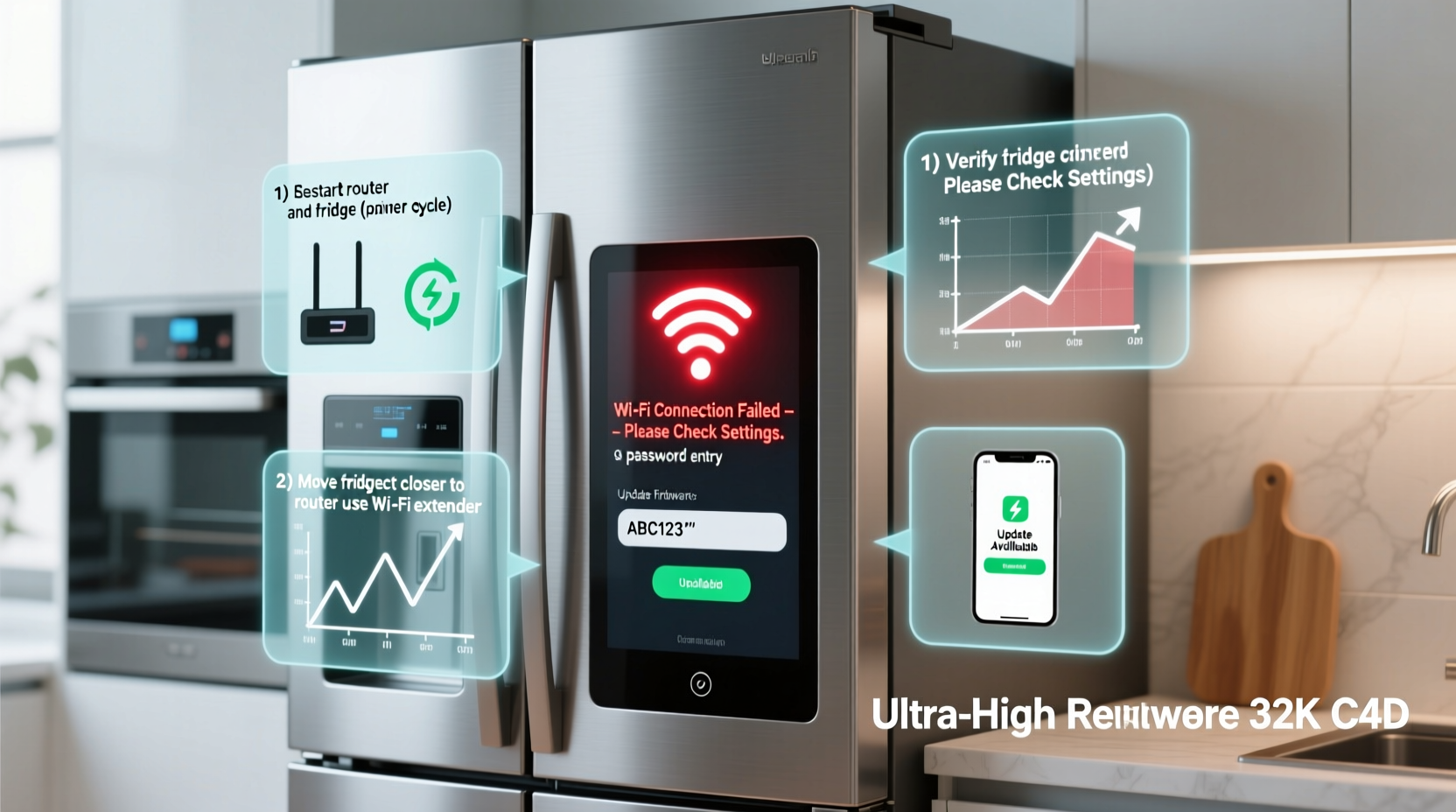
Before diving into fixes, it helps to understand why smart appliances like refrigerators fail to maintain a stable connection. Unlike mobile devices, fridges run on embedded operating systems with limited processing power and outdated firmware support. They’re also typically located in kitchens—areas often far from routers, cluttered with metal appliances, microwaves, and thick walls that interfere with signal strength.
Common causes include:
- Weak or inconsistent Wi-Fi signal at the fridge’s location
- Router settings blocking IoT devices (e.g., MAC filtering, AP isolation)
- Outdated firmware on the fridge
- Incorrect network credentials saved during setup
- Network congestion from too many connected devices
- DNS or IP address conflicts
Understanding these factors helps you move beyond simple \"restart the device\" advice and target the root cause.
Step-by-Step Troubleshooting That Actually Works
Follow this sequence of actions in order. Each step builds on the previous one, increasing in depth and effectiveness.
- Verify Wi-Fi Signal Strength at the Fridge Location
Use your smartphone or a Wi-Fi analyzer app (like NetSpot or Wi-Fi Analyzer) to check signal strength near the fridge. A signal below -70 dBm is considered weak. If that’s the case, consider relocating your router or installing a mesh extender. - Restart Both the Fridge and Router
Unplug the fridge for 2 minutes (not just turning it off). Reset the router by unplugging it for 30 seconds. Plug both back in and wait for full reboot before attempting reconnection. This clears temporary glitches in both devices’ network stacks. - Ensure You're on a 2.4 GHz Network
Most smart fridges only support 2.4 GHz bands. Even if your router broadcasts a dual-band SSID (combined 2.4 and 5 GHz), the fridge may fail to connect. Temporarily disable the 5 GHz band or create a separate 2.4 GHz network name (SSID) to isolate the connection. - Forget and Re-Pair the Network
Navigate to the fridge’s Wi-Fi settings (usually under Settings > Network). Select “Forget Network,” then manually reconnect by choosing your 2.4 GHz network and entering the password carefully. Avoid using WPS—it’s unreliable on most appliance models. - Check Router Security Settings
Some routers block unknown devices via AP isolation or client restrictions. Log into your router admin panel (typically via 192.168.1.1) and ensure:- AP Isolation is disabled
- MAC filtering is off or your fridge’s MAC address is whitelisted
- UPnP (Universal Plug and Play) is enabled
- Assign a Static IP to the Fridge
Dynamic IPs can cause dropouts. In your router settings, locate the fridge by its hostname (e.g., “Samsung-Fridge”) and assign it a reserved/static IP address. This prevents IP conflicts and improves reliability. - Update the Fridge’s Firmware
Manufacturers release firmware updates to patch connectivity bugs. Check the brand’s app (e.g., Samsung SmartThings, LG ThinQ) for pending updates. If no update appears, visit the support site and enter your model number to manually download firmware. - Factory Reset the Fridge’s Network Module
As a last resort, perform a network factory reset. This varies by brand:- Samsung: Hold “Power Cool” and “Fridge” buttons for 10 seconds
- LG: Press and hold “Ice Plus” and “Water” for 5 seconds
- GE: Navigate to Settings > Diagnostics > Reset Network
Do’s and Don’ts: Common Mistakes That Worsen the Problem
Many users unknowingly make things worse. Here’s a quick-reference table to avoid common pitfalls.
| Do’s | Don’ts |
|---|---|
| Use a dedicated 2.4 GHz SSID for IoT devices | Assume your dual-band Wi-Fi automatically routes the fridge correctly |
| Keep the fridge within 15 feet of the router, avoiding large metal objects | Place the fridge behind a refrigerator water line or near a microwave |
| Regularly check for firmware updates every 3 months | Ignore update notifications in the companion app |
| Label your fridge’s MAC address and model number for support calls | Wait until the issue repeats to document details |
| Contact manufacturer support with error codes and steps already tried | Repeat the same failed steps multiple times hoping for different results |
Real-World Example: How One Family Fixed Their LG Fridge
The Thompson family in Austin, Texas, couldn’t get their LG LFXS28968S to reconnect after a power outage. The fridge displayed “Wi-Fi Disconnected” despite showing full bars. They tried restarting, re-entering passwords, and even resetting the router—nothing worked.
After consulting an HVAC technician who also handles smart appliances, they discovered their new mesh system had AP isolation enabled by default. Once disabled, the fridge connected instantly. Additionally, the technician recommended reserving a static IP for the fridge to prevent future dropouts during network resets.
This case highlights how modern security features can unintentionally block legitimate devices. It also shows the value of checking advanced router settings—something most users overlook.
“Most smart appliance connectivity issues aren’t with the appliance itself, but with how home networks are configured today. The fix is rarely on the fridge—it’s in the router.” — Carlos Mendez, IoT Integration Specialist with 12 years of field experience
Troubleshooting Checklist: Print or Save This List
Use this checklist the next time your smart fridge won’t connect. Tick each item as you complete it.
- ✅ Confirm Wi-Fi signal strength near the fridge (use phone or app)
- ✅ Restart both the fridge (unplug for 2 mins) and router
- ✅ Ensure you’re using a 2.4 GHz network (disable 5 GHz if needed)
- ✅ Forget the current network on the fridge and reconnect manually
- ✅ Check router settings: disable AP isolation, enable UPnP
- ✅ Assign a static IP to the fridge in router settings
- ✅ Check for firmware updates via the brand’s app or website
- ✅ Perform a network factory reset on the fridge
- ✅ Contact manufacturer support with model number and error details
Frequently Asked Questions
Can a smart fridge connect to public or guest Wi-Fi networks?
No. Most smart fridges cannot authenticate on public or guest networks that require browser-based login (captive portals). They also often fail on networks that lack internet access or restrict local device communication. Always use your primary private home network.
Why does my fridge keep disconnecting from Wi-Fi randomly?
Random disconnections are usually due to signal interference, router firmware bugs, or IP address conflicts. First, assign a static IP. Second, ensure your router firmware is up to date. Third, reduce interference by moving cordless phones, baby monitors, or microwaves away from the signal path.
Does using a Wi-Fi extender help?
Yes—but only if it’s a high-quality mesh node or extender that supports IoT devices reliably. Cheap repeaters often degrade signal quality. For best results, use a mesh system (like Google Nest Wifi or Eero) and place a satellite within 10–15 feet of the fridge.
When to Call Support (And What to Say)
If you’ve completed all steps and the fridge still won’t connect, contact the manufacturer. Be ready with:
- Your model and serial number (usually on a sticker inside the door frame)
- A list of troubleshooting steps you’ve already tried
- Any error messages (e.g., “Authentication Failed,” “No Internet,” “DNS Error”)
- Your router model and firmware version
Manufacturers like Samsung and LG have tiered support. First-line agents may suggest basic restarts, but escalate to technical specialists if needed. Mention that you’ve already performed advanced diagnostics—this often speeds up resolution.
Conclusion: Regain Control of Your Smart Kitchen
A smart fridge that won’t connect to Wi-Fi isn’t just inconvenient—it defeats the purpose of owning a high-tech appliance. But with systematic troubleshooting, most issues can be resolved in under an hour. Start with signal strength and restarts, then move to router settings and firmware. Avoid repeating ineffective steps; instead, progress logically through verified fixes.
These aren’t theoretical suggestions—they’re methods used by technicians and informed users who’ve faced the same frustration. Now that you know what actually works, take action tonight. Your fridge should serve you, not the other way around.




 浙公网安备
33010002000092号
浙公网安备
33010002000092号 浙B2-20120091-4
Comments
No comments yet. Why don't you start the discussion?