
Sudden silence from your computer speakers or headphones can be frustrating—whether you're in the middle of a video call, watching a movie, or gaming. Audio problems on a PC are common but rarely insurmountable. Most issues stem from simple misconfigurations, outdated drivers, or loose connections rather than permanent hardware failure. This guide walks through systematic, real-world solutions to diagnose and resolve sound not working issues on Windows-based PCs.
Check the Basics First
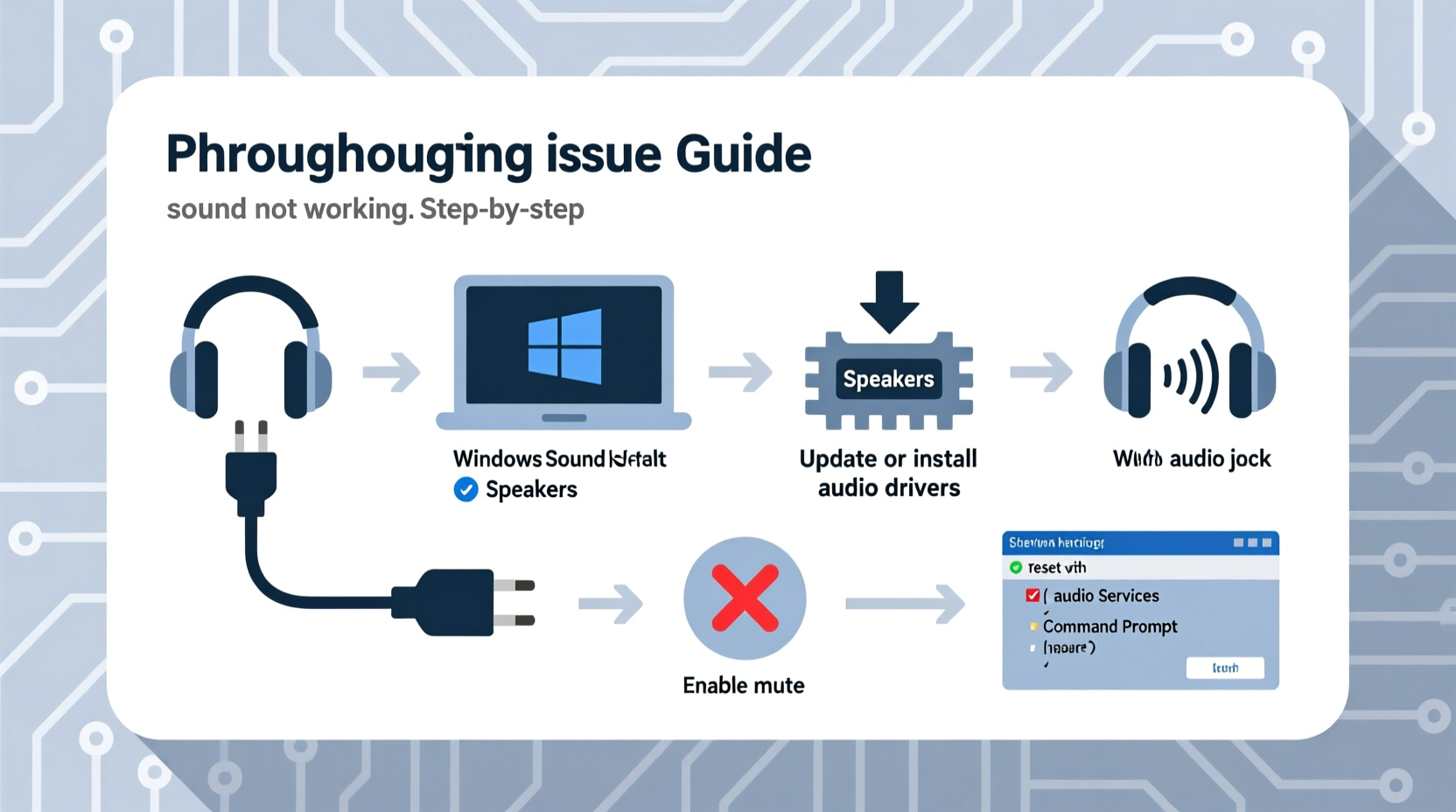
Before diving into complex diagnostics, eliminate the most obvious causes. Many audio problems are resolved with quick checks that take less than a minute.
- Ensure your speakers or headphones are properly plugged in. For USB devices, try a different port.
- Verify that external speakers have power and volume controls turned up.
- Confirm that your system isn’t muted. Check both the speaker icon in the taskbar and physical device controls.
- If using Bluetooth headphones, ensure they’re connected and selected as the playback device.
Verify Playback Device Settings
Windows sometimes defaults to the wrong output device, especially if multiple audio options (HDMI, USB headset, Bluetooth) are available.
- Right-click the speaker icon in the system tray and select Open Sound settings.
- Under Output, check which device is selected. If it’s incorrect, choose the right one from the dropdown.
- Click Device properties to test the speaker or adjust default format (e.g., 16-bit, 44100 Hz).
- Use the Test button to confirm sound plays through the selected device.
If no devices appear, Windows may not detect any audio hardware—a sign of deeper driver or system-level issues.
Update or Reinstall Audio Drivers
Outdated, corrupted, or missing drivers are among the top causes of audio failure. The audio driver acts as a bridge between your operating system and sound hardware.
To update your driver:
- Press Windows + X and select Device Manager.
- Expand the Sound, video and game controllers section.
- Right-click your audio device (e.g., Realtek High Definition Audio) and choose Update driver.
- Select Search automatically for updated driver software.
If Windows finds no updates, visit your PC manufacturer’s support site (Dell, HP, Lenovo, etc.) or your motherboard manufacturer if using a custom build. Download the latest audio driver directly from them.
In cases where the driver appears malfunctioning:
- Uninstall the driver in Device Manager (right-click > Uninstall device).
- Restart your PC. Windows will attempt to reinstall the driver automatically.
“Over 60% of reported audio issues are resolved by simply updating or reinstalling the audio driver.” — Michael Tran, Senior Support Engineer at Dell Technologies
Run the Built-in Audio Troubleshooter
Windows includes a diagnostic tool that detects and resolves common audio problems automatically.
- Go to Settings > System > Sound.
- Scroll down and click Run the troubleshooter under Input or Output.
- Follow the prompts. The tool may detect muted devices, incorrect defaults, or driver conflicts.
This utility often resolves issues like no sound after sleep mode, intermittent crackling, or sudden dropouts without requiring manual intervention.
Check for System and Software Conflicts
Some applications override system audio settings or monopolize the audio device. Common culprits include communication tools like Zoom, Discord, or Skype.
Consider these steps:
- Close background apps one by one and test audio playback.
- Ensure no app is set as the “exclusive” controller of audio devices. To disable:
- Right-click the speaker icon > Sound settings > More sound settings.
- Double-click your playback device > Advanced tab.
- Uncheck Allow applications to take exclusive control.
- Disable audio enhancements: In the same Properties window, go to the Enhancements tab and check Disable all enhancements. Some effects cause distortion or silence.
Mini Case Study: Office Worker Loses Sound After Update
Jamie, a remote project manager, experienced no sound after a Windows 11 feature update. YouTube videos played visuals but no audio. She checked mute status and output device—both were correct. The built-in troubleshooter detected a driver issue but failed to fix it. Jamie manually uninstalled the Realtek driver in Device Manager, restarted her laptop, and allowed Windows to install a fresh version. Within two minutes, sound returned. The root cause was an incompatible driver version pushed during the update.
Hardware Diagnostics and Testing
If software fixes fail, evaluate your hardware. Use this checklist to isolate the problem:
- Test headphones on another device (phone, tablet) to confirm they work.
- Try a different pair of headphones or speakers on your PC.
- Inspect ports for debris or damage—especially 3.5mm jacks.
- For desktops, try front-panel and rear audio ports separately.
- If using HDMI audio (to a monitor or TV), ensure the display’s speakers are enabled and set as default.
Persistent issues across multiple devices suggest a motherboard-level audio component failure, though rare. In laptops, internal speaker damage may require professional repair.
| Issue Symptom | Most Likely Cause | Suggested Fix |
|---|---|---|
| No sound on any app | Muted output, wrong device, or driver issue | Check volume, playback device, run troubleshooter |
| Sound only in one app | App-specific audio settings or permissions | Check app volume mixer, enable app audio access |
| Crackling or static noise | Driver conflict or audio enhancements | Disable enhancements, update drivers |
| No sound over HDMI | Incorrect default device or display settings | Select HDMI output, check TV/audio receiver settings |
| Intermittent sound | Loose connection or failing hardware | Inspect cables, test alternate devices |
Frequently Asked Questions
Why does my PC show audio as playing but I hear nothing?
This usually means the system believes audio is being sent, but the signal isn’t reaching your ears. Causes include incorrect output selection, disabled playback devices, faulty cables, or hardware failure. Start by switching output devices and testing with known-working headphones.
Can a Windows update cause sound to stop working?
Yes. Major updates can overwrite or conflict with existing drivers. While rare, some updates introduce bugs affecting specific hardware. If sound fails after an update, roll back the audio driver or wait for a patch from Microsoft or your hardware vendor.
How do I reset audio settings to default in Windows?
There’s no single “reset all audio” button, but you can achieve similar results by: uninstalling audio drivers, running the audio troubleshooter, clearing app-specific audio permissions, and restarting. After reboot, Windows rebuilds core audio configurations automatically.
Final Steps and When to Seek Help
If you’ve exhausted all software and peripheral checks without success, consider deeper system actions:
- Perform a system restore to a point when audio worked.
- Boot into Safe Mode and test audio—if it works, a third-party app is interfering.
- On desktops, consider installing a dedicated PCIe audio card as a workaround.
For laptops or all-in-one systems, persistent audio failure likely indicates internal hardware damage. Contact the manufacturer or a certified technician before replacing the device.
“Don’t assume the worst when sound fails. In nine out of ten cases, it’s a setting, connection, or driver issue—not broken hardware.” — Lisa Park, IT Support Lead at TechAid Solutions
Conclusion
Solving \"sound not working\" issues doesn’t require advanced technical skills—just methodical troubleshooting. Start with simple checks, progress through driver and software fixes, and validate hardware last. Most users regain full audio functionality within 15 minutes using the steps outlined here. Don’t let silence disrupt your work or entertainment. Apply these strategies today and restore clarity to your digital experience.




 浙公网安备
33010002000092号
浙公网安备
33010002000092号 浙B2-20120091-4
Comments
No comments yet. Why don't you start the discussion?