
If you're reading this, there's a good chance your Spectrum internet has suddenly stopped working. You’re not alone. Millions of users experience intermittent outages or full disconnections—sometimes due to local issues, other times because of widespread network problems. The key is knowing how to quickly determine the cause and take action that actually works. This guide walks you through diagnosing whether it’s a personal equipment issue, a neighborhood-wide outage, or a larger service disruption—and what to do in each case.
Check for a Widespread Spectrum Outage
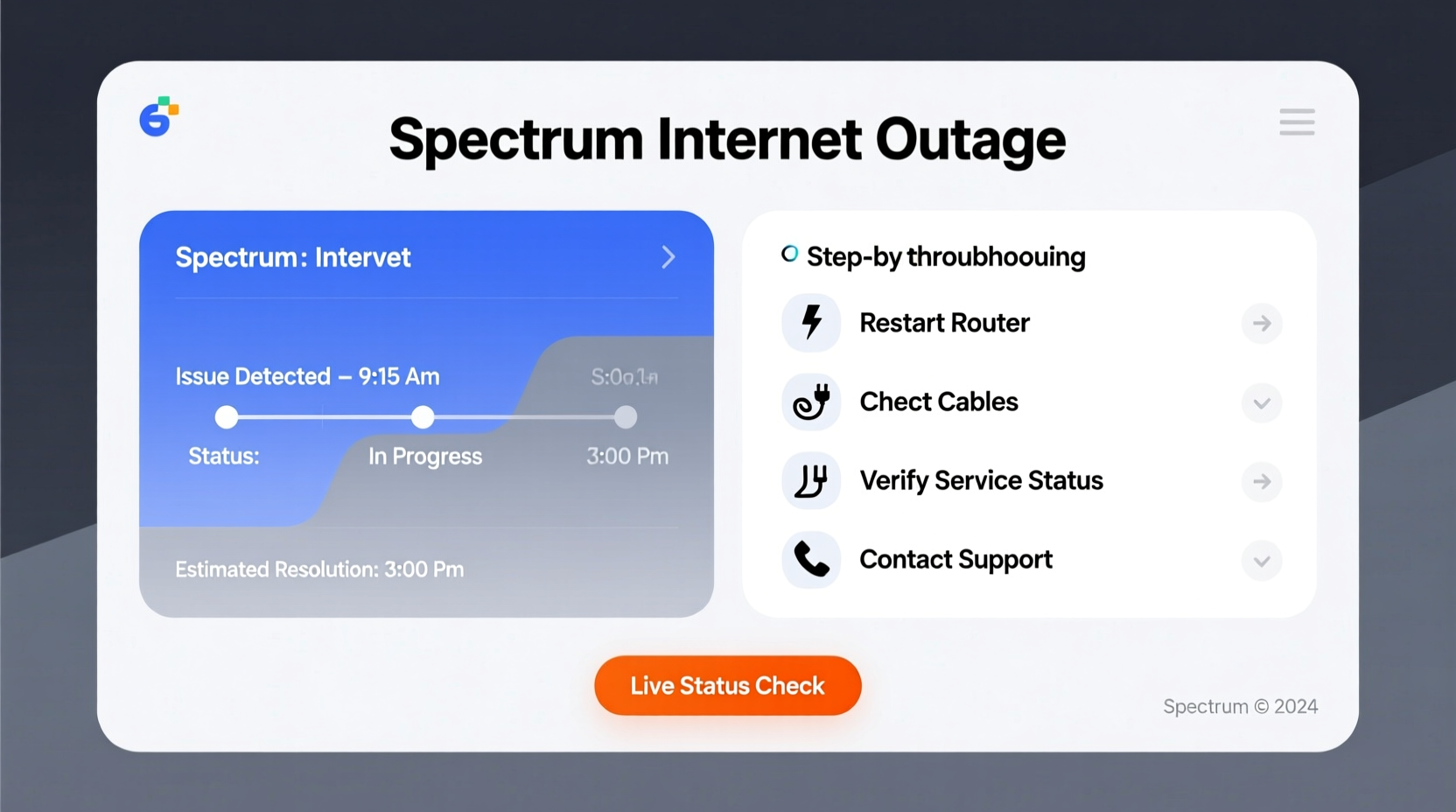
The first step when your internet stops working is to determine if the problem is isolated to your home or part of a broader outage. Spectrum, like all major ISPs, occasionally experiences regional or national disruptions due to maintenance, fiber cuts, or system upgrades.
Before resetting your router or calling customer support, verify if others in your area are also affected:
- Downdetector.com: A real-time crowd-sourced platform showing reported outages by location and provider. Search “Spectrum Internet” and zoom into your region.
- Spectrum Service Status Page: Visit Spectrum’s official service status portal. If there’s an ongoing issue, they usually post updates here with estimated restoration times.
- Ask Neighbors: A quick text or social media check in local community groups (Nextdoor, Facebook) can confirm whether nearby homes are down too.
Step-by-Step Troubleshooting Guide
If no widespread outage is reported, the issue likely lies within your setup. Follow this logical sequence to identify and resolve the problem:
- Check Physical Connections: Ensure the coaxial cable from the wall is securely connected to the modem. Verify power cords are plugged in and outlets are active.
- Restart Your Equipment: Unplug both the modem and router. Wait 60 seconds, then plug the modem back in. Wait until all lights stabilize (especially the \"Online\" or \"Send\" light turns solid white or blue), then power on the router.
- Test Without Wi-Fi: Connect a computer directly to the modem using an Ethernet cable. If the connection works, the issue is likely your router or wireless settings.
- Check Device-Specific Issues: Try accessing the internet from multiple devices. If only one device fails, the problem may be software-related (browser cache, IP conflict, or Wi-Fi adapter).
- Log Into the Modem Interface: Open a browser and go to
http://192.168.100.1(the default gateway for most Spectrum modems). Check signal levels under “Signal Settings” or “Connection.” Look for:- Downstream Power: Should be between -10 dBmV and +15 dBmV
- Upstream Power: Ideally between 35–50 dBmV
- SNR (Signal-to-Noise Ratio): Above 30 dB is healthy
Common Causes and Solutions Table
| Potential Cause | Symptoms | Solution |
|---|---|---|
| Local Power Surge or Brownout | Modem/router unresponsive, flickering lights | Power cycle equipment; use surge protectors |
| Router Firmware Glitch | Wi-Fi drops intermittently, slow speeds | Update firmware via admin panel or replace outdated hardware |
| Coaxial Cable Damage | No signal, blinking \"Online\" light | Inspect cables for kinks or corrosion; contact Spectrum for line check |
| Account Suspension or Billing Issue | No internet despite working hardware | Log into Spectrum account online to verify active service |
| Network Congestion | Slow speeds during peak hours (7–10 PM) | Use QoS settings or upgrade to higher-tier plan |
Real-World Example: When the Lights Lie
In suburban Charlotte, NC, Sarah noticed her Spectrum internet dropped every evening around 7:30 PM. Her modem showed all green lights, but Wi-Fi was unusable. She assumed it was an outage. After checking Downdetector and seeing no reports, she followed the troubleshooting steps above. Connecting via Ethernet revealed full speed—meaning the modem was fine. The issue was her aging dual-band router struggling under load from streaming, gaming, and smart home devices. She reset the router, updated its firmware, and changed the Wi-Fi channel to reduce interference. Speeds stabilized immediately. A $120 router upgrade a week later eliminated the nightly slowdowns entirely.
This case illustrates a critical point: green lights don’t always mean everything’s working correctly. Internal bottlenecks, especially in older routers, can mimic outages without any actual service disruption.
“Many so-called ‘outages’ are actually localized hardware or configuration issues. Always rule out your own equipment before assuming it’s the provider.” — James Lin, Network Engineer with 15 years in ISP support
When to Contact Spectrum Support
You’ve rebooted, checked connections, verified no outage—and still no internet. It’s time to call Spectrum. But make the most of your support interaction:
- Have your account number ready (found on bills or the app).
- Know your modem model (e.g., Arris SBG7600AC2, Netgear CM700).
- Be ready to describe what you’ve already tried.
- Ask for signal levels to be checked remotely—technicians can often see line quality from their end.
Spectrum’s customer service line is 1-833-467-7887. For faster resolution, use the Spectrum app to chat with support or schedule a technician visit. If the issue is confirmed as external (line fault, node failure), a tech will be dispatched—usually within 24–48 hours.
Frequently Asked Questions
How long do Spectrum outages usually last?
Most minor outages are resolved within 1–2 hours. Larger infrastructure issues (like fiber cuts or storms) can take 24–72 hours. Spectrum typically provides updates on their service status page when delays exceed two hours.
Can I get a bill credit for downtime?
Yes. Spectrum offers service credits for unplanned outages exceeding four consecutive hours. Contact customer service or submit a request through your online account under “Billing & Payments” > “Request a Credit.”
Why does my internet work on some devices but not others?
This usually points to Wi-Fi interference, outdated drivers, or incorrect network settings on the affected device. Try forgetting the network and reconnecting, updating the OS, or restarting the device’s network stack (e.g., airplane mode toggle).
Proactive Measures to Prevent Future Disruptions
Waiting for an outage to occur isn’t the best strategy. Take control now:
- Upgrade Old Equipment: Modems over three years old may not support current DOCSIS standards. Consider renting Spectrum’s latest gateway or buying a compatible model (check their approved list).
- Use a UPS (Uninterruptible Power Supply): Protects against brief outages and surges that can corrupt modem firmware.
- Monitor Signal Health Monthly: Log into your modem’s interface and note downstream/upstream power. Sudden changes can indicate developing line issues.
- Enable Auto-Updates: Ensure your router firmware updates automatically if supported.
Conclusion: Stay Informed, Stay Connected
Internet disruptions are frustrating, but they don’t have to leave you helpless. By understanding how to distinguish between a true Spectrum outage and a local issue, you save time, avoid unnecessary calls, and restore service faster. Use the tools and steps outlined here to diagnose problems methodically. Whether it’s a simple reboot or coordinating with technicians, being proactive makes all the difference.




 浙公网安备
33010002000092号
浙公网安备
33010002000092号 浙B2-20120091-4
Comments
No comments yet. Why don't you start the discussion?