
In a world where many people spend upwards of eight hours a day typing, the tools we use matter—not just for productivity, but for long-term physical health. The standard QWERTY keyboard has dominated desks for over a century, but in recent years, split keyboards have gained traction among remote workers, programmers, writers, and anyone seeking relief from wrist strain or shoulder tension. While the promise of improved ergonomics is compelling, switching to a split layout comes with a trade-off: a noticeable learning curve. So, is the investment in time and adaptation truly worth it?
This article explores the functional, physiological, and practical differences between split and traditional keyboards. We’ll break down how each design impacts posture, hand alignment, and typing efficiency, examine real-world user experiences, and provide actionable guidance for those considering a switch.
The Anatomy of Typing Discomfort
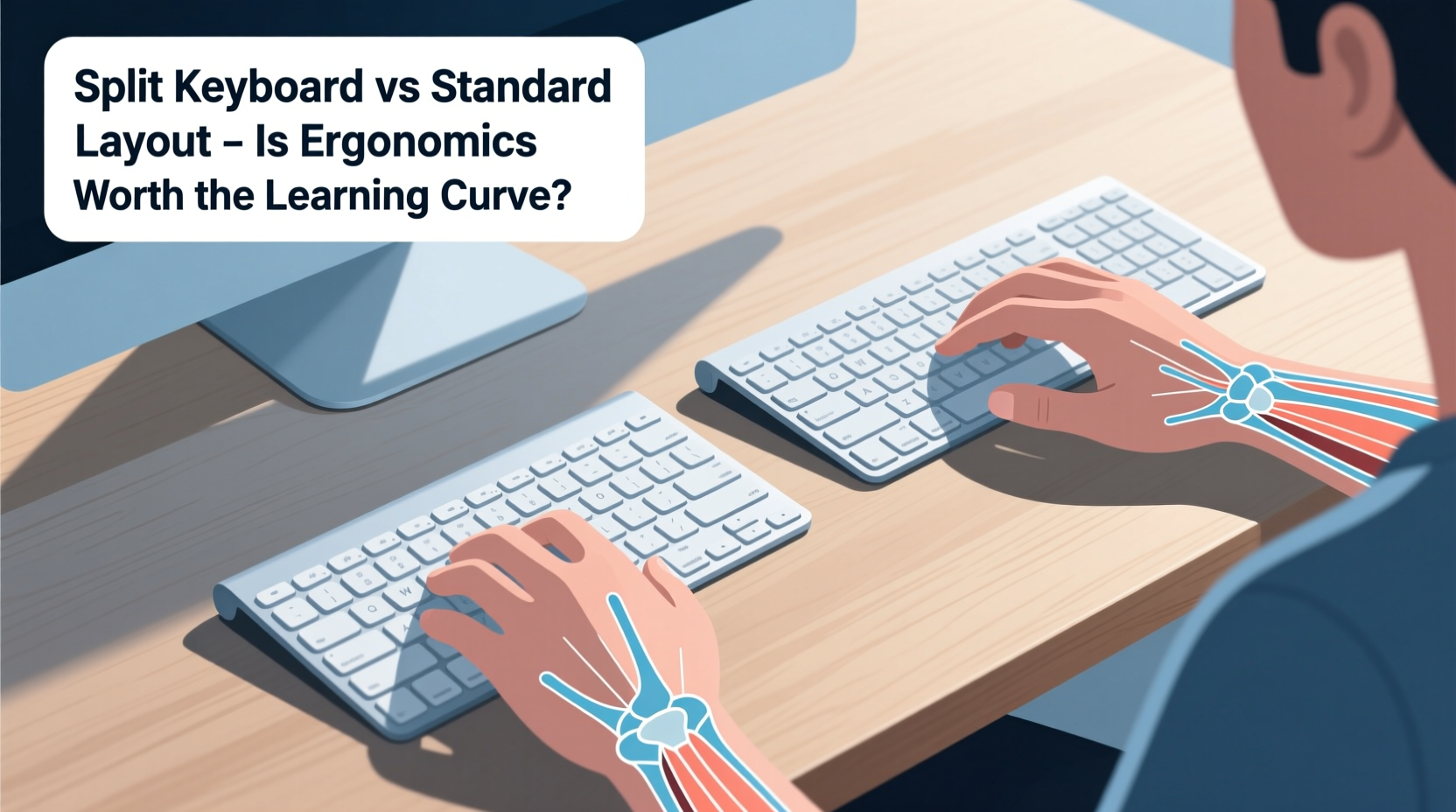
Before comparing keyboard types, it’s essential to understand why typing can become physically taxing. Repetitive strain injuries (RSIs), such as carpal tunnel syndrome, tendinitis, and ulnar nerve compression, are common among frequent typists. These conditions often stem not from typing itself, but from prolonged exposure to poor biomechanical positioning.
Traditional keyboards force the hands into a pronated (palms-down) position with wrists slightly bent inward—a posture known as ulnar deviation. Over time, this unnatural alignment increases pressure on nerves and tendons in the forearm and wrist. Additionally, the fixed width of standard keyboards doesn’t accommodate individual shoulder widths, leading many users to hunch forward or rotate their arms inward, contributing to neck and shoulder fatigue.
“Even minor misalignments, when repeated thousands of times daily, can lead to chronic discomfort.” — Dr. Lena Patel, Occupational Ergonomist
Ergonomic Design Principles: What Makes a Keyboard ‘Better’?
Ergonomics isn’t about comfort alone—it’s about designing tools that align with the human body’s natural movement patterns. An effective ergonomic keyboard should:
- Minimize wrist extension and ulnar deviation
- Allow neutral arm and shoulder positioning
- Support a relaxed typing rhythm without strain
- Reduce the need for excessive finger stretching
Split keyboards address these principles by separating the key clusters into two independent halves. This allows users to angle the sides outward, mimicking a more natural V-shape aligned with shoulder width. Some models also offer tenting (vertical tilt) and height adjustment, further reducing muscular effort.
Split vs Standard: A Side-by-Side Comparison
| Feature | Standard Keyboard | Split Keyboard |
|---|---|---|
| Hand Position | Pronated, palms down, slight inward bend | Neutral or slightly supinated, reduced ulnar deviation |
| Shoulder Alignment | Often narrowed, causing internal rotation | Aligned with shoulder width, promoting external rotation |
| Learning Curve | None (familiar layout) | Moderate to steep (3–6 weeks typical adaptation) |
| Portability | High (compact, integrated design) | Variable (some models fold or detach) |
| Typing Speed Recovery | Immediate | Temporary dip, usually returns to baseline in 4–8 weeks |
| Cost | $20–$100 | $100–$300+ (depending on features) |
| Ease of Use on Lap | Good | Poor (requires stable surface for both halves) |
The data shows a clear trade-off: split keyboards excel in biomechanical support but require more commitment in terms of cost, setup, and adaptation. For office-based professionals, the investment may be justified. For casual users or those frequently working on-the-go, the standard layout remains pragmatic.
A Real-World Transition: One Developer’s Experience
Mark T., a full-stack developer based in Portland, spent nearly a decade using a standard mechanical keyboard before developing persistent wrist pain. After consultations with a physical therapist, he invested in a high-end split model with tenting and columnar key alignment.
“The first week was brutal,” he admits. “I couldn’t type more than 20 words per minute without errors. My brain kept reaching for keys that were now in different positions. But by week three, my speed started climbing back. By week six, I was faster than before—and my wrist pain had vanished.”
What made the difference wasn’t just the hardware, but his approach to adaptation. He used typing tutors, set realistic expectations, and adjusted one variable at a time—first angle, then tenting, then key sensitivity. His story underscores a crucial point: success with a split keyboard depends as much on process as on product.
How to Make the Switch: A Step-by-Step Guide
Transitioning to a split keyboard doesn’t have to be overwhelming. Follow this structured timeline to minimize frustration and maximize long-term gains.
- Week 1: Research and Selection
Select a split keyboard that matches your needs. Consider whether you want wired or wireless, programmable keys, built-in palm rests, or tenting accessories. Popular models include the Kinesis Advantage360, ErgoDox EZ, and Microsoft Sculpt. - Week 2: Setup and Initial Testing
Position the keyboard so the inner edges align with your body’s midline. Angle each half between 15° and 30° outward. Keep elbows close to your sides and shoulders relaxed. Type short emails or journal entries for 15–20 minutes daily. - Weeks 3–4: Build Muscle Memory
Use typing practice tools like Keybr.com or Monkeytype with the split layout. Focus on accuracy, not speed. Take breaks every 20 minutes to assess posture and tension. - Weeks 5–6: Integrate into Workflow
Begin using the keyboard for primary tasks. Monitor any lingering discomfort. Adjust tenting or spacing if needed. Most users regain 80–90% of their original speed during this phase. - Week 7+: Refinement and Optimization
Customize key mappings if supported. Explore layers or macros to enhance efficiency. Evaluate long-term comfort and consider additional ergonomic upgrades (e.g., monitor height, chair support).
Expert Insight: What Medical Professionals Say
Clinical evidence supports the ergonomic advantages of split keyboards. A 2020 study published in the Journal of Occupational Rehabilitation found that participants using split designs reported significantly lower levels of muscle activity in the forearm and upper trapezius—indicating reduced strain.
“Patients who switched to split keyboards showed measurable improvements in median nerve function within eight weeks.” — Dr. Rajiv Mehta, Hand Specialist, Cleveland Clinic
However, experts caution that no keyboard can compensate for poor overall posture or lack of movement. “A split keyboard is a tool, not a cure,” says Dr. Mehta. “It works best when paired with regular stretch breaks, proper chair height, and dynamic sitting habits.”
Checklist: Is a Split Keyboard Right for You?
Before making the leap, evaluate your situation with this checklist:
- ✅ Do you type for more than 4 hours a day?
- ✅ Have you experienced wrist, forearm, or shoulder discomfort?
- ✅ Can you dedicate 4–6 weeks to a gradual transition?
- ✅ Do you work primarily at a fixed desk (not on a couch or lap)?
- ✅ Are you willing to invest $100 or more in your typing experience?
- ✅ Are you open to relearning touch-typing fundamentals?
If you answered “yes” to most of these, a split keyboard is likely a worthwhile investment. If not, consider starting with a low-cost ergonomic alternative, such as a keyboard with a built-in split or a negative tilt stand.
Frequently Asked Questions
Can I still use shortcuts like Ctrl+C or Alt+Tab on a split keyboard?
Yes. Most split keyboards maintain standard modifier key placements or allow remapping. Some even improve shortcut access by placing commonly used keys (like Enter, Backspace, or Space) within easier reach of thumbs or index fingers.
Will my typing speed drop permanently?
No. While most users experience a temporary slowdown—typically 30–50% during the first two weeks—speed returns to baseline within 4–8 weeks. Many report increased speed afterward due to reduced fatigue and more efficient finger movement.
Are there split keyboards for gaming?
Some models, like the ZSA Moonlander or certain custom builds, cater to gamers with responsive switches and programmable layers. However, most split keyboards prioritize ergonomics over rapid-fire key rollover, so competitive gamers may prefer hybrid solutions or stick with traditional layouts.
Conclusion: Balancing Comfort and Practicality
The decision between a split keyboard and a standard layout ultimately hinges on personal priorities. If you value long-term physical well-being and spend significant time at a desk, the ergonomic benefits of a split design are difficult to ignore. Reduced strain, better posture, and the potential to prevent chronic injury make it a smart preventive measure.
Yet, the learning curve is real. It demands patience, persistence, and a willingness to step outside comfort zones. For some, the payoff arrives quickly; for others, it takes months of refinement. But across countless user testimonials and clinical findings, one message emerges clearly: when properly implemented, the split keyboard isn’t just a gadget—it’s a sustainable upgrade to how we interact with technology.




 浙公网安备
33010002000092号
浙公网安备
33010002000092号 浙B2-20120091-4
Comments
No comments yet. Why don't you start the discussion?