
Unboxing a new smartphone is exciting. But before diving into apps and photos, taking a few minutes to adjust key settings can significantly improve your experience. Many users skip initial setup customizations, only to face privacy leaks, poor battery life, or unwanted data collection later. By making smart changes during the first boot, you establish control over your device’s behavior, security, and efficiency from day one.
This guide walks through essential configuration steps immediately after powering on your new phone—whether Android or iOS—so it works the way you want, safely and efficiently.
1. Power On and Begin Initial Setup
When you remove your phone from the box, the screen should be off. Press and hold the power button (usually on the right side or top) until the manufacturer’s logo appears. The device will begin its initial startup sequence.
Follow the on-screen prompts to select language, region, and connect to Wi-Fi. These early choices affect default services and app recommendations, so choose carefully. For example, selecting a region outside your own may result in unexpected app preloads or currency mismatches.
Skip Unnecessary Account Prompts
During setup, both Android and iOS prompt for account logins (Google or Apple ID). While linking an account enables cloud sync and app access, consider delaying this if you're not ready to commit. You can always add your account later under Settings.
Look for options like “Skip” or “Set up without account” when prompted. This gives you time to review permissions and decide what data you’re comfortable syncing.
2. Prioritize Privacy and Security Settings
Your phone holds personal messages, location history, contacts, and often financial data. Configuring privacy controls early prevents third-party tracking and minimizes data exposure.
Enable Biometric Authentication
Set up fingerprint scanning or facial recognition as soon as possible. On iPhones, go through Face ID setup; on Android devices, navigate to Settings > Security > Biometrics. These features protect your data even if the phone is lost.
Review App Permissions
New phones come with preinstalled apps that request access to camera, microphone, location, and contacts. Disable unnecessary permissions immediately:
- Go to Settings > Privacy (iOS) or Settings > Apps & Notifications > Permissions (Android).
- Review each permission category and revoke access for apps that don’t need it.
- For example, deny location access to calculator or flashlight apps.
“Over 70% of users accept all default permissions at setup. Taking five minutes to customize them reduces tracking risks dramatically.” — Dr. Lena Patel, Mobile Security Researcher at CyberShield Labs
3. Optimize Battery and Performance
Fresh phones often run background processes to personalize your experience, which drains battery quickly. Adjusting these settings ensures longer usage between charges.
Limit Background App Refresh
Apps running in the background consume CPU resources and battery. Turn off automatic refresh unless necessary.
| Platform | Setting Path | Action |
|---|---|---|
| iOS | Settings > General > Background App Refresh | Turn off globally or per app |
| Android | Settings > Apps > Special App Access > Background Restrictions | Restrict high-drain apps |
Adjust Screen Brightness and Timeout
The display is the biggest battery drain. Set auto-brightness and reduce screen timeout to 30 seconds.
- Open Settings > Display.
- Enable Adaptive Brightness.
- Set Screen Timeout to 30 seconds.
4. Customize Personalization and Usability
A phone should reflect your preferences, not the manufacturer’s defaults. Adjust interface elements to suit your habits.
Change Default Keyboard and Input Method
Preloaded keyboards may include data collection features. If you prefer privacy-focused alternatives like Gboard (with incognito mode) or SwiftKey, install and set them as default now.
To change keyboard:
- Install preferred keyboard from app store.
- Go to Settings > System > Languages & Input > Virtual Keyboard.
- Select new keyboard and disable the default one.
Set Up Digital Wellbeing Features
Both platforms offer tools to monitor screen time and limit distractions.
- iOS: Use Screen Time to set app limits and downtime.
- Android: Enable Digital Wellbeing to track usage and activate Focus Mode.
Mini Case Study: Sarah's First-Day Setup Routine
Sarah bought a new Android phone and skipped all Google sign-in prompts during setup. Instead, she spent 15 minutes adjusting privacy settings, disabling ad personalization, and installing her preferred email client. She turned off location sharing for system services and enabled battery saver mode. As a result, her phone lasted two full days on a single charge during testing, and she reported no targeted ads appearing in unrelated apps—a common issue she'd experienced before.
5. Essential Post-Unboxing Checklist
Use this checklist to ensure no critical step is missed after unboxing:
- ✅ Power on and complete basic setup (language, Wi-Fi)
- ✅ Skip or delay account login if desired
- ✅ Enable biometric lock (Face ID / Fingerprint)
- ✅ Review and restrict app permissions (location, mic, camera)
- ✅ Disable ad personalization (Android: Google Settings > Ads; iOS: Settings > Privacy > Tracking)
- ✅ Turn on Do Not Disturb during sleep hours
- ✅ Install critical updates before regular use
- ✅ Backup plan: Note down IMEI number (dial *#06#) and register device with manufacturer
FAQ
Should I update my phone before changing settings?
Yes. Check for system updates early. Manufacturers often release patches shortly after launch that fix bugs or improve security. Updating ensures you're configuring the latest version.
Can I revert to factory settings later if I make a mistake?
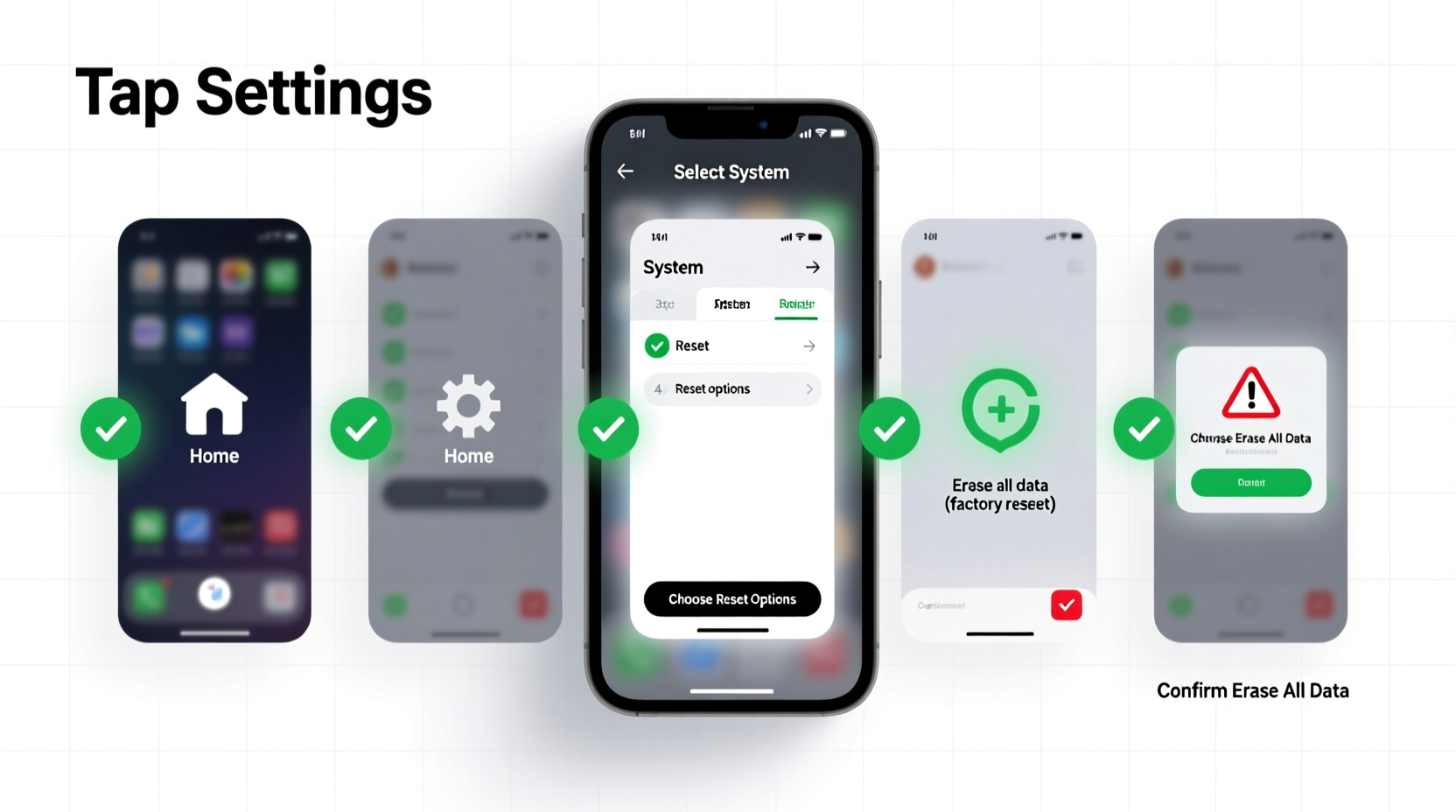
Absolutely. All changes made during initial setup can be reversed via Settings > System > Reset Options > Erase All Data. However, backing up important info first is crucial if you’ve already added content.
Is it safe to use the phone without logging into a Google or Apple ID?
It’s safe but limits functionality. Without an account, you can’t download apps from official stores, sync backups, or use Find My Device features. Most users benefit from linking an account—but only after reviewing privacy controls.
Final Steps Before Daily Use
Before calling your phone ready for daily use, verify a few final points:
- Ensure Find My Phone (iOS) or Find My Device (Android) is enabled if you linked an account.
- Test emergency SOS by pressing the power button rapidly (varies by model).
- Remove plastic film from screen if present—many new phones have protective layers that impair touch sensitivity.
- Charge fully once before heavy usage to calibrate the battery indicator.
Conclusion
Configuring your mobile phone right out of the box isn’t just about convenience—it’s about taking ownership of your digital life from the start. Simple actions like disabling invasive permissions, setting strong locks, and optimizing battery settings create a safer, smoother experience. You avoid the clutter, tracking, and inefficiencies that accumulate when defaults go unchecked.
Don’t treat your new phone like a gadget that’s ready to use as-is. Treat it like a tool that needs fine-tuning. Spend 20 focused minutes now to save hours of frustration—and potential risk—later.




 浙公网安备
33010002000092号
浙公网安备
33010002000092号 浙B2-20120091-4
Comments
No comments yet. Why don't you start the discussion?