
A professional logo is the cornerstone of any brand’s visual identity. Whether you're launching a startup, rebranding a business, or designing for clients, having a clean, scalable logo with a transparent background ensures versatility across websites, social media, print materials, and merchandise. A transparent background allows your logo to blend seamlessly into any design context—no awkward white boxes or mismatched color overlays.
This guide walks through the entire process of creating a high-quality logo that maintains clarity and transparency across all platforms. From concept to export, every step is designed to help you produce a polished, professional result—even if you're not a graphic designer.
Understand the Purpose of a Transparent Background
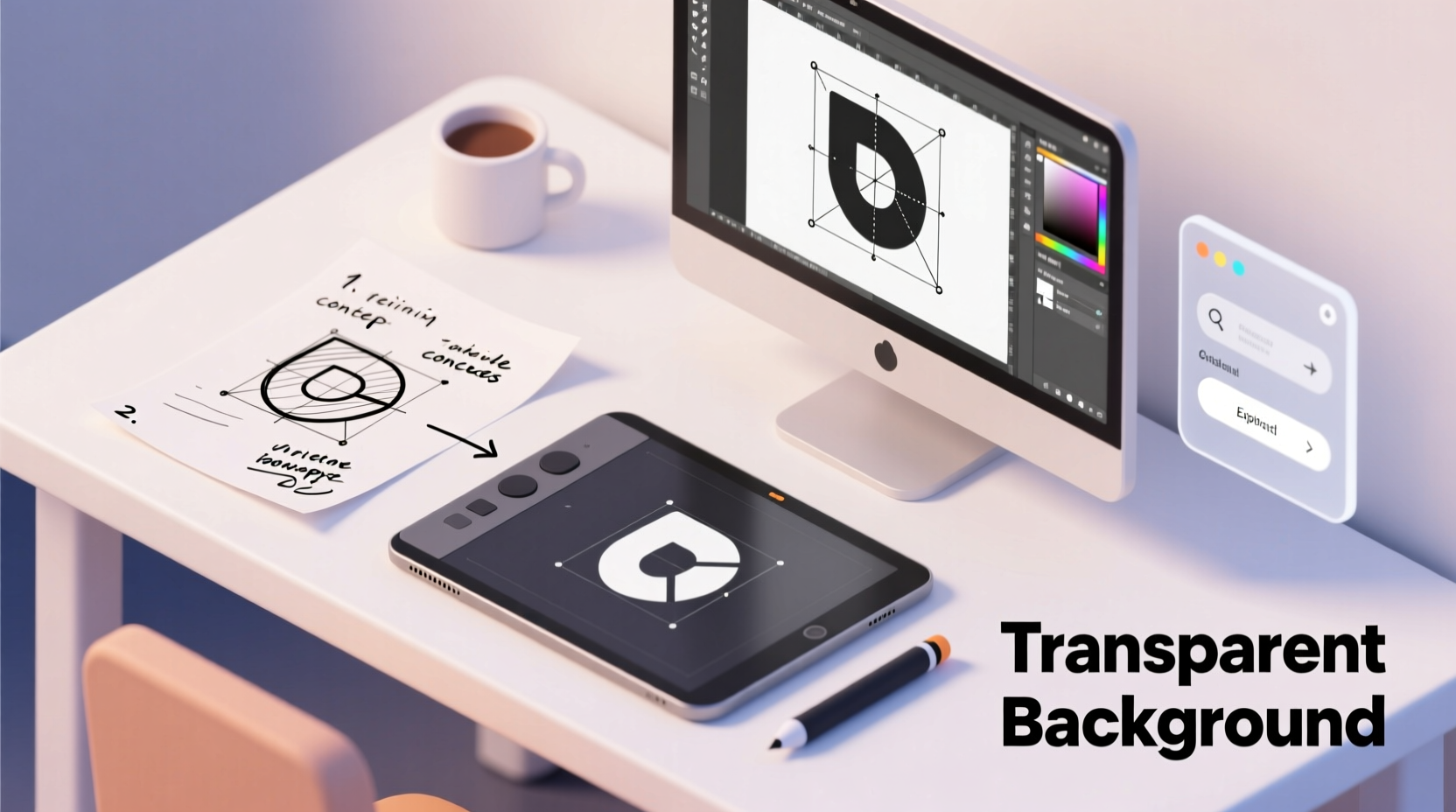
A transparent background means your logo doesn’t have a solid fill (like white or black) behind it. Instead, only the essential elements—text, icon, symbol—are visible, while the rest of the canvas is see-through. This is crucial when placing your logo over photos, gradients, or colored backgrounds without disrupting the underlying design.
Transparent logos are standard in digital environments. They’re used on websites, mobile apps, email signatures, and promotional graphics where flexibility matters. The key is exporting your logo in a format that supports transparency, such as PNG or SVG.
“Transparency isn’t just a technical detail—it’s a design necessity for modern branding.” — Lena Torres, Brand Identity Designer at Studio Nova
Step-by-Step Process to Create Your Logo
1. Define Your Brand Identity
Before opening any software, clarify what your brand represents. Ask yourself:
- What values does your company stand for?
- Who is your target audience?
- What emotions should your logo evoke?
- Do you prefer minimalist, bold, vintage, or modern styles?
Answering these questions helps narrow down font choices, colors, and symbols. For example, a tech startup might lean toward sleek sans-serif fonts and abstract shapes, while a bakery may choose hand-drawn icons and warm typography.
2. Sketch Initial Concepts
Grab a notebook or use a digital sketchpad to brainstorm ideas. Don’t aim for perfection—focus on generating variations of symbols, letterforms, and layouts. Try combining initials, stylized icons, or wordmarks. Even rough sketches can spark powerful design directions.
3. Choose the Right Design Tool
You don’t need expensive software to create a professional logo. Here are reliable options based on skill level:
| Tool | Skill Level | Pros | Cons |
|---|---|---|---|
| Canva | Beginner | Free, intuitive, thousands of templates | Limited vector control, less precise exports |
| Figma | Intermediate | Free, collaborative, supports SVG/PNG export | Steeper learning curve than Canva |
| Adobe Illustrator | Advanced | Precision vector editing, industry standard | Paid subscription, complex interface |
| Inkscape | All levels | Free, open-source, full vector capabilities | Interface feels outdated to some users |
4. Design Your Logo Digitally
Once you’ve selected your tool, begin building your logo with these guidelines:
- Use vector shapes whenever possible—they scale infinitely without quality loss.
- Select 1–2 fonts max. Avoid overly decorative typefaces unless they align with your brand voice.
- Limit your color palette to 2–3 primary colors for consistency.
- Ensure readability at small sizes (e.g., favicon or app icon).
- Align elements precisely using grids or guides for a balanced composition.
As you design, keep the canvas background set to “transparent” or disable the background layer entirely. In Figma and Illustrator, this appears as a checkerboard pattern—a visual cue that transparency is active.
5. Export with Transparency Preserved
Export settings determine whether your transparency remains intact. Follow these steps depending on your format:
PNG (Recommended for Web Use)
- Choose PNG-24 format (supports full transparency).
- Ensure \"Transparency\" option is checked during export.
- Set resolution to 300 DPI for print or 72 DPI for web.
- Avoid JPEG—this format does not support transparency.
SVG (Ideal for Scalability)
- Use SVG for responsive websites and apps.
- Preserves vector quality at any size.
- Must be exported from vector-based tools like Figma, Illustrator, or Inkscape.
- Test in a browser to confirm transparency works.
Checklist: Creating a Professional Transparent Logo
Follow this checklist to ensure no critical step is missed:
- ✅ Defined brand personality and target audience
- ✅ Created multiple hand-drawn or digital sketches
- ✅ Selected appropriate design software
- ✅ Designed using vector tools and clean typography
- ✅ Verified canvas background is disabled or transparent
- ✅ Exported in PNG-24 or SVG format with transparency enabled
- ✅ Tested logo on dark, light, and textured backgrounds
- ✅ Saved source file for future revisions
Real Example: Rebranding a Local Café
Consider “Brew Haven,” a small coffee shop updating its outdated logo. The owner wanted a modern, approachable look that could appear on cups, menus, and Instagram stories.
The designer began by sketching a simplified coffee cup with steam shaped like a smile. Using Figma, they built the icon in vector form, paired it with a friendly rounded sans-serif font, and applied earthy green and cream tones. The background layer was deleted to ensure transparency.
After exporting as both PNG and SVG, the logo was tested on black menus and pastel-colored social posts. It blended perfectly in every case. Within two weeks of launch, customers noted the brand felt more cohesive and professional.
Common Mistakes to Avoid
Even experienced designers sometimes overlook key details. Steer clear of these pitfalls:
| Mistake | Why It Matters | Solution |
|---|---|---|
| Using JPEG format | JPEG does not support transparency | Always use PNG or SVG |
| Leaving a white background | Looks unnatural on non-white surfaces | Delete or hide background layer |
| Overcomplicating the design | Reduces scalability and recognition | Focus on simplicity and clarity |
| Ignoring file size | Large files slow down websites | Optimize SVGs and compress PNGs |
FAQ
Can I make a transparent logo with Canva?
Yes. After designing your logo, click “Share” > “Download,” select PNG format, and check the box labeled “Transparent background.” Note: Free users may face limitations on high-resolution downloads.
Why does my logo show a white box online?
This usually happens when the image was saved with a white background instead of being truly transparent. Re-export the file ensuring the background layer is removed and transparency is preserved in PNG or SVG format.
Is SVG better than PNG for logos?
SVG is ideal for websites because it scales without quality loss and loads quickly. However, PNG is more universally supported, especially in older systems or email clients. Use SVG for web development and PNG for general sharing.
Final Thoughts
Creating a professional logo with a transparent background is within reach for anyone willing to follow structured design principles and use the right tools. The process combines creativity with technical precision—balancing aesthetics, functionality, and format compatibility.
Your logo will appear on everything from business cards to video intros. Ensuring it has a clean, transparent foundation makes integration effortless and enhances your brand’s credibility. Take time to plan, design thoughtfully, and export correctly. The result will be a versatile, timeless emblem that grows with your brand.




 浙公网安备
33010002000092号
浙公网安备
33010002000092号 浙B2-20120091-4
Comments
No comments yet. Why don't you start the discussion?