
Navigating unfamiliar roads, avoiding traffic jams, or finding the fastest route to work doesn’t have to be stressful. Waze, the community-powered navigation app, turns your smartphone into a smart travel assistant. Whether you're commuting daily, planning a road trip, or just trying to avoid congestion, Waze delivers real-time updates based on live user input. The best part? It’s free, intuitive, and works across both Android and iOS devices. Setting it up takes only minutes—if you know the right steps.
This comprehensive guide walks you through every phase of downloading, installing, and configuring Waze for optimal performance. From choosing the correct app store to enabling critical permissions and personalizing settings, each action is designed to get you navigating confidently in under ten minutes.
1. Check Device Compatibility and System Requirements
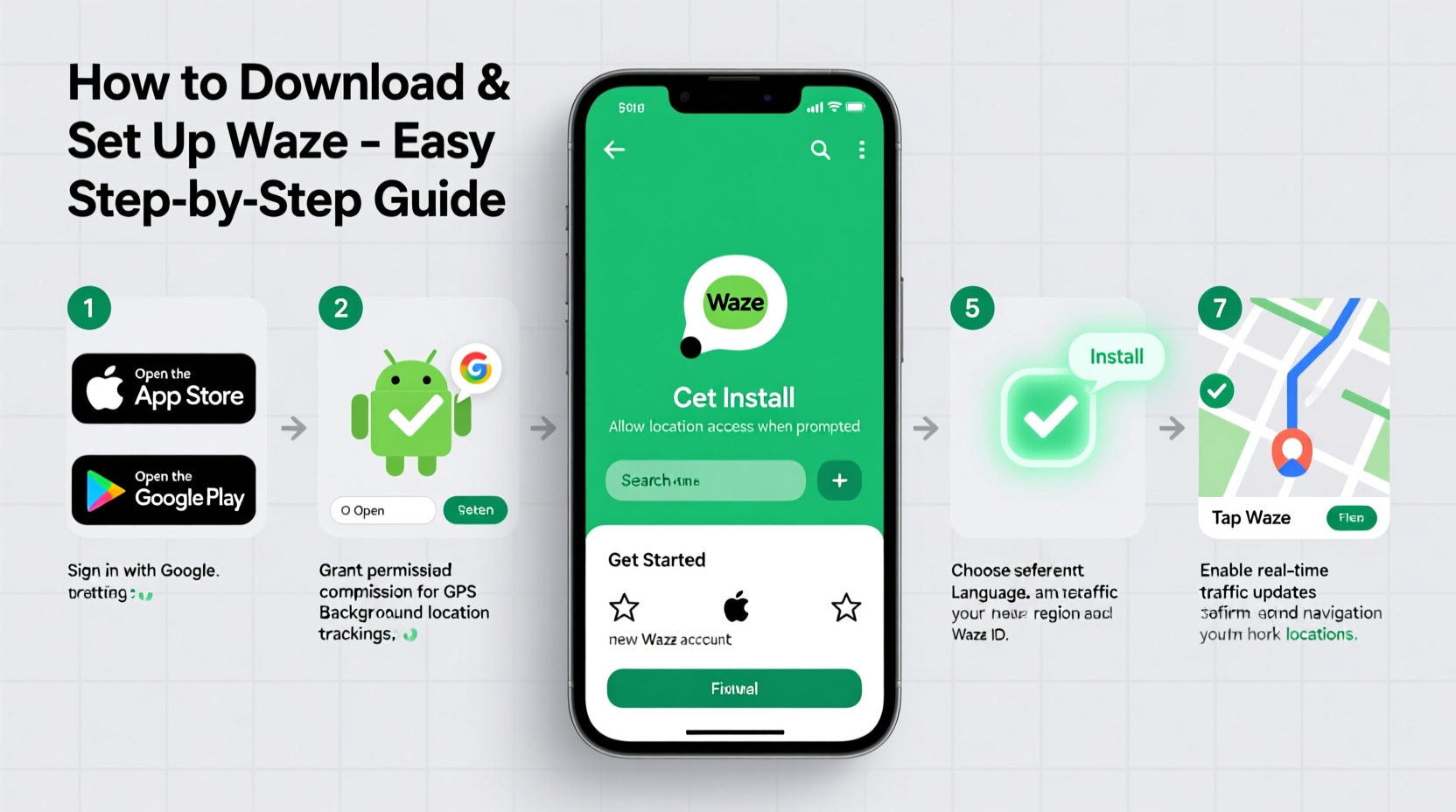
Before downloading Waze, confirm that your device meets the minimum requirements. While Waze supports most modern smartphones, outdated operating systems may cause functionality issues or prevent installation altogether.
| Platform | Minimum OS Version | Internet Requirement | Storage Needed |
|---|---|---|---|
| Android | Android 6.0 (Marshmallow) or later | Stable internet connection (Wi-Fi or cellular data) | Approx. 100 MB available space |
| iOS | iOS 13.0 or later | Stable internet connection (Wi-Fi or cellular data) | Approx. 120 MB available space |
If your phone runs an older version of its operating system, consider updating before proceeding. Outdated software can lead to crashes, inaccurate GPS tracking, or failure to receive live alerts from other Waze users.
2. Download Waze from the Official App Store
The safest way to install Waze is directly from your device’s official app marketplace. Third-party websites may offer modified versions that compromise security or include malware.
- Open the App Store (iOS) or Google Play Store (Android). Ensure you’re logged into your account.
- Search for “Waze” using the search bar at the top of the screen.
- Select the official app published by Waze LLC. Verify the developer name and look for the recognizable orange-and-white road sign logo.
- Tap “Install” (Android) or “Get” (iOS). The app will begin downloading automatically.
- Wait for installation to complete. On some devices, you may need to tap “Open” once finished.
Once installed, Waze will request access to certain features such as location services and notifications. These are essential for accurate routing and real-time hazard alerts.
3. Grant Essential Permissions for Optimal Performance
Waze relies heavily on location data to provide turn-by-turn directions, traffic updates, and nearby points of interest. Without proper permissions, the app cannot function effectively.
Upon first launch, your phone will prompt you to allow specific access rights. Here's what to expect and why each permission matters:
- Location Services: Required for GPS tracking. Choose “Allow Only While Using the App” for balance between privacy and functionality.
- Notifications: Enables real-time alerts about accidents, police sightings, and road closures reported by other drivers.
- Microphone (optional): Used only if you enable voice commands. Deny this if you don’t plan to use hands-free controls.
- Contacts (optional):em> Allows integration with your address book for ride-sharing or carpooling features.
4. Customize Your Waze Settings for Personalized Navigation
After granting permissions, take a moment to tailor Waze to your driving habits. A few quick adjustments can enhance safety, reduce distractions, and improve route efficiency.
Key Settings to Adjust:
- Navigation Voice: Go to Settings > Sound & Voice > Voice Language to select a preferred voice and language. Some users prefer calm tones; others choose humorous voices for longer drives.
- Driving Mode: Set to “Car” by default, but switch to “Motorcycle” or “Walking” depending on your mode of transport for more accurate ETAs.
- Route Preferences: Under Settings > Driving & Navigation, choose whether to avoid tolls, highways, or unpaved roads.
- Speedometer Display: Enable the floating speedometer overlay to keep track of your current speed without looking away from the road.
- Dark Mode: Reduce eye strain at night by enabling dark theme in Display settings.
“Personalization isn’t just about comfort—it improves situational awareness. Drivers who customize their Waze settings report fewer missed turns and better response to live alerts.” — Dr. Lena Torres, Human Factors Researcher at MIT Transportation Lab
5. Real-World Example: Maria’s First Commute with Waze
Maria recently moved to a new city for work. Unfamiliar with local traffic patterns, she dreaded her 30-minute commute. On Monday morning, she followed this guide to install Waze on her iPhone. After setup, she entered her workplace address and allowed location access. As she drove, Waze alerted her to a major accident three blocks ahead and rerouted her via side streets, saving 12 minutes. By Thursday, she had customized her voice prompts, enabled lane guidance, and even started reporting hazards herself. Her confidence behind the wheel grew significantly within one week.
This scenario reflects thousands of real-world cases where Waze transforms uncertainty into control—especially valuable for new drivers, travelers, or those navigating complex urban environments.
Essential Checklist: Getting Started with Waze
Use this checklist to ensure nothing is missed during setup:
- ✅ Confirm device compatibility (Android 6.0+ or iOS 13.0+)
- ✅ Connect to Wi-Fi before downloading
- ✅ Download Waze from Google Play Store or Apple App Store
- ✅ Allow location access when prompted
- ✅ Enable notifications for live updates
- ✅ Select preferred voice and navigation language
- ✅ Set driving mode (car, motorcycle, walking)
- ✅ Adjust route preferences (avoid tolls, highways, etc.)
- ✅ Test the app with a short trip or simulated route
- ✅ Consider linking to car Bluetooth or dashboard mount for safer use
Frequently Asked Questions
Can I use Waze without an internet connection?
No, Waze requires a continuous internet connection because it depends on live user-generated data for traffic, roadblocks, and rerouting. Unlike offline map apps, Waze cannot function in airplane mode or areas with no signal.
Is Waze completely free to use?
Yes, Waze is free to download and use. There are no subscription fees or premium tiers. Revenue comes from optional sponsored gas price listings and display ads shown only when the app is idle—not while driving.
Why does Waze sometimes suggest longer routes?
Waze prioritizes time over distance. A route that appears longer on the map might actually be faster due to traffic conditions, stoplights, or road closures. The algorithm constantly recalculates based on real-time flow data from other drivers.
Final Steps and Ongoing Use Tips
With Waze successfully installed and configured, you’re ready to navigate smarter. For continued reliability, periodically check for app updates in your app store—new versions often include bug fixes, improved routing logic, and enhanced voice recognition.
To maximize benefits, engage with the Waze community. Tap the screen to report accidents, speed traps, potholes, or traffic slowdowns. This two-way interaction strengthens the network effect: the more people contribute, the more accurate and helpful the app becomes for everyone.




 浙公网安备
33010002000092号
浙公网安备
33010002000092号 浙B2-20120091-4
Comments
No comments yet. Why don't you start the discussion?