
Adding video to a presentation transforms static slides into dynamic storytelling tools. Google Slides makes it simple to embed videos directly into your decks, whether you're teaching a class, pitching investors, or sharing updates at work. With the right techniques, you can control playback, enhance visuals, and ensure smooth delivery across devices. This guide walks you through every stage—from inserting a video to fine-tuning its appearance and behavior—so your presentations captivate from start to finish.
1. Inserting a Video: The Basics
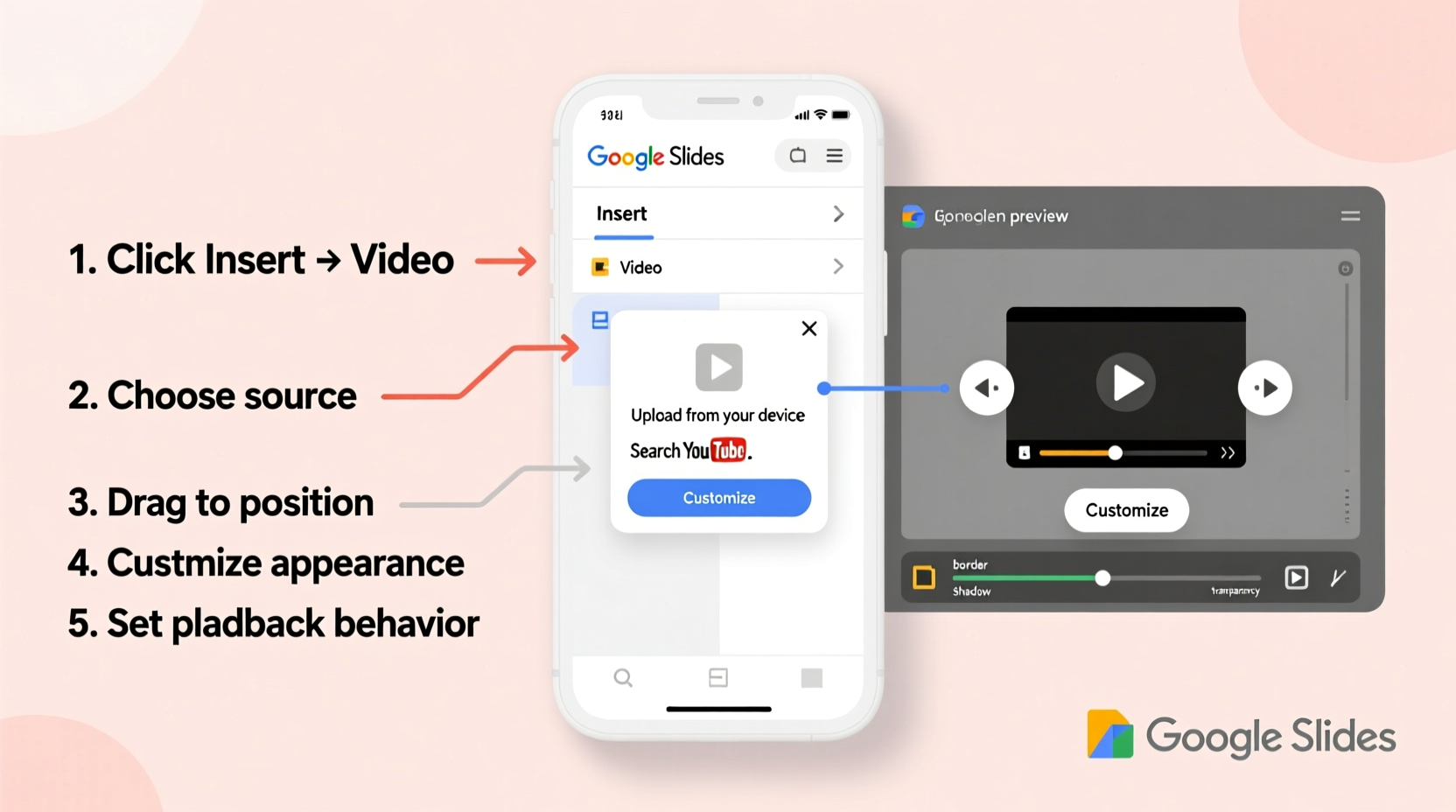
To begin, open your Google Slides presentation in any modern web browser. Navigate to the slide where you want the video to appear. Click Insert in the top menu, then select Video. A pop-up window will appear offering two primary options: search YouTube or paste a URL.
If you know the title of the video, use the search tab to find it directly from YouTube. For greater control, especially with private or unlisted content, copy the full URL of the YouTube video and paste it into the designated field. Once selected, click Insert, and the video thumbnail will appear on your slide.
2. Customizing Video Appearance and Position
After insertion, the video appears as a resizable frame. Click on it to reveal resize handles. Drag corners to scale while maintaining aspect ratio, or sides to stretch (though this may distort the image). To reposition, click and drag the entire frame to your desired location on the slide.
For a polished look, align the video with other elements using the built-in grid. Enable it via View > Show rulers and guides. You can also layer text boxes or shapes over the video, but ensure readability by using contrasting colors or semi-transparent backgrounds.
Google Slides doesn’t support trimming video length within the app, so if only a segment is needed, consider creating a clipped version on YouTube or using third-party tools before embedding.
Video Formatting Options at a Glance
| Action | How to Do It | Best Practice |
|---|---|---|
| Resize | Click and drag corner handles | Maintain aspect ratio to avoid distortion |
| Reposition | Click and drag the frame | Align with text or graphics using guides |
| Add border | Right-click > Format options > Adjust border color/weight | Use subtle borders to integrate with theme |
| Set poster image | Not supported natively; depends on YouTube thumbnail | Upload custom thumbnails on YouTube for better first impressions |
3. Controlling Playback Settings
Once inserted, right-click the video and choose Format options to access playback settings. Here, you can decide how the video behaves during your presentation:
- Play automatically: The video starts when the slide appears. Ideal for short intros or ambient clips.
- Click to play: Default setting. Gives you full control over timing.
- Loop playback: Repeats the video continuously. Useful for kiosk-style displays or background loops.
- Hide while not playing: Keeps the slide clean until playback begins.
“Timing is everything in presentations. Letting a video auto-play can disrupt your flow—reserve it for moments where silence would otherwise linger.” — Daniel Reeves, Presentation Coach and TEDx Organizer
Keep in mind that these settings only apply in presentation mode. During editing, you must manually click the play button within the editor to test functionality.
4. Advanced Tips for Seamless Integration
While Google Slides has limitations compared to desktop software like PowerPoint, smart workflows can overcome them. One workaround for unsupported features—like trimming or adding subtitles—is to edit the video externally using free tools such as Clipchamp, Canva, or Shotcut, then upload the refined version to YouTube as an unlisted file.
Another pro technique: use multiple slides to simulate video transitions. For example, place the beginning of a clip on one slide and the conclusion on the next, syncing narration with each transition for a cinematic effect.
Mini Case Study: Engaging Students with Embedded Videos
A high school science teacher in Portland wanted to make her unit on ecosystems more interactive. Instead of describing food chains verbally, she created a Google Slides deck with short nature clips embedded from YouTube—each showing predator-prey interactions in real time.
She set the videos to play only when clicked, allowing her to pause and ask questions mid-sequence. Students reported higher engagement, and quiz scores improved by 22% compared to the previous year’s text-heavy version. The key was alignment: every video directly supported a learning objective and lasted no more than 45 seconds.
5. Troubleshooting Common Issues
Even straightforward tasks can run into hiccups. Below is a checklist to resolve frequent problems:
Video Not Playing During Presentation?
- Check internet connection—Google Slides requires online access to stream YouTube videos.
- Verify the video isn’t age-restricted or region-blocked.
- Ensure the link hasn’t been deleted or made private after insertion.
- Try accessing YouTube directly in the same browser to confirm availability.
Formatting Looks Off?
- If the video appears pixelated, avoid extreme resizing. Keep it within 70–100% of original insert size.
- Overlapping elements? Use the Arrange menu to send the video backward or bring text forward.
“Always test your slideshow on the actual projector or screen. What looks crisp on a laptop may appear blurry on a large display.” — Lila Nguyen, EdTech Consultant
Frequently Asked Questions
Can I add videos from sources other than YouTube?
No, Google Slides currently only supports video embedding from YouTube. However, you can upload non-YouTube videos (MP4, MOV) to YouTube as unlisted or private, then embed them securely without public exposure.
Will the video play offline?
No. Because videos are streamed from YouTube, an active internet connection is required during presentation. For offline use, consider downloading the presentation via third-party tools or switching to a desktop application like PowerPoint, which allows local video embedding.
Can I trim or edit the video inside Google Slides?
Not directly. Google Slides does not offer trimming, cropping, or filtering tools. To show only part of a video, create a clipped version on YouTube or use video editing software beforehand.
Final Checklist Before Presenting
- Confirm all videos are properly embedded and visible on each slide.
- Test playback settings (auto vs. click) in presentation mode.
- Ensure your network allows YouTube access.
- Double-check privacy settings if presenting sensitive content.
- Rehearse timing between narration and video cues.
Conclusion
Mastering video integration in Google Slides elevates your communication from informative to unforgettable. With careful planning, strategic placement, and attention to playback details, you turn passive viewers into engaged participants. Whether you’re educating, persuading, or inspiring, the ability to seamlessly blend motion and message is a skill worth refining.




 浙公网安备
33010002000092号
浙公网安备
33010002000092号 浙B2-20120091-4
Comments
No comments yet. Why don't you start the discussion?