
Printing from your smartphone used to require cables, special apps, or transferring files to a computer. Today, most modern printers support Wi-Fi connectivity, allowing you to print directly from your Android or iPhone—without stepping near a laptop. Whether you're at home, in the office, or traveling, connecting your Wi-Fi printer to your phone opens up convenience for documents, photos, boarding passes, and more. This guide walks you through every step clearly, troubleshoots common issues, and ensures you get reliable wireless printing up and running in under 20 minutes.
Understanding Your Printer’s Wi-Fi Capabilities
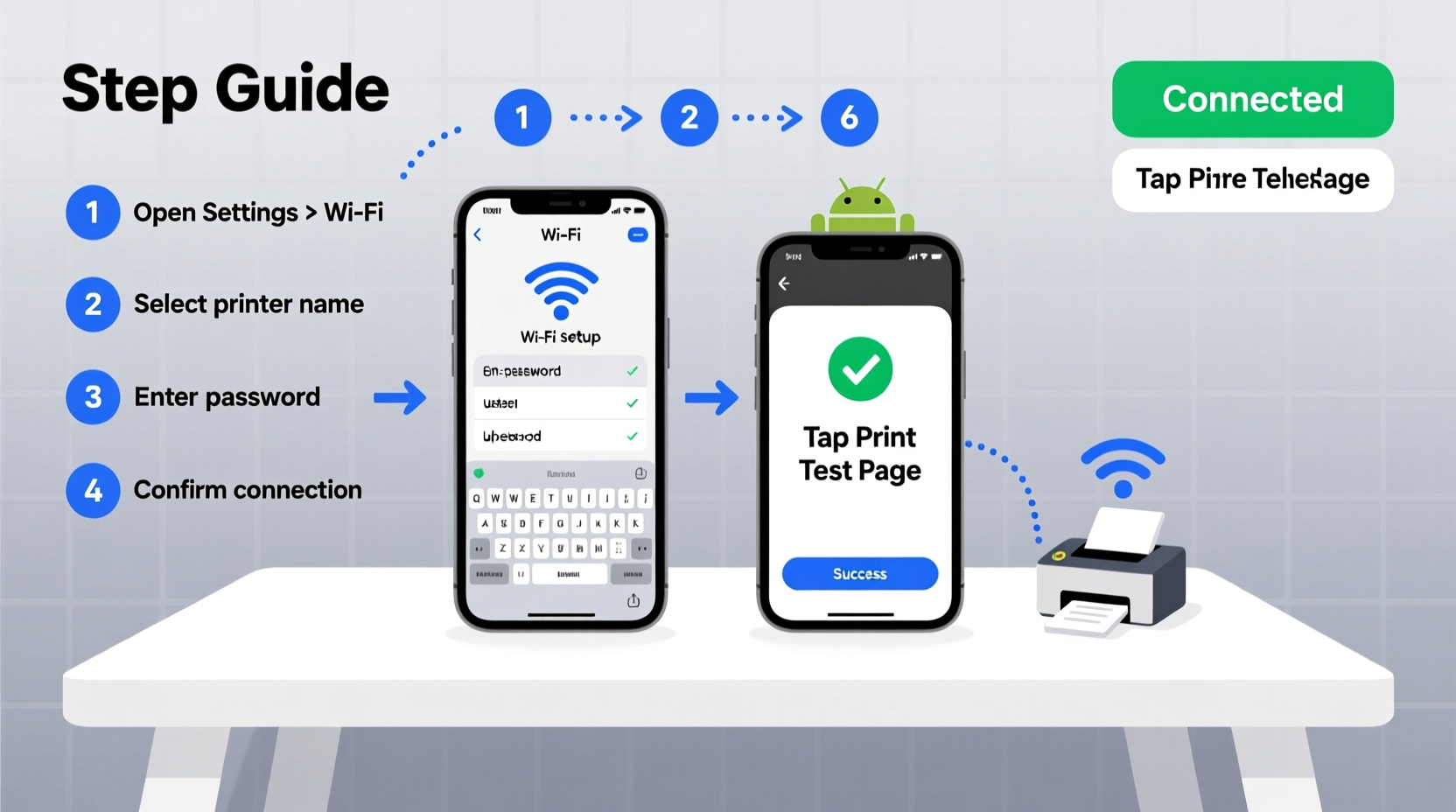
Not all printers labeled “wireless” work the same way. Before attempting setup, confirm your printer supports direct Wi-Fi printing. Most models manufactured after 2015 include built-in Wi-Fi, but older or budget-friendly versions may only support USB or Bluetooth.
Check your printer’s manual or look for these indicators on the device:
- A Wi-Fi symbol (radiating arcs) on the control panel
- An option to connect to a network in the settings menu
- Support for AirPrint (Apple) or Mopria (Android)
“Over 70% of mobile printing issues stem from mismatched network connections. Ensure both devices are on the same Wi-Fi band.” — David Lin, Network Integration Specialist at PrintFlow Solutions
Step-by-Step Setup: Connecting Your Phone to a Wi-Fi Printer
The process varies slightly depending on whether you use an iPhone or Android device, but the core principles remain consistent. Follow this universal timeline to establish a stable connection.
- Power on your printer and connect it to Wi-Fi
Use the printer’s display panel to navigate to Network Settings > Wireless Setup Wizard. Select your home Wi-Fi network and enter the password. Wait for confirmation (usually a checkmark or lit Wi-Fi icon). - Ensure your phone is on the same Wi-Fi network
Go to your phone’s Settings > Wi-Fi and verify it's connected to the same router as the printer. Dual-band networks (2.4 GHz and 5 GHz) can cause issues—connect both devices to 2.4 GHz if possible. - Install the manufacturer’s app (if needed)
Download the official app from HP Smart, Epson iPrint, Canon PRINT, or Brother iPrint&Scan. These apps detect nearby printers and simplify setup. - Add the printer to your phone
Open the app and tap “Add Printer.” It will search for available devices. Select yours when it appears. - Test with a sample print
Most apps offer a test page option. Tap Print Test Page to confirm communication between devices.
For iPhone Users: Using AirPrint
If your printer supports Apple’s AirPrint (most HP, Epson, Canon, and Brother models do), no app is required. Simply open any document, photo, or email, tap the Share button, then select Print. Your printer should appear automatically if both are on the same network.
For Android Users: Leveraging Mopria or Manufacturer Apps
Android relies more heavily on third-party apps. While newer phones support Mopria-certified printing, many users still need the brand-specific app for full functionality. After installation, go to Settings > Connected Devices > Connection Preferences > Printing, and enable the plugin for your printer brand.
Troubleshooting Common Connection Issues
Even with correct setup, hiccups occur. Below is a troubleshooting checklist and comparison table to help resolve frequent problems.
Quick Fix Checklist
- ✅ Confirm both phone and printer are on the same Wi-Fi network
- ✅ Disable mobile data during setup (can interfere with local detection)
- ✅ Update printer firmware via its control panel or manufacturer website
- ✅ Reinstall the printer app if it fails to detect the device
- ✅ Temporarily disable firewall or guest network isolation on your router
| Issue | Possible Cause | Solution |
|---|---|---|
| Printer not showing up | Different Wi-Fi networks | Switch phone to 2.4 GHz band; reconnect both devices |
| Print job stuck | Weak signal or queue jam | Move printer closer to router; cancel and restart print |
| Blurry or incomplete prints | Low ink or paper feed error | Check cartridges and clean print heads via app |
| App crashes repeatedly | Outdated app version | Update via Google Play or App Store |
Real-World Example: Remote Work Made Easier
Sarah, a freelance graphic designer based in Austin, needed to print client contracts while working from her home office. Her old USB-only printer meant she had to boot up her laptop just to send a file. After purchasing an HP DeskJet 4155e, she followed the HP Smart app setup in under 15 minutes. Now, she prints invoices, sketches, and PDFs directly from her iPhone—even when lounging on the patio. “It saved me time and clutter,” she said. “I didn’t realize how much friction that cable added until it was gone.”
Frequently Asked Questions
Can I print without being on the same Wi-Fi network?
Yes, but only if your printer supports cloud printing services like HP ePrint, Google Cloud Print (discontinued but replaced by alternatives), or manufacturer-specific remote access. These allow printing over the internet, provided the printer stays powered and online.
Why does my Android phone not recognize any printers?
This often happens when the Mopria Print Service isn’t enabled. Go to Settings > Apps > See all apps > Show system apps, find Mopria Print Service, and ensure it’s turned on. Alternatively, install your printer brand’s app for better compatibility.
Is it safe to print from my phone?
Generally yes, especially on private home networks. Avoid printing sensitive documents over public Wi-Fi. For added security, enable WPA3 encryption on your router and use printers with secure authentication features.
Optimizing Your Mobile Printing Experience
Once connected, enhance usability with these best practices:
- Save frequently printed templates in your phone’s Files or Notes app for quick access.
- Use high-resolution images when printing photos—low-quality JPEGs may appear pixelated.
- Enable double-sided printing in app settings to save paper.
- Monitor ink levels remotely via the manufacturer’s app to avoid mid-job failures.
Final Thoughts: Embrace Wireless Freedom
Connecting your Wi-Fi printer to your cell phone eliminates unnecessary steps and streamlines everyday tasks. With just a few taps, you can produce physical copies of digital content—whether it’s a school assignment, recipe, or travel itinerary. The technology is reliable, widely supported, and increasingly intuitive. No longer reserved for tech-savvy users, wireless printing is now accessible to anyone willing to follow a simple setup process.
Take action today: power up your printer, launch the right app, and complete the pairing. Once configured, you’ll wonder how you ever managed without it.




 浙公网安备
33010002000092号
浙公网安备
33010002000092号 浙B2-20120091-4
Comments
No comments yet. Why don't you start the discussion?