
Finding and installing apps on your Apple Watch doesn’t have to be complicated. While the device itself doesn’t feature an App Store interface, Apple has designed a seamless system through the paired iPhone to manage all watch applications. Whether you're new to wearable tech or looking to maximize your current setup, understanding how to locate, evaluate, and install compatible apps is essential. This guide walks you through every stage—from discovery to organization—with practical insights that ensure a smooth experience.
Understanding How Apple Watch Apps Work
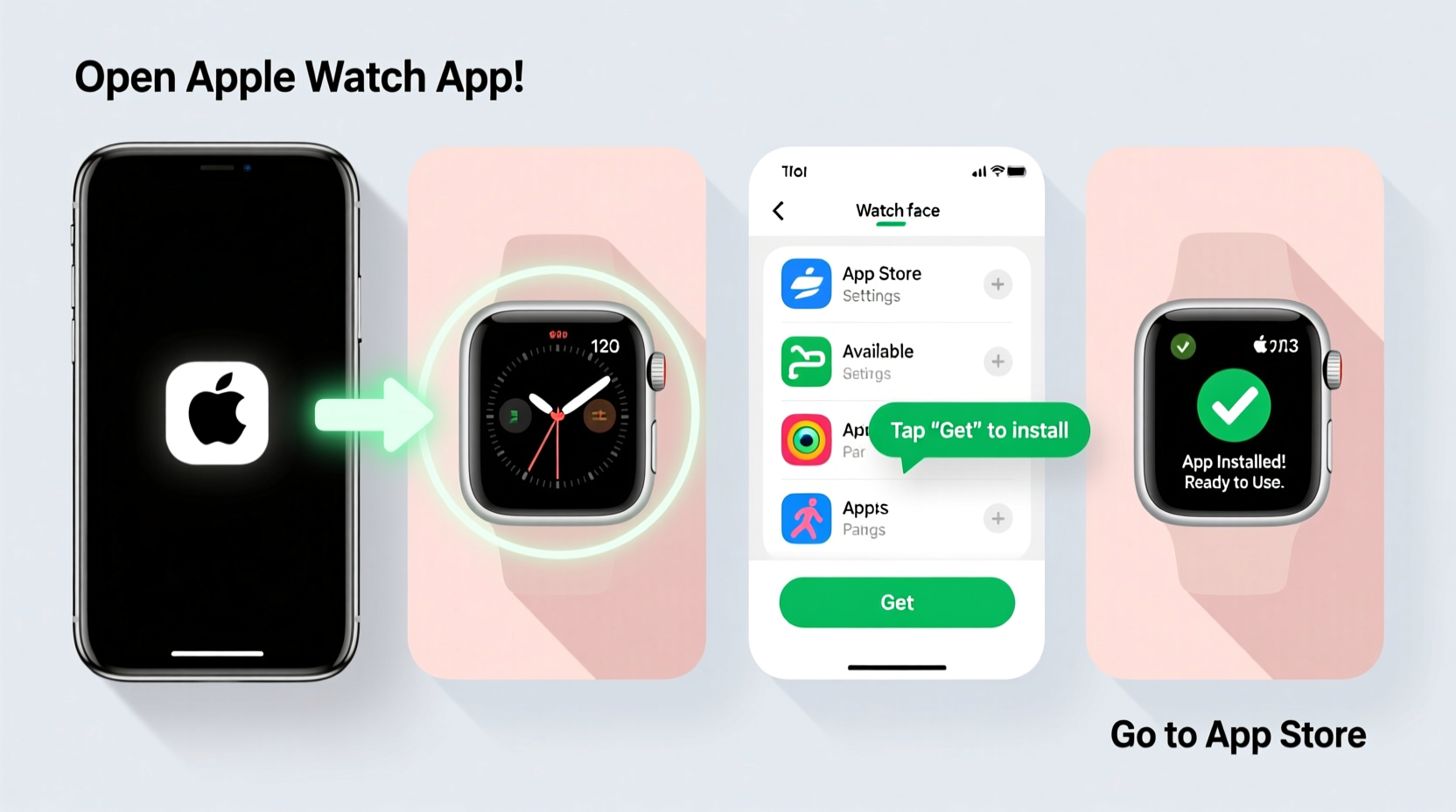
Unlike iPhones or iPads, the Apple Watch relies heavily on its connected iPhone for app management. Most apps installed on the watch are companion versions of iPhone apps, meaning they extend functionality rather than operate independently. Some apps run natively on the watch, especially with watchOS updates enabling more standalone capabilities, but installation still flows through the iPhone’s Watch app.
When you install an app on your iPhone that supports Apple Watch, it often prompts whether you’d like to install the watch component. If not, you can manually add it later. The key is knowing where to look and how to control what gets synced.
“Apple Watch apps are most effective when they simplify tasks, not replicate them. Look for apps that leverage glanceability and haptic feedback.” — David Lin, Wearable UX Designer at FitTech Labs
Step-by-Step Guide to Installing Apple Watch Apps
Follow this clear sequence to discover and install any compatible app directly from your iPhone:
- Ensure Devices Are Paired and Updated
Make sure your Apple Watch is charged and connected to your iPhone via Bluetooth. Both devices should be running the latest software (iOS 17+ and watchOS 10+ recommended). - Open the Watch App on Your iPhone
Located on your home screen, the Watch app features a watch face icon. Tap to open—it serves as the central hub for all watch-related settings and app management. - Navigate to the “App Store” Tab
At the bottom of the screen, select the “App Store” tab. Here, you’ll see curated collections like “Time to Walk,” “Trending,” and “Watch OS Favorites.” - Browse or Search for Apps
Use the search bar at the top to look up specific apps (e.g., “Strava” or “WaterMinder”), or explore categories such as Fitness, Health, Travel, or Productivity. - Review Compatibility and Features
Before downloading, check if the app offers a native watch interface and whether it requires constant iPhone connection. Read user reviews and developer notes for clarity. - Install the App
Tap “Install” next to the app listing. The app will first download to your iPhone (if needed), then automatically begin syncing to your Apple Watch. This may take a few moments depending on size and connection strength. - Verify Installation on Your Watch
Press the Digital Crown on your Apple Watch to access the app grid. Swipe to find the newly installed app. If it’s not visible, try restarting both devices or checking sync status in the Watch app under “My Watch > Installed Apps.”
Best Practices for Managing Watch Apps
With limited screen space and storage, thoughtful curation matters. Installing too many apps can slow performance and clutter your experience. Prioritize utility over novelty.
- Limit to High-Value Apps: Focus on tools you use daily—heart rate trackers, weather, timers, transit, or mindfulness apps.
- Organize with Glances: Use Siri, Control Center, and widgets to access info quickly without opening full apps.
- Monitor Storage Usage: In the Watch app under General > Usage, view how much space each app consumes. Delete large, rarely used apps to free up room.
- Disable Background Refresh When Unnecessary: Go to My Watch > [App Name] > Background App Refresh and turn it off for non-critical apps to preserve battery life.
Do’s and Don’ts of Apple Watch App Management
| Do | Don’t |
|---|---|
| Install apps that support offline functionality (e.g., music players) | Install duplicate apps serving the same purpose (e.g., two step counters) |
| Use the “Hide” option instead of uninstalling if unsure | Leave outdated apps running—they may cause glitches |
| Check for watch-specific features before installing | Assume all iPhone apps work on the watch |
| Update apps regularly via iPhone Settings > General > iPhone Storage | Ignore permission requests (e.g., heart rate access) that affect functionality |
Real Example: Setting Up a Fitness Tracker
Sarah, a busy teacher and weekend runner, wanted to track her morning jogs without carrying her phone. She decided to install the Strava app on her Apple Watch.
She opened the Watch app, searched “Strava” in the App Store tab, and confirmed it had a dedicated watch interface. After tapping Install, the app appeared on her watch within two minutes. She launched it, signed in, and enabled GPS tracking. Now, she starts runs directly from her wrist, views pace and distance mid-run, and receives post-workout summaries—all without her iPhone nearby.
The process took less than ten minutes, and because Strava uses minimal background resources, her battery lasts through long workouts. This real-world example shows how targeted app selection enhances convenience and usability.
Tips for Discovering High-Quality Apps
Not all apps are created equal. With thousands available, filtering quality is crucial. Consider these strategies:
- Look for Native Design: Apps built specifically for watchOS feel smoother and respond better to taps and swipes.
- Check Update Frequency: Developers who maintain their apps regularly fix bugs and improve compatibility.
- Read Watch-Specific Reviews: Filter reviews in the App Store to see comments from users who’ve tested the watch version.
- Test Before Committing: Many fitness and productivity apps offer free trials. Use them during your typical routine to assess value.
Quick Checklist: Installing & Optimizing Watch Apps
- ✅ Confirm iPhone and Apple Watch are updated
- ✅ Open the Watch app on iPhone
- ✅ Search or browse the App Store tab
- ✅ Verify app supports standalone watch features
- ✅ Tap Install and wait for sync completion
- ✅ Test app function directly on the watch
- ✅ Adjust notifications and background refresh settings
- ✅ Organize app layout using Long Press > Rearrange Apps
Frequently Asked Questions
Can I install Apple Watch apps directly from the watch?
No, currently there is no direct App Store on the Apple Watch. All installations must be initiated from the paired iPhone using the Watch app. However, once installed, apps can be rearranged or removed directly from the watch.
Why won’t my app show up on the Apple Watch?
This usually happens due to sync issues or accidental toggling. Go to the Watch app > My Watch > find the app > ensure “Show App on Apple Watch” is enabled. If the problem persists, restart both devices or reinstall the app.
Do Apple Watch apps drain battery quickly?
Some do—especially those using GPS, continuous heart rate monitoring, or background refresh. To conserve power, disable unnecessary permissions and close unused apps. Most well-designed apps optimize energy use and only activate when needed.
Take Control of Your Apple Watch Experience
Your Apple Watch is only as useful as the apps you choose to install. By following a structured approach to discovery, installation, and management, you transform it from a notification ticker into a powerful personal assistant. Whether you’re streamlining workouts, managing stress with breathing apps, or navigating cities hands-free, the right tools make all the difference.




 浙公网安备
33010002000092号
浙公网安备
33010002000092号 浙B2-20120091-4
Comments
No comments yet. Why don't you start the discussion?