
Apple devices are designed for simplicity and security, and installing apps is no exception. Whether you're using an iPhone, iPad, iPod touch, or Mac with Apple Silicon, the App Store provides a centralized hub for downloading trusted applications. While the process may seem straightforward, understanding the nuances—such as account setup, parental controls, and troubleshooting download issues—can make a significant difference in your experience. This guide walks you through every stage of installing apps from the App Store, ensuring even first-time users can navigate confidently.
Understanding the App Store Ecosystem
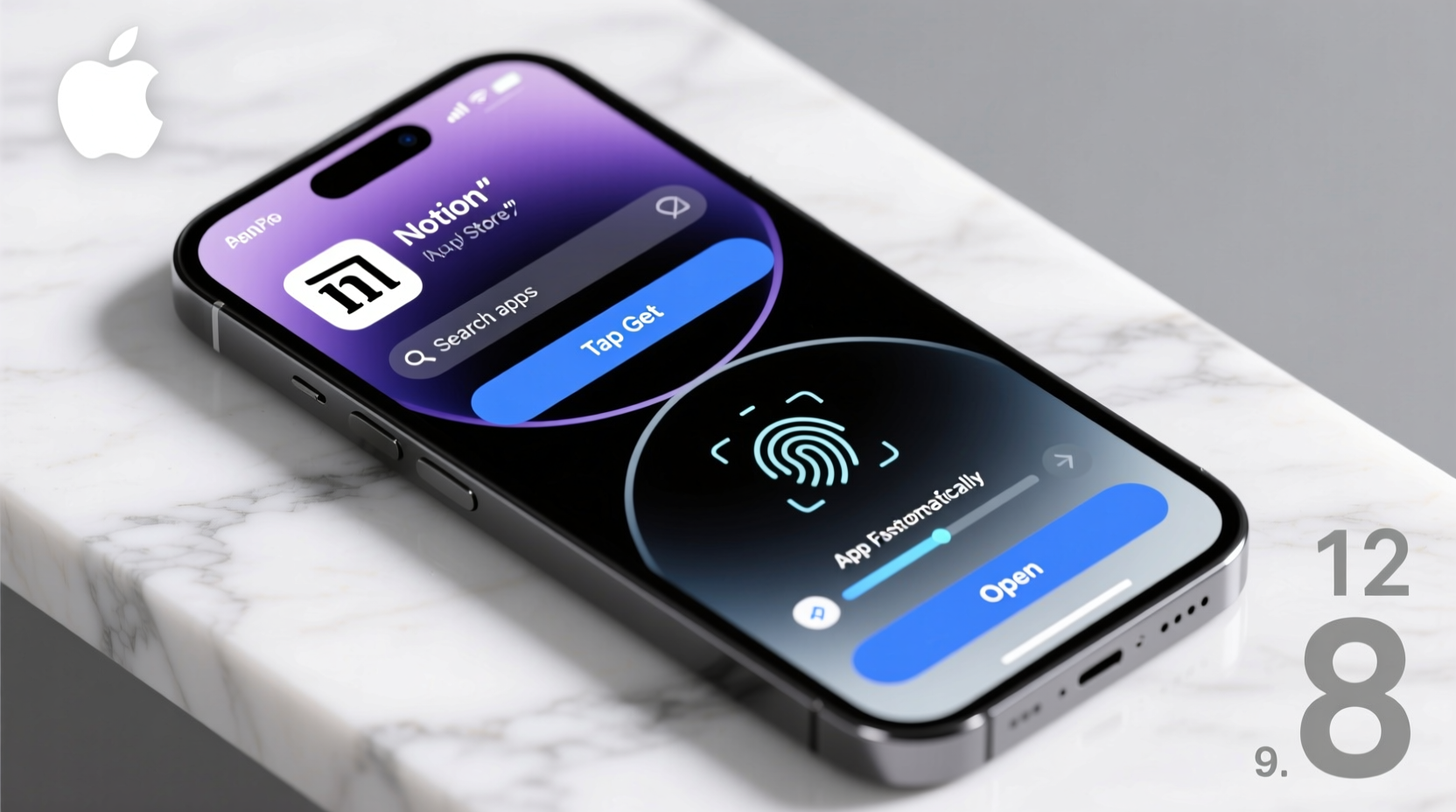
The App Store is more than just a place to download apps—it’s a curated environment where every application undergoes review by Apple to ensure performance, privacy, and safety standards. Available across all modern Apple devices, the App Store offers millions of apps ranging from productivity tools to games and social platforms.
Each device uses a tailored version of the App Store:
- iPhone & iPad: iOS/iPadOS App Store with optimized layouts for touch navigation.
- Mac: macOS App Store, accessible via the Launchpad or Dock, featuring desktop-class software.
- Apple Watch: Apps are typically installed through the paired iPhone's Watch app.
All installations require an Apple ID, which syncs your purchases, subscriptions, and preferences across devices when iCloud is enabled.
Step-by-Step Guide to Installing Apps
Follow this universal process to install any app from the App Store, regardless of your Apple device type.
- Connect to Wi-Fi or Cellular Data
Open Settings and ensure your device has an active internet connection. For large apps, Wi-Fi is recommended to avoid data overages. - Open the App Store
Tap the blue icon with an “A” shaped like a ribbon. On Mac, open the App Store from the Dock or Launchpad. - Sign In with Your Apple ID
If prompted, enter your Apple ID and password. Enable two-factor authentication if not already active for added security. - Search or Browse for an App
Use the Search tab (magnifying glass) to look up a specific app, or explore categories under Today, Games, or Apps. - Review the App Details
Check the developer name, user ratings, reviews, permissions requested, and required storage space before proceeding. - Download or Purchase
Tap \"Get\" for free apps or the price button for paid ones. Confirm with Face ID, Touch ID, or your passcode if required. - Wait for Installation
A progress circle appears on the app icon. Once complete, the app launches directly from the home screen or dock.
After installation, most apps will request permissions (e.g., camera, location). Grant these only if necessary for functionality.
Device-Specific Considerations
While the core steps remain consistent, there are subtle differences depending on your device.
| Device | App Store Access | Installation Notes |
|---|---|---|
| iPhone | Home screen App Store icon | Supports direct downloads; cellular downloads over 150MB require confirmation. |
| iPad | Same as iPhone | Some apps are optimized specifically for iPadOS with split-screen support. |
| Mac | Dock or Launchpad | Apps are sandboxed; gatekeeper ensures only verified software runs. |
| Apple Watch | Through iPhone’s Watch app | Not all iPhone apps have watch companions; manual installation required. |
“Apple’s layered approach to app distribution ensures that users get reliable, secure software without compromising device performance.” — James Lin, Senior Software Analyst at TechInsight Group
Troubleshooting Common Installation Issues
Even with a smooth system, problems can occur. Here’s how to resolve frequent obstacles.
- App Won’t Download: Check internet connectivity, restart the App Store, or toggle Airplane Mode on and off.
- Stuck on Loading: Force close the App Store (swipe up on iPhone/iPad; quit via Dock on Mac), then relaunch.
- Requires Password Repeatedly: Go to Settings > [Your Name] > Media & Purchases and re-enable automatic login.
- Not Enough Storage: Delete unused apps or media. Navigate to Settings > General > iPhone Storage to manage space.
- Incompatible with Device: Older devices may not support newer OS versions required by some apps.
Mini Case Study: Sarah’s First iPad Experience
Sarah, a retired teacher new to tablets, received an iPad mini as a gift. She wanted to install Zoom for weekly family calls but struggled after tapping “Get.” The download stalled at 2 MB. After checking her Wi-Fi signal—which was weak in the living room—she moved closer to the router. Still no progress. Remembering advice about storage, she opened Settings and discovered only 1 GB of space remained. By deleting old photos and unused apps, she freed up 8 GB. The Zoom app downloaded instantly afterward. A quick tutorial from her grandson helped her grant microphone access, and within minutes, she joined her first video call.
This scenario highlights how combining basic technical awareness with simple fixes leads to success—even for non-tech-savvy users.
Best Practices and Security Tips
Installing apps safely goes beyond clicking “Get.” Follow these guidelines to protect your data and device integrity.
✅ Checklist: Safe App Installation
- Verify the developer name matches the official company.
- Read recent user reviews for red flags (e.g., crashes, hidden charges).
- Avoid apps requesting excessive permissions (e.g., a flashlight app asking for contacts).
- Enable Family Sharing or Screen Time restrictions for children.
- Keep your device updated to the latest OS version for compatibility and security patches.
Be cautious with free apps supported by ads or in-app purchases. Some may collect usage data or display aggressive monetization tactics. Apple’s App Tracking Transparency feature helps limit cross-app tracking, but it must be manually enabled in Settings > Privacy & Security > Tracking.
Frequently Asked Questions
Why does an app I bought on iPhone not show up on my iPad?
It should appear automatically if both devices use the same Apple ID and are signed into iCloud. If missing, open the App Store on the iPad, tap your profile icon, then select \"Purchased\" and download it manually.
Can I install apps without a credit card linked to my Apple ID?
Yes. You can choose \"None\" as a payment method if you only download free apps. To do so, go to Settings > [Your Name] > Media & Purchases > View Account > Payment Information and remove or set to none (availability varies by country).
What happens if I delete an app? Do I have to pay again to reinstall it?
No. Once purchased, apps are tied to your Apple ID. Deleted apps can be re-downloaded anytime at no extra cost from the \"Purchased\" section of the App Store.
Conclusion
Installing apps from the App Store is a seamless process when you understand the fundamentals. From signing in with your Apple ID to managing storage and permissions, each step contributes to a safer, more efficient digital experience. Whether you’re setting up a new device or helping someone else get started, these practical insights ensure confidence and control over what gets installed on your Apple ecosystem.




 浙公网安备
33010002000092号
浙公网安备
33010002000092号 浙B2-20120091-4
Comments
No comments yet. Why don't you start the discussion?