
Creating a new account online is something most people do regularly—whether it’s for social media, shopping, banking, or productivity tools. Yet, despite how routine it seems, many users rush through the process and end up with weak passwords, unverified emails, or forgotten login details. A poorly set-up account can lead to security risks, access issues, or even identity theft. The good news? With a structured approach, you can create accounts securely and efficiently every time.
This guide walks you through a universal method that applies to nearly any digital platform—regardless of its purpose or complexity. Follow these steps to ensure your accounts are safe, functional, and easy to manage long-term.
1. Prepare Before You Begin
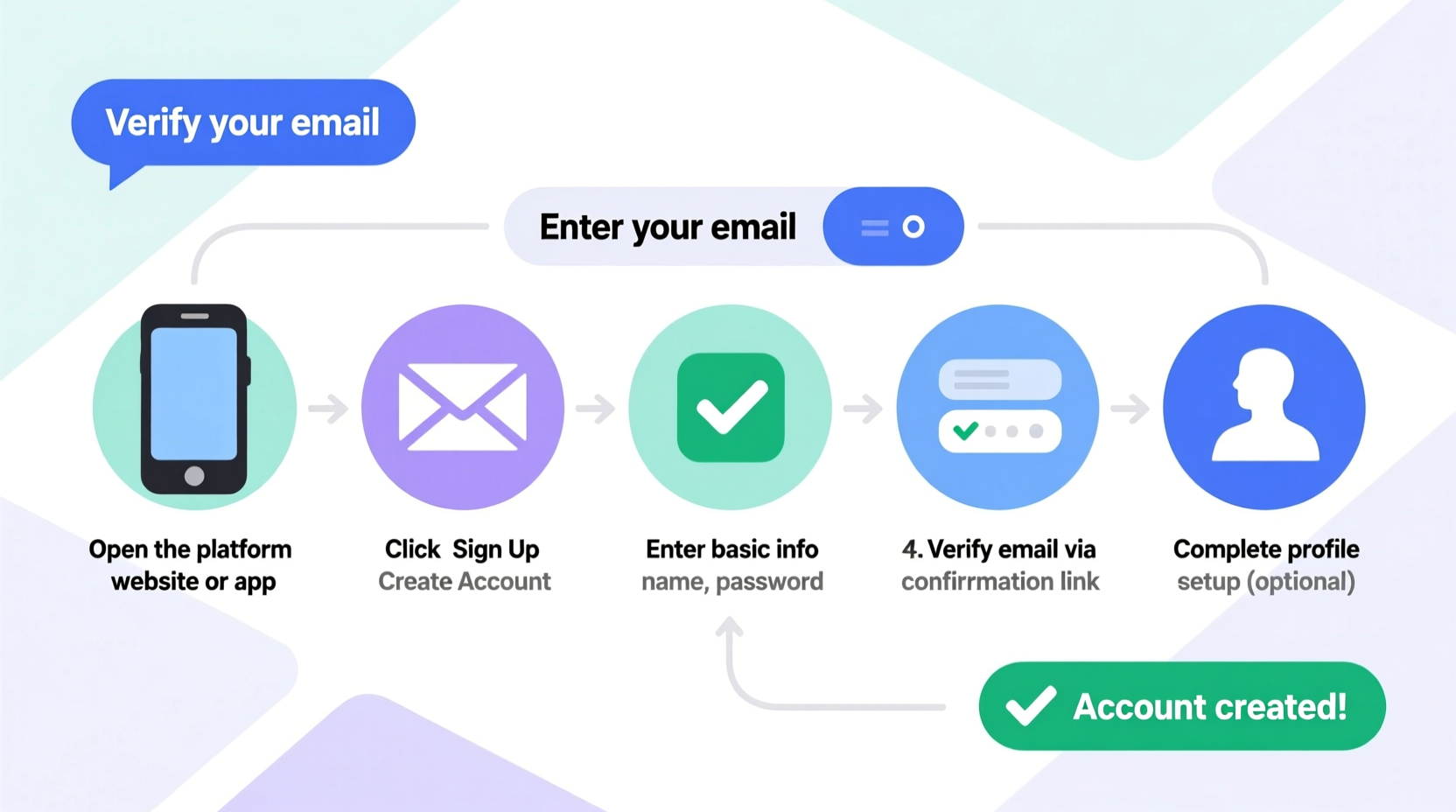
Before clicking “Sign Up,” take a moment to gather what you’ll need. Being prepared reduces errors and speeds up registration.
- A valid email address (preferably one you actively use)
- Access to your phone (for SMS verification, if required)
- A strong password idea—or better yet, a password manager ready
- Basic personal information (name, date of birth, etc.)
- Optional: recovery email or authenticator app setup
2. Navigate to the Official Sign-Up Page
Always start from the official website or app. Avoid registering through third-party links in emails or ads unless you’re certain of their legitimacy.
Look for these signs of authenticity:
- URL begins with
https:// - No spelling errors in the domain name (e.g., “facebok.com” vs. “facebook.com”)
- Secure padlock icon next to the address bar
If you're using an app, download it only from trusted sources like Google Play Store or Apple App Store. Fake apps often mimic real ones but are designed to steal your data.
Common Red Flags During Registration
| Red Flag | What It Means | Action to Take |
|---|---|---|
| Requests excessive permissions | App asks for contacts, location, or camera without reason | Exit and research the app further |
| Email field accepts invalid formats | Site allows \"user@@website..com\" | Poor validation may indicate low-quality or scam site |
| No privacy policy or terms link | Lack of legal disclosures | Do not proceed—your data could be misused |
3. Fill Out the Registration Form Correctly
Most platforms follow a similar structure when asking for information. Here's how to handle each field wisely:
- Email Address: Use a reliable, active email. For less important sites, consider a disposable or alias email service like Gmail’s +feature (e.g., yourname+shopping@gmail.com).
- Password: Create a unique, complex password. Avoid reusing passwords across platforms.
- Username: Choose something memorable but not personally identifiable (avoid full names or birth years).
- Phone Number: Only provide if necessary. Be cautious if two-factor authentication isn’t offered—this may signal weak security.
- Date of Birth / Gender: Required for age-restricted services. If optional, skip unless needed for functionality.
4. Verify Your Identity Securely
After submitting your details, most platforms require verification. This step confirms you’re a real user and protects against bots.
Common verification methods include:
- Email confirmation: Click the link sent to your inbox. Check spam/junk folders if it doesn’t arrive within 5 minutes.
- SMS code: Enter the one-time code sent via text. Ensure your number is correctly entered.
- Authenticator app: Scan a QR code with Google Authenticator or Authy for higher security.
- CAPTCHA: Complete puzzles or checkbox prompts to prove you’re human.
If verification fails, double-check your input. Typos in email addresses or expired codes are common culprits.
“Over 60% of account breaches stem from reused passwords or unverified sign-ups.” — Cybersecurity Report, 2023, National Institute of Standards and Technology (NIST)
5. Set Up Security and Recovery Options Immediately
The moment your account is active, strengthen it. Too many users skip this, leaving their accounts vulnerable.
📋 **Account Setup Checklist**- ✅ Enable two-factor authentication (2FA) if available
- ✅ Add a recovery email or phone number
- ✅ Save login details in a trusted password manager
- ✅ Review privacy settings and adjust visibility preferences
- ✅ Log out and back in to test access
Two-factor authentication adds a critical layer of protection. Even if someone guesses your password, they won’t gain access without the second factor—usually a time-based code or biometric approval.
Mini Case Study: Recovering a Locked Account
Sophia signed up for a freelance job platform last year but hadn’t logged in since. When she returned, she forgot her password. Because she used a temporary email and skipped verification, she couldn’t reset it. Support required ID verification, which took three days. She lost a potential client opportunity.
Had Sophia used a permanent email, completed verification, and saved her credentials in a password manager, she would have regained access instantly.
Frequently Asked Questions
Can I use the same password for multiple accounts?
No. Reusing passwords increases risk. If one service is breached, attackers often try the same credentials elsewhere. Use unique passwords for each account, ideally generated and stored in a password manager.
What should I do if I don’t receive the verification email?
First, check your spam or junk folder. Then, verify the email address you entered. If still missing, request a resend. If the issue persists, contact the platform’s support team or consider whether the service is trustworthy enough to continue with.
Is it safe to sign up using Facebook or Google?
It can be convenient, but comes with trade-offs. Single sign-on reduces password fatigue, but if your Google or Facebook account is compromised, all linked services are at risk. Only use this option for low-risk platforms and ensure your primary account has strong security enabled.
Final Tips for Long-Term Account Management
Creating an account is just the beginning. To maintain control and security over time:
- Regularly update passwords every 6–12 months for critical accounts (email, banking, work tools).
- Monitor login activity. Most platforms offer a “Security History” section showing recent logins.
- Delete unused accounts. Old, inactive profiles are prime targets for hackers.
- Use a consistent naming convention for usernames where possible (e.g., “jane_doe_writer”) to help remember them.
Conclusion: Build Habits, Not Just Accounts
Making a new account shouldn't be a rushed task done in haste. By following a clear, repeatable process—preparing ahead, verifying carefully, securing immediately—you turn a simple sign-up into a foundation for digital safety and efficiency.
Every account you create is part of your broader online presence. Treat each one with care, because consistency today prevents frustration tomorrow. Whether it’s your tenth or hundredth account, apply these principles every time.




 浙公网安备
33010002000092号
浙公网安备
33010002000092号 浙B2-20120091-4
Comments
No comments yet. Why don't you start the discussion?