
Managing your home network begins with understanding how to access your router’s settings. Whether you're troubleshooting a slow connection, setting up parental controls, or securing your Wi-Fi from unauthorized users, the router interface is where it all happens. While the process may seem technical, accessing and navigating your router settings is straightforward when done correctly. This guide walks you through each step with precision, safety precautions, and expert-backed best practices.
Why Accessing Your Router Matters
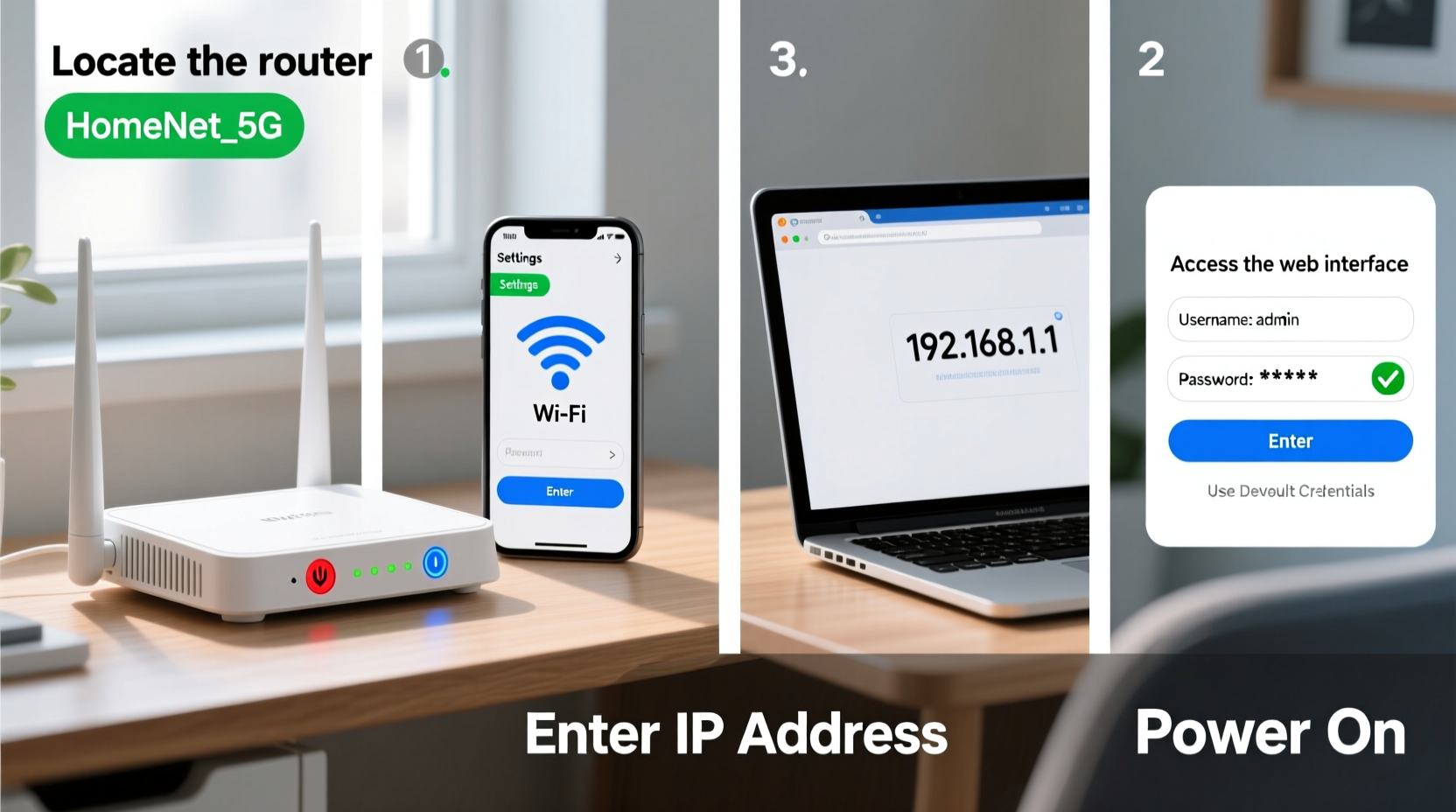
Your router is the central hub of your internet connection. It assigns IP addresses, manages traffic between devices, and enforces security rules. By accessing its administrative interface—commonly called the router settings page—you gain control over essential functions like network naming (SSID), password protection, guest access, and firmware updates.
Yet many users avoid this task due to fear of misconfiguration or security risks. The truth is, as long as you follow proper procedures, accessing your router is both safe and empowering. With the right knowledge, you can optimize performance, enhance privacy, and prevent common issues before they escalate.
Step-by-Step: How to Access Your Router Settings
- Connect to Your Network
Ensure your device (laptop, desktop, or tablet) is connected to your home Wi-Fi or via an Ethernet cable. A wired connection is more stable and recommended for configuration changes. - Find Your Router’s IP Address
Most routers use a default gateway address such as192.168.1.1,192.168.0.1, or10.0.0.1. To confirm yours:- On Windows: Open Command Prompt → Type
ipconfig→ Look for “Default Gateway.” - On macOS: Go to System Settings → Network → Select your connection → View TCP/IP details.
- On mobile: Check Wi-Fi network details; some show gateway under advanced settings.
- On Windows: Open Command Prompt → Type
- Open a Web Browser
Launch any modern browser (Chrome, Firefox, Safari). In the address bar, type the router’s IP address exactly—do not search it via Google. - Log In with Credentials
You’ll be prompted for a username and password. These are not your Wi-Fi credentials.- Check the label on the back or bottom of your router for default login info.
- Common defaults include:
- Username:
admin, Password:admin - Username:
admin, Password:password
- Username:
- If you’ve changed them before, use your custom credentials.
- Navigate the Interface
Once logged in, you’ll see the router’s dashboard. Layouts vary by brand (Netgear, TP-Link, ASUS, etc.), but key sections typically include:- Wireless Settings
- Security Options
- Connected Devices
- Firmware Updates
- Parental Controls
Essential Security Practices When Accessing Router Settings
Because the router admin panel controls your entire network, it's a high-value target for attackers. Missteps can expose your data or allow malicious takeovers. Follow these security protocols every time:
- Change Default Login Credentials: Routers ship with well-known usernames and passwords. Immediately set a strong, unique combination.
- Use HTTPS if Available: Some routers support encrypted admin access (e.g.,
https://192.168.1.1). Enable this in settings if offered. - Disable Remote Management: Unless absolutely necessary, turn off remote administration. This prevents outsiders from accessing your router over the internet.
- Log Out After Use: Always click \"Logout\" instead of just closing the browser tab.
- Keep Firmware Updated: Manufacturers release patches for known vulnerabilities. Check for updates quarterly.
“Routers are often overlooked as entry points for cyberattacks. Securing the admin interface should be the first line of defense.” — Sarah Lin, Network Security Analyst at CyberShield Labs
Common Tasks You Can Perform in Router Settings
| Task | Description | Recommended Frequency |
|---|---|---|
| Change Wi-Fi Name (SSID) | Customize your network name to something recognizable and private (avoid personal info). | Once, or after moving homes |
| Update Wi-Fi Password | Use WPA3 encryption with a 12+ character mix of letters, numbers, and symbols. | Every 6–12 months, or after suspected breach |
| Set Up Guest Network | Create a separate network for visitors to isolate main devices. | When hosting regular guests |
| Review Connected Devices | Check active devices to spot unknown entries (possible intruders). | Monthly |
| Update Firmware | Install official updates to fix bugs and close security holes. | Quarterly or when notified |
Real Example: Recovering from a Suspicious Connection
Jamal noticed his internet was unusually slow one evening. He decided to check his router settings and found five unknown devices connected to his network. After logging in, he reviewed the list under “Attached Devices,” recognized only two as his own, and immediately took action.
He changed the Wi-Fi password, disabled WPS (a known vulnerability), and renamed the SSID to something less generic. He also enabled MAC address filtering to allow only his trusted devices. Within minutes, the rogue connections dropped, and his speeds returned to normal. This incident reinforced the importance of routine router checks—and now he schedules monthly reviews.
Do’s and Don’ts of Router Management
| Action | Do | Don't |
|---|---|---|
| Login Process | Use a wired connection and verify the URL is the correct IP. | Type the IP into a search engine or trust pop-up login prompts. |
| Password Setup | Create a complex password stored securely (e.g., password manager). | Use simple words like “home” or “123456”. |
| Firmware Updates | Download updates only from the official interface or manufacturer site. | Install third-party firmware unless experienced (e.g., DD-WRT). |
| Configuration Changes | Modify one setting at a time and test results. | Enable multiple features at once without documentation. |
FAQ: Common Questions About Router Settings
What if I forgot my router login password?
If you’ve lost your custom credentials, you’ll need to reset the router to factory defaults. Locate the small reset button (usually on the back), press and hold it for 10–15 seconds using a paperclip. Note: This erases all settings, including Wi-Fi names and passwords.
Is it safe to access my router from a phone?
Yes, but ensure you’re on your own secure network and avoid public Wi-Fi. Mobile browsers work, but desktop interfaces often provide better navigation and visibility.
Can someone else access my router if they know the IP?
Only if they also have the correct username and password. The IP address alone isn’t enough. However, leaving default credentials makes unauthorized access much easier.
Final Checklist Before You Begin
- ✅ Confirm your device is connected to your home network
- ✅ Locate your router’s default gateway IP address
- ✅ Have your admin username and password ready
- ✅ Disable remote management unless needed
- ✅ Prepare to change default credentials immediately
- ✅ Ensure no critical downloads or calls are ongoing (reset may interrupt service)
Take Control of Your Network Today
Accessing your router settings isn’t just for tech enthusiasts—it’s a fundamental skill for anyone who uses the internet at home. With the steps outlined here, you can confidently log in, make informed adjustments, and protect your digital environment. Small actions like updating firmware, renaming networks, and monitoring connected devices go a long way in maintaining speed, reliability, and security.




 浙公网安备
33010002000092号
浙公网安备
33010002000092号 浙B2-20120091-4
Comments
No comments yet. Why don't you start the discussion?