
Adding background music to a video transforms it from ordinary to engaging. Whether you're creating social media content, a vlog, or a professional presentation, well-integrated music enhances emotion, pacing, and viewer retention. But poor audio mixing—music too loud, dialogue drowned out, abrupt transitions—can ruin even the most visually polished video. This guide walks through the process of adding background music seamlessly, covering selection, editing, volume balancing, licensing, and final export.
Selecting the Right Music
The foundation of seamless audio integration begins before editing: choosing music that complements your video’s tone and rhythm. A mismatched soundtrack distracts rather than supports. Consider the mood—uplifting, dramatic, calm—and ensure the tempo aligns with your visuals. For example, fast-paced montages pair well with energetic tracks, while reflective moments benefit from softer instrumentals.
Use royalty-free platforms like Epidemic Sound, Artlist, or YouTube Audio Library for legal, high-quality options. Always verify licensing terms—some free tracks require attribution or restrict commercial use.
Essential Tools for Audio Integration
You don’t need expensive software to blend music effectively. Here are reliable tools across skill levels:
| Software | Best For | Key Features |
|---|---|---|
| DaVinci Resolve (Free) | Beginners & pros | Fairlight audio mixer, EQ, fade controls |
| Adobe Premiere Pro | Advanced editors | Audio track keyframes, Lumetri integration |
| iMovie (Mac/iOS) | Casual creators | Drag-and-drop music, automatic ducking |
| CapCut (Desktop/Mobile) | Social media | Auto-sync beats, templates, noise reduction |
All these tools allow precise control over volume, timing, and audio effects—critical for seamless blending.
Step-by-Step Process for Seamless Integration
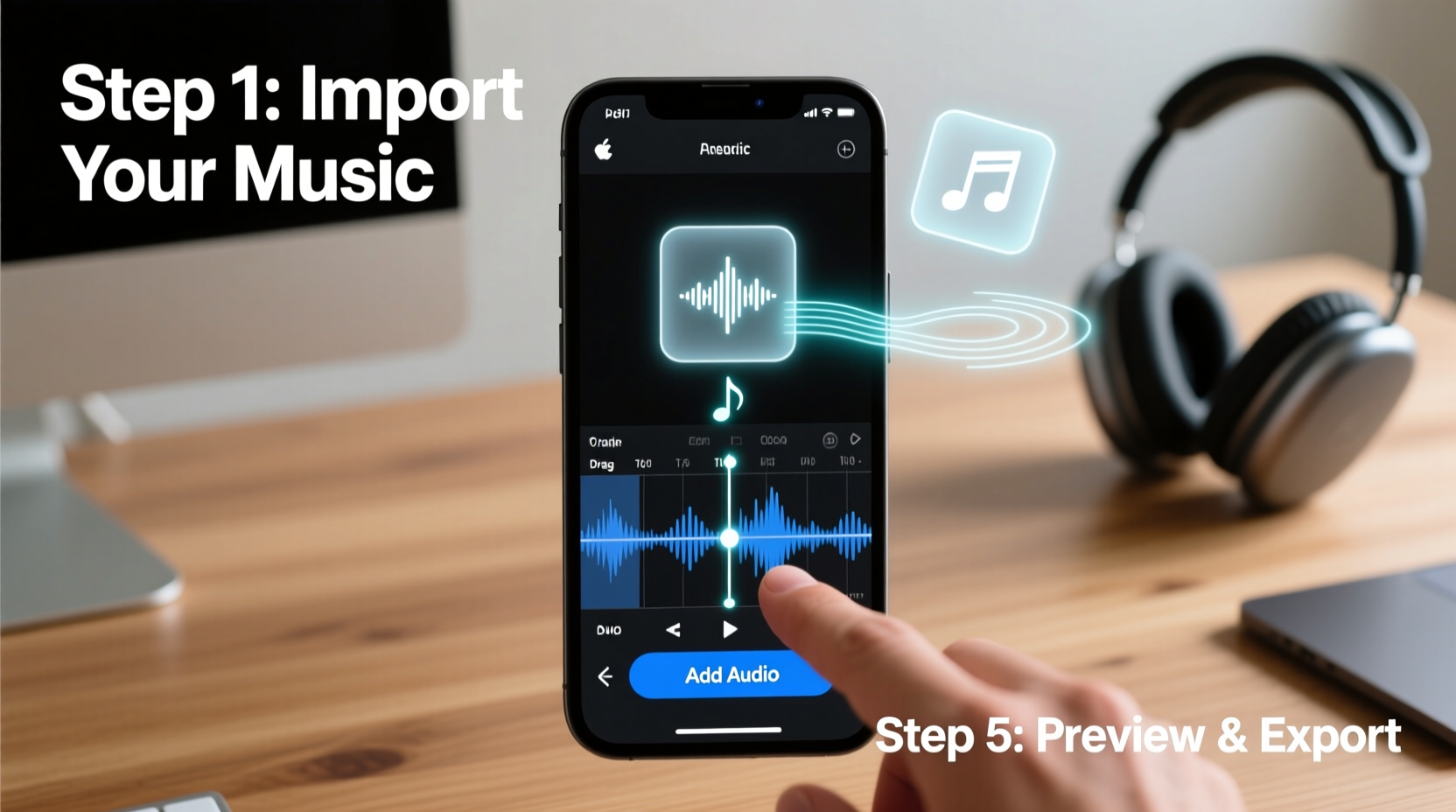
- Import and organize assets: Load your video and chosen music into the editing timeline. Place the music on a separate audio track beneath the video’s original sound.
- Trim and align music: Cut the track to match video length. Start music slightly after the video begins (e.g., 0.5–1 second) to avoid jarring starts.
- Apply crossfades: Add 0.5–1 second fades at the beginning and end of the music clip to prevent abrupt audio pops.
- Adjust volume levels: Lower music volume so dialogue or narration remains clear. Aim for -18dB to -24dB for background music, keeping speech around -6dB.
- Use audio ducking: Automatically reduce music volume when voice is present. In Premiere Pro, use “Ducking” in Essential Sound panel; in DaVinci, automate volume with keyframes.
- Equalize frequencies: Apply a high-pass filter (cut below 80Hz) to remove rumble and reduce muddiness. Slightly lower mid-frequencies if music competes with vocal ranges (around 1kHz–3kHz).
- Preview and refine: Watch the full video multiple times with headphones and external speakers. Check quiet scenes and loud sections for balance.
- Export with correct settings: Use AAC codec at 192kbps or higher. Ensure both video and audio render cleanly.
Avoiding Common Audio Mistakes
- Overpowering music: Music should support, not dominate. If viewers must turn up volume to hear speech, the mix is off.
- Ignoring silence: Brief moments of silence can emphasize transitions. Don’t feel obligated to fill every second with sound.
- Using compressed or low-bitrate audio: Poor-quality music introduces artifacts. Download tracks at 320kbps or WAV format when possible.
- Skipping headphone checks: Monitor audio on earbuds, car speakers, and phone speakers to ensure broad compatibility.
“Great audio design is invisible. When music blends perfectly, the audience feels the emotion without noticing the technique.” — Lena Patel, Sound Designer & Podcast Producer
Mini Case Study: Travel Vlog Transformation
Jamal filmed a week-long trip to Portugal but struggled with flat, silent clips. He selected a light acoustic guitar track from Artlist, imported it into DaVinci Resolve, and placed it on Audio 2. After trimming the song to 2 minutes, he added 0.7-second crossfades. Using Fairlight’s meter, he adjusted music volume to peak at -20dB, then applied manual ducking during voiceovers. He also boosted clarity with a slight high-pass filter. The final video felt cinematic and immersive. Engagement on Instagram increased by 65% compared to his previous posts.
Checklist: Perfect Background Music Integration
- ✅ Selected music that matches video tone and pace
- ✅ Verified royalty-free license for intended use (personal/commercial)
- ✅ Placed music on a dedicated audio track below dialogue
- ✅ Applied smooth fade-in and fade-out (0.5–1 second)
- ✅ Adjusted music volume to sit beneath speech (-18dB to -24dB)
- ✅ Enabled or manually created audio ducking during spoken parts
- ✅ Used EQ to clean low-end rumble and reduce vocal frequency overlap
- ✅ Tested playback on multiple devices and listening environments
- ✅ Exported with balanced audio settings (AAC, 192kbps minimum)
FAQ
Can I use Spotify or Apple Music tracks in my videos?
No. These services are for personal listening only. Using their tracks commercially violates copyright. Instead, license music through official libraries or obtain direct permission from the artist.
How do I make music quieter only when someone is speaking?
Use audio ducking. In Adobe Premiere Pro, label clips as “Dialogue” and “Music” in the Essential Sound panel, then click “Auto-Duck.” In free tools like DaVinci Resolve, manually lower music volume using keyframes whenever speech occurs.
Is it okay to use no music at all?
Absolutely. Some content—interviews, tutorials, dramatic narratives—benefits from natural sound or silence. Music should enhance, not mask, the story.
Maintaining Consistency Across Projects
Develop a repeatable workflow. Save audio presets for volume levels, EQ settings, and fade durations. Naming conventions (e.g., “BG_Music_Low_Energy_V1”) help organize future projects. Over time, this consistency reduces editing time and improves output quality.
Consider creating a short “audio style guide” for your brand or channel. Define typical music genres, volume standards, and transition rules. This ensures uniformity whether you’re editing solo or collaborating with others.
Conclusion
Seamlessly integrating background music elevates your storytelling without drawing attention to itself. By selecting appropriate tracks, using precise editing techniques, and prioritizing clarity, your videos gain emotional depth and professionalism. The difference between amateur and polished content often lies in audio quality—not just visuals. Take the time to balance each element thoughtfully. Your audience may not notice perfect audio, but they’ll definitely feel its absence.




 浙公网安备
33010002000092号
浙公网安备
33010002000092号 浙B2-20120091-4
Comments
No comments yet. Why don't you start the discussion?