
In today’s digital world, turning a picture into a usable, shareable file is a routine task—but doing it correctly ensures quality, compatibility, and efficiency. Whether you're preparing a photo for email, social media, or archiving, understanding the process behind converting images into proper digital files is essential. This guide walks through the complete workflow: from capturing or selecting an image to optimizing and saving it in the right format for your needs.
Understanding Image Files and Digital Formats
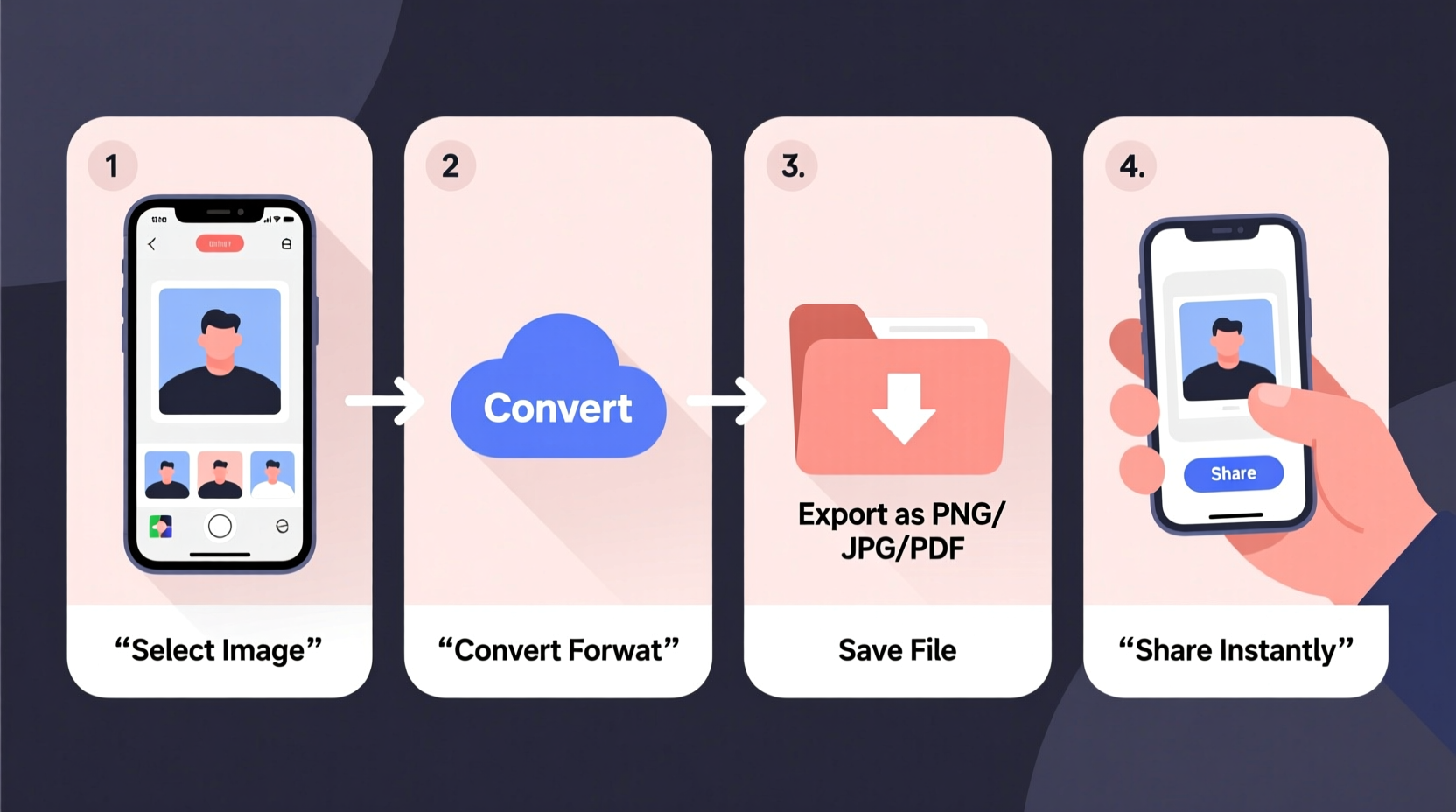
An image becomes a \"file\" when it's saved in a structured digital format that computers and devices can read. The most common formats include JPEG, PNG, GIF, TIFF, and WebP, each serving different purposes. Choosing the correct one affects file size, quality, transparency support, and compatibility.
| Format | Best For | Pros | Cons |
|---|---|---|---|
| JPEG | Photographs, web sharing | Small file size, widely supported | Loses quality with compression, no transparency |
| PNG | Screenshots, graphics with text | Lossless quality, supports transparency | Larger file size than JPEG |
| GIF | Simple animations, memes | Supports animation, small for simple graphics | Limited color range, lower quality |
| TIFF | Professional printing, archiving | High quality, lossless, layered support | Very large files, not web-friendly |
| WebP | Modern websites, fast loading | Smaller than JPEG/PNG, good quality | Not universally supported yet |
Selecting the right format begins with knowing where and how the image will be used. A family photo shared via messaging benefits from JPEG’s compact size, while a logo with transparent background requires PNG.
Step-by-Step Guide to Convert a Picture into a Shareable File
Whether the image comes from a smartphone, scanner, or digital camera, follow this sequence to prepare it effectively:
- Capture or Select the Image: Use a device with sufficient resolution. Smartphones today offer excellent cameras; ensure lighting is adequate and the subject is in focus.
- Transfer to a Computer (if needed): Connect your device via USB, use cloud sync (Google Drive, iCloud), or transfer through Bluetooth or Wi-Fi.
- Open with an Image Editor: Use built-in tools like Photos (Windows/Mac), Preview (Mac), or free software such as GIMP, Paint.NET, or online editors like Pixlr.
- Edit if Necessary: Crop unwanted areas, adjust brightness/contrast, or resize dimensions. Avoid over-editing, which may degrade quality.
- Resize for Purpose: For email or social media, reduce pixel dimensions (e.g., 1920px wide max). High-resolution originals should be archived separately.
- Choose Export Settings: In your editor, use “Save As” or “Export.” Select the appropriate format and adjust compression (quality level 80–90% for JPEG).
- Name and Save the File: Use descriptive names (e.g.,
project-diagram-final.png) and store in an organized folder. - Verify Before Sharing: Open the saved file to confirm clarity, correct format, and proper dimensions.
This process transforms any visual into a standardized, accessible file ready for distribution across platforms.
Tools and Software for Efficient Image Conversion
Not all tools are equal when converting pictures to files. The right choice depends on your technical comfort and requirements.
- Operating System Tools: Windows Photos app allows basic cropping and export. Mac Preview enables resizing, format conversion, and annotation.
- Free Online Converters: Websites like Convertio, ILoveIMG, or Zamzar let you upload an image and convert it to another format without installing software.
- Desktop Software: GIMP (free) and Adobe Photoshop (paid) offer advanced control over output settings, layers, and batch processing.
- Mobile Apps: Snapseed, Adobe Lightroom Mobile, or Canva allow editing and exporting directly from smartphones.
“We often overlook how much file optimization impacts user experience. A well-compressed image loads faster, shares easier, and looks better across devices.” — Dana Reyes, Digital Media Specialist at TechFlow Studio
For bulk conversions—such as digitizing old photos—batch-processing tools like XnConvert or IrfanView (Windows) save significant time by applying the same settings to multiple images simultaneously.
Checklist: Preparing Your Image File for Sharing
Before sending or uploading, run through this checklist to ensure reliability and professionalism:
- ✅ Image is sharp and properly lit
- ✅ Unnecessary parts are cropped out
- ✅ Dimensions match intended use (e.g., 1080x1080px for Instagram)
- ✅ File format is appropriate (JPEG for photos, PNG for graphics)
- ✅ File size is under platform limits (e.g., under 25MB for email)
- ✅ Filename is clear and professional
- ✅ Metadata (EXIF data like GPS location) has been reviewed or removed if sensitive
Real-World Example: Digitizing Printed Photos
Sarah wanted to share her grandmother’s vintage wedding photo with relatives scattered across three countries. She scanned the physical print at 300 DPI using a home scanner, naming the initial file wedding-photo-scan.tiff for archival quality. Using Preview on her Mac, she cropped the edges, adjusted contrast, then exported a copy as grandma-wedding-1957.jpg at 85% quality and 1600px wide. The final file was only 420KB—small enough for email and clear enough for viewing on phones and tablets. Relatives replied with gratitude, and Sarah later uploaded it to a private family album on Google Photos.
This scenario illustrates how thoughtful conversion enhances both usability and emotional value.
Frequently Asked Questions
What’s the difference between saving and exporting an image?
“Saving” typically preserves edits within the original file format (e.g., PSD or TIFF), while “exporting” converts the image to a new format optimized for sharing (like JPEG or PNG). Exporting often includes compression and resizing options tailored for end-use.
Why does my image look blurry after saving?
Blurriness usually results from excessive compression (especially in JPEG) or upscaling beyond the original resolution. Always maintain a high-quality master copy and scale down—not up—when preparing files.
Can I change a screenshot into a PDF for formal sharing?
Absolutely. On most systems, open the screenshot in an image viewer, select Print, then choose “Save as PDF” as the printer option. This embeds the image in a universally readable document format ideal for reports or documentation.
Final Thoughts and Action Steps
Turning a picture into a functional digital file isn’t just about clicking “Save.” It involves intention—from choosing the right format to optimizing for speed, clarity, and compatibility. With the rise of remote collaboration, social media, and digital archiving, mastering this skill improves communication and preserves memories more effectively.
Start today by reviewing your last shared image. Was it the right size? Did it load quickly? Could it have looked sharper? Apply these steps to your next project, and notice the difference in how your visuals are received.




 浙公网安备
33010002000092号
浙公网安备
33010002000092号 浙B2-20120091-4
Comments
No comments yet. Why don't you start the discussion?