
When joining a Zoom meeting, your display name is often the first impression you make. Whether you're presenting in a professional setting, attending a virtual class, or catching up with family, having a clear, accurate name visible to others ensures smooth communication and recognition. While Zoom allows temporary name changes during meetings, many users don’t realize they can set a default display name that carries over into every session—saving time and avoiding confusion.
This guide walks through how to change your display name on Zoom permanently and temporarily across all platforms: desktop (Windows and macOS), mobile (iOS and Android), and web browser. You'll also learn best practices for naming conventions, troubleshooting common issues, and ensuring consistency across devices.
Why Your Zoom Display Name Matters
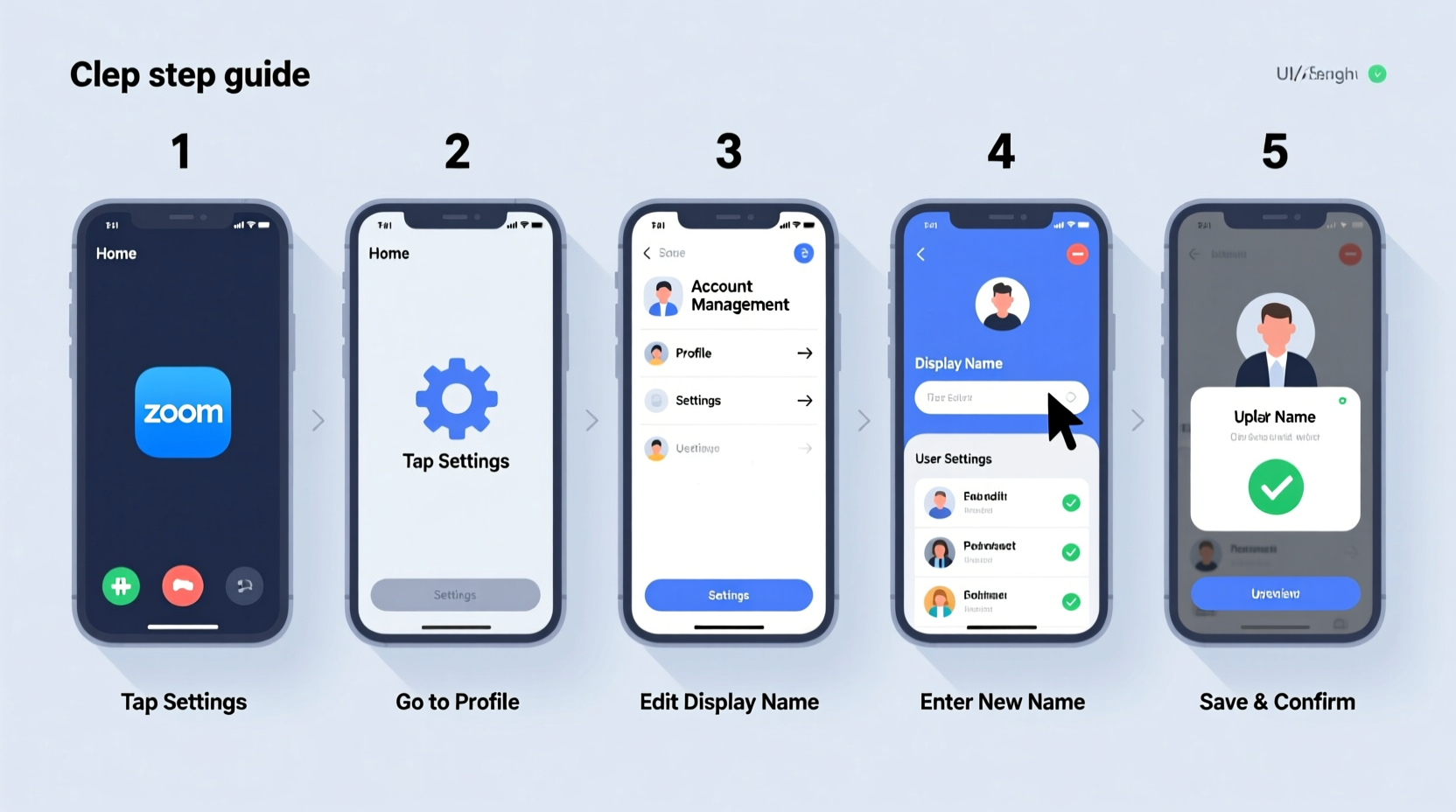
Your display name isn't just a label—it's part of your digital presence. In hybrid workplaces and remote learning environments, names appear on screen grids, participant lists, recordings, and chat logs. An unclear or unprofessional name like “User_789” or “Mom’s iPad” can lead to misidentification, especially when attendance is tracked or breakout rooms are assigned.
A well-formatted name builds credibility. Consider including your first and last name, job title, or department if appropriate. For example:
- ✅ Sarah Kim – Marketing Director
- ✅ James Rivera (IT Support)
- ❌ User12345
- ❌ Dad’s Laptop
“Your digital identity starts with how you present yourself visually—even in small ways like your video conferencing name.” — Dr. Lena Patel, Remote Work Consultant
How to Change Your Default Display Name on Zoom (Applies to All Meetings)
To ensure your preferred name appears automatically in every Zoom meeting, update it in your Zoom account profile. This method works across all future sessions unless manually overridden at join time.
- Go to zoom.us and sign in to your account.
- In the top-right corner, click your profile icon and select Profile.
- Under the Personal Information section, locate the \"Display Name\" field.
- Edit the name to your preferred format (e.g., First Last, First Last – Role).
- Scroll down and click Save Changes.
This updated name will now appear by default whenever you join any Zoom meeting—whether hosted by you or someone else. It syncs across devices as long as you're logged into the same Zoom account.
Changing Your Name Temporarily When Joining a Meeting
Sometimes, you may want to use a different name for a specific meeting—such as adding context (“Alex Chen – Observer”) or using a nickname in informal settings. You can override your default display name each time you join.
On Desktop App (Windows/macOS):
- Open the Zoom desktop application.
- Click Join to enter a meeting.
- In the \"Name\" field before clicking \"Join,\" edit your display name.
- Check or uncheck \"Use my actual name\" depending on whether you want to bypass the default.
- Click Join.
On Mobile App (iOS/Android):
- Launch the Zoom app.
- Tap Join.
- Enter the meeting ID and your name.
- Edit the name field directly—this becomes your temporary display name.
- Tap Join.
On Web Browser (No App Installed):
- Navigate to the meeting invite link.
- When prompted, enter your name in the input box.
- You may see a checkbox labeled \"Always use this name\"—uncheck it if you only want this name for one session.
- Click Join from Your Browser.
This approach gives flexibility without altering your permanent profile.
Platform Comparison: Changing Display Names Across Devices
| Platform | Change Default Name? | Temporary Name Override? | Syncs Across Devices? |
|---|---|---|---|
| Zoom Desktop App | Yes (via website) | Yes | Yes, if logged in |
| Zoom Mobile App (iOS/Android) | Yes (via website) | Yes | Yes, if logged in |
| Web Browser (Chrome, Firefox, etc.) | Yes (via login) | Yes | Limited; requires account login |
| Zoom Rooms / Shared Devices | No (device-specific) | Yes | No |
Note: The Zoom web client does not allow direct profile edits within the browser interface during a meeting. Always update your default name via the Zoom website for full control.
Best Practices and Common Pitfalls
Maintaining a reliable display name strategy prevents confusion and enhances collaboration. Follow these guidelines to stay organized and professional.
Do’s and Don’ts of Zoom Naming
| Do | Don’t |
|---|---|
| Use your real first and last name | Use random usernames or nicknames without context |
| Add role or affiliation if helpful (e.g., “Dr. Maria Lopez – Guest Speaker”) | Include excessive punctuation or symbols |
| Update your name before high-stakes meetings | Rely solely on temporary overrides without checking defaults |
| Test how your name appears by joining a test meeting | Assume your company email automatically sets your display name |
Real-World Example: Fixing a Teamwide Naming Issue
A mid-sized marketing firm transitioned to fully remote operations in 2023. During team standups, several employees joined with inconsistent names: “John,” “Johnny,” “J. Peterson,” and even “Zoom Account 2.” Confusion arose during roll calls and breakout assignments.
Their IT manager implemented a policy requiring all staff to standardize their Zoom display names to “First Last – Department.” They shared a step-by-step guide (similar to this one) and scheduled a 10-minute onboarding session to help employees update profiles. Within a week, meeting clarity improved significantly, and recorded sessions became easier to archive and reference.
This small change reduced onboarding friction for new hires and increased professionalism in client-facing calls.
Frequently Asked Questions
Will changing my display name affect my Zoom username or email?
No. Your display name is separate from your login credentials. Updating it won’t change your Zoom account email or password.
Can I have different names for different meetings without changing my profile?
Yes. Each time you join a meeting, you can manually edit your name in the join screen. Just avoid saving it as your default if you want variation.
Why does my old name still show up after I changed it?
This usually happens if you’re not logged into the Zoom app. Make sure you're signed in with the correct account. Also, some meetings cache participant names—restart the app or rejoin the meeting to refresh.
Final Checklist: Master Your Zoom Identity
- ✅ Log in to zoom.us and verify your current display name
- ✅ Update your profile with a clear, professional format
- ✅ Test the name by joining a personal or test meeting
- ✅ Practice editing your name temporarily when joining different types of meetings
- ✅ Confirm synchronization across devices (phone, laptop, tablet)
Take Control of Your Digital Presence
Your display name is more than an identifier—it reflects your attention to detail and respect for shared virtual spaces. By taking a few minutes to set up a consistent, recognizable name across all Zoom meetings, you enhance communication, reduce confusion, and project professionalism.
Whether you're a teacher managing online classrooms, a manager leading remote teams, or a student attending virtual lectures, a clear name makes a difference. Apply these steps today and make every Zoom appearance count.




 浙公网安备
33010002000092号
浙公网安备
33010002000092号 浙B2-20120091-4
Comments
No comments yet. Why don't you start the discussion?