
RGB lighting has evolved from a flashy novelty into an essential part of the modern PC experience. It’s no longer just about making your rig look good—it’s about personalization, ambiance, and even improving focus during work or gaming sessions. With the right tools and approach, you can design a lighting profile that reflects your personality, matches your setup, and reacts dynamically to your usage. This guide walks you through the entire process of creating a fully customized RGB lighting profile, from hardware compatibility checks to fine-tuning animations and syncing across devices.
1. Assess Your Hardware and Software Compatibility
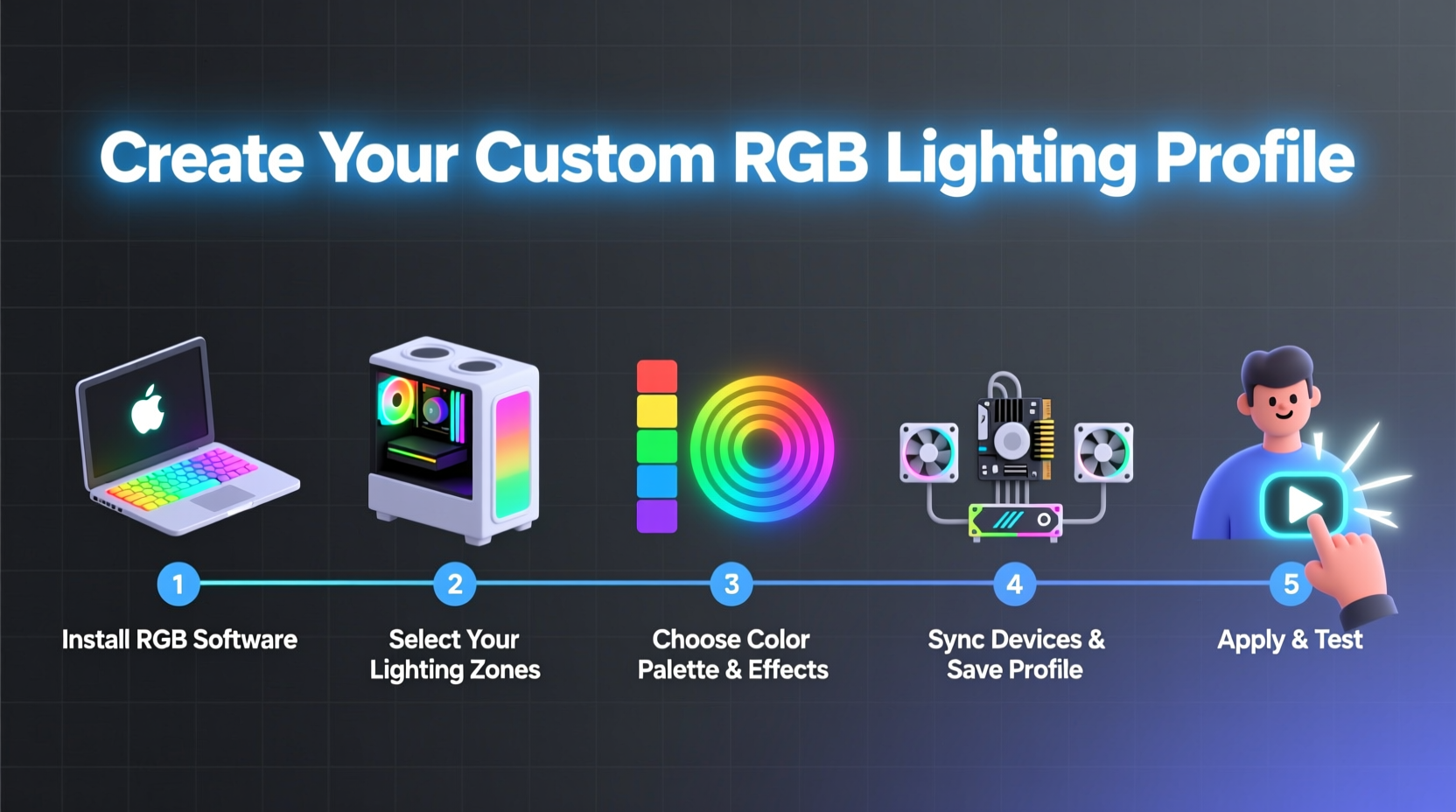
Before diving into customization, confirm that your components support RGB lighting and are compatible with a unified control platform. Not all RGB systems work together seamlessly, so this initial check prevents frustration later.
Modern motherboards from ASUS (Aura Sync), MSI (Mystic Light), Gigabyte (RGB Fusion), and ASRock (Polychrome) come with built-in RGB headers and proprietary software. Additionally, many third-party accessories—like RAM, fans, coolers, and peripherals—now support major ecosystems such as Razer Chroma, Corsair iCUE, or NZXT CAM.
“Ensuring component compatibility is 80% of successful RGB integration. Mismatched protocols lead to limited control or dead zones.” — David Lin, PC Build Consultant at TechSync Labs
Checklist: Pre-Setup Requirements
- Confirm all RGB components are powered and connected via 3-pin (5V) or 4-pin (12V) headers
- Update motherboard BIOS and chipset drivers
- Download the correct RGB control software (e.g., iCUE, Armoury Crate, Synapse)
- Ensure USB hubs aren’t causing signal dropouts for peripheral lighting
- Verify firmware on devices like keyboards or headsets is up to date
2. Choose the Right Control Software
The software you use will define your creative freedom. Some platforms offer deep customization, while others limit options to preset themes. Below is a comparison of leading RGB control suites:
| Software | Supported Brands | Key Features | Limits |
|---|---|---|---|
| Corsair iCUE | Corsair, Elgato, some Logitech | Per-key keyboard lighting, reactive effects, macros, fan speed sync | Only works reliably with Corsair hardware |
| ASUS Armoury Crate | ASUS, Asetek, Razer (partial) | Aura Sync ecosystem, system monitoring overlay | Buggy updates, high RAM usage |
| MSI Mystic Light | MSI, Cooler Master, Thermaltake | Simple UI, good fan/light sync | Limited third-party support |
| NZXT CAM + Hue Sync | NZXT, Philips Hue, Razer, SteelSeries | Screen color sampling, ambient lighting sync | Requires premium subscription for advanced features |
| Razer Synapse | Razer, some ASUS, Corsair (limited) | Chroma Studio, game integrations, per-zone lighting | Cloud-dependent, privacy concerns raised |
If your build spans multiple brands, consider using OpenRGB—an open-source solution that supports over 100 device types and bypasses vendor lock-in. While less polished than commercial tools, it offers unmatched flexibility for mixed setups.
3. Design Your Lighting Theme
Creating a cohesive lighting profile starts with a clear vision. Ask yourself: Is this build for immersive gaming? Professional streaming? Or subtle desktop elegance?
Start by selecting a base color scheme. Monochromatic schemes (e.g., varying blues) create calm, focused environments. Complementary colors (blue and orange) add contrast and energy. For themed builds—like a cyberpunk aesthetic—use dynamic gradients and reactive triggers.
Recommended Themes by Use Case
- Gaming Rig: Reactive rainbow wave with sound activation on fans; static white on GPU shroud
- Streaming Setup: Soft purple ambient glow synced to camera ring light; logo lighting on low pulse
- Workstation: Static cool white or daylight blue—minimalist and non-distracting
- Showcase Build: Full-spectrum breathing effect with motherboard logo pulsing in sync
Most software allows layering effects. For example, set a slow gradient across case fans while keeping RAM lit in static mode. Use “zones” to segment different parts of a single device—such as front vs rear fans or keyboard regions.
4. Configure Synchronization and Triggers
Synchronized lighting elevates your build from chaotic to cinematic. The goal is harmony—not uniformity. Subtle differences in timing or hue can add depth.
In your chosen software, navigate to the synchronization panel. Here, you’ll link devices under a single profile. For instance, assign all addressable RGB fans, strips, and RAM to a group called “Case Flow.” Then apply a cascading waterfall effect that moves from bottom to top.
Advanced features include:
- Audio Reactivity: Lights pulse with bass levels. Ideal for music or intense gameplay moments.
- System Monitoring: Change colors based on CPU temperature (e.g., green → red at 80°C).
- Game Integration: Razer Chroma links to titles like *Fortnite* or *Cyberpunk 2077*, changing lighting based on in-game events.
- Time-Based Scheduling: Automate shifts—cool white during day, warm amber at night.
“We’ve seen streamers increase viewer engagement by 15% just by syncing their rig lighting to stream alerts and donation triggers.” — Lena Torres, UX Director at StreamLume Analytics
Mini Case Study: The Immersive Home Theater PC
Mark, a home theater enthusiast, wanted his HTPC to blend into his media room. He used NZXT Hue Sync to mirror the edge lighting of his 4K TV onto his PC’s LED strips. When watching a dark scene in *Dune*, the rig dimmed to near-black with faint blue undertones. During action sequences, the lights subtly pulsed with explosions. By calibrating the delay to 0.2 seconds behind the screen, he avoided visual distraction while enhancing immersion. The result? A seamless extension of the viewing experience.
5. Save, Test, and Optimize
After designing your profile, save it with a descriptive name—e.g., “Evening Calm,” “Gaming Mode,” or “Streaming Ready.” Avoid generic names like “Profile 1,” which make switching modes confusing.
Test under real conditions:
- Boot into games and check if lighting remains stable
- Run stress tests (e.g., Prime95) to ensure thermal-triggered effects behave correctly
- Observe in low-light and bright environments—some colors wash out in sunlight
- Ask others to view it from different angles; what looks balanced head-on may appear lopsided from the side
If certain LEDs flicker or fail to update, reseat the connectors or reduce the number of daisy-chained strips. Overloading a single header can cause erratic behavior.
Do’s and Don’ts of RGB Customization
| Do | Don’t |
|---|---|
| Use diffusers for smoother light spread | Mix 5V and 12V strips on the same channel |
| Label cables and zones during setup | Overload motherboard RGB headers—use external hubs |
| Back up your profiles to cloud or USB | Ignore firmware updates—they often fix sync bugs |
| Adjust brightness for time of day | Set overly aggressive animations for work setups |
FAQ
Can I mix ARGB and regular RGB devices in one profile?
Yes, but only if your controller and software support both 3-pin (5V addressable) and 4-pin (12V non-addressable) standards. Many modern motherboards and hubs handle both, though addressable devices offer finer control per LED.
Why does my lighting lag or desync after waking from sleep?
This is common with USB-powered peripherals or poorly optimized software. Disable USB selective suspend in Windows Power Options and set your RGB app to launch at startup with elevated permissions.
Is more RGB always better?
No. Strategic lighting enhances aesthetics; excessive illumination creates visual clutter. Focus on accent zones—underglow, behind the monitor, or intake grilles—rather than lighting every surface.
Finalize and Share Your Creation
A custom RGB profile isn’t just about technical execution—it’s a reflection of your digital identity. Whether you’re building a tournament-ready machine or a serene productivity station, precise lighting control adds polish and intentionality. Take time to refine transitions, balance brightness, and align effects with your actual usage patterns.
Once perfected, share your profile online. Communities like r/rgbperfection on Reddit or the Corsair User Profiles database welcome uploads. You might inspire someone else’s next build—or discover a tweak that takes your own setup further.




 浙公网安备
33010002000092号
浙公网安备
33010002000092号 浙B2-20120091-4
Comments
No comments yet. Why don't you start the discussion?