
Creating a Facebook account is simple, but doing it securely—especially if it’s your first time—requires more than just filling out a form. With over 3 billion monthly active users, Facebook remains one of the most powerful social platforms in the world. Yet, its popularity also makes it a target for scams, data harvesting, and identity theft. This guide walks you through setting up your account with clarity and care, then immediately applying essential security and privacy protections so you start strong and stay safe.
Step 1: Prepare Before You Sign Up
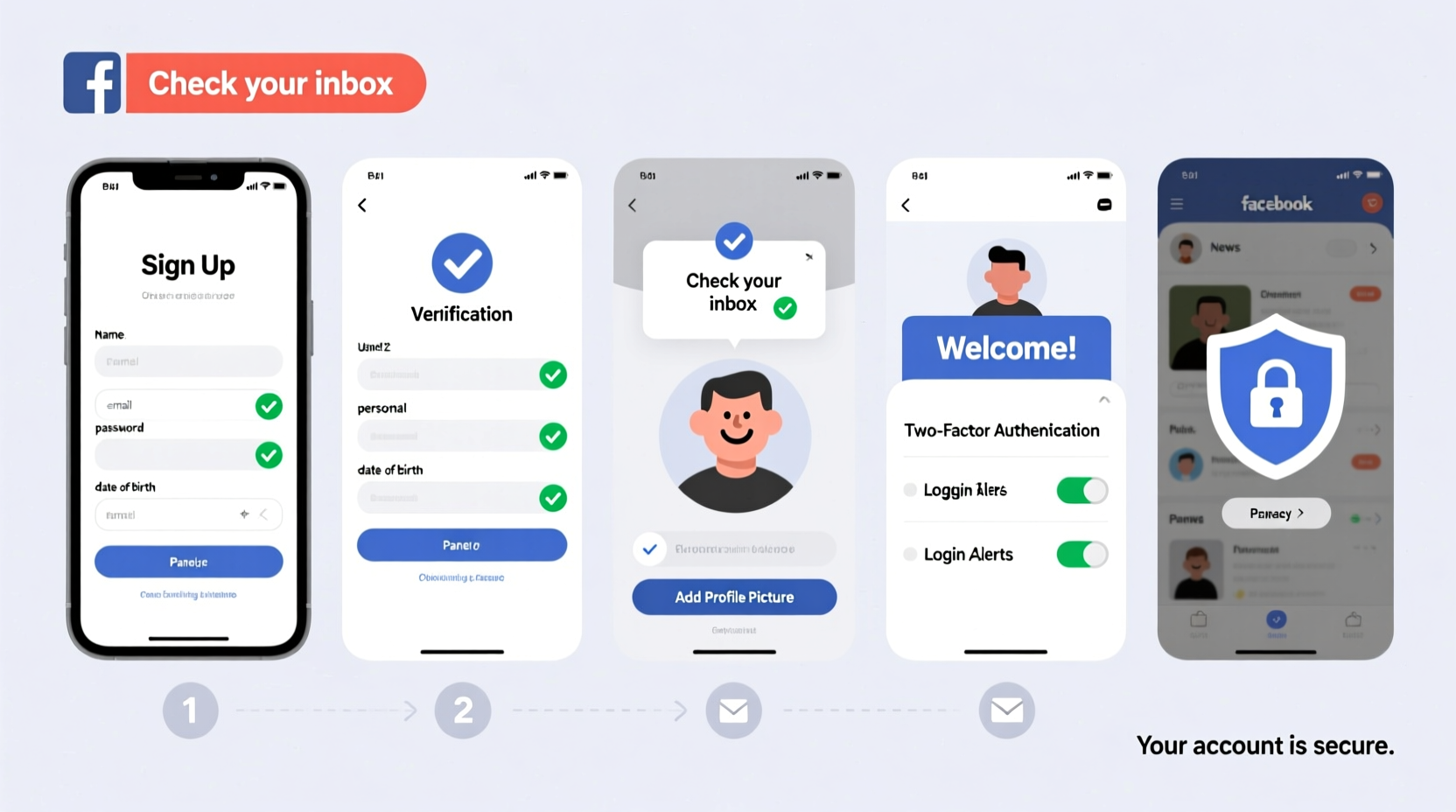
Before entering any personal details, take a moment to gather what you’ll need and make smart decisions about the information you’re willing to share. Facebook asks for several pieces of data during registration, but not all are equally necessary or safe to provide.
- Valid email address or phone number – Either works, but email gives you more control.
- Full name – Use your real name as it appears on official documents; aliases may trigger verification issues.
- Birthday – Required, but avoid including the full date in your public profile later.
- Password – Create a strong, unique password now (more on this in Step 4).
“Many new users overlook privacy settings during setup, leaving their data exposed from day one.” — Lena Torres, Digital Privacy Consultant
Step 2: Create Your Account – A Clear Walkthrough
Navigate to facebook.com in your browser. The homepage displays a simple sign-up form. Follow these steps precisely:
- Enter your first and last name in the designated fields.
- Type in your mobile number or email address. If using email, ensure it’s accessible and verified.
- Choose a password (at least 8 characters, combining letters, numbers, and symbols).
- Select your date of birth using the dropdown menus.
- Click Sign Up.
- Confirm your identity via a code sent to your email or phone.
- Upload a profile picture when prompted (optional at this stage).
- Add friends or skip for now—this won’t affect your account functionality.
Within minutes, your account will be active. But don’t stop here. The default settings expose far more than most users realize.
Step 3: Secure Your Account Immediately
Your new account is vulnerable until you apply key security measures. Facebook automatically enables some protections, but many critical ones require manual activation.
Enable Two-Factor Authentication (2FA)
This adds a second layer of protection beyond your password. Even if someone obtains your password, they can’t log in without access to your phone or authentication app.
- Go to Settings & Privacy > Settings.
- Select Security and Login from the left panel.
- Find “Two-Factor Authentication” and click Edit.
- Choose your preferred method: text message (SMS) or authentication app (like Google Authenticator or Duo).
- Follow the prompts to complete setup.
Create a Strong Recovery Plan
- Add a backup email or phone number under Contact Information.
- Designate Trusted Contacts—friends who can help you regain access if locked out.
- Download your Facebook data periodically via Settings > Your Facebook Information > Download Your Information.
Step 4: Lock Down Privacy Settings
By default, Facebook sets many options to “Public” or “Friends.” Adjust them to limit exposure.
| Setting | Recommended Option | Why It Matters |
|---|---|---|
| Who can see your future posts? | Friends | Prevents strangers from seeing personal updates. |
| Who can send you friend requests? | Friends of Friends | Reduces spam and fake profiles. |
| Do you want search engines to link to your profile? | No | Keeps your profile out of Google results. |
| Profile visibility | Only Me / Friends | Hides sensitive info like hometown, education. |
Review What Others Can Share About You
Navigate to Settings > Privacy > How People Find and Contact You:
- Turn off “Let others tag you in posts” if you prefer approval before being tagged.
- Limit past posts visibility: Click Limit Past Posts to change old public shares to “Friends Only.”
- Disable facial recognition if desired under Face Recognition settings.
Step 5: Recognize and Avoid Common Threats
New users are prime targets for impersonation, phishing, and malicious links. Stay alert.
Mini Case Study: Maria’s Close Call
Maria, a first-time Facebook user from Colombia, signed up to connect with family abroad. Within days, she received a message from someone claiming to be her cousin, asking for money due to an emergency. Suspicious, she called her cousin directly and discovered no such request existed. The imposter had cloned the cousin’s profile photo and mimicked writing style. Thanks to early awareness, Maria avoided financial loss and reported the fake account.
This scenario is common. Scammers exploit trust and inexperience.
Red Flags to Watch For:
- Messages asking for money, even from “friends.” Always verify externally.
- Fake login pages disguised as Facebook—check the URL carefully.
- Unexpected app permissions requests (e.g., “This app wants to view your friends list”).
- Posts urging quick action: “Tag 10 friends or lose your account!”
“Social engineering works because people trust connections. Verify before reacting.” — Mark Chen, Cybersecurity Analyst at NetShield Group
Essential Security Checklist
Use this checklist within 24 hours of creating your account:
- ✅ Set a strong, unique password
- ✅ Enable two-factor authentication
- ✅ Confirm recovery email/phone number
- ✅ Limit audience for future posts to “Friends”
- ✅ Disable search engine linking to your profile
- ✅ Review and adjust tagging approvals
- ✅ Run a security checkup via Settings > Security and Login > Security Checkup
- ✅ Report suspicious messages or fake profiles immediately
FAQ: Common Questions Answered
Can I use a nickname instead of my real name?
Facebook requires your real name as it appears on government ID. Using a nickname may lead to temporary suspension or verification requests. If you have a valid reason (e.g., safety concerns), Facebook allows exceptions—submit proof through their appeal process.
What should I do if I suspect my account has been hacked?
Act quickly: Go to facebook.com/hacked, follow the steps to secure your account, change your password, revoke unrecognized devices, and re-enable 2FA. Notify close contacts that your account was compromised.
Is it safe to log in using Facebook on other apps?
Use “Log in with Facebook” sparingly. While convenient, it grants third-party apps access to certain data. After logging in, go to Settings > Apps and Websites and remove permissions for apps you no longer use.
Final Thoughts: Start Smart, Stay Safe
Creating a Facebook account takes minutes. Securing it properly takes a little longer—but it’s one of the most important digital habits you can build. From choosing a resilient password to understanding how privacy settings work, each step strengthens your online presence. Remember, your information is valuable. Treat it with care from the very beginning.




 浙公网安备
33010002000092号
浙公网安备
33010002000092号 浙B2-20120091-4
Comments
No comments yet. Why don't you start the discussion?