
Facebook remains one of the most widely used social platforms globally, connecting people for personal, professional, and promotional purposes. Your profile is more than just a digital calling card—it reflects your identity, interests, and presence online. A well-personalized profile increases engagement, strengthens connections, and enhances credibility. Whether you're refreshing your look or setting up your account for the first time, this comprehensive guide walks you through every step to customize your Facebook experience effectively.
1. Update Your Profile Picture and Cover Photo
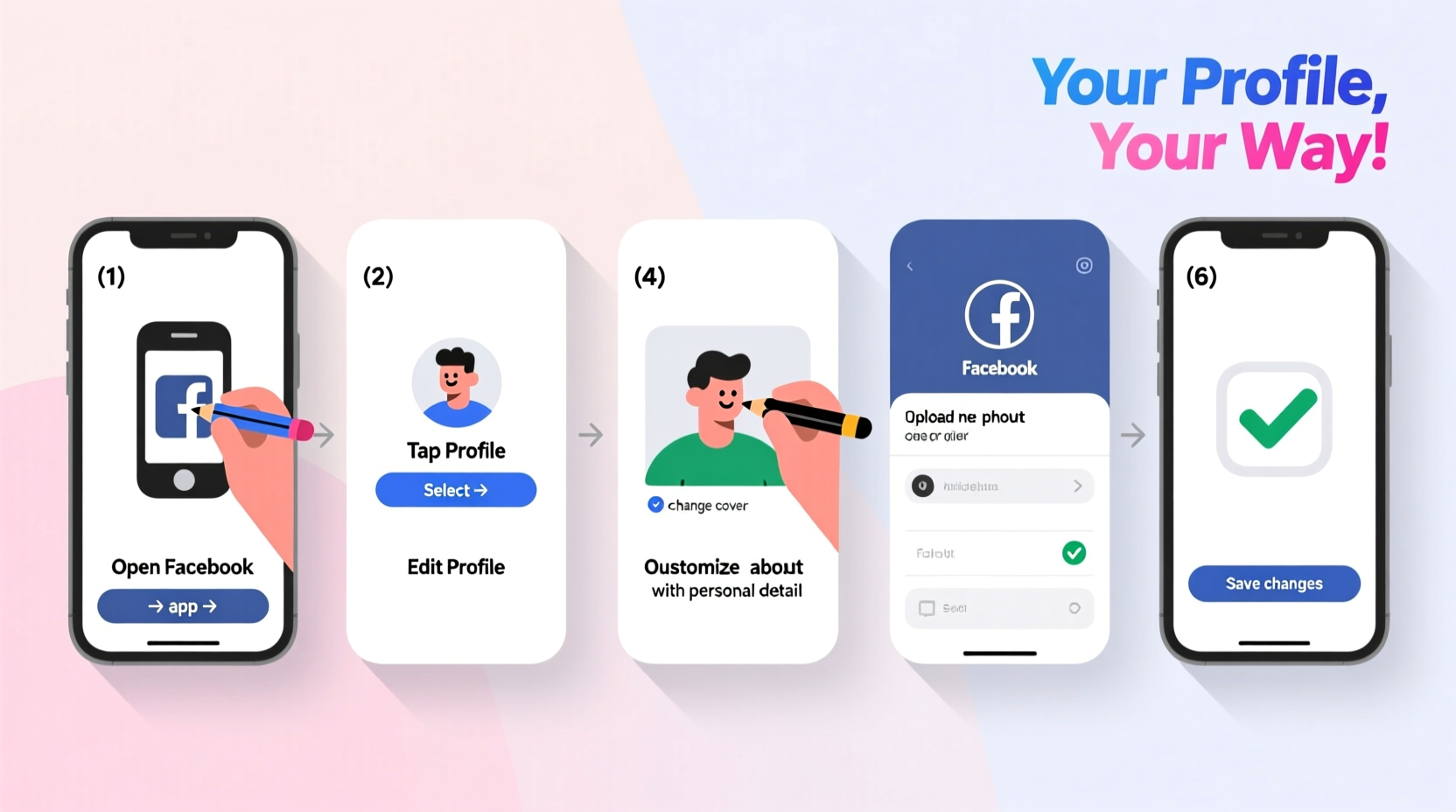
Your profile picture and cover photo are the first things visitors notice. They set the tone for your digital persona. Choose images that represent you authentically—whether personal, professional, or brand-focused.
- Log in to your Facebook account via web browser or mobile app.
- Navigate to your profile by clicking your name in the top-right corner (web) or tapping the menu icon and selecting “Profile” (mobile).
- To change your profile picture, hover over the current image (on desktop) or tap it (on mobile), then select “Add Photo” or “Edit.”
- Upload a clear, high-resolution image. For best results, use a square image sized at 180x180 pixels or larger.
- To edit your cover photo, click “Update Cover Photo” below your current image.
- Select an image from your device. Ideal dimensions are 820x312 pixels for desktop and 640x360 for mobile to avoid cropping issues.
- Reposition the image if needed, then confirm the upload.
2. Customize Your Bio and About Section
The About section is your opportunity to tell your story. It appears on your timeline and helps friends, followers, and potential connections understand who you are.
- Basic Info: Add your birthday, hometown, current city, gender, and pronouns. This information builds authenticity and helps others find mutual connections.
- Contact Info: Include your email or phone number (visible only to friends unless customized).
- Work and Education: List past and present jobs, schools attended, and degrees earned. This adds depth and trustworthiness to your profile.
- Places You’ve Lived: Share locations you’ve resided in to spark conversations with people from similar areas.
- Relationship Status: Update as appropriate. You can also choose to share this publicly or limit visibility.
To edit any section, go to your profile, click “About,” then select the category you want to update. Click “Edit” and save changes after entering accurate details.
“Your About section is like a mini-resume and personality snapshot combined. Make it informative but authentic.” — Lisa Tran, Digital Identity Consultant
3. Personalize Your Timeline and Privacy Settings
A personalized timeline isn’t just about aesthetics—it’s about control. Tailor how your content appears and who sees it.
Change Your Timeline Layout
Facebook allows limited customization of the timeline layout, but you can still influence its appearance:
- Publish meaningful posts regularly—photos, life updates, articles—to keep your timeline active and engaging.
- PIN important posts to the top of your timeline. Hover over a post, click the pencil icon, and select “Pin to Top.”
- Archive or delete outdated or irrelevant posts to maintain a clean, relevant feed.
Adjust Privacy Settings
Control who sees your content without sacrificing usability.
| Setting | Action | Recommended Option |
|---|---|---|
| Profile Picture Visibility | Edit audience per image | Friends or Public, depending on intent |
| Future Posts | Set default audience | Friends (customize per post as needed) |
| Tagging | Review tags before they appear | Enable review to avoid unwanted visibility |
| Search Engine Visibility | Limit public search indexing | Disable to prevent Google exposure |
4. Enhance Engagement with Featured Sections and Highlights
Modern Facebook profiles support curated sections that highlight key aspects of your life or brand. These features make your profile more dynamic and user-friendly.
Add Featured Sections
You can feature specific albums, reviews, events, or external links:
- Go to your profile and scroll to the “Featured” section.
- Click “+ Add Featured” and choose from options like Photos, Reviews, or Links.
- Select the content you want to showcase—e.g., a travel album, your blog, or customer testimonials.
- Arrange items by dragging them into preferred order.
Create Story Highlights (If Available)
Note: Highlights are typically available to Pages, but personal profiles using Creator Mode may access similar features. To enable:
- Switch to a Creator or Business profile under Settings > Public Information.
- Publish Stories consistently for at least a week.
- After posting, long-press a Story and tap “Highlight” to save it permanently.
- Customize the cover icon and name (e.g., “Travel,” “Daily Vlog,” “Projects”).
“Highlights turn fleeting moments into lasting impressions. They’re essential for anyone building a recognizable online presence.” — Marcus Lee, Social Media Strategist
5. Real Example: Transforming a Generic Profile into a Professional Presence
Sarah, a freelance graphic designer, initially used Facebook casually—random photos, vague bio, no clear theme. After landing her first client who found her through Facebook, she realized her profile lacked professionalism.
She followed these steps:
- Updated her profile picture to a clean headshot and created a branded cover photo with her portfolio link.
- Filled out her About section with work history, skills, and contact email.
- Created a “Portfolio” album featuring her best designs and pinned it to her featured section.
- Adjusted privacy so only work-related content was visible to broader audiences.
- Began sharing design tips weekly, increasing engagement and attracting new clients.
Within two months, Sarah reported a 40% increase in inbound inquiries—all traceable to her improved Facebook presence.
Quick Checklist: Personalize Your Facebook Profile in 10 Minutes
- ✅ Update profile picture with a clear, recent image.
- ✅ Upload a themed or branded cover photo.
- ✅ Fill out key About sections: Work, Education, Location.
- ✅ Set default privacy for future posts to “Friends.”
- ✅ Pin one important post to the top of your timeline.
- ✅ Add a featured album or external link.
- ✅ Review tagged photos and hide unwanted ones.
- ✅ Search your name to see what others view publicly.
Frequently Asked Questions
Can I change my Facebook username, and why should I?
Yes. A custom username creates a cleaner URL (facebook.com/yourname) and makes it easier for others to find and tag you. Go to Settings > Username to edit. Choose something simple, memorable, and consistent with your name or brand.
How do I switch to a Creator profile for more personalization?
Navigate to Settings > Public Information > Account Type. Select “Creator” to unlock features like follower counts, insights, and enhanced story tools. Ideal for influencers, freelancers, or content creators.
Will changing my profile affect my existing posts or friendships?
No. Customizing your profile does not alter your friend list, messages, or past content. It only changes appearance and visibility settings. Always preview changes using “View As” to see how others see your profile.
Final Thoughts: Your Profile, Your Digital Identity
Your Facebook profile is more than a collection of photos and posts—it’s a living representation of your digital self. Taking time to personalize it pays dividends in connection quality, professional opportunities, and personal satisfaction. From choosing the right visuals to curating meaningful content, each adjustment brings your profile closer to reflecting who you truly are.




 浙公网安备
33010002000092号
浙公网安备
33010002000092号 浙B2-20120091-4
Comments
No comments yet. Why don't you start the discussion?