
Mobile data is the backbone of modern smartphone functionality. Whether you're checking email, navigating with GPS, or streaming music, a stable data connection keeps you connected when Wi-Fi isn’t available. Yet, many users struggle with activating or maintaining mobile data—especially after switching devices, traveling, or updating software. This comprehensive guide walks you through every essential step to enable mobile data on any phone, regardless of brand or operating system, ensuring uninterrupted access to the digital world.
Understanding Mobile Data Basics
Before diving into activation steps, it’s important to understand what mobile data is and how it works. Mobile data allows your phone to connect to the internet using cellular networks provided by carriers like Verizon, AT&T, T-Mobile, or international equivalents. Unlike Wi-Fi, which relies on local routers, mobile data uses radio signals transmitted from cell towers.
Your phone connects via different network generations: 4G LTE offers fast speeds suitable for most tasks, while 5G delivers ultra-low latency and higher bandwidth. The availability of these networks depends on your carrier coverage and device compatibility.
To use mobile data, three components must be in place:
- An active SIM card with a data-enabled plan
- Network signal reception (indicated by bars on your screen)
- Correct settings enabled on your device
“Many connectivity issues stem not from network outages but from misconfigured settings or disabled features.” — Carlos Mendez, Senior Network Technician at ConnectFirst Telecom
Step-by-Step Guide to Enabling Mobile Data
Follow this universal process to turn on mobile data, tailored for both iOS and Android platforms.
- Insert a Valid SIM Card: Ensure your SIM is properly seated in the tray. If recently switched carriers, confirm that the SIM supports data services.
- Power On Your Device: Wait for full boot-up and signal registration (look for carrier name and signal bars).
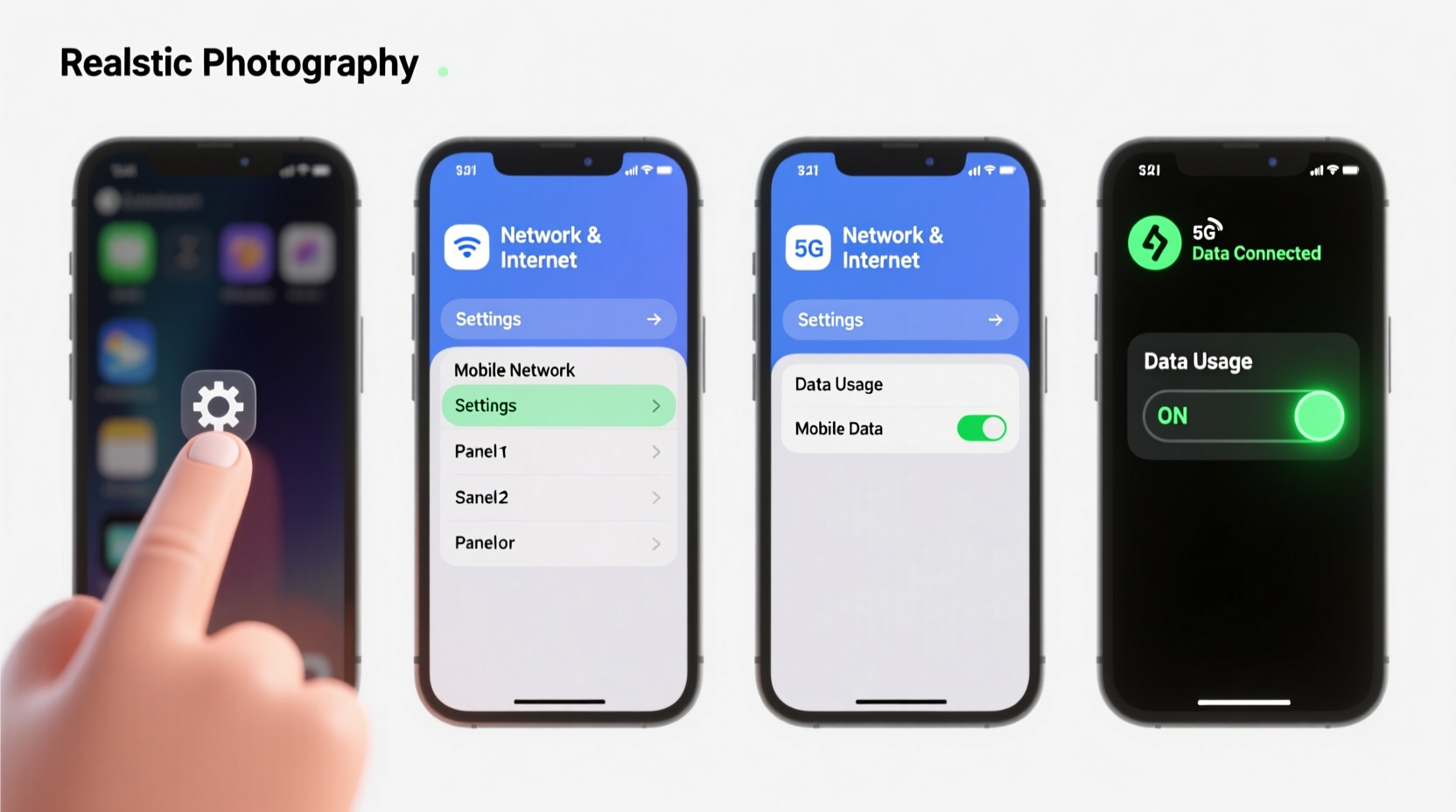
- Navigate to Settings: Open the Settings app—usually represented by a gear icon.
- Access Network or Cellular Options:
- iOS: Tap “Cellular” or “Mobile Data”
- Android: Tap “Network & Internet” > “Mobile Network”
- Toggle Mobile Data On: Switch the master mobile data toggle to “On.” On iPhones, ensure “Cellular Data” is enabled; on Android, check “Mobile data” or “Data usage.”
- Verify Connection: Open a browser or app requiring internet access to test connectivity.
Platform-Specific Instructions
While the general principles are consistent, interface differences exist between operating systems. Below is a breakdown for major platforms.
iOS (iPhone)
- Open Settings
- Select Cellular
- Tap Cellular Data and switch it ON
- (Optional) Scroll down to manage per-app data usage under “Allow Cellular Data For”
- To improve performance, go to “Voice & Data” and select “LTE” or “5G” if available
Android (Samsung, Google Pixel, etc.)
- Go to Settings
- Choose Network & Internet > Mobile Network
- Ensure Mobile data is toggled on
- Check that Data usage limits aren’t blocking background traffic
- Under “Preferred network type,” select “5G/4G/3G” depending on availability
| Platform | Menu Path | Key Toggle Name | Common Issue |
|---|---|---|---|
| iOS | Settings > Cellular | Cellular Data | Carrier settings not updated |
| Android | Settings > Network & Internet > Mobile Network | Mobile data | APN misconfiguration |
| KaiOS (Feature Phones) | Settings > Dual SIM & Mobile Networks | Data | No default APN set |
Troubleshooting Common Mobile Data Issues
Even after enabling mobile data, problems may persist. Here’s how to resolve frequent obstacles.
Issue: No Signal Despite Active SIM
Try reinserting the SIM card or cleaning the tray. In Settings, go to “About Phone” > “Status” > “SIM Status” to verify detection. If unrecognized, contact your carrier for replacement.
Issue: “No Internet Connection” Error
This often indicates an incorrect Access Point Name (APN). To fix:
- Go to Mobile Network settings
- Select “Access Point Names” (APN)
- Add or edit an entry with correct details (available from your carrier’s website)
Issue: Rapid Battery Drain with Data On
Background apps consuming data can strain battery life. Limit them via:
- iOS: Settings > Cellular > scroll to restrict apps
- Android: Settings > Apps > [App Name] > Mobile data & notifications > disable background data
Real-World Scenario: Traveler Regains Connectivity Abroad
Sophie, a digital nomad traveling from Canada to Thailand, found her iPhone wouldn’t connect to local networks despite inserting a new Thai SIM. She confirmed the SIM was active but still saw “No Service.” After checking settings, she discovered “Cellular Data” was off—and worse, her iPhone was locked to her home carrier. She contacted customer support, requested an unlock, then manually selected AIS (Thailand’s largest provider) under “Network Selection.” Once unlocked and configured, mobile data activated instantly, restoring her ability to work remotely.
This case underscores two critical points: carrier locks can prevent third-party SIMs from functioning, and manual network selection sometimes beats automatic scanning in foreign regions.
Essential Checklist Before Activating Mobile Data
Use this checklist to ensure smooth activation:
- ✅ Confirm your phone is not carrier-locked
- ✅ Insert a working SIM with active data plan
- ✅ Enable Airplane Mode briefly, then disable to reset radios
- ✅ Check for carrier setting updates (iOS: Settings > General > About)
- ✅ Verify APN settings if connection fails
- ✅ Disable Wi-Fi to avoid conflicts during testing
- ✅ Monitor data usage to prevent overage charges
Frequently Asked Questions
Why does my phone show signal but no internet?
You likely have voice service but lack data provisioning. Contact your carrier to confirm your plan includes mobile data and that your account is active. Also, check APN settings—incorrect entries are a common culprit.
Can I use mobile data internationally?
Yes, but only if your plan includes roaming or you’ve purchased a local SIM. Without either, data will remain inactive. Consider international add-ons or eSIM options for seamless global access.
Does enabling mobile data increase my phone bill?
If you’re on a limited data plan, exceeding your monthly allowance may incur overage fees. Unlimited plans typically don’t charge extra, but some throttle speeds after a threshold. Always monitor usage in your phone’s data meter.
Optimizing Mobile Data for Long-Term Use
Once enabled, smart management ensures reliability and cost-efficiency. Set data warnings at 80% of your cap to avoid surprises. Use Wi-Fi whenever possible for large downloads. On Android, enable “Adaptive Connectivity”; on iOS, use “Low Data Mode” to reduce background consumption.
For travelers, eSIMs offer dual-number flexibility without swapping physical cards. Services like Airalo or Nomad provide pay-as-you-go data in over 190 countries, simplifying international connectivity.
Conclusion
Enabling mobile data is more than flipping a switch—it requires understanding your device, carrier, and network environment. With the right steps, even complex issues like APN errors or carrier locks become manageable. By following this guide, you gain control over your connectivity, whether at home or abroad.




 浙公网安备
33010002000092号
浙公网安备
33010002000092号 浙B2-20120091-4
Comments
No comments yet. Why don't you start the discussion?