
Firmware Service Packs (FSPs) are critical updates designed to enhance system stability, improve security, and enable new features across enterprise hardware platforms. Whether you're managing servers, storage arrays, or network infrastructure, properly installing FSP packs ensures optimal performance and long-term compatibility. However, improper deployment can lead to downtime, configuration conflicts, or failed rollbacks. This guide walks through the complete process of installing FSP packs with precision, from pre-installation checks to post-deployment validation—ensuring a seamless integration into your environment.
Understanding FSP Packs and Their Role
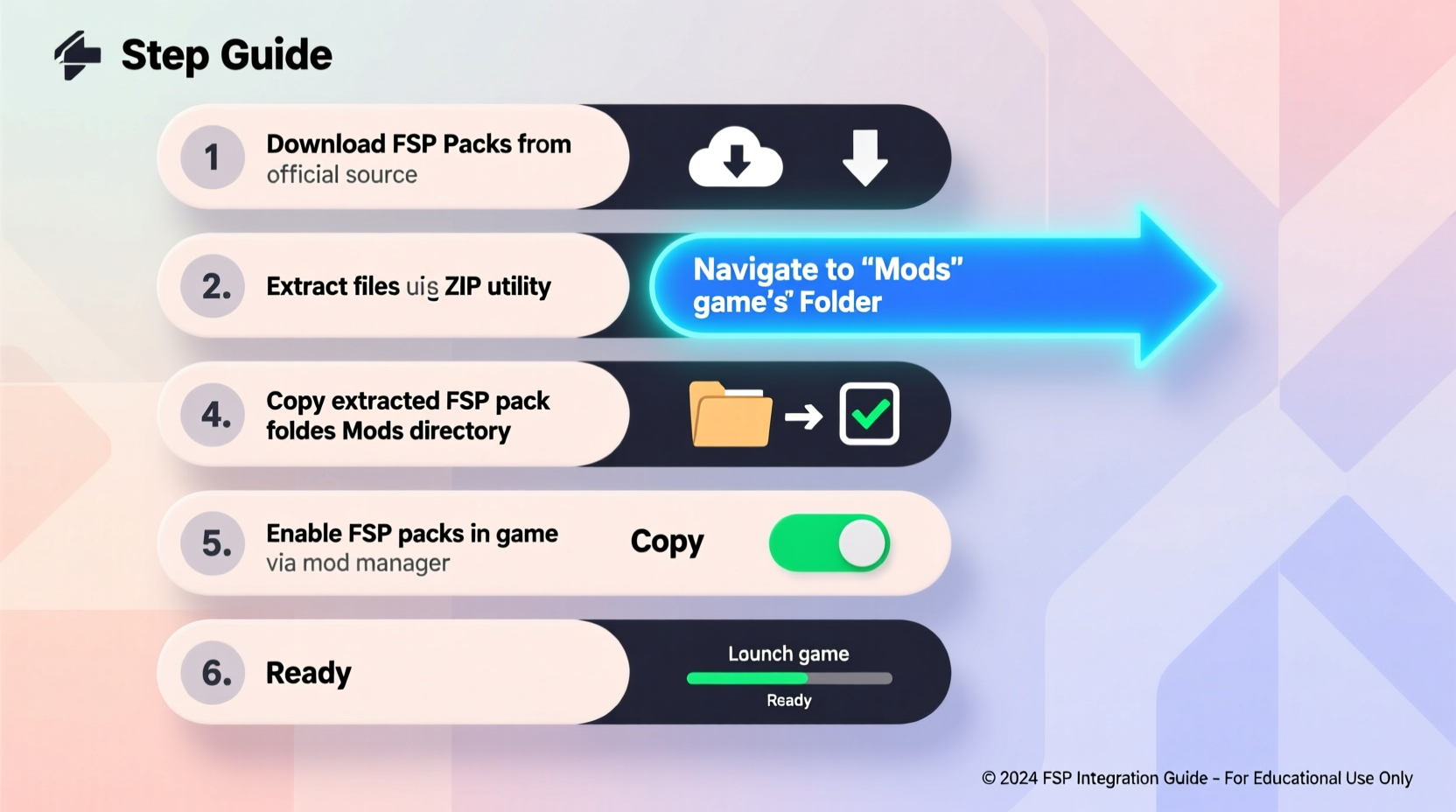
FSP packs are vendor-specific firmware and software bundles that address known issues, patch vulnerabilities, and introduce support for newer components. Unlike standard OS updates, FSPs operate at a lower level—often affecting BIOS, BMC (Baseboard Management Controller), RAID controllers, and other embedded systems. Because they interact directly with hardware, their installation requires careful planning and execution.
Major vendors such as IBM, HPE, Dell, and Lenovo distribute FSPs in structured formats compatible with their respective management tools. For example, IBM Power Systems use Integrated Virtualization Manager (IVM) or Hardware Management Console (HMC) to apply FSPs, while HPE relies on iLO and SPP (Service Pack for ProLiant). Regardless of platform, the underlying principles of preparation, verification, and rollback readiness remain consistent.
“An untested FSP update is one of the top causes of unplanned outages in mid-tier data centers.” — Rajiv Mehta, Senior Infrastructure Architect at NetCore Systems
Pre-Installation Checklist: Prepare Your Environment
Before initiating any FSP installation, conduct a thorough assessment of your current setup. Skipping this phase increases the risk of incompatibility or service disruption. Follow this checklist to ensure readiness:
- Verify System Compatibility: Confirm that your hardware model and current firmware level support the target FSP version.
- Review Release Notes: Check for known bugs, deprecated features, or required prerequisites outlined by the vendor.
- Backup Configuration Settings: Save current BIOS, UEFI, and management controller settings in case a rollback is needed.
- Ensure Sufficient Storage: FSP files can range from 500MB to over 2GB; verify available space on the service partition or boot device.
- Validate Network Connectivity: If using remote deployment tools (e.g., HMC, iLO, or OpenBMC), test access and bandwidth stability.
- Notify Stakeholders: Alert IT teams and business units about scheduled maintenance and potential impacts.
Step-by-Step Installation Process
The actual installation varies slightly depending on vendor and system type, but the following universal steps apply across most environments. This timeline assumes a single-node server deployment via a dedicated management console.
- Download the Correct FSP Package: Obtain the latest FSP from the official vendor portal. Use checksums (SHA-256 or MD5) to verify file integrity after download.
- Transfer the FSP to the Management Interface: Upload the package to the HMC, iLO, or onboard service processor using SCP, HTTP upload, or USB passthrough (if local).
- Initiate Pre-Install Validation: Run built-in diagnostics to confirm system health and detect incompatible components.
- Start the Update Process: Launch the installation wizard. Some systems require a reboot into update mode; others apply patches live with minimal interruption.
- Monitor Progress: Watch the progress bar or log output. Do not interrupt power or network connections during this phase.
- Reboot and Reinitialize: After completion, allow the system to reboot fully. The first boot may take longer than usual as firmware initializes.
- Confirm Firmware Version: Log into the management interface and verify that all components reflect the updated revision numbers.
Post-Installation Validation and Troubleshooting
Successful installation does not guarantee correct operation. Validate functionality before resuming production workloads.
| Validation Step | Action Required | Expected Outcome |
|---|---|---|
| Check Firmware Levels | Use CLI or GUI to query component versions | All major subsystems match the FSP release notes |
| Test Remote Management | Access iLO/HMC/BMC interface remotely | Console responsive, KVM and virtual media functional |
| Verify Boot Sequence | Reboot and observe POST messages | No errors, correct devices detected |
| Run Hardware Diagnostics | Execute built-in diagnostic suite | All tests pass without warnings |
| Review System Logs | Inspect SEL (System Event Log) or syslog | No critical events related to firmware or drivers |
If discrepancies arise—such as missing drivers, unrecognized storage, or boot failures—consult the vendor’s recovery documentation. Most platforms support rollback mechanisms that restore previous firmware states using backup images stored in protected partitions.
Mini Case Study: Resolving a Failed FSP Integration
A regional financial services provider attempted to deploy an FSP update across ten HPE ProLiant DL380 servers. While nine completed successfully, one server failed to reboot, displaying a \"No Boot Device Found\" error. Investigation revealed that the FSP had reset RAID controller settings to default, disabling the logical volume configuration.
The team accessed the iLO interface, entered the BIOS/RAID utility, and manually reconfigured the array using previously documented parameters. They then reapplied the FSP with “Preserve Configuration” mode enabled. Post-update, the system booted normally. This incident underscored the importance of documenting RAID and BIOS settings before any firmware update.
Best Practices for Ongoing FSP Management
FSP installation isn’t a one-time event—it’s part of a continuous lifecycle. Adopt these strategies to maintain control over your firmware estate:
- Maintain a Firmware Baseline: Define approved FSP versions for each hardware tier and audit compliance quarterly.
- Automate Where Possible: Use tools like Red Hat Satellite, Microsoft WSUS (for supported firmware), or vendor-specific orchestration suites (e.g., HPE OneView) to streamline deployments.
- Document Every Change: Record FSP version, install date, personnel involved, and observed outcomes in your CMDB.
- Test in Staging First: Always validate FSPs in a non-production environment that mirrors your production setup.
- Subscribe to Vendor Alerts: Enable email notifications for new FSP releases and critical advisories.
Frequently Asked Questions
Can I skip intermediate FSP versions when upgrading?
Not always. Some vendors require incremental updates, especially when crossing major version boundaries. Always consult the upgrade path matrix in the release notes before attempting a jump.
What happens if the FSP installation fails midway?
Modern systems include fail-safe mechanisms that preserve the original firmware image. In most cases, the system will revert automatically or enter recovery mode. Avoid forced shutdowns during the update to prevent corruption.
Do FSPs affect my operating system or applications?
Generally, no. FSPs target firmware and low-level drivers. However, in rare cases, updated hardware behavior (e.g., PCIe timing, power management) may expose latent OS bugs. Testing in staging minimizes this risk.
Conclusion: Secure, Stable, and Future-Ready Systems Start Here
Installing FSP packs correctly is not just about applying updates—it's about maintaining trust in your infrastructure. A well-executed FSP integration enhances reliability, strengthens security posture, and extends hardware lifespan. By following structured procedures, validating every change, and learning from real-world scenarios, you position your organization to respond confidently to evolving technical demands.




 浙公网安备
33010002000092号
浙公网安备
33010002000092号 浙B2-20120091-4
Comments
No comments yet. Why don't you start the discussion?