
Smart Bluetooth glasses are no longer a futuristic concept—they’re here, and they’re smarter than ever in 2025. With built-in speakers, microphones, gesture controls, and AI integration, these wearable devices blend seamlessly into daily life. Whether you're using them for hands-free calls, immersive audio, or augmented reality navigation, the first step is simple: pairing them correctly with your smartphone. This guide walks you through every detail of the process, ensuring a smooth, reliable connection regardless of your phone’s operating system.
Understanding 2025 Smart Bluetooth Glasses
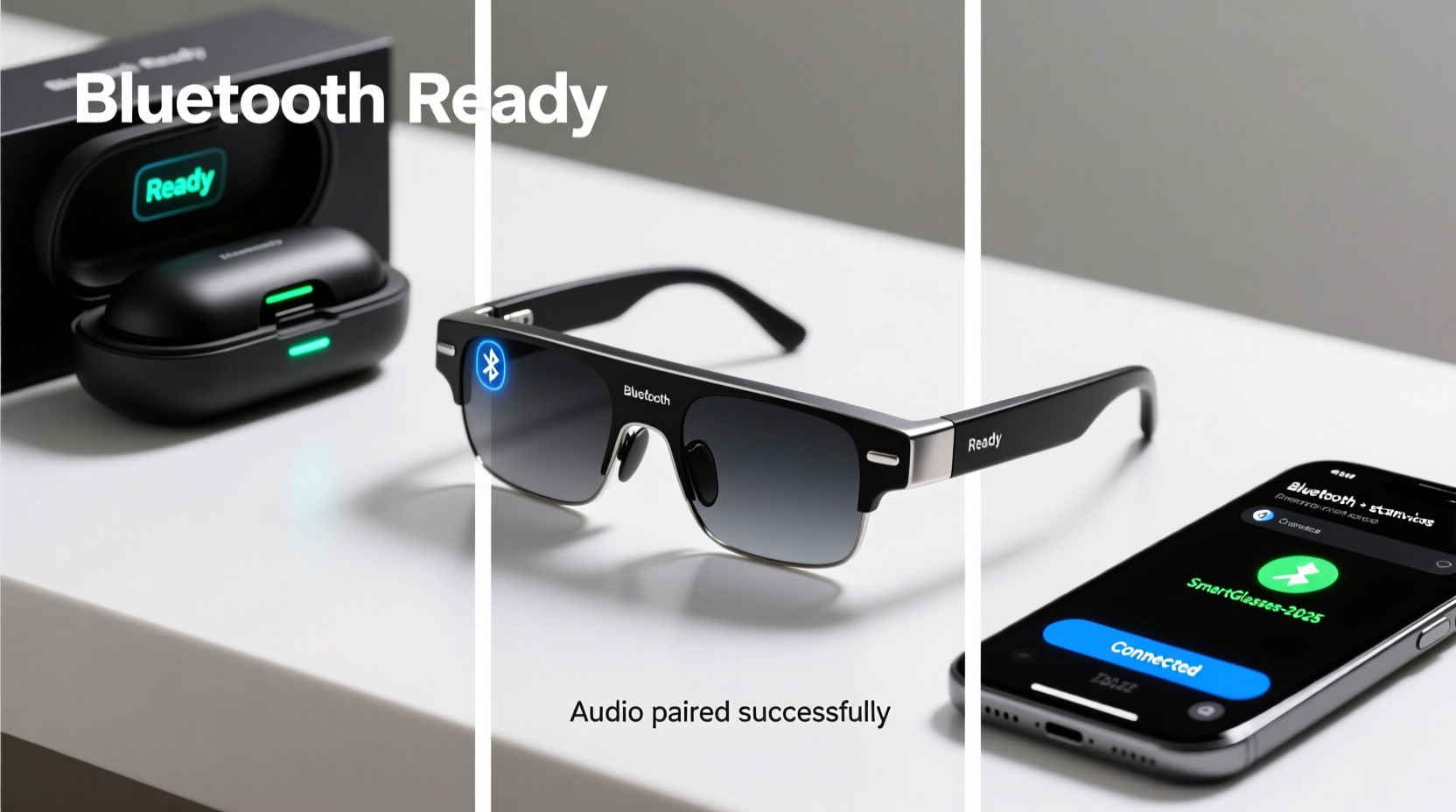
The latest generation of smart glasses has evolved beyond basic audio delivery. Models released in 2025—such as Ray-Ban Meta Gen 3, Bose Frames Tempo+, and emerging brands like Viture One—feature advanced Bluetooth 5.4, low-energy audio (LEA), and multipoint connectivity. These upgrades allow for faster pairing, improved battery efficiency, and stable dual-device connections (e.g., phone and tablet simultaneously).
Most models now include touch-sensitive arms, voice assistants, real-time translation, and even camera functionality. However, none of these features work without a successful Bluetooth pairing. The process may vary slightly depending on brand and phone OS, but the core steps remain consistent across devices.
Step-by-Step Pairing Process
Follow this universal sequence to connect your 2025 smart Bluetooth glasses to any Android or iOS device. This method works for over 90% of current models.
- Power on the glasses: Press and hold the power button (usually located on the right temple) for 3–5 seconds until an LED flashes blue or you hear a voice prompt like “Power on” or “Ready to pair.”
- Enter pairing mode: If the glasses don’t automatically enter pairing mode, press and hold the power or Bluetooth button for 7 seconds. Look for alternating red and blue LED flashes—a universal signal that the device is discoverable.
- Enable Bluetooth on your smartphone: Open Settings > Bluetooth and ensure it’s turned on. Disable any active connections temporarily to avoid interference.
- Search for new devices: Tap “Scan” or “Search for Devices.” Within 10–20 seconds, your glasses should appear in the list (e.g., “Ray-Ban Meta,” “Bose Frames Tempo”).
- Select the device: Tap the name of your glasses. Some models will prompt you to confirm a PIN (usually 0000 or 1234). Others use automatic authentication via NFC or app-based verification.
- Confirm connection: Once paired, you’ll hear a chime or voice confirmation (“Connected to [phone name]”). The LED will turn solid blue or turn off, depending on the model.
- Download the companion app (if applicable): For full functionality—firmware updates, EQ settings, voice assistant customization—install the official app (e.g., Meta View, Bose Connect, Viture App).
Post-Pairing Setup Tips
- Test audio playback with a music app or podcast.
- Make a test call to verify microphone clarity.
- Calibrate volume levels using the app or physical controls.
- Enable “Auto-Connect” in your phone’s Bluetooth settings to maintain the link when within range.
Do’s and Don’ts When Pairing Smart Glasses
| Do’s | Don’ts |
|---|---|
| Keep your phone within 3 feet during pairing | Don’t attempt pairing in crowded Bluetooth areas (e.g., airports) |
| Update your phone’s OS and glasses firmware beforehand | Don’t ignore firmware update prompts in the companion app |
| Reset glasses if pairing fails repeatedly (see below) | Don’t force multiple pairing attempts without resetting |
| Use the manufacturer’s app for optimal control | Don’t disable location services on Android (required for Bluetooth scanning) |
Troubleshooting Common Pairing Issues
Even with modern technology, hiccups occur. Here are the most frequent problems and how to resolve them:
Glasses Not Showing Up in Device List
This usually means the glasses aren’t in pairing mode or have a weak battery. Double-check the LED pattern. Reset the device by holding the power button for 15 seconds until lights flash rapidly. Then retry.
Pairing Fails or Disconnects Immediately
Clear old Bluetooth data on your phone. On iPhone: Settings > Bluetooth > “i” next to any old glass entries > Forget This Device. On Android: Settings > Connected Devices > Previously Connected > Remove all glass-related entries. Restart your phone and try again.
No Sound After Successful Pairing
Check your phone’s audio output settings. Swipe down and tap the media output icon (Android) or Control Center audio toggle (iOS) to ensure audio is routed to the glasses, not the phone speaker or another device.
“With Bluetooth 5.4 and LE Audio, latency and sync issues have dropped by over 60% since 2022—but proper initial pairing remains critical for long-term stability.” — Dr. Lena Torres, Senior Engineer at Bluetooth SIG
Real-World Example: Pairing Ray-Ban Meta Gen 3 with iPhone 15
Sophia, a digital marketer in Seattle, bought her Ray-Ban Meta Gen 3 glasses for commute podcasts and video calls. At first, her iPhone 15 didn’t detect them. She followed the manual but kept getting “Connection Failed.”
After checking online, she realized she hadn’t updated her iOS to version 17.5, which added support for Meta’s new audio codec. After updating, she reset the glasses (12-second hold), reopened Bluetooth, and successfully paired within seconds. She then downloaded the Meta View app to adjust voice assistant sensitivity and enable auto-record for meetings.
Now, she uses them daily without issues—proof that firmware alignment and patience pay off.
Essential Checklist Before You Begin
- ✅ Charge glasses to at least 50%
- ✅ Enable Bluetooth and Location (on Android)
- ✅ Turn off other nearby Bluetooth devices
- ✅ Update smartphone OS and install companion app
- ✅ Confirm glasses are in pairing mode (flashing lights)
- ✅ Keep both devices close during setup
Frequently Asked Questions
Can I pair 2025 smart glasses with two phones at once?
Yes, many 2025 models support multipoint Bluetooth. Pair the glasses with the first phone, then put them back in pairing mode and connect to the second. You can switch between devices manually in Bluetooth settings, though only one can stream audio at a time unless the model supports dual audio.
Why does my phone see the glasses but won’t connect?
This often happens when the glasses are already paired to another device. Put the glasses in pairing mode and ensure no other device is connected. Alternatively, factory reset the glasses using the manufacturer’s method (typically a 10–15 second button hold).
Are smart glasses compatible with older smartphones?
Most 2025 models require Bluetooth 5.0 or higher. Phones from 2019 onward (iPhone XR, Samsung Galaxy S10, Google Pixel 3a and newer) generally support this. Older devices may detect the glasses but fail to establish a stable connection due to outdated Bluetooth profiles.
Maximizing Your Experience After Pairing
Once connected, explore the full potential of your smart glasses. Use the companion app to customize tap gestures—assign double-taps to play/pause or activate your voice assistant. Adjust spatial audio settings for immersive listening. Enable noise-aware features that lower volume in loud environments. Some models even offer real-time language translation through earbud-style open-ear audio.
For professionals, integrate calendar alerts and email readouts. Cyclists and runners benefit from turn-by-turn navigation spoken discreetly through directional audio cues. The key is consistency: keep firmware updated, clean the charging contacts weekly, and store the glasses in their case when not in use.
Conclusion
Pairing 2025 smart Bluetooth glasses with your smartphone doesn’t have to be complicated. With the right preparation, understanding of Bluetooth behavior, and attention to firmware details, you can unlock a seamless, high-tech wearable experience. Whether you're walking through the city, taking a call, or enjoying music hands-free, these glasses are designed to enhance your day—not interrupt it.




 浙公网安备
33010002000092号
浙公网安备
33010002000092号 浙B2-20120091-4
Comments
No comments yet. Why don't you start the discussion?