
Every time you open a new tab in Google Chrome, you’re greeted by the familiar white search bar on a plain background. While functional, it doesn’t reflect your personality or preferences. The good news? You can personalize your Google homepage background image in minutes — turning a utilitarian space into something inspiring, calming, or uniquely yours.
This customization isn’t just about aesthetics. A tailored background can improve focus, spark creativity, or simply make your browsing experience more enjoyable. Whether you want a serene mountain landscape, a favorite photo, or a motivational quote, Google makes it easy to set up — if you know where to look.
Why Personalize Your Google Homepage?
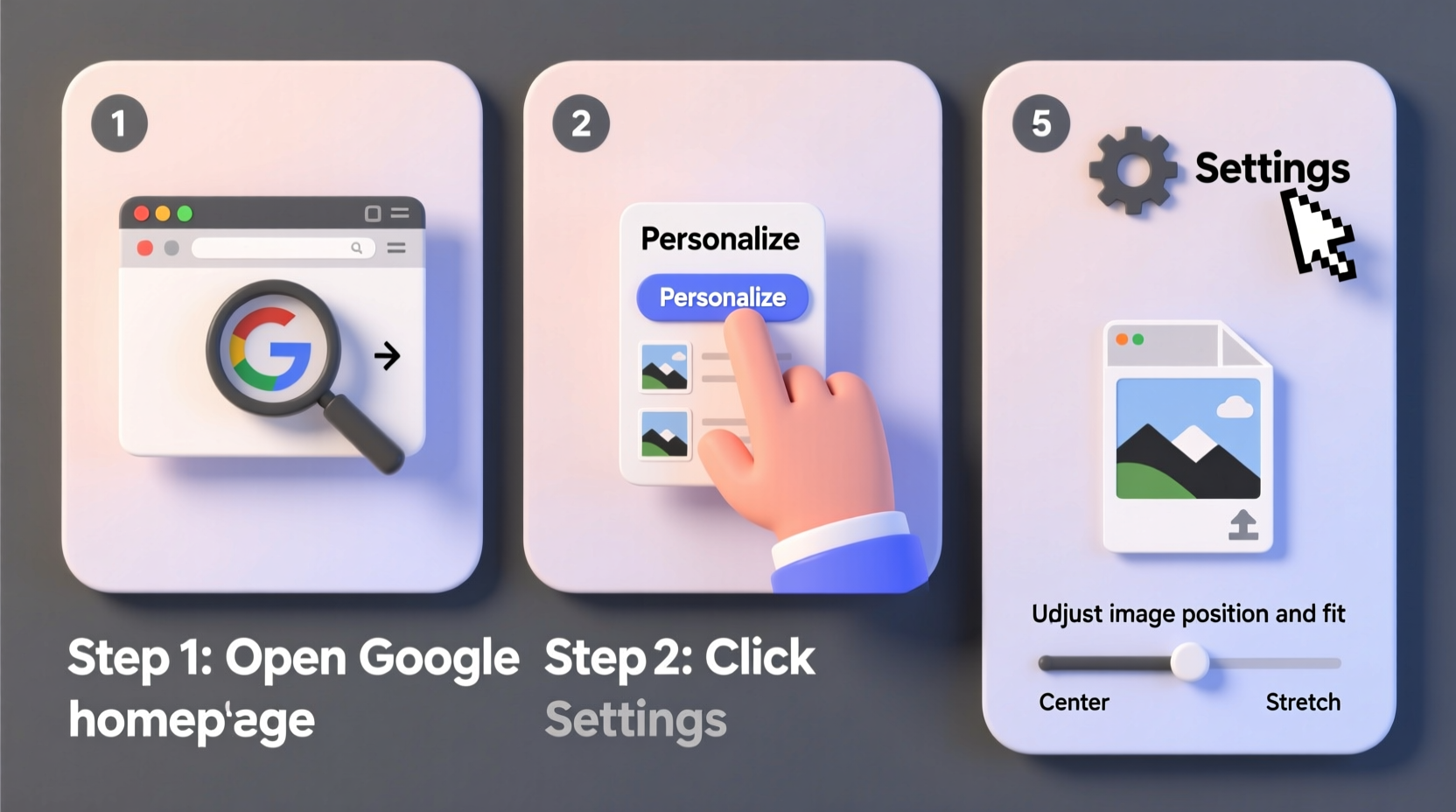
Your browser is one of the most frequently used tools in daily digital life. Spending hours across dozens of tabs means you see the new tab page repeatedly. A personalized background transforms this passive interface into an intentional space.
- Mood enhancement: Calming images like oceans or forests reduce stress.
- Productivity boost: Inspirational visuals or custom notes keep goals top of mind.
- Brand or identity expression: Use colors and themes that align with your personal or professional brand.
- Digital decluttering: Replace generic defaults with meaningful visuals that support your workflow.
“Small environmental cues, even digital ones, shape our habits and mindset. A thoughtfully chosen background acts as a subtle anchor for focus and intention.” — Dr. Lena Torres, Digital Wellbeing Researcher, MIT Media Lab
How to Change Your Google Homepage Background: Step-by-Step
The feature to customize your new tab background is built directly into Google Chrome, available on desktop versions (Windows, macOS, Linux). Follow these steps precisely to update your view.
- Open a new tab in Google Chrome. Click the \"+\" icon or press Ctrl+T (Cmd+T on Mac).
- Look for the “Customize” button in the bottom-right corner. It appears beneath the Google logo and search bar.
- Click “Customize” to enter the theme editor. A sidebar will appear with several options.
- Select “Backgrounds” from the menu. This opens a gallery of curated images provided by Google.
- Browse or search for a background. Categories include nature, abstract, cities, space, and more.
- Click on any image to apply it instantly. The change takes effect immediately on your new tab page.
Using Your Own Photos as the Background
Beyond Google’s preloaded collection, you can upload personal images — family photos, artwork, travel memories, or inspirational designs.
To use a custom image:
- In the “Customize” panel, go to the “Backgrounds” section.
- Scroll down and select “Upload from device”.
- Navigate to the image file on your computer (JPEG, PNG, or WebP formats supported).
- Select the photo and confirm.
- Chrome processes and applies the image as your new tab background.
The uploaded image is stored locally in your browser profile unless synced across devices via your Google Account. Once set, it appears every time you open a new tab.
| Feature | Available? | Notes |
|---|---|---|
| Upload custom images | Yes | JPEG, PNG, WebP only; max size ~4MB recommended |
| Use Google’s curated gallery | Yes | Updated regularly with seasonal and thematic collections |
| Schedule rotating backgrounds | No | Manual changes required; no auto-rotate feature |
| Sync across devices | Limited | Syncs if Chrome sync is enabled and image was uploaded while signed in |
| Add text or overlays | No | Native Chrome does not support annotations or widgets |
Best Practices for Choosing the Right Background
Not all images work well as browser backgrounds. The ideal choice balances visual appeal with usability.
- Prioritize clarity: Avoid overly bright or dark images that make the search bar hard to see.
- Use high-resolution files: Blurry or pixelated images degrade the experience.
- Consider color psychology: Blues promote calm, yellows encourage energy, greens support balance.
- Minimize distractions: Busy patterns or faces may draw attention away from your tasks.
Mini Case Study: From Distracted to Focused
Sophie, a freelance writer based in Portland, found herself constantly distracted when starting her workday. Her default Chrome tab showed nothing memorable — just a blank slate. After reading about background personalization, she uploaded a photo of a quiet forest path taken during a retreat.
Within days, she noticed a shift. “That image became a mental cue,” she said. “It reminded me to breathe, center myself, and begin writing without checking social media first.” Over six weeks, her morning focus improved significantly, and she now rotates between three calming nature shots depending on her mood.
Extending Functionality with Extensions (Optional)
If Chrome’s native options feel limited, third-party extensions offer advanced features like daily wallpaper rotation, weather-integrated visuals, or embedded to-do lists.
Popular extensions include:
- Stylify My Website: Apply filters and themes across sites, including new tabs.
- New Tab Override: Replace the new tab with a custom URL, such as a dashboard or local HTML file.
- Unsplash Wallpapers: Automatically sets high-quality Unsplash photos as your background.
To install:
- Visit the Chrome Web Store.
- Search for the extension by name.
- Click “Add to Chrome” and confirm permissions.
- Configure settings through the extension’s popup or options page.
“Browser customization shouldn’t end at themes. Users who take control of their digital environment report higher engagement and lower cognitive fatigue.” — Mark Chen, UX Lead at BrowserInsight Labs
Checklist: Personalizing Your Google Homepage in 5 Minutes
- ✅ Open a new tab in Chrome
- ✅ Click “Customize” in the bottom-right
- ✅ Choose “Backgrounds”
- ✅ Pick from Google’s gallery or upload your own image
- ✅ Confirm and test visibility of search bar
- ✅ (Optional) Install a Chrome extension for added functionality
Frequently Asked Questions
Can I use animated backgrounds on my Google homepage?
No, Chrome does not natively support animated backgrounds (like GIFs or videos) on the new tab page. However, some extensions allow animated themes, though they may impact performance or battery life.
Why doesn’t my uploaded photo appear on other devices?
Custom uploads are tied to your local browser profile unless Chrome Sync is enabled and the image was uploaded while signed in. Even then, synchronization of uploaded backgrounds is inconsistent. For reliable cross-device consistency, use Google’s built-in gallery images instead.
Is it safe to upload personal photos to Chrome?
Yes. Uploaded images are stored locally on your device or within your Google account’s Chrome sync data. They are not publicly accessible or used for advertising. However, avoid uploading sensitive images (e.g., IDs or documents) out of caution.
Conclusion: Make Your Browser Work for You
Your Google homepage doesn’t have to be generic. With just a few clicks, you can transform it into a space that reflects your taste, supports your goals, and enhances your daily routine. Whether you choose a breathtaking landscape from Google’s gallery or a cherished personal photo, the act of customization adds intentionality to your digital life.
Take a moment today to personalize your new tab. It’s a small change with outsized benefits — turning passive browsing into a more mindful, productive, and visually satisfying experience.




 浙公网安备
33010002000092号
浙公网安备
33010002000092号 浙B2-20120091-4
Comments
No comments yet. Why don't you start the discussion?