
Bluetooth technology powers everyday convenience—from wireless headphones to smart home devices. But when your laptop or desktop fails to detect a headset, disconnects mid-call, or refuses to pair altogether, the culprit is often outdated, corrupted, or missing Bluetooth drivers. Reinstalling these drivers can restore seamless functionality without requiring costly hardware replacements. This comprehensive guide walks through the process in clear, actionable steps, helping you regain reliable wireless performance on Windows systems.
Why Reinstalling Bluetooth Drivers Works
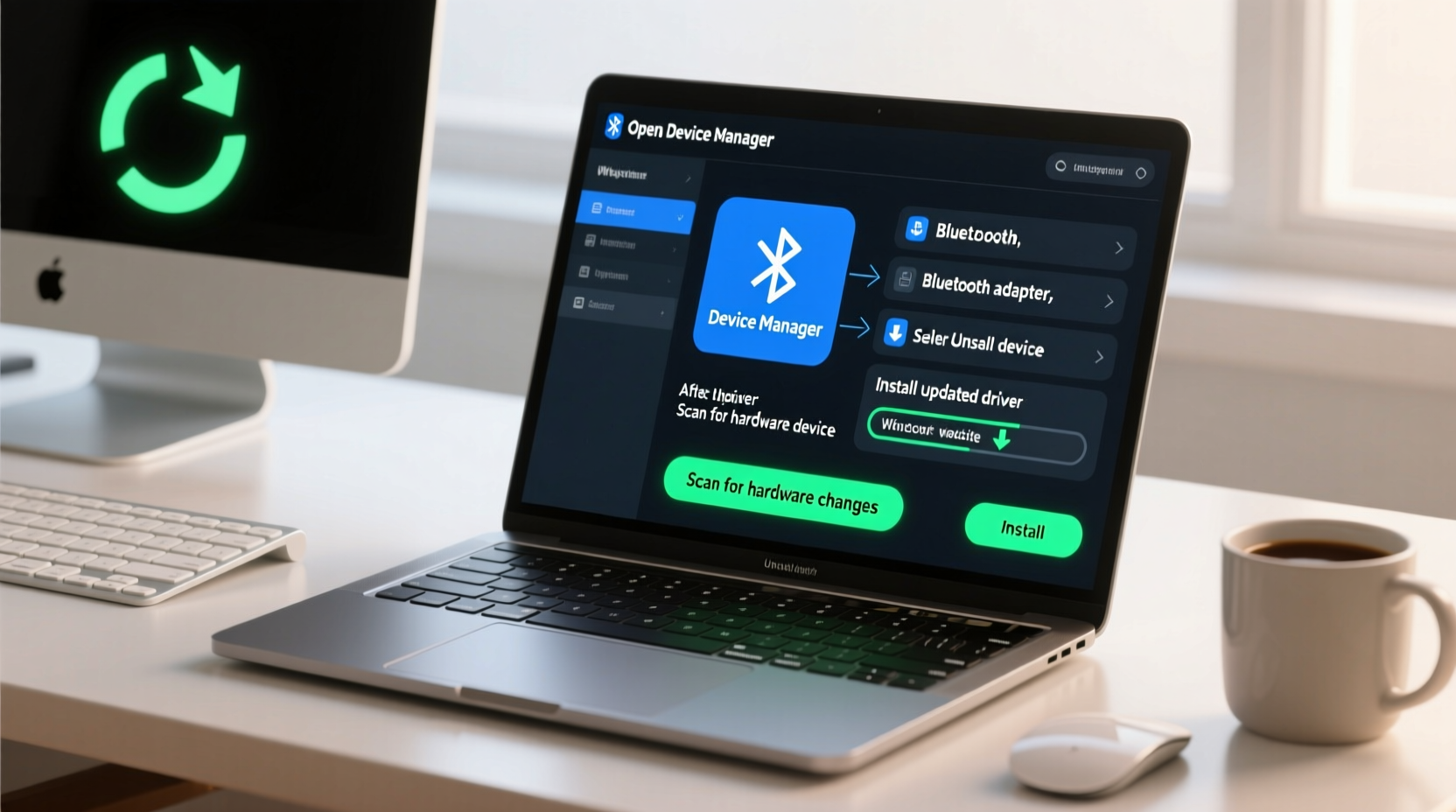
Drivers act as communication bridges between your operating system and hardware components. Over time, updates, power surges, or software conflicts can corrupt Bluetooth drivers, leading to inconsistent behavior. Symptoms include:
- Devices not appearing during pairing attempts
- Audio stuttering or intermittent disconnections
- “Bluetooth: Not available” error messages
- Slow data transfer between paired devices
Reinstalling forces Windows to refresh this connection layer. It’s a targeted fix that avoids broad system resets while addressing root causes more effectively than simple restarts.
“Driver-level issues account for over 60% of unexplained Bluetooth failures in consumer PCs.” — Dr. Rajiv Mehta, Senior Systems Engineer at WinTech Diagnostics
Step-by-Step Guide to Reinstall Bluetooth Drivers
Follow this sequence carefully. Skipping steps may leave remnants that interfere with new installations.
- Confirm Hardware Support
Press Win + X, select Device Manager, and look for “Bluetooth” in the list. If absent, your system may lack built-in support or have it disabled in BIOS/UEFI. - Unpair All Connected Devices
Go to Settings > Devices > Bluetooth & other devices. Remove each listed device by clicking it and selecting “Remove device.” This prevents conflict upon reconnection. - Disable Bluetooth Temporarily
In the same settings menu, toggle Bluetooth off. Alternatively, disable the adapter in Device Manager by right-clicking the Bluetooth entry and choosing “Disable device.” - Uninstall the Current Driver
In Device Manager:- Expand the “Bluetooth” section.
- Right-click each item (especially those marked with a yellow triangle).
- Select “Uninstall device.”
- Check “Delete the driver software for this device” if prompted.
- Restart Your Computer
After uninstallation, reboot. Windows will attempt to reinstall generic drivers automatically during startup. - Install Updated Drivers
Two options:- Automatic: Let Windows Update search for latest drivers under Settings > Update & Security.
- Manual: Visit your PC manufacturer’s support site (e.g., Dell, HP, Lenovo), enter your model number, and download the latest Bluetooth driver package.
- Verify Installation
Return to Device Manager. Ensure no warning icons appear under Bluetooth. The adapter should show active status. - Re-pair Your Devices
Turn Bluetooth back on and initiate pairing mode on your peripheral. Follow prompts to complete setup.
Common Mistakes to Avoid
Even with correct procedures, errors can derail the process. Be mindful of these pitfalls:
| Mistake | Consequence | Solution |
|---|---|---|
| Skipping driver deletion confirmation | Old files persist and cause instability | Always check “Delete the driver software” before uninstalling |
| Using generic USB Bluetooth dongles without updated drivers | Limited compatibility and poor range | Update firmware via manufacturer utility or replace with certified hardware |
| Not restarting after uninstall | Windows doesn’t trigger auto-detection | Reboot is essential to initiate clean install cycle |
| Ignoring BIOS/UEFI settings | Bluetooth function may be disabled at firmware level | Enter BIOS (usually via F2/DEL at boot) and ensure wireless functions are enabled |
Real-World Example: Resolving Persistent Headset Drops
Sarah, a remote project manager, experienced frequent disconnections with her wireless earbuds during video calls. Initial troubleshooting—restarting devices, clearing cache, toggling Bluetooth—provided only temporary relief. She followed the full driver reinstall process outlined above. After removing old drivers and installing an updated Intel Wireless Bluetooth 10.40.0.3 package from her laptop manufacturer’s site, her earbuds connected instantly and remained stable throughout multi-hour meetings. The issue did not return over the next six weeks, confirming that outdated drivers were the root cause.
Alternative Methods When Standard Reinstall Fails
If standard steps don’t resolve the issue, consider these advanced approaches:
- Use Windows Troubleshooter: Navigate to Settings > System > Troubleshoot > Other troubleshooters > Bluetooth > Run. This automated tool detects common configuration errors.
- Reset Network Stack: Open Command Prompt as Administrator and run:
netsh winsock reset
Restart afterward.
netsh int ip reset
ipconfig /release
ipconfig /renew
ipconfig /flushdns - Check for Conflicting Software: Some third-party audio managers or antivirus suites block low-level Bluetooth access. Temporarily disable them to test functionality.
- Add External USB Adapter: If internal hardware is faulty, a plug-and-play USB Bluetooth 5.0+ adapter ($15–$25) bypasses onboard limitations.
FAQ: Common Questions About Bluetooth Driver Reinstallation
Will reinstalling Bluetooth drivers delete my saved devices?
Yes—removing the driver clears all paired records. You’ll need to re-pair each device after installation. Keep device manuals handy for PINs or pairing codes.
Can I use the same method on laptops and desktops?
Absolutely. The process works identically across form factors. However, desktops without built-in Bluetooth require a compatible USB adapter for functionality post-install.
How often should I update my Bluetooth drivers?
Only when experiencing issues or after major OS updates. Most users need updates every 12–18 months. Check your manufacturer’s site biannually for critical patches.
Final Checklist Before You Begin
Ensure readiness with this pre-reinstall checklist:
- ✅ Identify your PC model and operating system version (e.g., Windows 11 64-bit)
- ✅ Locate the manufacturer’s driver download page
- ✅ Note down any required pairing codes for peripherals
- ✅ Save work and prepare to restart your computer
- ✅ Connect to power (laptops) to prevent interruption
Conclusion: Take Control of Your Wireless Experience
Bluetooth connectivity shouldn’t be a source of frustration. With a systematic approach to driver management, most persistent issues yield to a straightforward reinstall. By understanding how drivers function, avoiding common missteps, and applying verified methods, you maintain control over your digital ecosystem. Whether you're presenting remotely, listening to music, or managing smart devices, reliable Bluetooth performance enhances productivity and peace of mind. Don’t tolerate glitches—apply these steps today and enjoy smooth, uninterrupted wireless freedom.




 浙公网安备
33010002000092号
浙公网安备
33010002000092号 浙B2-20120091-4
Comments
No comments yet. Why don't you start the discussion?