
Connectivity problems on an iPad can be frustrating—whether you're unable to join a Wi-Fi network, experiencing slow internet speeds, or facing Bluetooth pairing failures. While many assume these are hardware issues, the root cause is often corrupted network configurations. Resetting your iPad’s network settings clears saved networks, passwords, and service profiles, offering a clean slate that resolves most persistent connection errors. This guide walks you through the process with precision, explains when to use it, and helps you avoid common pitfalls.
When Should You Reset Network Settings?
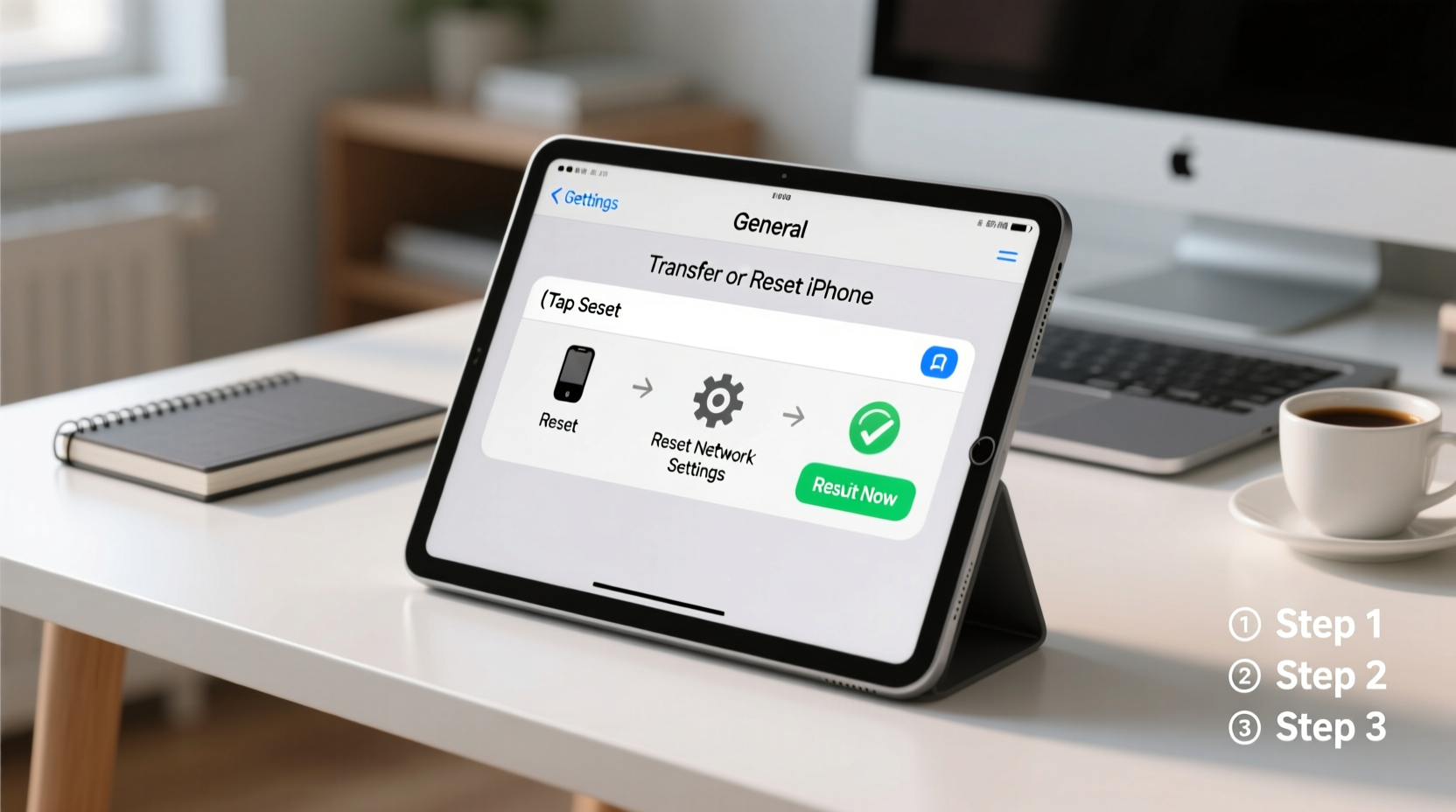
Resetting network settings is not something you should do daily, but it's one of the most effective troubleshooting steps when standard fixes fail. Consider this action if you experience any of the following:
- Inability to connect to known Wi-Fi networks despite correct passwords
- Wi-Fi signal strength appears strong, but no data loads
- Bluetooth devices won’t pair or disconnect frequently
- Cellular data isn't working even with active service
- DNS or proxy configuration errors appear unexpectedly
- Your iPad connects to Wi-Fi but shows “No Internet Connection”
This reset does not erase personal data like photos, apps, or messages. It only affects network-related configurations, making it safe and non-destructive compared to a full factory reset.
Step-by-Step Guide to Reset iPad Network Settings
The process is straightforward and consistent across all iPad models running iOS 15 and later, including iPadOS versions. Follow these steps carefully:
- Open the Settings app – Tap the gray gear icon from your home screen.
- Navigate to General – Scroll down and select “General” near the top of the menu.
- Select Transfer or Reset iPad – This option is located at the bottom of the General settings list.
- Tap Reset – On the next screen, choose “Reset” to access system reset options.
- Choose Reset Network Settings – From the reset menu, tap “Reset Network Settings.”
- Confirm the Action – Enter your device passcode if prompted, then confirm your choice.
- Wait for Reboot – The iPad will restart automatically. This may take up to a minute.
After rebooting, your iPad will behave as if it’s encountering networks for the first time. You’ll need to manually reconnect to Wi-Fi networks and re-pair Bluetooth accessories like headphones or keyboards.
“Network stack corruption is more common than users realize. A network settings reset clears misconfigured IP addresses, rogue DNS entries, and conflicting proxy settings—all invisible culprits behind poor connectivity.” — David Lin, Senior Mobile Systems Engineer at NetSignal Labs
What Gets Deleted During a Network Reset?
Understanding exactly what’s removed helps you prepare and avoid surprises. The table below outlines what’s affected and what remains untouched:
| Data Type | Deleted? | Notes |
|---|---|---|
| Wi-Fi Networks & Passwords | Yes | You’ll need to re-enter passwords for each network. |
| Bluetooth Pairings | Yes | All paired devices (e.g., AirPods, keyboard) must be reconnected. |
| VPN & APN Configurations | Yes | Common in corporate or international data plans. |
| Cellular Settings | Yes | Carrier settings remain, but custom data configurations are cleared. |
| Apple ID, Apps, Photos | No | None of your personal content is affected. |
| iCloud Data | No | Synched files, notes, and backups stay intact. |
| Passcode & Face ID/Touch ID | No | Security settings remain unchanged. |
Real-World Example: Fixing a Stubborn Office Wi-Fi Issue
A freelance graphic designer, Maya, used her iPad Pro daily for client calls and cloud-based design tools. One Monday morning, her iPad wouldn’t connect to her office Wi-Fi, despite other devices working perfectly. She tried restarting the router, forgetting the network, and even resetting her modem—nothing worked.
She noticed the iPad would show “Connected, No Internet,” which typically indicates a configuration conflict rather than signal loss. After reading about network resets, she followed the steps outlined above. Upon reboot, she reconnected to the Wi-Fi using the password stored in her iPhone’s Keychain (synced via iCloud). Instantly, internet access was restored.
Later, she learned from her IT consultant that a recent firmware update on the office router had changed the DHCP lease behavior, causing IP address conflicts with devices holding outdated network profiles. The reset cleared the stale IP configuration and allowed her iPad to request a fresh, compatible address.
Troubleshooting Tips After the Reset
Even after a successful reset, you might still face issues. Use this checklist to ensure full recovery:
- ✅ Reconnect to your primary Wi-Fi network and verify internet access with Safari.
- ✅ Re-pair essential Bluetooth devices and test functionality.
- ✅ Check that cellular data works (if applicable) by disabling Wi-Fi and loading a webpage.
- ✅ Verify that location services function properly, as they depend on network triangulation.
- ✅ Ensure automatic date and time are enabled under Settings > General > Date & Time, since incorrect time can break secure connections.
- ✅ Update iPadOS if prompted—sometimes bugs affecting networking are patched in newer versions.
If problems persist after the reset and checklist, consider visiting an Apple Store or contacting your internet service provider. Persistent failure could indicate ISP-level throttling, MAC filtering on the router, or hardware radio failure.
Frequently Asked Questions
Will I lose my text messages or iMessages after resetting network settings?
No. Messages are stored locally or in iCloud and are completely separate from network configurations. You’ll retain all conversations, attachments, and message history.
Do I need to contact my carrier after resetting network settings?
Usually not. Carrier settings are re-downloaded automatically when needed. However, if cellular data doesn’t return within a few minutes, contact your provider to confirm your plan includes data and that your SIM is active.
Can I automate the reconnection to Wi-Fi networks after a reset?
Not directly. But if you use multiple Apple devices signed into the same iCloud account, Wi-Fi passwords sync automatically. Once you reconnect on one device, others prompt to join the same network seamlessly.
Conclusion: Regain Control of Your iPad’s Connectivity
Network issues don’t have to disrupt your productivity or leisure time. By understanding how to reset your iPad’s network settings, you gain a powerful tool to resolve connectivity problems quickly and independently. This simple procedure clears hidden glitches that restarts and software updates often miss. Whether you’re preparing for a critical video conference or just want uninterrupted streaming, taking control of your device’s network health is a skill worth mastering.




 浙公网安备
33010002000092号
浙公网安备
33010002000092号 浙B2-20120091-4
Comments
No comments yet. Why don't you start the discussion?