
Keeping your Android device up to date isn’t just about accessing new features—it’s essential for security, stability, and long-term performance. Software updates patch vulnerabilities, improve battery efficiency, and optimize system responsiveness. Yet many users delay or skip updates due to concerns about data loss, installation failures, or unexpected bugs. This guide walks you through a complete, safe process to update your Android OS with confidence, ensuring your phone runs smoothly without compromising your personal information.
Why Android Updates Matter
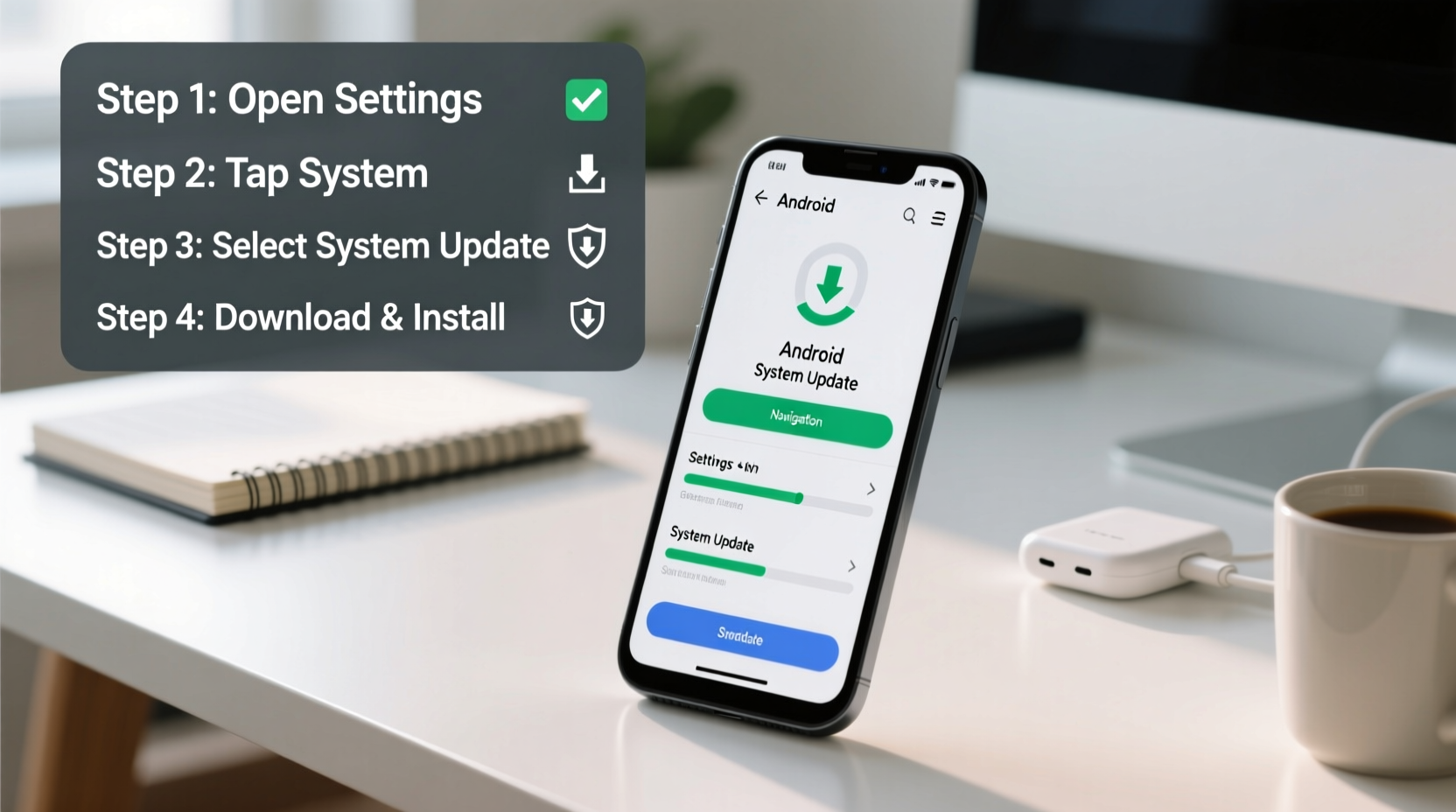
Android updates are more than cosmetic improvements. Google and device manufacturers release regular updates that address critical issues:
- Security patches: Close loopholes exploited by malware and phishing attacks.
- Bug fixes: Resolve crashes, freezes, and app incompatibilities.
- Performance boosts: Optimize memory usage and processor efficiency.
- New functionality: Introduce useful tools like improved dark mode, better privacy controls, or enhanced camera features.
According to Google's 2023 Security Report, devices running outdated operating systems are 3.5 times more likely to encounter malicious software. Delaying updates increases exposure to risks, especially as older versions lose official support.
Pre-Update Checklist: Prepare Your Device
Before initiating any system update, preparation is key. A few minutes of setup can prevent hours of troubleshooting later. Follow this checklist to ensure a smooth transition:
- Check compatibility: Verify that your device model supports the latest Android version. Visit the manufacturer’s website (e.g., samsung.com, google.com/pixel) to confirm eligibility.
- Charge your battery to at least 50%: Ideally, plug into a charger during the update to avoid interruptions from power loss.
- Connect to stable Wi-Fi: OTA (over-the-air) updates can be large—sometimes over 1GB. Using mobile data may incur charges and risk incomplete downloads.
- Back up your data: Use Google Drive or your manufacturer’s cloud service (like Samsung Cloud) to back up contacts, messages, photos, and app data.
- Free up storage space: Delete unused apps or media files. Most updates require 2–4 GB of free space to unpack and install properly.
- Disable battery optimization for the updater: Go to Settings > Apps > Special Access > Battery Optimization and set “Download Manager” or “System Update” to “Don’t optimize.”
Step-by-Step Guide to Installing an Android Update
Once your device is prepared, follow these steps carefully to install the update:
- Open Settings and navigate to System Updates: On most devices, this is under Settings > System > System Update (or Software Update on Samsung).
- Check for updates: Tap “Check for Updates.” If a new version is available, details will appear including size and changelog.
- Review the update notes: Look for mentions of security fixes, known issues, or feature changes. Some manufacturers list post-update reboot duration.
- Download the update: Tap “Download and Install.” The device will fetch the package in the background. Do not close the app or restart the phone during this phase.
- Install after download completes: Once downloaded, tap “Install Now.” Your phone will reboot and begin flashing the new OS—this can take 5–20 minutes depending on the update size.
- Wait through the first boot: After installation, the system reboots and optimizes apps for the new OS. This may take longer than usual; do not force restart unless stuck for over 15 minutes.
- Verify the update: After logging in, go back to System Update and confirm it shows “Your system is up to date.” Also check Settings > About Phone > Android Version to see the new number.
“Updating your phone regularly is like changing the oil in your car—it prevents small issues from becoming major breakdowns.” — Dr. Lena Torres, Mobile Systems Analyst at TechSecure Labs
Common Pitfalls and How to Avoid Them
Even with proper planning, problems can occur. Below is a comparison of common update issues and how to handle them:
| Issue | What Happens | How to Prevent/Resolve |
|---|---|---|
| Update fails mid-installation | Phone gets stuck on logo screen or reboots repeatedly | Ensure full charge and stable connection. If failed, try downloading again or use manufacturer’s desktop tool (e.g., Samsung Smart Switch). |
| Not enough storage | Error message when starting download | Delete cache (Settings > Storage > Clear Cache) or offload media to cloud before retrying. |
| Post-update lag or battery drain | Apps run slowly or battery depletes faster than usual | Allow 24–48 hours for app optimization. If persistent, clear app caches or perform a soft reset. |
| Data loss after update | Missing photos, messages, or settings | Always back up before updating. If lost, restore from Google Account or cloud backup immediately. |
Real-World Example: Maria’s Successful Update Experience
Maria, a freelance graphic designer from Austin, relies on her Pixel 6 for client communication and cloud-based design tools. When Android 14 became available, she hesitated—her last update caused a week of app crashes. This time, she followed a structured approach:
- She backed up all project files to Google Drive and ensured her device had 60% battery.
- Connected to her home Wi-Fi and cleared 3 GB of cached app data.
- Checked the official Pixel release notes and saw that the update included improved gesture navigation, which she wanted.
- Initiated the download overnight and installed it the next morning while plugged in.
The update completed in 12 minutes. Though the first boot took five minutes longer than usual, all her apps opened normally. Within two days, she noticed smoother transitions and extended battery life—exactly what the update promised.
Frequently Asked Questions
How often should I update my Android phone?
Install security patches as soon as they’re available—typically monthly. Major OS updates (like Android 14 or 15) should be done within three months of release to stay protected and benefit from performance gains.
Can I revert to the old Android version if I don’t like the update?
Generally, no. Android does not support downgrading through standard settings. Attempting to flash an older OS version requires unlocking the bootloader and using advanced tools, which voids warranties and risks bricking the device.
Will updating delete my apps and photos?
No—system updates preserve user data. However, rare bugs or interrupted installations can cause data corruption. That’s why backing up beforehand is non-negotiable.
Final Steps for Long-Term Performance
An update isn’t the finish line—it’s the start of optimized performance. After installing the new software:
- Restart the device once more to clear residual cache.
- Update all apps via the Google Play Store to ensure compatibility.
- Review battery usage statistics after 48 hours to spot any rogue apps consuming excessive power.
- Enable adaptive brightness, dark theme, and app standby buckets—newer Android versions use these features to extend battery life.
Conclusion: Stay Secure, Stay Smooth
Regularly updating your Android device is one of the simplest yet most effective ways to maintain speed, security, and reliability. By following a methodical process—backing up data, ensuring sufficient power and storage, and verifying success—you eliminate the risks associated with software upgrades. Don’t wait for a crash or security alert to act. Make updating part of your digital hygiene routine, just like locking your front door or updating your passwords.




 浙公网安备
33010002000092号
浙公网安备
33010002000092号 浙B2-20120091-4
Comments
No comments yet. Why don't you start the discussion?