
Dual monitors are no longer a luxury—they’re a necessity for serious gamers and professionals alike. Whether you're streaming while editing, managing spreadsheets alongside video calls, or keeping game guides open during intense sessions, a well-configured dual-monitor setup can dramatically improve efficiency and immersion. But simply plugging in a second screen isn’t enough. To truly benefit, you need the right hardware, proper configuration, and smart placement. This guide walks through every phase of creating a seamless dual-monitor environment tailored for both high-performance gaming and focused productivity.
Assess Your Hardware Compatibility
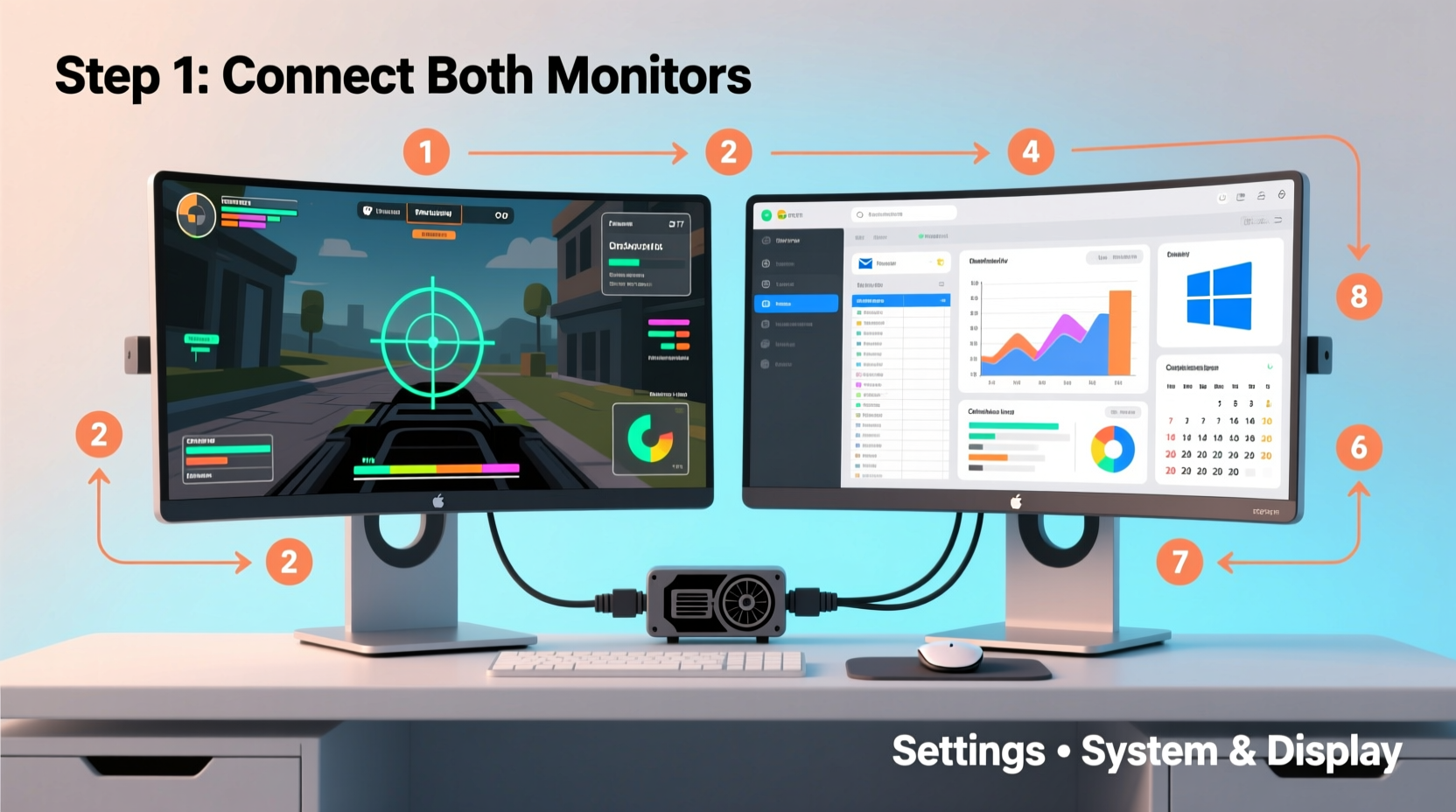
Before connecting any cables, verify that your system supports multiple displays. Most modern GPUs—especially those designed for gaming—support at least two outputs simultaneously. Check your graphics card specifications for available ports: HDMI, DisplayPort, DVI, or USB-C. Integrated graphics on newer CPUs may also support dual monitors, but they often lack the power needed for high-refresh-rate gaming on secondary screens.
Ensure both monitors are compatible with your GPU’s output types. If there’s a mismatch (e.g., your monitor has only HDMI but your GPU uses DisplayPort), use certified adapters—but avoid passive HDMI-to-DisplayPort converters, which often fail. Active adapters are more reliable but costlier.
Monitor age and panel type matter too. Mixing older TN panels with new IPS models can create noticeable color and response time differences. For optimal experience, pair similar technologies or designate one as primary for gaming (faster response) and the other for general tasks.
Choose the Right Monitors for Your Needs
Selecting the correct combination of monitors depends on your dominant use case. A balanced setup allows smooth transitions between work and play without constant reconfiguration.
| Purpose | Recommended Specs | Ideal Placement |
|---|---|---|
| Gaming Primary | 144Hz+, IPS/OLED, 1080p–1440p, G-Sync/FreeSync | Centered, eye-level, 24–30 inches away |
| Productivity Secondary | 60–75Hz, IPS, 1080p+, matte finish | Slightly angled inward, same height as primary |
| All-in-One Dual Setup | Twin 1440p 144Hz IPS panels | Curved alignment, minimal bezel gap |
If budget allows, matching monitors simplify calibration and reduce visual distractions. However, many users successfully combine a high-refresh gaming display with a larger productivity-focused panel (e.g., ultrawide 21:9 on one side). Just be mindful of scaling issues in Windows when resolutions differ significantly.
“Dual-monitor setups increase task-switching speed by up to 30%, especially when information is spatially separated.” — Dr. Lena Torres, Human-Computer Interaction Researcher, MIT Media Lab
Physical Setup and Ergonomic Alignment
No amount of software tuning compensates for poor physical arrangement. Misaligned screens cause neck strain, reduce focus, and break immersion during gameplay.
Begin by placing your primary monitor directly in front of you. This should be the screen where games run or where your main application window resides. The top of the monitor should align with or slightly below eye level. Tilt it forward 10–15 degrees if glare is an issue.
Your secondary monitor should sit adjacent—usually to the left or right—with its inner edge nearly touching the primary. Angle it slightly inward (about 30 degrees) so both screens fall within your natural field of view. Avoid extending it straight out; this forces excessive head turning.
- Use monitor arms for flexible positioning and cable management.
- Maintain equal screen height across both displays.
- Keep viewing distance between 24”–30” (60–75 cm).
- Ensure consistent brightness and color temperature settings.
Aim for a “wraparound” feel without craning your neck. Productivity thrives on peripheral visibility; gaming demands central focus. Striking this balance prevents fatigue during long sessions.
Connect and Configure Your Displays
Now connect both monitors using appropriate cables. Plug each into separate GPU ports—avoid daisy-chaining unless using DisplayPort MST and fully supported devices.
Once powered, follow these steps in Windows:
- Press Win + P to open projection options.
- Select “Extend” mode to use both screens independently.
- Right-click desktop → “Display settings”.
- Click “Identify” to see which number corresponds to each monitor.
- Drag display icons to match physical layout.
- Set primary monitor (check “Make this my main display”).
- Adjust resolution and scaling per monitor (e.g., 100% on 1080p, 125% on 1440p).
- Set orientation (landscape recommended).
- Configure refresh rate under “Advanced display settings” → “Display adapter properties”.
In NVIDIA Control Panel or AMD Radeon Software, fine-tune color profiles, enable G-Sync/FreeSync globally or per-display, and assign specific monitors for PhysX or VRAM-heavy applications.
Optimize for Gaming and Multitasking
A dual-monitor setup shines when leveraged strategically. Gamers can keep Discord, Twitch chat, or walkthroughs open on the secondary screen without minimizing their game. Professionals can manage email, research, or communication tools alongside core workflows.
Assign roles clearly:
- Primary Screen: Full-screen games, active documents, video editors.
- Secondary Screen: Web browsers, music apps, calendar, messaging, monitoring tools (MSI Afterburner, Task Manager).
Use keyboard shortcuts (Win + Left/Right Arrow) to snap windows efficiently. Third-party tools like DisplayFusion or PowerToys enhance control with custom hotkeys, multi-monitor taskbars, and wallpaper spanning.
For competitive gaming, disable notifications and background apps on the secondary screen to prevent input lag spikes. Consider running the secondary at a lower refresh rate if system resources are strained—dedicate GPU power to the primary display.
Mini Case Study: From Cluttered Desk to Streamlined Workstation
Jamal, a freelance graphic designer and casual esports player, used to switch constantly between design software and client emails on a single 24-inch monitor. After upgrading to a dual-monitor setup—a 27” 144Hz IPS panel for Photoshop and Illustrator, paired with a 24” 1080p office display—he restructured his workflow. He now keeps Adobe Creative Cloud tools on the primary, while Slack, reference images, and Spotify stay open on the secondary. During weekend Valorant matches, he streams via OBS on the second screen, monitoring alerts without alt-tabbing. His reported productivity increased by nearly 40%, and he experiences less eye strain due to reduced window clutter.
Dual-Monitor Setup Checklist
- ✅ Hardware Check
- - Confirm GPU supports dual outputs
- - Verify monitor inputs match available ports
- - Acquire high-quality cables (HDMI 2.1 or DP 1.4)
- ✅ Physical Installation
- - Mount monitors at eye level
- - Align bezels closely, angle secondary inward
- - Use arms or risers for stability and cable routing
- ✅ Software Configuration
- - Set correct display order in OS
- - Assign primary monitor
- - Adjust individual scaling and resolution
- - Enable adaptive sync where applicable
- ✅ Usage Optimization
- - Designate functional roles for each screen
- - Install utility software (e.g., DisplayFusion)
- - Test performance impact during full-screen gaming
- - Calibrate brightness/color across both panels
Frequently Asked Questions
Can I use different monitor sizes and resolutions?
Yes, but expect some adjustment in user experience. Windows handles mixed DPI well, but abrupt scaling changes when moving cursors between screens can feel jarring. Stick to either both 1080p or both 1440p if possible. If mixing, set consistent scaling (e.g., 125%) and avoid placing low-res screens next to high-res ones for critical visual work.
Why does my game minimize when I click on the second monitor?
This typically happens in borderless windowed mode. When another app gains focus, the game loses fullscreen priority. To fix, run the game in true fullscreen mode or use utilities like “Borderless Gaming” to lock window behavior. Some launchers (like Steam) also offer a “fullscreen windowed” option that behaves more stably across monitors.
Do dual monitors affect FPS in games?
Not directly. The secondary monitor doesn’t reduce FPS unless it’s running GPU-intensive applications (e.g., 4K video playback, rendering). However, having browser tabs or overlays open consumes VRAM and CPU cycles. Close unnecessary programs on the secondary screen during gameplay for optimal performance.
Final Thoughts and Next Steps
A thoughtfully configured dual-monitor setup transforms how you interact with digital content. It bridges the gap between immersive gaming and efficient multitasking, giving you spatial freedom to organize your digital workspace like never before. The initial effort pays dividends in smoother workflows, faster context switching, and enhanced enjoyment.
Start with compatible hardware, prioritize ergonomic placement, and refine settings based on real-world usage. Don’t settle for just “having” two screens—engineer them to serve distinct purposes. Over time, adjust positioning, tweak software tools, and experiment with new layouts as your needs evolve.




 浙公网安备
33010002000092号
浙公网安备
33010002000092号 浙B2-20120091-4
Comments
No comments yet. Why don't you start the discussion?