
In today’s digital work environment, a single screen often isn’t enough. Whether you're editing video, managing spreadsheets, coding, or juggling multiple communication platforms, the limitations of one monitor can slow you down. A dual-monitor setup transforms your workflow—offering more space, reducing clutter, and enabling seamless multitasking. But simply connecting a second screen isn’t enough. To truly maximize efficiency, the setup must be intentional, ergonomic, and optimized for your specific tasks.
This guide walks through every phase of creating a high-performance dual-monitor workspace—from selecting compatible hardware to fine-tuning display settings and organizing your desktop for peak productivity. By following these steps, you’ll not only expand your screen real estate but also create a system that supports focus, reduces strain, and enhances daily output.
Assess Your Hardware Compatibility
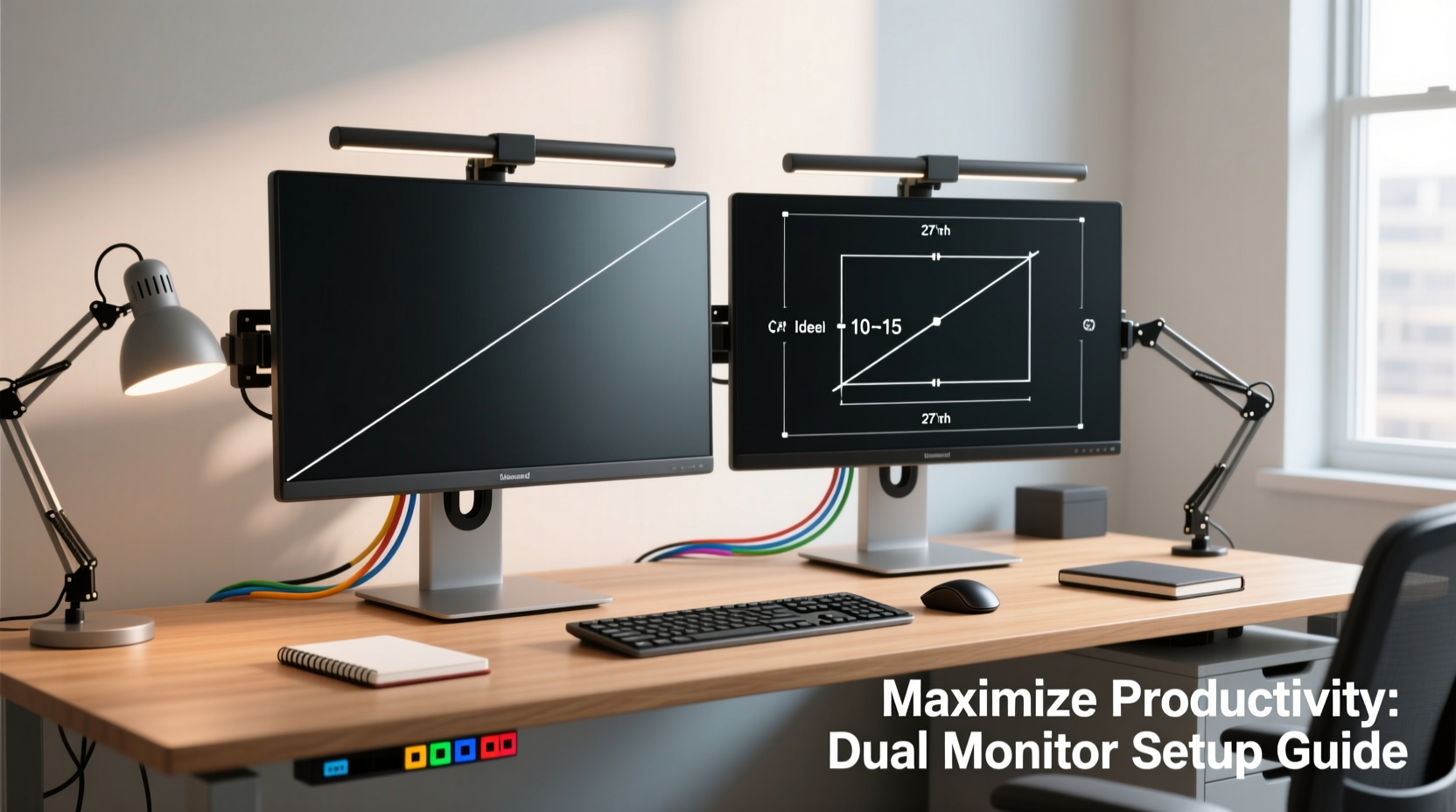
Before purchasing or connecting a second monitor, confirm that your current system supports dual displays. Most modern computers do, but compatibility depends on several factors: graphics card capabilities, available ports, and operating system support.
Laptops and desktops typically come with integrated graphics that support at least two displays. However, if you’re working with graphic-intensive applications like 3D modeling or video editing, a dedicated GPU may be necessary for smooth performance across both screens.
Check your computer’s available video output ports. Common types include:
- HDMI – Widely used, supports high resolutions and audio.
- DisplayPort – Preferred for higher refresh rates and multi-monitor daisy-chaining.
- USB-C/Thunderbolt – Increasingly common on newer laptops; supports video, data, and power in one cable.
- VGA – Older analog standard; avoid if possible due to lower quality.
If your computer lacks a second video port, consider using a USB-to-HDMI adapter. These are widely available and effective for secondary displays used primarily for documents or web browsing.
Selecting the Right Monitors
Choosing two monitors that complement each other—and your workflow—is critical. While it’s tempting to buy whatever is on sale, mismatched specs can lead to eye strain, inconsistent color representation, and inefficient use of space.
Consider the following factors when selecting monitors:
- Size: 24-inch monitors are a popular sweet spot for desk setups. Larger sizes (27-inch or more) offer more space but require deeper desks.
- Resolution: Full HD (1920x1080) is standard. For sharper text and more screen real estate, consider QHD (2560x1440) or even 4K (3840x2160).
- Panel Type: IPS panels provide better color accuracy and viewing angles than TN or VA, making them ideal for design and long work sessions.
- Refresh Rate: 60Hz is sufficient for office work. Gamers or animators may prefer 120Hz or higher.
- Ergonomics: Look for monitors with height adjustment, tilt, swivel, and pivot (portrait mode) options.
For optimal consistency, use two identical monitors. If that’s not feasible, ensure they have similar brightness levels, color profiles, and response times to reduce visual fatigue.
“Matching monitor specs isn’t just about aesthetics—it’s a productivity multiplier. When your eyes don’t have to adjust between screens, cognitive load decreases.” — Dr. Lena Patel, Human Factors & Ergonomics Researcher
Physical Setup and Ergonomic Alignment
Proper physical arrangement prevents neck strain and ensures efficient access to both screens. The goal is to position the monitors so that your primary tasks remain centered while secondary information stays within easy peripheral view.
Follow this alignment checklist:
- Place the primary monitor directly in front of you, centered with your keyboard and torso.
- Position the secondary monitor to the left or right, angled slightly inward (about 30 degrees) to form a gentle curve.
- Ensure the top edges of both screens are level with or slightly below eye level.
- Keep the distance from your eyes to the screen between 20–40 inches.
- Avoid placing monitors too far apart—your head shouldn’t need to turn more than 45 degrees to see either edge.
Mounting options such as VESA arms or dual-monitor stands improve flexibility and free up desk space. These allow independent adjustment of height, angle, and depth for each screen.
| Aspect | Do | Don't |
|---|---|---|
| Screen Height | Top edge at or just below eye level | Monitors too low, forcing downward gaze |
| Distance | Arm’s length away (24–30 inches) | Too close, causing eye strain |
| Angle | Slight inward curve for wide setups | Flat line across desk, requiring sharp head turns |
| Lighting | Reduce glare with anti-reflective coating or positioning | Direct light shining on screens |
Connecting and Configuring Displays
Once the monitors are physically in place, connect them using appropriate cables. Power off both monitors and your computer before connecting to prevent signal issues.
After powering everything back on, your operating system should detect both displays automatically. If not, manually trigger detection:
- Windows: Press Win + P to open projection options, then go to Settings > System > Display > Detect.
- macOS: Go to System Settings > Displays > Detect Displays.
Next, configure display arrangement:
- Open display settings and drag the on-screen monitor icons to match their physical layout on your desk.
- Designate one monitor as primary (where the taskbar/menu bar appears by default).
- Set resolution and scaling. Match scaling percentages (e.g., 100% or 125%) if monitors are the same size. Adjust individually if they differ.
- Choose orientation (landscape or portrait). Portrait mode is excellent for coding, reading documents, or social media monitoring.
You can also select how content appears across screens:
- Extend: Spreads your desktop across both monitors—ideal for multitasking.
- Duplicate: Shows the same image on both screens—useful for presentations.
- Second Screen Only: Turns off the main display and uses only the external monitor.
For advanced users, third-party tools like DisplayFusion (Windows) or SwitchResX (macOS) offer enhanced control over wallpaper management, taskbars, and hotkeys.
Optimizing Workflow and Software Layout
The true benefit of dual monitors emerges when software is strategically placed to minimize distractions and streamline interaction. Avoid simply duplicating windows—instead, assign roles to each screen based on function.
A typical high-efficiency layout might look like this:
- Primary Monitor: Hosts your main application—web browser, document editor, design software, or IDE.
- Secondary Monitor: Displays reference material, email, chat apps, calendar, or video calls.
For example, a financial analyst might keep Excel on the left screen for data manipulation while displaying live market feeds and news on the right. A writer could draft on the primary screen and keep research tabs, grammar tools, and notes open on the secondary.
To enhance navigation:
- Use keyboard shortcuts like Win + Left/Right Arrow (Windows) or Ctrl + Command + Left/Right Arrow (macOS) to snap windows between screens.
- Create virtual desktops for different projects, each spanning both monitors.
- Customize taskbar/dock behavior to show only active apps per screen or consolidate notifications.
“In our usability studies, knowledge workers using purpose-driven dual-monitor layouts completed complex tasks 28% faster than those with random window placement.” — UX Lab Report, Stanford HCI Group, 2023
Mini Case Study: Remote Developer’s Dual-Screen Transformation
Jamal, a freelance web developer, used to switch constantly between browser tabs, code editors, and client messages on a single 13-inch laptop screen. After setting up a dual-monitor station with a 24-inch IPS panel alongside his laptop, he restructured his workflow: the main monitor ran his VS Code editor and terminal, while the second displayed Chrome DevTools, documentation, and Slack.
Within a week, he reported fewer context switches, reduced mental fatigue, and a 40% decrease in debugging time. “It’s like having two brains now,” he said. “One focuses on writing, the other watches for errors and messages.”
Troubleshooting Common Issues
Even well-planned setups encounter hiccups. Here are frequent problems and fixes:
- Monitor Not Detected: Re-seat the cable, try a different port, update graphics drivers.
- Blurry Text: Adjust scaling settings or set native resolution.
- Color Inconsistency: Calibrate both monitors using built-in tools or a hardware calibrator.
- Input Lag: Ensure cables support required bandwidth; avoid long extension cables.
- Audio Not Playing Through HDMI: Set the correct playback device in sound settings.
Frequently Asked Questions
Can I use monitors of different sizes and resolutions?
Yes, but expect some challenges with window scaling and alignment. Windows and macOS handle mixed DPI setups reasonably well, but you may need to adjust scaling independently for each screen to avoid blurry or oversized elements.
Does a dual-monitor setup increase productivity?
Multiple studies confirm it does. According to a 2022 report by the University of Utah, users with dual monitors were 30% more productive in multitasking scenarios compared to single-screen users. The largest gains came in data entry, coding, and content creation roles.
Do I need special software to manage dual monitors?
Not necessarily. Built-in OS tools are sufficient for most users. However, professionals who frequently rearrange windows or use multiple applications benefit from utilities like DisplayFusion, Ultramon, or Magnet (for Mac), which add advanced snapping, shortcut, and management features.
Final Checklist: Setting Up Dual Monitors
Before declaring your setup complete, run through this checklist:
- ✅ Verified computer supports dual displays
- ✅ Selected monitors with compatible specs and ergonomics
- ✅ Connected both monitors securely with appropriate cables
- ✅ Aligned physical monitors for comfortable viewing
- ✅ Detected and arranged displays correctly in OS settings
- ✅ Set proper resolution, scaling, and orientation
- ✅ Assigned functional roles to each screen
- ✅ Tested window movement and keyboard shortcuts
- ✅ Calibrated brightness and color for consistency
- ✅ Verified no flickering, lag, or detection issues
Conclusion
A dual-monitor setup is more than an upgrade—it’s a strategic investment in how you interact with digital information. When configured thoughtfully, it reduces friction, enhances focus, and creates a workspace tailored to your unique rhythm. From selecting the right hardware to aligning screens for comfort and assigning software roles for efficiency, each step builds toward a more productive, sustainable work experience.
Now that you’ve laid the foundation, experiment. Try switching primary screens, rotating one to portrait, or dedicating a monitor solely to communication. Small tweaks can yield outsized improvements. Your ideal setup isn’t static—it evolves with your needs.




 浙公网安备
33010002000092号
浙公网安备
33010002000092号 浙B2-20120091-4
Comments
No comments yet. Why don't you start the discussion?