
T-Mobile Home Internet offers an affordable, no-contract alternative to traditional broadband, especially in areas where cable or fiber isn't available. With 5G-powered connectivity, it delivers solid speeds for streaming, remote work, and online learning. But like any wireless service, performance depends heavily on proper setup and placement. Getting the most out of your connection isn’t just about plugging in the device—it’s about optimizing signal strength, minimizing interference, and configuring your network wisely.
This guide walks you through every stage of installation and fine-tuning, ensuring you achieve a stable, high-speed experience from day one. Whether you're new to wireless home internet or upgrading from a previous provider, these steps will help you build a reliable foundation.
1. Unboxing and Initial Setup
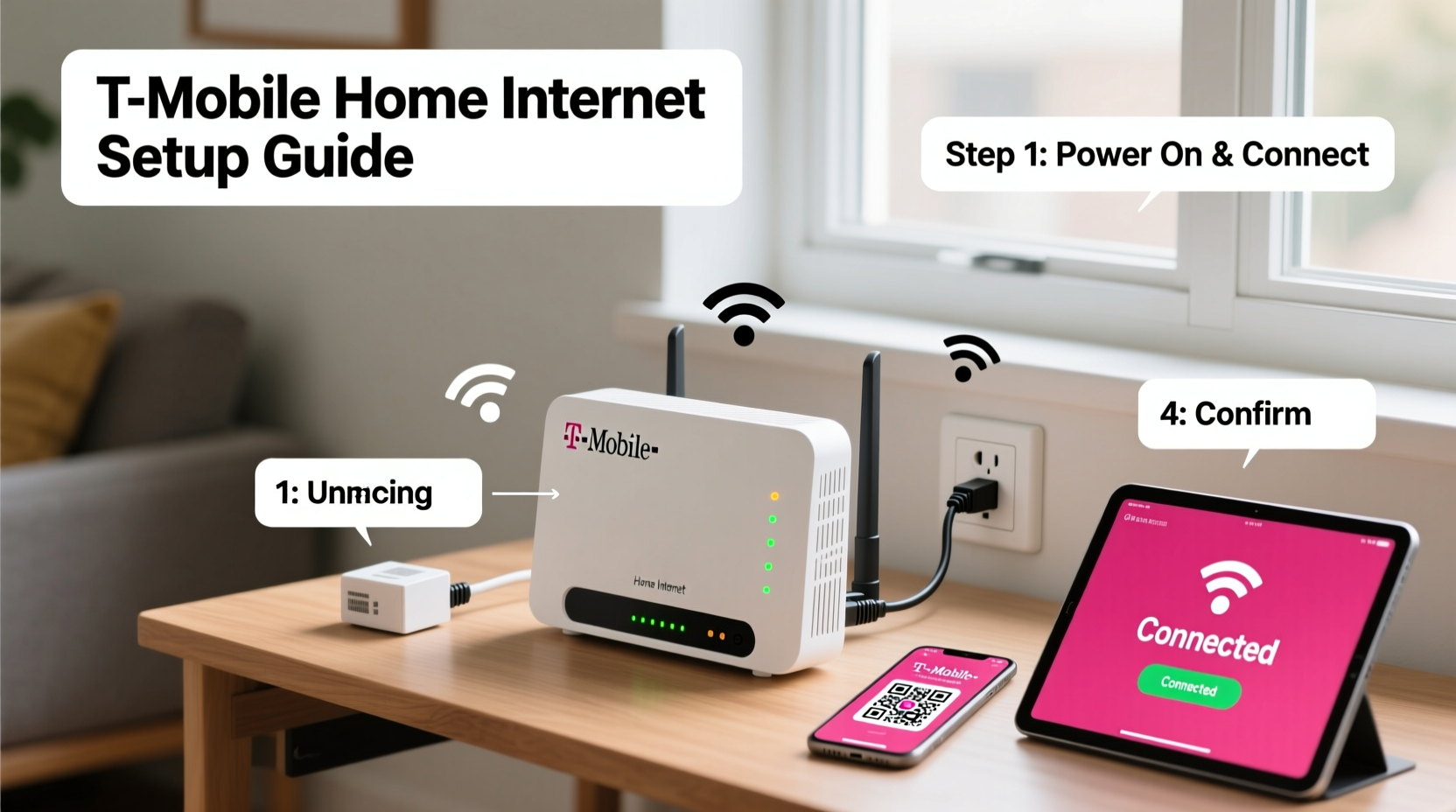
When your T-Mobile Home Internet Gateway arrives, start by checking the contents: the gateway unit, power adapter, Ethernet cable, and quick-start guide. No modem is required—the gateway combines Wi-Fi router and cellular modem into one device.
- Choose a central location near a power outlet, ideally elevated and away from thick walls or metal objects.
- Connect the power adapter to the gateway and plug it into the wall.
- Wait for the status lights to stabilize—this takes 2–3 minutes. A solid white light indicates the device is powered and searching for signal.
- Once connected, the light turns green (good signal) or yellow (moderate). Red means poor signal—repositioning may be necessary.
2. Connecting to Your Network
The gateway creates a default Wi-Fi network. The name (SSID) and password are printed on a label at the back of the device.
To connect your devices:
- On your smartphone, tablet, or laptop, open Wi-Fi settings.
- Select the network listed on the gateway.
- Enter the Wi-Fi password carefully—case sensitive.
- Confirm connection by opening a browser and navigating to a website.
For wired connections, use the included Ethernet cable to link computers, smart TVs, or gaming consoles directly to the gateway. Wired connections offer lower latency and more consistent speeds, ideal for video conferencing or online gaming.
Using the T-Mobile Internet App
Download the “T-Mobile Internet” app (available on iOS and Android) to manage your network. The app allows you to:
- Change your Wi-Fi name and password
- Monitor connected devices
- Run speed tests
- Check signal strength in real time
- Reboot the gateway remotely
The app also provides personalized recommendations based on your signal quality and usage patterns.
3. Optimizing Signal Strength and Placement
Because T-Mobile Home Internet relies on cellular towers, your physical location relative to the nearest tower determines your maximum speed and reliability. Unlike Wi-Fi extenders, you can’t boost the incoming 5G signal—only optimize how the gateway receives it.
“Signal strength is the single biggest factor in real-world performance. Even small adjustments in placement can double download speeds.” — Raj Patel, Wireless Network Engineer
Signal Optimization Checklist
- Place the gateway near a window facing the general direction of urban centers (where towers are concentrated)
- Elevate the device—place on a shelf or desk, not the floor
- Keep at least 3 feet away from cordless phones, baby monitors, and Bluetooth devices
- Avoid mirrors and large glass surfaces that reflect signals
- Test multiple locations using the app’s signal meter
If your signal remains weak despite repositioning, consider using a window-mounted 5G signal booster or external antenna—though compatibility varies by model and requires technical setup.
4. Performance Comparison: Ideal vs. Suboptimal Setup
| Factor | Ideal Setup | Suboptimal Setup |
|---|---|---|
| Placement | Near window, elevated, unobstructed | Basement, interior room, inside cabinet |
| Signal Light | Green | Yellow or Red |
| Typical Speeds | 50–200 Mbps download | 5–30 Mbps download |
| Latency | 20–40 ms | 60+ ms |
| Streaming Quality | 4K on multiple devices | Buffering on HD streams |
| Wi-Fi Coverage | Full apartment or small house | Spotty in adjacent rooms |
5. Real-World Example: Improving Connection in a Rural Townhouse
Sarah, a freelance graphic designer in rural Pennsylvania, signed up for T-Mobile Home Internet after her DSL kept dropping during client calls. Her initial setup placed the gateway in a hallway closet near the garage. The signal light stayed yellow, and speeds averaged 18 Mbps—too slow for uploading large design files.
She used the T-Mobile app to test different spots. Moving the gateway to a second-floor bedroom with a south-facing window improved the signal to green. Speeds jumped to 112 Mbps, and latency dropped from 78 ms to 31 ms. Video calls became smooth, and file uploads completed in minutes instead of hours.
Sarah now recommends testing at least three locations before finalizing placement—a lesson she learned the hard way after two weeks of frustration.
6. Troubleshooting Common Issues
Even with proper setup, occasional issues may arise. Here’s how to resolve them quickly:
- Intermittent disconnects: Reboot the gateway by unplugging it for 30 seconds, then plugging it back in. Check for firmware updates in the app.
- Slow speeds: Run a speed test via the app or speedtest.net. If results are below 25 Mbps, recheck placement and nearby interference sources.
- Devices won’t connect: Ensure Wi-Fi is enabled and the password is correct. Reset network settings on the device if needed.
- No internet despite green light: Contact T-Mobile support—there may be an outage or account issue.
7. Frequently Asked Questions
Can I use my own router with T-Mobile Home Internet?
Yes, but only in bridge mode. The gateway must remain active as the primary modem. You can disable its Wi-Fi and connect a third-party router via Ethernet for advanced features like mesh networking or parental controls.
Is T-Mobile Home Internet good for gaming?
It depends on signal strength. With a green light and speeds above 50 Mbps, most online games perform well. For competitive gaming, use a wired connection and avoid peak usage hours to minimize latency spikes.
What happens during a power outage?
The gateway requires power to operate. Without a backup battery or generator, service will go down during outages. Consider a UPS (uninterruptible power supply) if uptime is critical.
Maximize Your T-Mobile Home Internet Experience
A fast, reliable connection starts with intentional setup—not luck. By choosing the right location, monitoring signal health, and using tools like the T-Mobile app, you take control of your home internet performance. Small changes in placement or configuration can yield dramatic improvements in speed and stability.
Don’t settle for subpar performance. Test, adjust, and optimize until your gateway delivers what it’s capable of. Millions rely on wireless home internet for work, school, and entertainment—your household deserves the same seamless experience.




 浙公网安备
33010002000092号
浙公网安备
33010002000092号 浙B2-20120091-4
Comments
No comments yet. Why don't you start the discussion?