
Bringing a new fitness tracker into your daily routine is more than just strapping on a device—it’s the beginning of a smarter approach to health and wellness. The Lige fitness tracker combines sleek design with essential features like heart rate monitoring, sleep tracking, step counting, and smartphone notifications. But before you can benefit from these tools, proper setup is crucial. This guide walks you through every stage of the initial configuration process, ensuring your device works seamlessly from day one.
1. Unboxing and Initial Inspection
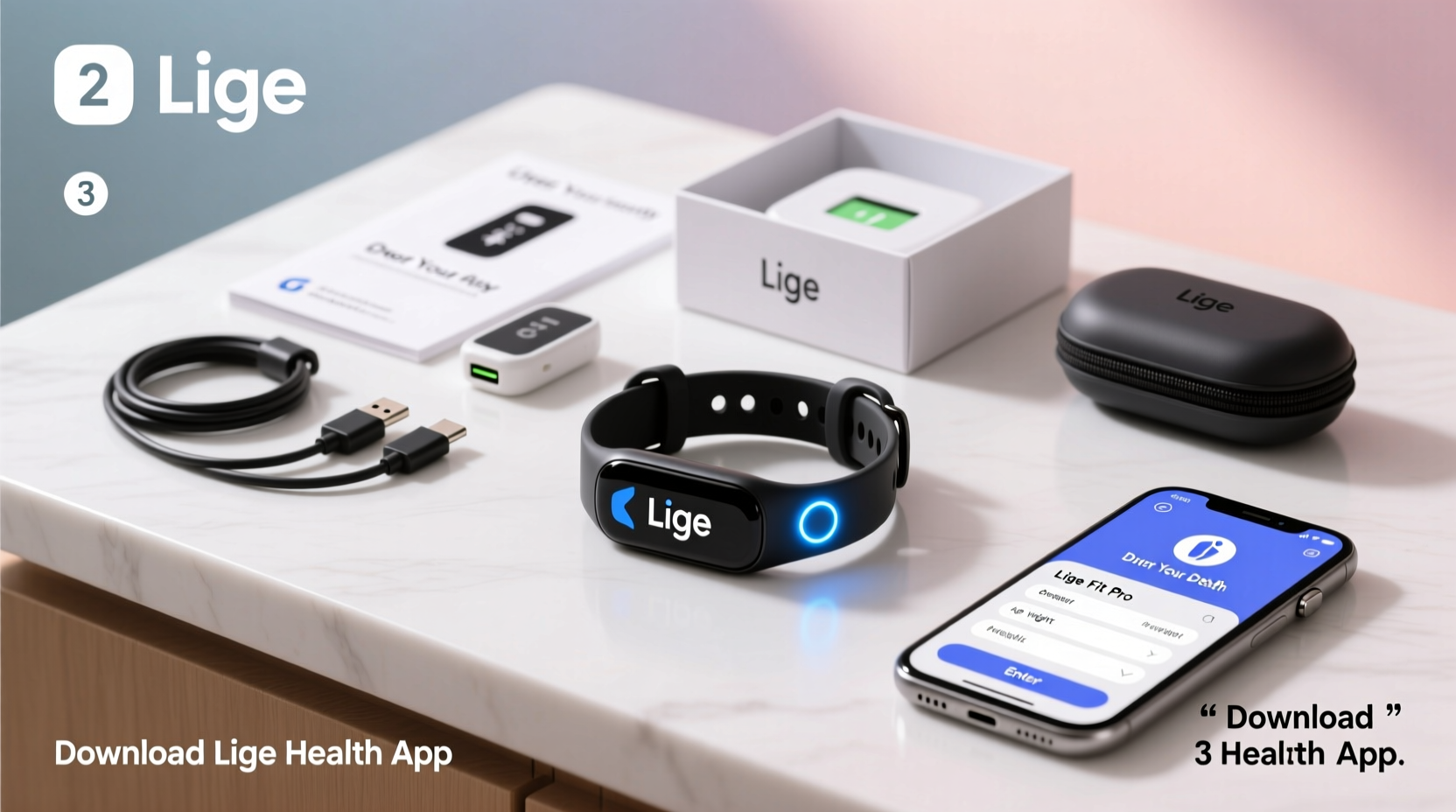
When you first receive your Lige fitness tracker, take a moment to unbox it carefully. Most models come with the following components:
- Lige fitness tracker unit
- Charging cable (magnetic or USB)
- Quick start guide
- Warranty card
Inspect each item for damage or missing parts. Ensure the screen is free of scratches and the band is intact. If anything appears defective, contact the retailer or manufacturer immediately. Do not attempt to power on the device until it has been charged.
2. Charging Your Lige Fitness Tracker
The first critical step is charging your device. Even if it powers on out of the box, starting with a full charge ensures stable performance during setup.
- Locate the charging cable included in the box.
- Align the magnetic connectors on the back of the tracker with the metal contacts on the charger.
- Plug the USB end into a power source—a computer port, wall adapter, or power bank works.
- Wait for the charging indicator (usually a battery icon or LED light) to appear on the screen.
- Allow the device to charge fully—typically takes 1.5 to 2 hours depending on model.
Avoid using third-party chargers unless explicitly compatible. Using incorrect voltage may damage internal circuitry. Once fully charged, disconnect the tracker and ensure the screen activates when touched or tilted.
3. Downloading and Installing the Companion App
Lige fitness trackers rely on a mobile app to unlock their full functionality. While the brand doesn’t manufacture its own app, most models work with widely used platforms such as Zeroner, Dafit, or VeryFitPro. Here’s how to proceed:
- Open your smartphone’s app store (Google Play Store for Android or Apple App Store for iOS).
- Search for “Zeroner,” “Dafit,” or “VeryFitPro” (check your user manual for the recommended app).
- Download and install the app.
- Launch the app and create an account using your email address or social login.
- Enter basic personal data including age, height, weight, and gender—this helps improve accuracy in calorie and activity tracking.
The app serves as the central hub for syncing data, customizing watch faces, setting goals, and receiving alerts. Make sure Bluetooth is enabled on your phone before proceeding to pairing.
| App Name | Compatibility | Key Features |
|---|---|---|
| Zeroner | iOS & Android | Sleep analysis, HR monitoring, female health tracking |
| Dafit | Most Lige models | Step counter, call alerts, remote camera control |
| VeryFitPro | Older Lige versions | Blood pressure estimation, sedentary reminders |
4. Pairing Your Tracker with Your Smartphone
Now that the app is ready, it’s time to pair your Lige fitness tracker via Bluetooth.
- Open the companion app and tap “Add Device” or the plus (+) icon.
- Select “Fitness Tracker” or choose your specific Lige model if listed.
- Ensure your phone’s Bluetooth is turned on and allow location permissions if prompted (required for Bluetooth scanning on Android).
- Wait for the app to detect your device. It will typically appear as “Lige” followed by a series of numbers.
- Select the device name and follow any on-screen prompts to confirm pairing.
- Wait for synchronization to complete—this may take up to two minutes.
If pairing fails, try restarting both the app and your phone’s Bluetooth. Also, make sure the tracker is within 3 feet (1 meter) of your phone and not already connected to another device.
“Successful pairing hinges on correct app selection and updated firmware. Always verify compatibility before purchase.” — Jordan Lee, Wearable Tech Analyst at GadgetInsight
5. Customizing Settings and Syncing Data
Once paired, personalize your experience to match your lifestyle. Key settings include:
- Time Format: Switch between 12-hour and 24-hour clocks.
- Watch Faces: Choose from analog, digital, or minimalist designs.
- Notifications: Enable alerts for calls, texts, emails, and social media apps.
- Activity Goals: Set daily step targets (e.g., 8,000 or 10,000 steps).
- Sleep Tracking: Activate automatic sleep detection or set a bedtime schedule.
To ensure accurate data collection, wear the tracker snugly (but comfortably) on your wrist. Sync it manually through the app or enable auto-sync for real-time updates. Review your dashboard after a few hours of walking or movement to confirm step counting begins accurately.
Mini Case Study: Maria’s First Week with Her Lige Tracker
Maria, a 34-year-old office worker, purchased a Lige fitness tracker to help manage her sedentary routine. On day one, she skipped charging the device, assuming it had enough battery. When the screen wouldn’t turn on, she consulted the manual and realized the battery was depleted. After charging for 90 minutes, she installed Dafit, created an account, and successfully paired the tracker. Initially frustrated by missed notifications, she discovered in-app settings allowed her to customize which apps sent alerts. By day five, she was consistently hitting 7,000+ steps and improved her sleep hygiene by reviewing nightly reports. Within ten days, Maria reported feeling more aware of her habits and motivated to move more.
Common Pitfalls and How to Avoid Them
New users often encounter predictable issues during setup. Being aware of them in advance can save time and frustration.
| Issue | Do | Don't |
|---|---|---|
| Device not detected | Restart Bluetooth, stay close to phone | Try multiple apps at once |
| Inaccurate step count | Wear on non-dominant hand, tighten band | Keep in pocket or bag |
| Poor battery life | Disable unused features like continuous HR | Leave brightness at maximum |
Frequently Asked Questions
How do I know which app to use for my Lige tracker?
Check the instruction manual or packaging—most newer models recommend Zeroner or Dafit. You can also search online using your model number (e.g., Lige S20, Lige V15). If unsure, try Dafit first, as it supports the widest range of Lige devices.
Can I use my Lige tracker without a smartphone?
You can wear and view basic metrics like time and steps without a phone, but full functionality—including goal tracking, notifications, and data history—requires the companion app and periodic syncing.
Why isn’t my heart rate sensor working?
Ensure the sensor on the back is clean and makes firm contact with your skin. Avoid wearing the tracker too loosely. Some models require manual activation of heart rate monitoring in the app settings.
Final Checklist Before Daily Use
- ✅ Fully charged the device
- ✅ Installed the correct companion app
- ✅ Created an account and entered personal details
- ✅ Successfully paired via Bluetooth
- ✅ Customized watch face and notification preferences
- ✅ Set daily activity goals
- ✅ Verified step and heart rate tracking accuracy
Start Tracking With Confidence
Setting up your Lige fitness tracker properly lays the foundation for meaningful health insights. From accurate step counts to better sleep awareness, the data you collect starts with a solid initial configuration. Take the time to follow each step carefully—charging fully, installing the right app, pairing correctly, and customizing settings to suit your needs. Once everything is in place, your tracker becomes more than a gadget; it becomes a partner in your wellness journey.




 浙公网安备
33010002000092号
浙公网安备
33010002000092号 浙B2-20120091-4
Comments
No comments yet. Why don't you start the discussion?