
Transforming your home into a festive light spectacle has never been easier. With the rise of smart lighting systems and intuitive mobile apps, you can now synchronize your Christmas lights to music—creating a professional-grade holiday display without needing an electrical engineering degree. Whether you're aiming for a cozy porch ambiance or a full-front-yard concert experience, modern technology puts the power in your hands. This guide walks you through every stage: selecting compatible gear, setting up your network, choosing the right software, choreographing effects, and troubleshooting common issues.
Understanding Smart Light Sync Technology
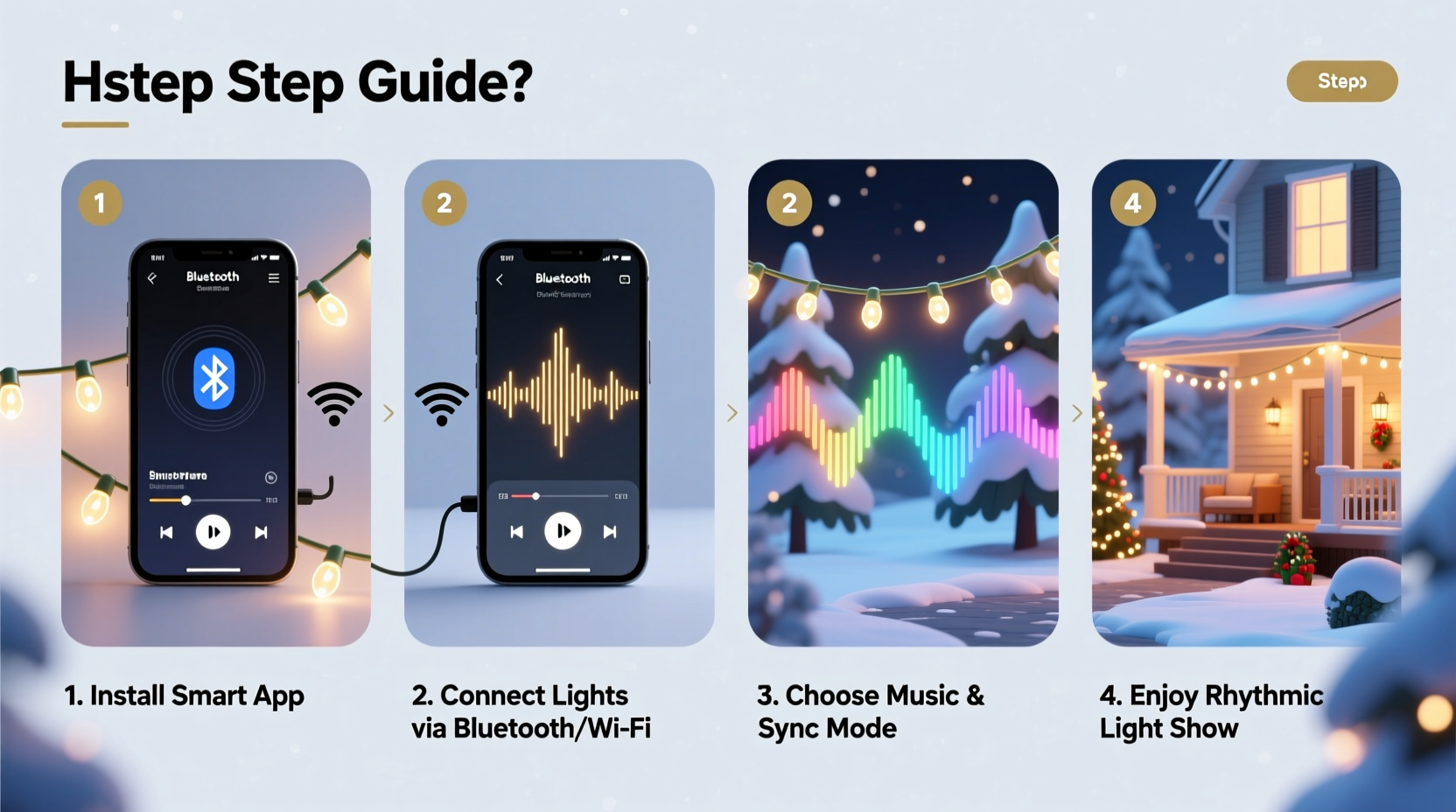
Synchronized light shows rely on two core components: addressable LED lights and control software that interprets audio signals. Unlike traditional string lights that blink uniformly, addressable LEDs (such as WS2812B or NeoPixels) allow individual bulbs to change color and brightness independently. When paired with a microcontroller like ESP8266 or ESP32—and connected via Wi-Fi—you can stream commands from a smartphone or computer to match light patterns precisely to music beats, melodies, and volume shifts.
The magic happens through pulse-width modulation (PWM), which adjusts each LED’s output rapidly to simulate smooth transitions. Apps analyze the frequency spectrum of a song and assign visual responses—bass drops trigger red flashes, high notes spark twinkling whites, and crescendos roll across strands in waves. The result is a dynamic, immersive experience visible from the street and shareable online.
“With today’s smart ecosystems, homeowners can achieve 80% of commercial-grade synchronization at 10% of the cost.” — Daniel Reeves, IoT Lighting Engineer
Equipment Checklist: What You’ll Need
Before diving into setup, gather all necessary hardware and software tools. Compatibility is key—mismatched voltages or unsupported protocols can lead to flickering, dropouts, or permanent damage.
- Addressable LED strips or nodes – Look for models labeled \"WS2811\", \"WS2812B\", or \"SK6812\". Ensure they are waterproof if installing outdoors.
- Microcontroller board – ESP8266 (NodeMCU) for smaller setups; ESP32 for multi-zone displays due to dual-core processing and Bluetooth support.
- Power supply unit (PSU) – Match voltage (typically 5V or 12V) and amperage to your total LED count. Add a 20% buffer for safety.
- Logic level shifter (if using 5V LEDs with 3.3V controllers) – Prevents signal degradation between devices.
- Jumper wires, breadboard (optional), soldering iron – For secure connections.
- Wi-Fi network – Stable 2.4 GHz connection required. Avoid crowded channels near neighbors’ networks.
- Smart lighting app or platform – WLED, xLights, or Falcon Player (FPP).
Step-by-Step Setup Process
Follow this sequence to go from unboxed components to a fully synced display.
- Plan your layout: Sketch where lights will go—rooflines, trees, windows. Group them into logical zones (e.g., “Front Tree”, “Garage Edge”).
- Cut and connect LED strips: Trim only at marked cut points. Solder data, power, and ground lines carefully. Use heat-shrink tubing for insulation.
- Wire the controller: Connect the data pin from the first LED to GPIO5 on the ESP board. Link VCC and GND to matching PSU terminals. Double-check polarity.
- Flash firmware: Download WLED (wled.me) and use its auto-installer tool to flash the ESP device. Select correct board type and COM port.
- Power up safely: Plug in the PSU and wait for the controller to boot. It should emit a startup animation (default rainbow chase).
- Join Wi-Fi: Open a browser, enter the IP shown in your serial monitor or router client list. Navigate to WLED settings > Config > Network and input SSID/password.
- Name your device: Assign a descriptive label like “Porch_Left_Strip” for easy identification later.
- Test basic functions: Use the main interface to change colors, brightness, and select preset effects like “Twinkle” or “Wipe”.
Syncing Lights to Music Using Mobile Apps
Once your hardware responds to remote commands, it's time to add sound responsiveness.
Option 1: WLED + AirMusic (Android)
AirMusic listens to ambient audio and converts real-time frequencies into DMX-like signals sent over UDP to WLED. No complex configuration needed.
- Install AirMusic from Google Play Store.
- Launch the app and tap “+” to create a new output.
- Select “WLED” as protocol and enter your strip’s IP address.
- Adjust sensitivity sliders: Bass (0–150 Hz), Mid (150–2000 Hz), Treble (2000+ Hz).
- Enable “Live Microphone” or load a saved MP3 file.
- Press play—the lights will react instantly to volume and pitch changes.
Option 2: xLights (Advanced, PC-Based Sequencing)
For precise choreography, xLights offers frame-by-frame editing. Ideal for pre-recording holiday playlists with exact timing.
- Download xLights from xlights.org and install on Windows or Linux.
- Create a new project, set season (e.g., “2024 Holiday”), and define model geometry (e.g., “Candy Cane Arch” with 50 pixels).
- Import an audio track (MP3 or WAV) into the timeline.
- Use the “Audio Sync” panel to generate beat detection markers.
- Drag effects (glow, sparkle, comet) onto tracks aligned with musical cues.
- Export sequence as E1.31 (sACN) packets and transmit via Ethernet/Wi-Fi to WLED-receiving devices.
Do’s and Don’ts of Music-Synced Lighting
| Do | Don't |
|---|---|
| Use surge protectors for outdoor installations | Run cables under heavy snow loads without elevation |
| Label all controllers and zones clearly | Mix 5V and 12V strips on the same power rail |
| Update firmware regularly for bug fixes | Leave exposed splices in rainy conditions |
| Start simple and scale gradually | Overload a single power supply beyond 80% capacity |
| Test sequences during daylight to spot dead pixels | Ignore Wi-Fi interference from nearby routers |
Real Example: A First-Time Sync Success Story
Mark T., a teacher from Ohio, wanted to surprise his neighborhood with a small synchronized display. He began with two 5-meter WS2812B strips along his driveway pillars, powered by a 5V/10A supply. After flashing WLED onto an ESP8266, he used AirMusic to sync lights to Mariah Carey’s “All I Want for Christmas Is You.”
Initially, one strip lagged behind. He discovered the second strip was daisy-chained too far from the power source, causing voltage drop. By injecting power at both ends (“power injection”), the issue resolved. On opening night, children gathered across the street dancing to the rhythmically pulsing lights. Encouraged, Mark plans to expand next year with motion sensors and voice activation.
Troubleshooting Common Issues
Even well-built systems encounter hiccups. Here are frequent problems and solutions:
- Lights flicker randomly: Likely caused by unstable power. Check connections and upgrade wiring gauge if running long distances.
- No response after flashing: Re-flash using different USB cable—some fail to deliver adequate current for programming.
- Desync during playback: Reduce Wi-Fi congestion by switching to less-used channel (1, 6, or 11). Consider adding a dedicated access point.
- Colors appear incorrect: Verify RGB byte order in WLED settings (GRB vs RGB). Mismatch leads to green showing as red, etc.
- App cannot detect device: Restart router and controller. Confirm both are on same subnet. Disable firewalls temporarily during setup.
Frequently Asked Questions
Can I sync multiple light strips to the same song?
Yes. In WLED, group devices under a single “sync group” so they receive identical effect commands. Alternatively, use xLights to coordinate independent behaviors across zones.
Is it safe to leave synced lights on overnight?
If properly installed—with correct fusing, weatherproof enclosures, and thermal protection—it’s generally safe. However, schedule automatic shutdowns after midnight using WLED’s built-in timer function.
Do I need coding skills to get started?
No. Platforms like WLED offer user-friendly web interfaces requiring zero code. Advanced users may customize further with Arduino IDE, but it’s not mandatory.
Conclusion: Bring Your Holiday Vision to Life
Synchronizing Christmas lights with music isn’t just for theme parks or influencers. Today’s accessible tools empower anyone to craft memorable, joyful experiences for family and community. With careful planning, reliable equipment, and a bit of patience, your home can become a beacon of holiday cheer. Begin small, learn through experimentation, and let creativity grow with confidence. As seasons pass, your display will evolve—not just in scale, but in meaning.




 浙公网安备
33010002000092号
浙公网安备
33010002000092号 浙B2-20120091-4
Comments
No comments yet. Why don't you start the discussion?