
Facebook Live has transformed the way people connect in real time. Whether it’s a friend sharing a birthday celebration, a local business launching a product, or a public figure hosting a Q&A, live video offers immediacy and engagement that static posts can’t match. Knowing how to view and interact effectively enhances your experience and allows you to participate meaningfully. This guide walks you through every essential step—from finding live streams to sending reactions and comments—so you never miss a moment.
How to Find and Watch Live Videos on Facebook
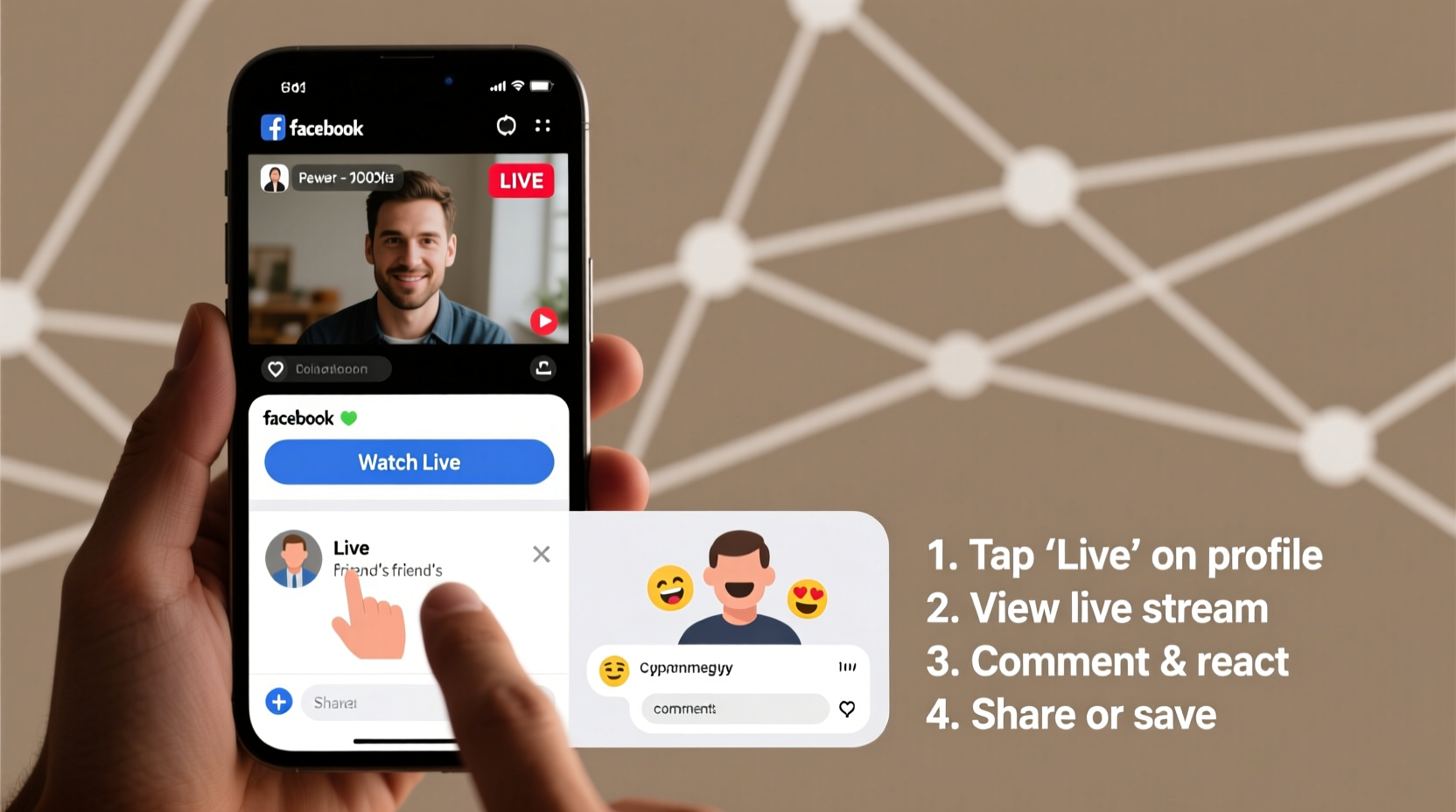
The first step to engaging with live content is discovering it. Facebook surfaces live videos in several places across its platform, both on mobile and desktop.
- Navigate to the News Feed: Open the Facebook app or website and scroll through your feed. When someone you follow goes live, a prominent notification appears at the top of your feed labeled “Live” with a red badge.
- Check the “Videos” Tab: Tap the menu icon (three lines) and select “Videos.” Click “Live” to see all currently broadcasting streams, including those from pages you follow and popular public broadcasts.
- Visit a Profile or Page: If you know a specific person or organization is going live, go directly to their profile. Active live videos appear at the top of their timeline with a red “LIVE” indicator.
- Use Search: Type keywords like “live stream” or the name of an event into Facebook’s search bar. Filter results by “Videos” and look for ongoing live sessions.
- Enable Notifications: To avoid missing future broadcasts, click the bell icon next to a Page or profile. You’ll receive alerts when they go live.
Interacting During a Live Stream
Watching passively is easy—but joining the conversation makes the experience dynamic. Facebook enables multiple forms of real-time interaction during live videos.
- Commenting: Type your message in the comment box below the video. Your comment appears instantly and is visible to others. Creators often read comments aloud and respond in real time.
- Sending Reactions: Long-press the screen (on mobile) or hover over the video (on desktop) to reveal reaction icons—Like, Love, Haha, Wow, Sad, Angry. These appear as animated bursts on screen.
- Sharing the Stream: Tap the share icon to send the live video to friends via Messenger, post it to your story, or share it on your timeline.
- Sending Stars (Monetized Streams): Some creators enable Stars, a paid feature where viewers can send small digital tips. Tap the star icon and choose an amount to support them financially.
“Real-time feedback during live videos increases viewer retention by up to 70% compared to pre-recorded content.” — Sarah Lin, Social Media Strategist at ReachMetrics Inc.
Best Practices for Meaningful Interaction
Engagement is valuable, but thoughtful participation stands out. Here’s how to contribute positively to a live broadcast.
| Do | Avoid |
|---|---|
| Ask relevant questions related to the topic | Spamming links or promotional content |
| Use respectful language and tone | Posting offensive or inflammatory remarks |
| React appropriately (e.g., “Wow” for surprises) | Abusing reactions to flood the screen |
| Tag friends who might be interested | Tagging people excessively or without context |
| Report harmful or inappropriate content | Engaging in arguments or cyberbullying |
Mini Case Study: A Small Business Gains Visibility Through Live Engagement
Jenna runs a handmade candle business and decided to host a weekly “Candle-Making Live” session every Friday evening. Initially, only a few friends tuned in. But after encouraging viewers to comment with scent preferences and reacting to their messages on camera, engagement grew. One viewer commented, “Love the lavender-vanilla mix!”—Jenna turned it into a limited-edition batch named after the commenter. Within two months, her average viewership increased from 15 to over 200 per stream, and sales rose by 45%. The key? Prioritizing two-way interaction over one-way broadcasting.
Post-Live Interaction and Video Availability
Even after a live video ends, your interaction isn’t over. Most live streams are automatically saved to the creator’s timeline or video library unless deleted.
You can:
- Re-watch the full video at any time
- Leave comments on the recorded version
- React to the archived stream
- Share the replay with others who missed it
Many creators review post-live comments to answer unanswered questions or plan future content. Leaving a thoughtful comment on the replay can still get noticed and spark dialogue.
Checklist: How to Fully Engage with a Facebook Live Video
- Open Facebook and check your News Feed or the Videos tab for active live streams.
- Click or tap the video to begin playback.
- Type a friendly greeting in the comments (e.g., “Hi, tuning in from Texas!”).
- React using emojis that match the moment—heart for emotional moments, laughter for jokes.
- Ask a clear, concise question if the host invites input.
- Share the stream with friends or on your story to spread awareness.
- If supported, send Stars to show financial appreciation.
- After the stream ends, rewatch if needed and leave additional feedback.
Frequently Asked Questions
Can I watch a Facebook Live video without others knowing?
Yes. Your presence is not publicly displayed. However, if you comment or react, your name and profile will be visible to others in the stream.
Why can’t I comment on some live videos?
The creator may have disabled comments to manage spam or maintain focus. Alternatively, privacy settings might restrict commenting to specific audiences (e.g., friends only). Try logging in or checking your access permissions.
Do live videos use a lot of data?
Streaming live video consumes data similar to other HD content. On average, one hour of standard-definition live video uses 300–500 MB. For longer streams, connect to Wi-Fi or adjust video quality in Facebook settings under “Media & Contacts.”
Making the Most of Facebook Live
Live video is more than entertainment—it’s a tool for connection, education, and community building. Whether you’re catching up with a distant relative’s travel vlog or learning makeup techniques from a beauty influencer, your ability to view and interact enriches the experience for everyone involved. By following these steps, you’re not just a passive viewer but an active participant shaping the conversation.




 浙公网安备
33010002000092号
浙公网安备
33010002000092号 浙B2-20120091-4
Comments
No comments yet. Why don't you start the discussion?