
In an era where digital convenience comes at a subscription cost, it’s easy to lose track of the recurring charges quietly draining your bank account. From streaming platforms and meditation apps to cloud storage and fitness programs, many of us have signed up for free trials or one-time access—only to forget we were automatically enrolled in monthly billing. If you're an iPhone user, Apple makes it relatively simple to review and cancel these subscriptions directly from your device. The challenge? Knowing where to look, what to do, and how to prevent future oversight.
This guide walks you through identifying hidden subscriptions, canceling them efficiently, and setting up systems to avoid repeating the same mistake. Whether you’ve been charged for a language app you used once or a premium music service you switched from years ago, reclaiming control over your digital spending starts here.
Why Forgotten Subscriptions Are So Common
Subscription fatigue is real. According to a 2023 consumer report by McKinsey, the average American now pays for nearly eight digital subscriptions—up from four in 2019. Many of these begin as free trials or low-cost introductory offers. Once the trial ends, users are often auto-enrolled into full-price plans without clear notification.
iOS apps frequently prompt quick sign-ups using Face ID or Apple ID authentication, making it effortless to agree to terms without reading the fine print. Combine that with infrequent usage—like opening a meditation app only during stressful weeks—and it’s no surprise that people overlook recurring charges.
The result? Silent financial leaks. One study by Truebill found that consumers waste an average of $348 per year on unused subscriptions. For iPhone users, the good news is that Apple centralizes all subscriptions in one place—making cleanup possible in under 15 minutes.
How to Find All Active Subscriptions on Your iPhone
Before you can cancel anything, you need to see everything. Apple consolidates all your active subscriptions—whether they’re for apps, music, cloud storage, or streaming services—in a single settings menu. Here's how to locate them:
- Open the Settings app on your iPhone.
- Tap your name at the top (Apple ID profile).
- Select Subscriptions.
You’ll now see a list of every active subscription linked to your Apple ID. Each entry includes the service name, renewal date, current price, and billing cycle. Tap any subscription to view more details, including whether it renews automatically and if there’s a pending price increase.
If you don’t see a subscription you know you’ve paid for, double-check whether it was purchased outside the App Store (e.g., via a web browser). In those cases, the charge may appear on your credit card statement but won't be managed through iOS. More on handling those later.
What Counts as a Subscription?
Not all recurring charges are labeled \"subscriptions.\" On iPhone, the following fall under the Subscriptions section:
- Streaming services (Netflix, Disney+, Hulu, Spotify Premium)
- Cloud storage upgrades (iCloud+, Dropbox, Google One)
- Fitness and wellness apps (Calm, Headspace, MyFitnessPal Premium)
- Productivity tools (Microsoft 365, Adobe Creative Cloud Mobile)
- Educational platforms (MasterClass, Duolingo Max, Skillshare)
- Gaming passes (Apple Arcade, Xbox Game Pass Mobile)
Anything billed through Apple’s in-app purchase system will appear here. Services billed directly through their websites—even if used on your iPhone—won’t show up unless tied to an App Store purchase.
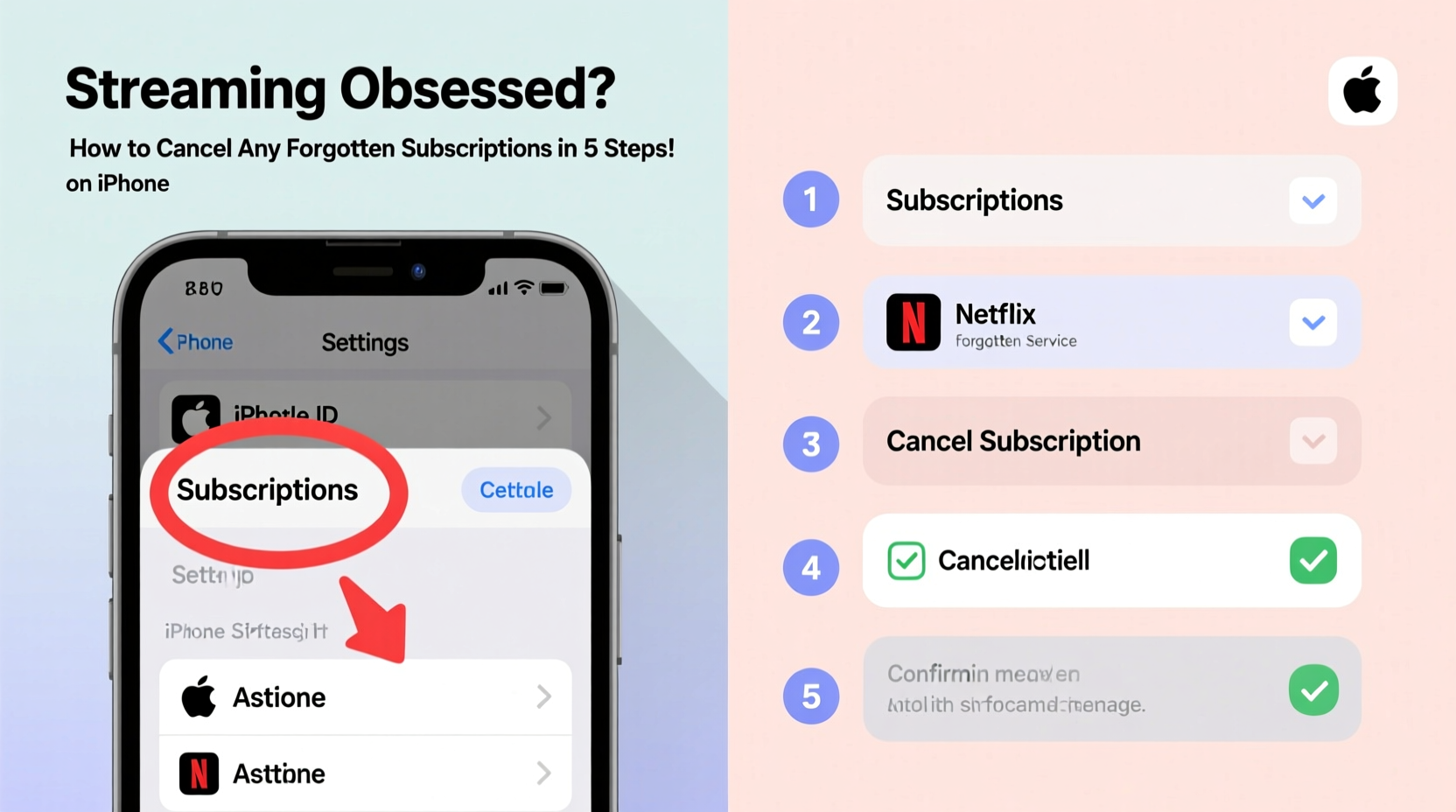
Step-by-Step: How to Cancel a Subscription on iPhone
Cancelling a subscription on your iPhone is straightforward. Follow this timeline to remove unwanted charges quickly:
- Navigate to Settings > [Your Name] > Subscriptions.
- Select the subscription you want to cancel.
- Tap “Cancel Subscription” at the bottom of the screen.
- Confirm your decision when prompted.
After cancellation, you’ll retain access to the service until the end of your current billing cycle. For example, if you cancel a $12.99/month streaming plan on the 10th of the month and your next renewal was set for the 25th, you can still use the service until the 25th—without being charged again.
There is no option to get a refund for the remaining time unless you contact Apple Support and request one under special circumstances (e.g., accidental purchase).
Can You Pause Instead of Cancel?
In some cases, yes. Certain subscriptions allow you to “pause” rather than cancel. This feature lets you suspend billing temporarily while keeping your account and data intact. It’s ideal for seasonal use—like pausing a workout app during vacation.
To check if pausing is available:
- Open the subscription in Settings.
- Look for options like “Skip Renewal,” “Pause Subscription,” or “Turn Off Auto-Renew.”
Note: Pausing isn’t universally supported. Most third-party apps only offer full cancellation through iOS.
Handling Non-App Store Subscriptions
Many services—especially larger platforms like Amazon Prime Video, YouTube Premium, or Hulu with Live TV—are often billed directly through their websites. These won’t appear in your iPhone’s Subscriptions menu because they weren’t purchased via Apple’s in-app payment system.
To identify and cancel these:
- Check your recent bank or credit card statements for recurring charges.
- Note the merchant name (e.g., “Hulu.com,” “Amazon Prime”).
- Visit the service’s website and log in using the email associated with the charge.
- Navigate to Account Settings > Membership or Billing.
- Cancel the subscription manually.
Some companies make cancellation difficult by hiding the option or requiring phone calls. In such cases, consider using a service like DoNotPay or Rocket Money, which automate cancellation requests.
“Most people don’t realize that even if they downloaded an app from the App Store, the subscription might not be managed through Apple if the initial signup happened on a desktop browser.” — Lisa Tran, Consumer Privacy Advocate
Checklist: How to Audit & Cancel Forgotten Subscriptions
Follow this actionable checklist to clean up your digital finances:
- ✅ Open Settings > [Your Name] > Subscriptions on your iPhone.
- ✅ Scroll through each listed service—don’t assume you know what’s active.
- ✅ Tap each subscription to verify its cost, renewal date, and usage frequency.
- ✅ Cancel any service you no longer use or recognize.
- ✅ For non-App Store subscriptions, review your last three credit card statements.
- ✅ Visit each external service’s website to cancel directly.
- ✅ Enable biannual reminders (e.g., January and July) to repeat the audit.
Real Example: Recovering $78 in Unused Charges
Samantha, a freelance designer in Portland, decided to audit her subscriptions after noticing a $128 charge on her monthly bill. She opened her iPhone settings and found five active subscriptions: Apple Music ($10.99), Adobe Creative Cloud ($20.99), a photo editing app she hadn’t opened in months ($9.99), a language-learning platform ($14.99), and a meditation service ($14.99).
She canceled the latter three immediately, saving $39.97/month. Then, she checked her bank statement and discovered two additional charges: a $19.99/month video hosting tool billed through Stripe and a $18.99/year domain renewal via a third-party provider. After logging into both accounts online, she canceled them too.
Total savings: $78.95 per month—over $947 annually. “I didn’t think I had that many,” she said. “But seeing them all in one place made it impossible to ignore.”
Do’s and Don’ts of Subscription Management
| Do | Don’t |
|---|---|
| Use Apple’s centralized subscription manager regularly. | Assume all subscriptions are handled through Apple. |
| Cancel before the renewal date to avoid another charge. | Delete an app thinking it cancels the subscription. |
| Take screenshots of canceled subscriptions for records. | Ignore small charges—they add up over time. |
| Use password managers to store login details for external services. | Share your Apple ID with others, risking unauthorized purchases. |
Frequently Asked Questions
Will I lose access immediately after canceling?
No. You keep full access until the end of your current billing period. For example, if you cancel a monthly plan mid-cycle, you can continue using the service until the next renewal date.
Can I get a refund for unused time?
Generally, no. Apple does not issue automatic refunds for partial months. However, you can contact Apple Support to request a refund, especially if the charge was accidental or the service malfunctioned.
Why doesn’t my subscription show up in the iPhone Subscriptions menu?
It likely wasn’t purchased through the App Store. If you signed up on a desktop browser or used a different payment method (like PayPal), the subscription won’t appear in iOS settings. Check your email for confirmation messages or review your bank statements to identify the source.
Preventing Future Subscription Overload
The key to avoiding repeated clutter is proactive management. Consider these long-term strategies:
- Use Apple’s Purchase Ask-to-Buy Feature: Under Family Sharing, enable “Ask to Buy” for yourself or dependents to require approval for new subscriptions.
- Set Up Spending Alerts: Link your Apple ID to budgeting apps like Mint or YNAB to flag recurring charges.
- Stick to One Payment Method: Use a dedicated debit card or virtual credit card for digital subscriptions so you can monitor them easily.
- Audit Quarterly: Mark your calendar every three months to revisit Settings > Subscriptions.
Also, reconsider the value of free trials. While tempting, they often lead to unintended commitments. If you’re testing a service, set a phone reminder for two days before the trial ends to decide whether to continue.
Final Thoughts: Take Control of Your Digital Spending
Being “streaming obsessed” doesn’t mean you have to stay financially entangled in services you no longer enjoy. With a few taps on your iPhone, you can uncover and eliminate subscriptions that have been silently accumulating for months—or even years. The process takes less time than signing up did in the first place.
More importantly, establishing a habit of regular review empowers you to spend intentionally. Every dollar saved from an unused subscription is a dollar redirected toward something that truly matters—whether that’s travel, savings, or simply peace of mind.




 浙公网安备
33010002000092号
浙公网安备
33010002000092号 浙B2-20120091-4
Comments
No comments yet. Why don't you start the discussion?