
For over a decade, Gmail has dominated personal and professional inboxes with its clean interface, smart filters, and seamless integration with Google Workspace. But as workplace collaboration tools evolve, many users are reconsidering their email platform—especially those embedded in Microsoft ecosystems. Outlook, long associated with corporate environments, has matured into a robust communication and productivity hub. Yet, despite its capabilities, the shift from Gmail to Outlook often comes with hesitation. Is the learning curve too steep? Does the payoff justify the time investment?
The answer isn't universal—it depends on your workflow, organizational environment, and long-term digital strategy. For some, the switch unlocks deeper integration with calendars, tasks, and enterprise systems. For others, it introduces complexity without clear benefit. This article breaks down the realities of transitioning from Gmail to Outlook, evaluates the trade-offs, and provides actionable guidance for making an informed decision.
Understanding the Core Differences
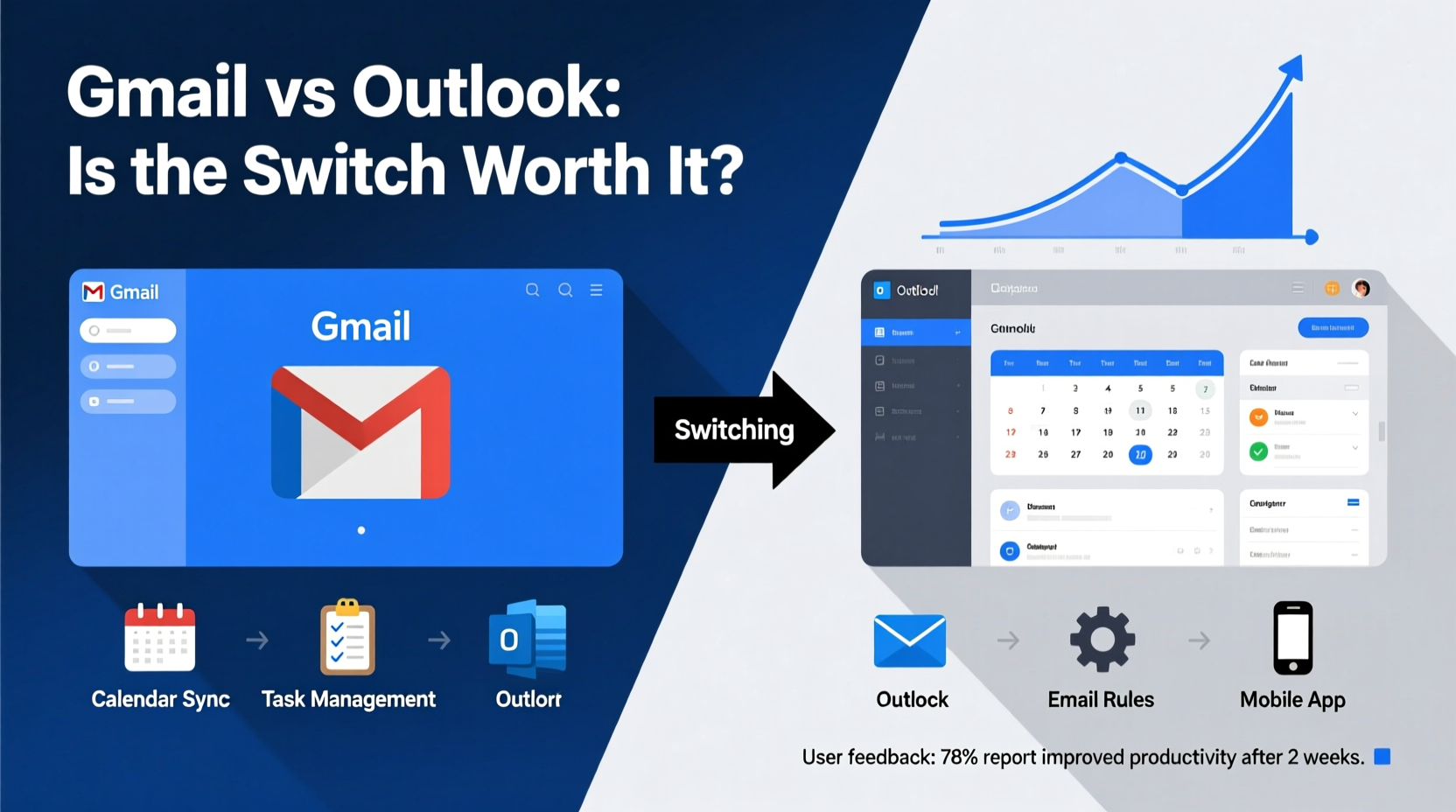
Gmail and Outlook serve the same fundamental purpose: managing email. However, their philosophies diverge significantly in design, functionality, and ecosystem alignment.
Gmail emphasizes simplicity, speed, and AI-driven organization. Its minimalist layout prioritizes inbox zero through labels, filters, and automatic categorization (Primary, Social, Promotions). Search is powerful, and integration with Google Calendar, Drive, and Meet feels native and intuitive.
Outlook, by contrast, positions itself as a unified workspace. It combines email, calendar, contacts, tasks, and notes into a single application. While this consolidation offers efficiency for heavy users, it also introduces visual density and a steeper initial learning curve. Features like message flagging, rules-based sorting, and folder hierarchies appeal to structured workflows but can overwhelm users accustomed to Gmail’s flat, label-based system.
The divergence becomes even more pronounced when considering platform use. Gmail excels in browser-first and mobile experiences. Outlook shines in desktop applications, particularly within Windows and Microsoft 365 environments. If your organization uses Teams, SharePoint, or Exchange Server, Outlook isn’t just convenient—it’s often essential.
When the Switch Makes Strategic Sense
Moving from Gmail to Outlook isn’t inherently better—but it can be smarter under certain conditions. Consider these scenarios where the transition delivers tangible returns:
- Corporate IT mandates Outlook. Many enterprises standardize on Microsoft 365 for security, compliance, and administrative control. In such cases, using Gmail—even via third-party clients—can limit access to shared calendars, internal directories, and encrypted messaging.
- You rely heavily on desktop productivity tools. If you spend hours in Word, Excel, or PowerPoint, Outlook’s deep integration allows seamless attachment, meeting scheduling, and task delegation without context switching.
- Your workflow involves complex scheduling. Outlook’s calendar features—like room booking, attendee tracking, and meeting templates—are more advanced than Google Calendar’s offerings, especially in team settings.
- You manage high-volume email with strict prioritization. Outlook’s rules engine lets you automate sorting, flagging, and deletion far beyond Gmail’s filter capabilities. Power users handling hundreds of messages daily often find Outlook’s structure indispensable.
“Outlook becomes a force multiplier when used alongside other Microsoft apps. It’s not just email—it’s a command center for work.” — David Lin, IT Director at a mid-sized financial firm
Comparing Key Features: Gmail vs. Outlook
| Feature | Gmail | Outlook |
|---|---|---|
| User Interface | Clean, minimal, mobile-first | Dense, feature-rich, desktop-optimized |
| Organization | Labels and categories | Folders and rules |
| Search Capabilities | Fast, AI-enhanced, natural language | Powerful but less intuitive syntax |
| Calendar Integration | Tight with Google Calendar | Superior group scheduling, resource booking |
| Task Management | Limited (via Google Tasks) | Robust (To-Do, flagged emails, reminders) |
| Offline Access | Basic (browser cache) | Full offline mode in desktop app |
| Security & Compliance | Strong consumer-grade protection | Enterprise-grade encryption, DLP, audit logs |
| Learning Curve | Low – intuitive for most users | Moderate to high – requires training |
The table highlights a key insight: Gmail wins on ease of use and accessibility, while Outlook leads in depth and control. The choice hinges on whether you prioritize frictionless communication or structured, scalable workflow management.
A Real-World Transition: Case Study
Sarah Kim, a project manager at a regional logistics company, used Gmail exclusively for eight years. Her team relied on Google Workspace for documents and video calls. When her company migrated to Microsoft 365 for enhanced security and reporting tools, Sarah was required to switch to Outlook.
Initially resistant, she found the interface overwhelming. “I missed the simplicity of Gmail’s inbox view,” she recalls. “Suddenly, I had folders, ribbons, and a sidebar full of things I didn’t understand.”
But after two weeks of guided training and personal experimentation, her perspective shifted. She began using Outlook’s “Focused Inbox” to separate priority messages, created rules to auto-sort client inquiries, and leveraged calendar overlays to track cross-functional deadlines. Most impactful was the ability to convert emails into tasks with due dates synced to her Microsoft To-Do list.
“Within a month, I was saving at least three hours a week,” Sarah says. “The learning curve was real, but the long-term efficiency gain made it worthwhile.”
Her experience underscores a common pattern: short-term discomfort followed by long-term productivity gains—provided users invest time in mastering core features.
Navigating the Learning Curve: A Step-by-Step Guide
If you decide to make the switch, a structured approach minimizes frustration and accelerates adaptation. Follow this timeline to ensure a smooth transition:
- Week 1: Set Up and Sync Accounts
Install Outlook desktop app or access web version. Import your Gmail account via IMAP or migration tool. Ensure contacts, signatures, and existing filters are transferred or recreated. - Week 2: Master the Interface
Spend 15–20 minutes daily exploring the ribbon menu, navigation pane, and view settings. Learn how to switch between Mail, Calendar, People, and Tasks. Customize the Quick Steps toolbar for frequent actions. - Week 3: Rebuild Organizational Habits
Replace Gmail labels with Outlook folders or categories. Create rules to automatically sort incoming mail (e.g., move newsletters to a “Read Later” folder). Use color coding and flags for follow-ups. - Week 4: Integrate Calendar and Tasks
Schedule recurring meetings, set up meeting invites with attachments, and link action items from emails to your task list. Practice using the “Scheduling Assistant” for group coordination. - Ongoing: Optimize and Automate
Explore advanced features like Outlook Add-ins, conditional formatting, and archive policies. Consider keyboard shortcuts to boost speed.
Checklist: Preparing for Your Gmail-to-Outlook Migration
- ✅ Confirm compatibility with your email provider (Exchange, IMAP, POP3)
- ✅ Backup Gmail data using Google Takeout
- ✅ Set up Outlook on one device first before full rollout
- ✅ Recreate important filters as Outlook rules
- ✅ Migrate or sync contacts and calendar events
- ✅ Configure spam and phishing protection settings
- ✅ Test sending, receiving, and calendar invites
- ✅ Train yourself on at least five key shortcuts (e.g., Ctrl+Shift+M for new message)
Common Pitfalls and How to Avoid Them
Many users abandon Outlook after a poor first impression. Often, the issue isn’t the software—it’s the approach. Here are frequent missteps and solutions:
- Pitfall: Trying to replicate Gmail exactly.
Outlook doesn’t work like Gmail—and that’s okay. Instead of forcing labels, embrace folders and categories. Use search instead of endless scrolling. - Pitfall: Ignoring desktop vs. web differences.
Outlook Desktop offers full functionality; the web version lacks some automation tools. Prioritize the desktop app if available. - Pitfall: Overlooking mobile setup.
The Outlook mobile app is excellent but requires separate configuration. Enable push notifications and swipe gestures for efficiency. - Pitfall: Skipping training resources.
Microsoft offers free tutorials and templates. Invest two hours in official guides—you’ll save dozens later.
Frequently Asked Questions
Can I keep using Gmail while accessing my Outlook account?
Yes, you can add your Outlook/Exchange email to Gmail via IMAP, but functionality will be limited. You won’t get full calendar sync, meeting updates, or advanced security features. For optimal performance, use Outlook as your primary client if you’re on Microsoft 365.
Is Outlook more secure than Gmail?
Both platforms offer strong security, including two-factor authentication and encryption. However, Outlook integrated with Microsoft 365 provides additional enterprise controls like Data Loss Prevention (DLP), sensitivity labeling, and compliance archiving—making it preferable for regulated industries.
Will I lose my old emails when switching?
No—if you migrate properly. Use Google Takeout to export your Gmail data, then import it into Outlook. Alternatively, configure both accounts in Outlook to access them side by side during transition.
Final Verdict: Is It Worth the Effort?
The learning curve from Gmail to Outlook is real, but rarely insurmountable. For casual users who value simplicity and mobility, Gmail remains the superior choice. But for professionals embedded in Microsoft ecosystems, managing complex schedules, or handling high-stakes communication, Outlook’s depth and integration deliver measurable advantages.
The transition isn’t about which tool is objectively better—it’s about alignment with your environment and goals. If your organization runs on Microsoft 365, resisting Outlook may cost you efficiency, collaboration, and visibility. Conversely, adopting Outlook without a clear need adds unnecessary complexity.
Ultimately, the investment in learning Outlook pays off when it becomes an extension of your workflow—not just an inbox, but a productivity engine. With deliberate practice and strategic customization, the initial friction fades, replaced by a more controlled, efficient way to manage information.




 浙公网安备
33010002000092号
浙公网安备
33010002000092号 浙B2-20120091-4
Comments
No comments yet. Why don't you start the discussion?